Connecting to Usenet Newsgroups with Outlook Express
On this page:
Notes:
- See Configuring Your Email Program for instructions on how to configure Outlook Express or Outlook to work with Stanford's email service.
- See Usenet Newsgroups for more information about using newsgroups at Stanford.
- Although the following instructions were written for Outlook Express, the steps are the same for Windows Mail (in Windows Vista). However, the screens will look different.
Connecting to Newsgroups from Work
- On the Tools menu, click Accounts.
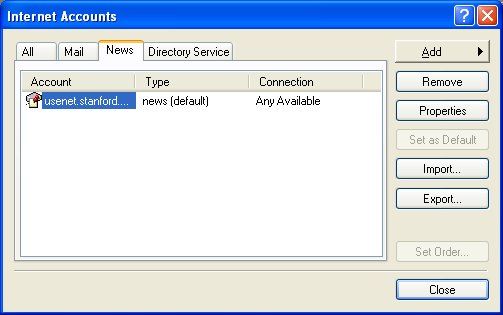
- When the Internet Accounts dialog box is displayed, click the News tab.
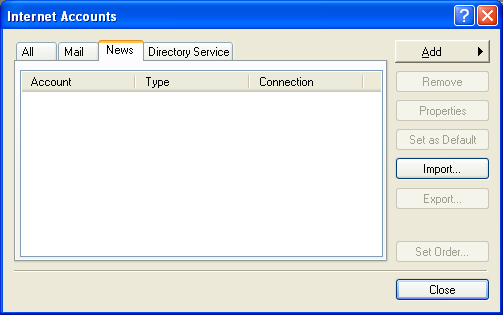
- Click the Add button and select News from the list. An Internet Connection Wizard will guide you through the process of setting up your
connection.
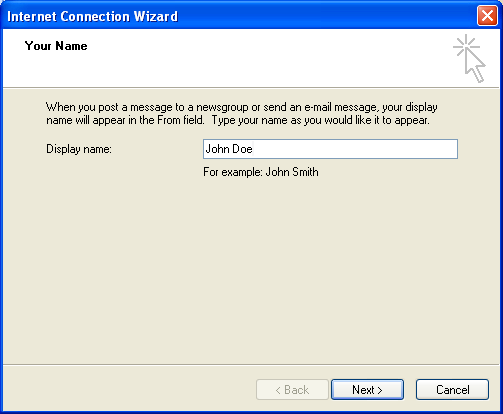
- Enter your name, if it is not already filled in, and then click Next.
- For your Internet news email address, enter your Stanford email address. Then, click Next.

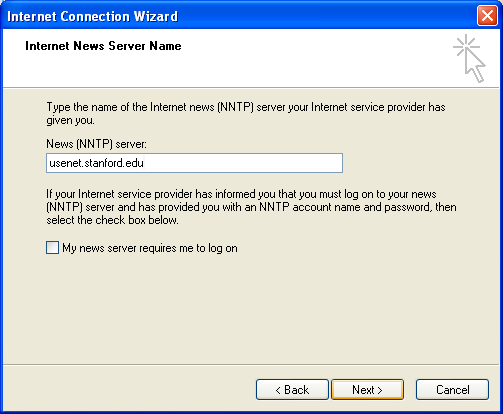
- Enter the following Internet news server name settings and then click Next to continue:
- News (NNTP) server: usenet.stanford.edu
- My news server requires me to log on: unchecked
- Click Finish to save your settings.
- Click Close to close the Internet Accounts dialog box
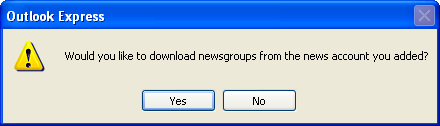
- Click Yes to download the Stanford newsgroups.
- To subscribe to a newsgroup, select the newsgroup and then click Subscribe.
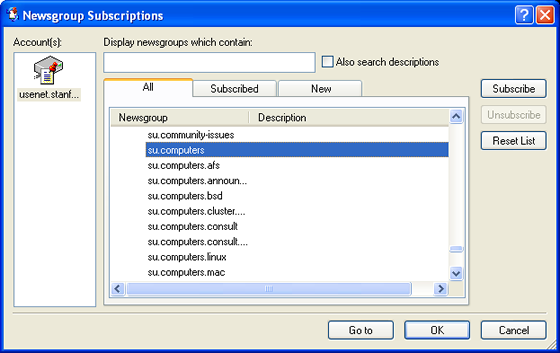
- When you have finished selecting newsgroups to which you wish to subscribe, click OK.
Connecting to Newsgroups from Home
Note: If you have difficulty connecting to the Stanford Newsgroups server from a corporate office, submit a HelpSU request for assistance.
- On the Outlook Express Tools menu, click Accounts.
- When the Internet Accounts dialog box is displayed, click the News tab.
- Click the Add button and select News from the list. An Internet Connection Wizard will guide you through the process of setting up your
connection.
- Enter your name, if it is not already filled in, and then click Next.
- For your Internet news email address, enter your Stanford email address. Then, click Next.
- Enter the following Internet news server name settings and then click Next to continue:
- News (NNTP) server: usenet.stanford.edu
- My news server requires me to log on: checked
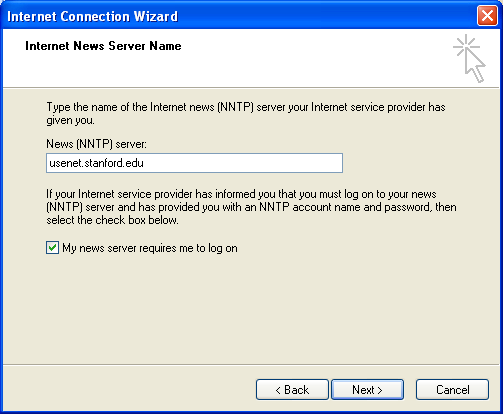
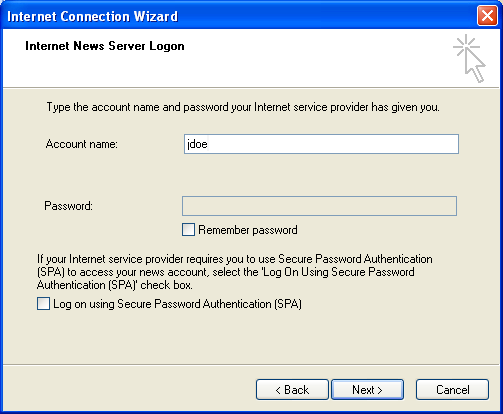
- Enter the following Internet news server logon settings and then click Next to continue:
- Account name: your SUNet ID
- Password: blank
- Remember password: unchecked
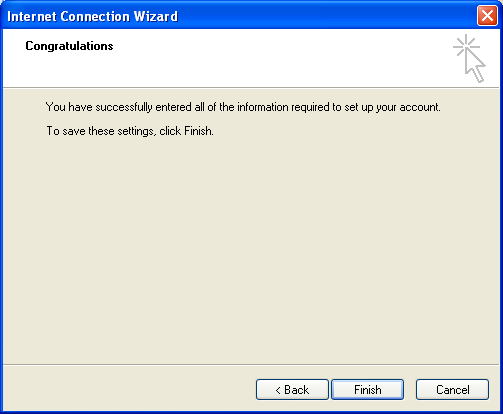
- Click Finish to save your settings.
- Select the news account that you just added and click the Properties button.
- Click the Advanced tab and check the box for This server requires a secure connection (SSL).
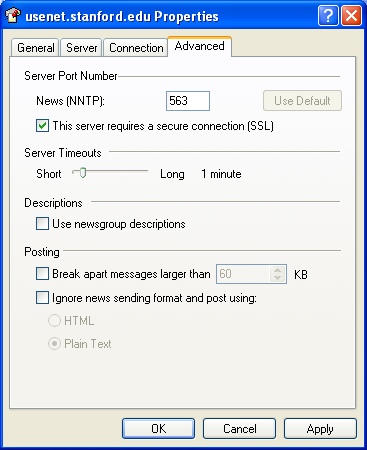
- Click OK to close the Properties dialog box.
- Click Close to close the Internet Accounts dialog box
- Click Yes to download the Stanford newsgroups.
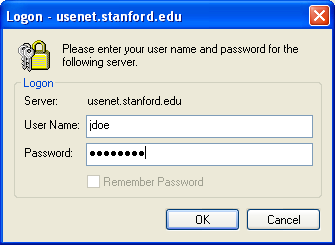
- When prompted, enter your SUNet ID in the Password field and click OK. Leave the Remember Password box unchecked; otherwise your SUNet ID password will be stored on your computer.
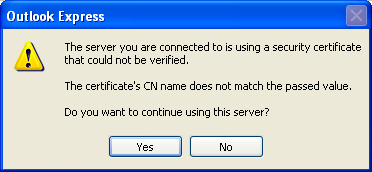
- If you get a message asking whether you want to continue using the server, click Yes.
- To subscribe to a newsgroup, select the newsgroup and then click Subscribe.
- When you have finished selecting newsgroups to which you wish to subscribe, click OK.
Last modified Tuesday, 18-Aug-2009 02:15:49 PM