Computer Applications Show and Tell
Coordinator: Andy Lin
Center for Applied Rehabilitation Technology
Downey, CA
562/882-3664
alin -at- dhs.lacounty.gov
Accommodation for Volunteer with
Traumatic Brain Injury
Jamie Arasz Prioli, RESNA ATP
Consultant
4 Morey Lane
Brick, NJ 08723
732/331-5379
japrioli -at- gmail.com
Situation
Mary is a 45-year old female diagnosed with traumatic brain injury. Her brain
injury is a result from an automobile accident. Short-term memory is affected
and learning new skills is demanding. Mary is predominantly right-handed,
though her right arm and hand are both weaker than the left. She tires easily,
often requiring a break after 30 minutes of any task.
Mary is currently unemployed, but recently decided she wants to volunteer at
her small church performing office work. Church staff is supportive of her
desire to volunteer and are willing to assist as needed.
The Job
Mary works on a shared desktop computer configured with Windows XP, Microsoft
Office Word 2007, a standard keyboard and standard mouse. She volunteers two -
three hours per week typing letters for office staff. One reminder letter is
for individuals attending pre-marriage classes; another reminder letter is for
individuals serving as “greeters”. Staff provides Mary with a list
labeled as “pre-marriage” or “greeters”. Each list contains
the name, address, and reminder date for each letter.
Factors Affecting Job Access
Mary is predominantly right-handed, but demonstrates weakness and slower
typing. She does not want to learn left-handed typing. She tires easily and
must take a short break after 30 minutes of work.
The computer setup is setup as a single-user workstation (administrator).
Due to shortterm memory problems, she often forgets how to open Word. Although
a general template is available, Mary often forgets how to access the two most
frequently used forms, resulting in excessive time “wandering” around
the computer.
Solution
First action was to add a second user (Mary) to the computer station. When Mary
arrives to work she logs into the system and is more comfortable seeing a
concrete desktop screen whenever she is ready to start her task.
All extra desktop shortcuts were removed to reduce confusion. Four main
shortcuts are now present on the desktop: MS Word, BigTime (timer), a template
called “pre marriage” and a template called “greeter”. Mary
is able to identify which template is appropriate according to which list is
provided to her by office staff.
To increase productivity, BigTime (www.hahntech.com) was added to the
desktop as a countdown tool. BigTime is a simple to use countdown / count up
timer with voice announcements and simple features (Start, Stop, and Reset).
The voice reminder starts prompting at five-minutes and provides an auditory
cue that Mary needs to prepare for a short break. The application is not
overwhelming for Mary, and she is able to set the countdown timer for 20
minutes, take a short break, and then resume working.
Although her right hand is weaker, Mary is determined to continue typing as
she always has (five-finger). To reduce strain and extra movement, a Kensington
Expert Mouse ®Trackball now replaces the standard mouse. Not only does Mary
successfully access the trackball, but staff also enjoys using the trackball
versus the mouse. The trackball is now a standard device for all to use at the
workstation.
Results
After five sessions (7 hours) Mary is now able to independently access two
templates used to type reminder letters. She is able to independently set and
reset a countdown timer that serves as a reminder tool to take frequent breaks,
increasing her ability to work with less fatigue. The new trackball allows Mary
to work with less strain on her arm/hand.
Prior to customizing the desktop for ease of use, Mary was able to type six
letters per hour. Now that templates are within easy access and she is working
with a countdown timer, Mary is able to produce ten letters per hour. She is
able to monitor her breaks and stops before becoming excessively tired.
Now that Mary is more comfortable accessing her templates on the computer,
office staff plans to increase Mary’s work as long as it is not
overwhelming for her.
Cost
The cost for training Mary and customizing the desktop was approximately $500.
The cost for a new trackball was approximately $99, and the BigTime time was $0
(freeware).
Complete cost to accommodate the volunteer: $599. Funding was provided by
the state Traumatic Brain Injury Fund.
Custom Tools to Assist a Person with a
Brain
Injury that Anyone Can Benefit From
Ray Grott, MA, ATP, RET
RET Project
San Francisco State University
415/338-1333
415/338-1501 fax
rgrott -at- sfsu.edu
This project was designed to assist a person with a brain injury who was
employed as a rehabilitation counselor. He was in danger of losing his job
because he could not keep up with the many consumers he was working with and
kept missing key deadlines and milestones. Writing case notes, requesting
purchases, and sending letters was taking up too much of his time.
Project management software was explored but was too complicated for him.
Since he was comfortable with Microsoft Excel, I developed a spreadsheet for
tracking the milestones of each consumer as they progressed through the
creation and implementation of their employment plan. Target dates were
calculated automatically from the date of first entry. Carefully utilizing
Excel's conditional formatting feature, these cells would turn yellow within 10
days of the due date and red on the due date and thereafter, until a
"completed" box was checked. Checking a "30-day extension"
box would reset the dates and coloring accordingly.
This person created sample documents for case notes and letters, but these
included all the possible options, vendors, etc. and notes to himself in
different colors. He would then go through and delete all but the desired
information. Using a product called ShortHand, I created a number of scripts
that would present him with pre-set questions to answer and lists to select
from. After he moved through the prompts, it would generate the full text. This
software was also used as an abbreviation-expansion tool for entering names and
telephone numbers in a telephone log.
Two Methods for Triggering Macro Express
Scripts with NaturallySpeaking
Copyright © Alan Cantor 2008. All rights reserved.
Alan Cantor
Cantor Access Inc.
alan -at- cantoraccess.com
416/406-5098
Background
I tested two methods for triggering Macro Express scripts via NaturallySpeaking
while voice-enabling a complex application as part of a workplace
accommodation. The application, which is web-based and runs in Internet
Explorer, consists of approximately 30 pages, each page with up to twenty
fields and 25 hypertext links. Built-in NaturallySpeaking commands for
interacting with form elements do not work reliably or, on many pages, do not
work at all due to HTML and JavaScript problems.
The problem
Initial attempts to use the scripting language built into NaturallySpeaking
Professional Edition to develop custom commands were promising. But as the
scripting project became more complex, two difficulties were encountered:
Commands that send more than eight or ten keystrokes execute slowly.
(Some of the commands send 30 or more keystrokes.)
A NaturallySpeaking 9.x “bug” makes it difficult to script
certain commands. To reduce the need to memorize commands, I chose command
names that exactly matched field labels. For example, saying “First
Name” navigates to the “First Name” field. Although most labels
appear only once in the application, 40 appear two or more times. The
straightforward way to script commands with identical names is to make them
window-specific. The scope (availability) for a command is restricted to the
window in which the command is active. Unfortunately, the NaturallySpeaking 9.5
MyCommands Editor prohibits duplicate command names for Internet Explorer
windows. Although creating two or more commands that share a name is possible,
coding them is not simple.
The workaround to both problems was to script NaturallySpeaking commands
that trigger Macro Express scripts. The Macro Express "Text Type"
command outputs keystrokes significantly faster than the NaturallySpeaking
"SendKeys" command.
Furthermore, setting the scope to Internet Explorer windows is
straightforward and reliable with Macro Express.
I experimented with two ways for NaturallySpeaking to trigger Macro Express
scripts: (1) NaturallySpeaking sends keystrokes to launch a Macro Express
hotkey macro; (2) NaturallySpeaking activates a shell command to launch a Macro
Express macro. In theory, the first method should execute more quickly, and the
second method should be more reliable. In practice, both methods worked equally
well.
Code samples
Use NaturallySpeaking Professional edition to trigger a Macro Express script
nicknamed “test 1” and activated by Ctrl + Alt
+ T:
Hotkey method
Sub Main
' Note: ^=Control, %=Alt, +=Shift
SendKeys "^%t"
End Main
Shell command method
Sub Main
' Note: Use /A switch before Macro Express
nickname
ShellExecute
"[macro_express_folder_path]\meproc.exe /Atest 1"
End Main
An Interactive Macro to Automate the
Downloading
of Digitized Articles
Copyright © Alan Cantor 2008. All rights reserved.
Alan Cantor
Cantor Access Inc.
alan -at- cantoraccess.com
416/406-5098
The client
The client is a full-time journalist and part-time graduate student. She reads
voraciously for her work, studies, and personal enjoyment.
Her disability is low-vision. She also has computer-induced repetitive
strain injuries. Her preferred way to read magazine and newspaper articles is
to download them from the CNIB (Canadian National Institute for the Blind)
Digital Library into a specific folder, rename the files, and upload them to a
portable reading device.
Difficulties
She experiences difficulties downloading articles because
- Default file names do not reflect the content of the articles.
- Default file names do not effectively reflect how the files relate to one
another — which publication, volume or issue number; or whether the files
are articles or letters to the editor.
- Web pages have extraneous links between the links to the articles. The
number of extra links varies, but usually is constant for each individual page
on the website.
- The act of downloading articles one-by-one is time-consuming and requires
high levels of dexterity and concentration.
Solution
I developed an interactive Macro Express script to automate the downloading of
related articles. When the client presses a hotkey, the macro prompts her to
key in:
- The number of articles to download
- The number of tabs between links
- The name of the publication
- A description of the publication e.g., date, volume, or issue.
For each article, the macro sends keystrokes to download a file and assign
it a three-part file name:
Publication - Two-digit article number - Description
After each download, the script increments the article counter and sends the
exact number of tabs to reach the next article link. All articles are
downloaded to in a folder in this form:
New York Times - 01 - June 2008.html
New York Times - 02 - June 2008.html
New York Times - 03 - June 2008.html
etc.
Cost
The cost to develop the macro was about $100 plus the cost of Macro Express,
which the client already owned.
Screen Reader Friendly “Find”
Commands
for Microsoft Word
Copyright © Alan Cantor 2008. All rights reserved.
Alan Cantor
Cantor Access Inc.
alan -at- cantoraccess.com
416/406-5098
Client
The client is a trial lawyer who is blind. His primary access technology is
JAWS. He prepares notes in Microsoft Word, and refers to them frequently while
in court. (He wears a headset to avoid disturbing the court.)
His preferred way to navigate through trial notes is to use the
“Find” command. To refresh his memory or add comments about a
particular subject, he searches for a word or phrase, and uses Word and JAWS
navigation commands to zero in on the relevant part of the document.
Problems with built-in Find commands
The “Find” command in Microsoft Word is not particularly screen
reader friendly:
After initiating a search, the “Find and Replace” dialog box
must be closed before continuing.
After closing the “Find and Replace” dialog, the found string
is selected. JAWS does not report that it is selected, and on occasion, the
client starts typing and inadvertently deletes the selection.
Changing the search direction is awkward: Press Ctrl + F, type a search string, tab to the
“More…” button (first time only), tab to the “Search”
drop-down list, change the option to either “Down” or “Up,”
and press “Enter.”
The default hotkey for “Repeat Find,” Shift + F4, is cumbersome. To locate
F4, the client lifts his left hand from the
keyboard, landmarks on Esc, and counts four keys
to the right. In addition, he must ensure he is not pressing
Ctrl or Alt instead
of Shift. (Ctrl + F4
closes the document, Alt + F4 exits Microsoft
Word.)
Solution
I used Visual Basic For Applications (VBA), the built-in macro language in
Microsoft Word, to develop three new find commands: one that searches forward,
one that searches backward, and one that repeats the previous search.
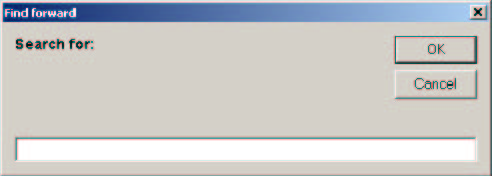
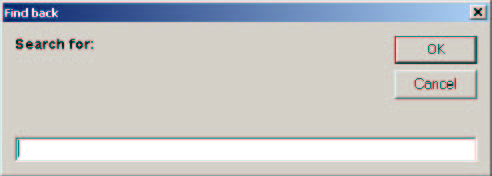
Figure 1: “Find forward” and “Find
back” dialog boxes
I mapped “Find back” to Ctrl + comma, “Find forward” to
Ctrl + period, and “Find again” to Ctrl + /. The three keys are
side-by-side and easily located without lifting the hands from the keyboard.
JAWS automatically reads the search direction (from the title bar) when
initiating a search. After entering a string and pressing Enter, the dialog box
closes. If the string is found, it is not selected. Instead, the cursor is at
the end of the found text when searching forward, or at the beginning when
searching backward.
The client says of the new commands: “I now use three customized
macros… that let me zero in on information in half the time using a
quarter of the keystrokes.”
Time to develop
About 2.5 hours
RE-PSG homepage
SIGs and
PSGs
RESNA homepage
|