For this project, you will bring the Baby Names data to life.
When Python is installed on a machine, it includes the venerable "TK" graphics systems via the "tkinter" module. It can create graphical windows, buttons etc. on screen - the graphical user interface (GUI). We provide the code that sets up the GUI. That code is not very interesting. TK is a very old system, so the code to set it up is kind of archaic too, but it works fine for our purposes. To learn modern GUI techniques, you could take CS108 or CS142. Search for the word "pass" to scroll past the GUI code to the data handling and drawing functions you need to complete.
The main() code is provided in babygraphics.py. The main() function calls your babynames.read_files() function to read in the names data. The challenge on this assignment is providing an interactive GUI for the baby data. Run the program from the command line in the usual way.
$ python3 babygraphics.py
Without adding any code, running babygraphics.py should load the baby data, and display a largely empty window which waits for you to type something. The provided code takes care of setting up the GUI elements, and detecting when the return-key is typed to call your search and draw functions. Click in the search field, type "arg" and hit return. The provided handle_search() functions calls your babynames.search_names() function, and pastes the result into the window. Those functions were called to print output in the terminal for HW 6a. Here, the GUI code calls the exact same functions, but puts the output in the GUI.
Syntax: here is the key line in handle_search(), showing the syntax that calls your search_names() function from HW6a:
    ...
    # Call the search_names function in babynames.py
    result = babynames.search_names(names, target)
    ...
Milestone a: you can run the program and see the results of searches like "aa" and "arg" in the GUI.
Here are constants for the use in the babygraphics algorithms. The number of years of data is given by len(YEARS).
# Provided constants to load and draw the baby data
FILENAMES = ['baby-1900.txt', 'baby-1910.txt', 'baby-1920.txt', 'baby-1930.txt',
             'baby-1940.txt', 'baby-1950.txt', 'baby-1960.txt', 'baby-1970.txt',
             'baby-1980.txt', 'baby-1990.txt', 'baby-2000.txt', 'baby-2010.txt',
             'baby-2020.txt']

YEARS = [1900, 1910, 1920, 1930, 1940, 1950, 1960, 1970, 1980, 1990, 2000,
         2010, 2020]
SPACE = 20
COLORS = ['red', 'purple', 'green', 'blue']
TEXT_DX = 2
LINE_WIDTH = 2
MAX_RANK = 1000
The draw_fixed() function draws the fixed lines and text behind the data lines. It is called once from main() to set up the window initially, and then again whenever the graph is re-drawn. When draw_fixed() runs, the canvas is some width/height in the window. The provided code retrieves those numbers from the canvas for use by the subsequent lines.
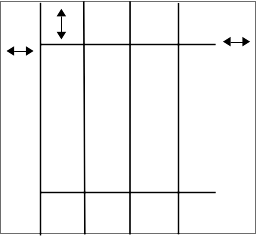
Draw the year grid as follows. All of these drawings are in black: The provided constant SPACE=20 defines an empty space which should be reserved at the 4 edges of the canvas. Draw a top horizontal line, SPACE pixels from the top, and starting SPACE pixels from the left edge and ending SPACE pixels before the right edge. Draw a bottom horizontal line SPACE pixels from the bottom edge, and SPACE from the left and right edges. For this project, we will not be picky about +/- 1 pixel coordinates in the drawing.
Here is a diagram of the line spacing for draw_fixed(). The outer edge of the canvas is shown as a rectangle, with the various lines drawn within it. Each double-arrow marks a distance of SPACE pixels.
In the GUI, the text field takes up the top of the window, and the canvas is a big rectangle below it. Then the search text field is at the bottom of the window below the canvas.
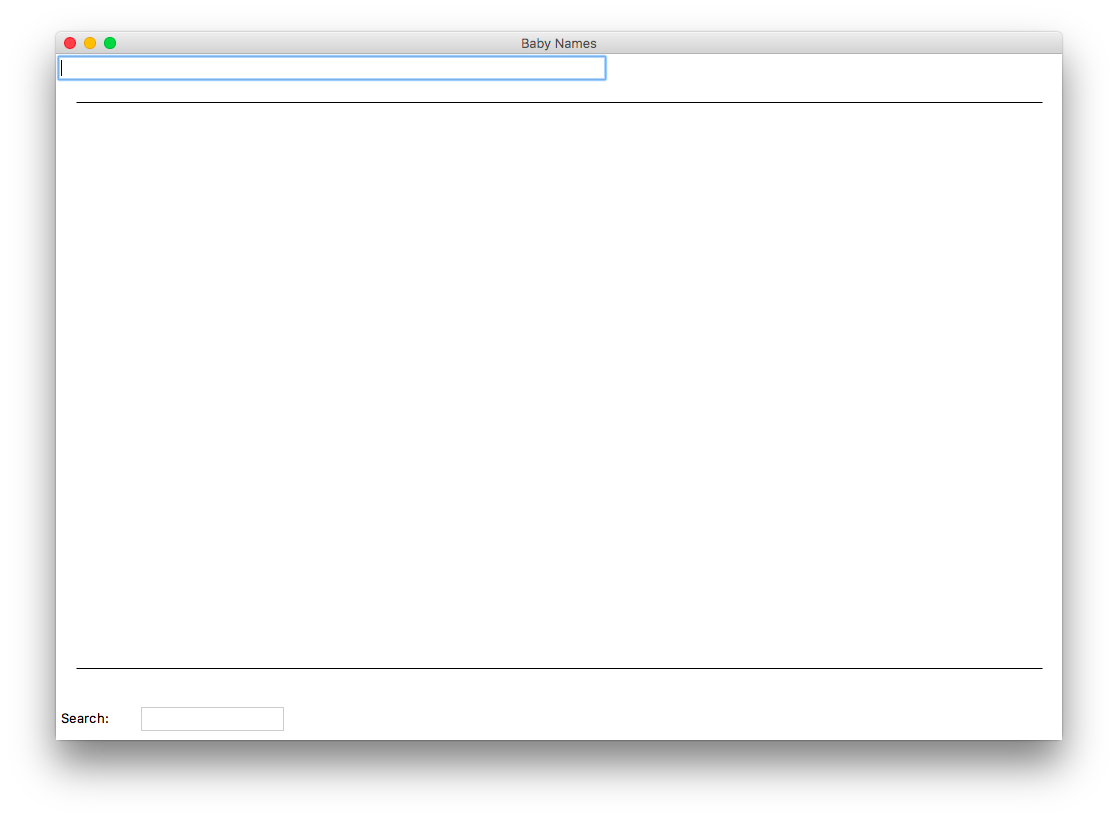
The provided constant YEARS lists the int years to draw. In draw_fixed(), draw a vertical "year" line for each year in YEARS. The first year line should be SPACE pixels from the left canvas edge. The year lines should touch the 2 horizontal lines, spaced out proportionately so each year line gets a roughly equal amount of empty space to its right on the horizontal lines. Vertically, the year lines should extend all the way from the top of the canvas to its bottom.
The trickiest math here is computing the x value for each year. Decompose out a short helper function year_index_x() to compute the x coordinate in the canvas for each year index: 0 (the first year), 1, 2, .... len(YEARS)-1 (the last year). Note: using index numbers like 0 and 1 here, not the year numbers like 1900 and 1910.
The two functions draw_fixed() and draw_name() need to agree exactly on the x coordinate for each year. By calling year_index_x() to figure the needed x value, they are perfectly in sync. Doctests are not required. The vertical lines should be spread evenly across the width (vs. the strategy where all the years have the same int sub_width).
This project uses the Python's built in "TK" drawing system, which has very similar drawing functions to what we've seen before. The drawing functions truncate coordinates from float to int internally, so you can do your computations as float. The function to draw a black line in TK is:
canvas.create_line(x1, y1, x2, y2)
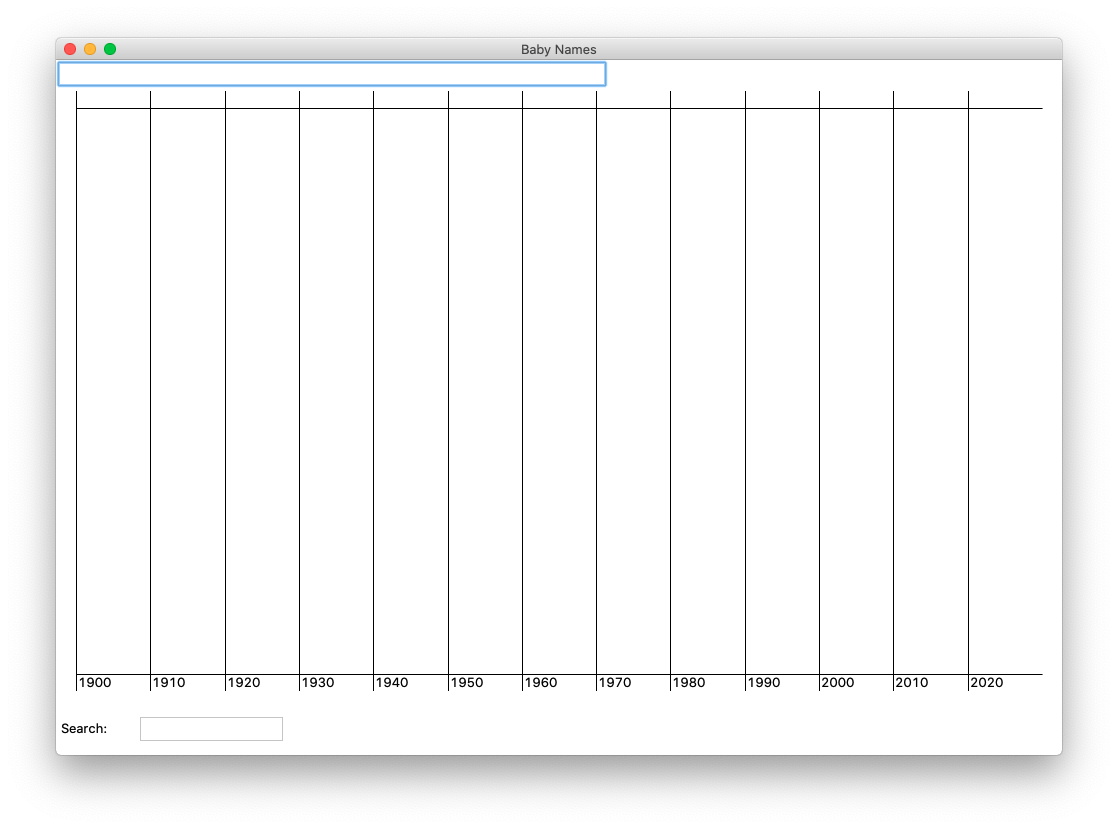
At a point TEXT_DX pixels to the right of the intersection of each vertical line with the lower horizontal line, draw the year string. The TK create_text() function shown below will draw the 'hi' string with its upper left corner at the given x/y. The constant tkinter.NW indicates that the x,y point is at the north-west corner relative to the text.
canvas.create_text(x, y , text='hi', anchor=tkinter.NW, fill='red')
The optional parameter fill='red' specifies a color other than the default black for the TK functions like create_line() and create_text().
By default, main() creates a window with a 1000 x 600 canvas in it. Try running main() like this to try different width/height numbers:
$ python3 babygraphics.py 800 400
Your line-drawing math should still look right for different width/height values. Note that if you specify a width of, say, 400, that will be the size of the canvas, but the window may be a wider number since it also needs space to the right of the search text field to display the search results. You should also be able to change temporarily, say, the SPACE constant to a value like 100, and your drawing should use the new value. (SPACE is a good example of a constant - a value which is used in several places. Defining it as a constant makes it easy to change, and the lines of code that use it remain consistent with each other.)
Milestone b: your code can create all the fixed straight lines and year strings and works for various window widths and heights.
Ultimately, the draw_names() function should take in any number of names and draw all their data. The starter code for draw_names() works in a special developer "dev" mode where it always draws the name "Jennifer" by default when you hit the return key in the input field (or some other single name you typed in there). This is handy way to work on the draw_name() function before the rest of the program is finished. In a later step, you will get draw_names() out of its always-Jennifer dev mode.
The names in the SSA data set all have an upper case character as their first character, e.g. "Emily". To shield the user from that detail, the provided code converts lowercase names like "emily" to the SSA "Emily" form before draw_names() is called.
The draw_name() function takes in a single name and draws the lines for that name across all the years. For example with the name "Jennifer", the code looks at the Jennifer rank for each year 1900, 1910 ... 2010, 2020, and works out the y height in the graph of each rank.
The x value for each year is already solved by year_index_x(). Think about the y value for each year. If the rank is 1 (the best possible rank), the y should be at the very top (covering the top horizontal line). If rank is MAX_RANK (1000), the y should be at the very bottom (covering the bottom horizontal line). If a name does not have any data for a particular year, treat it as having the rank MAX_RANK for that year.
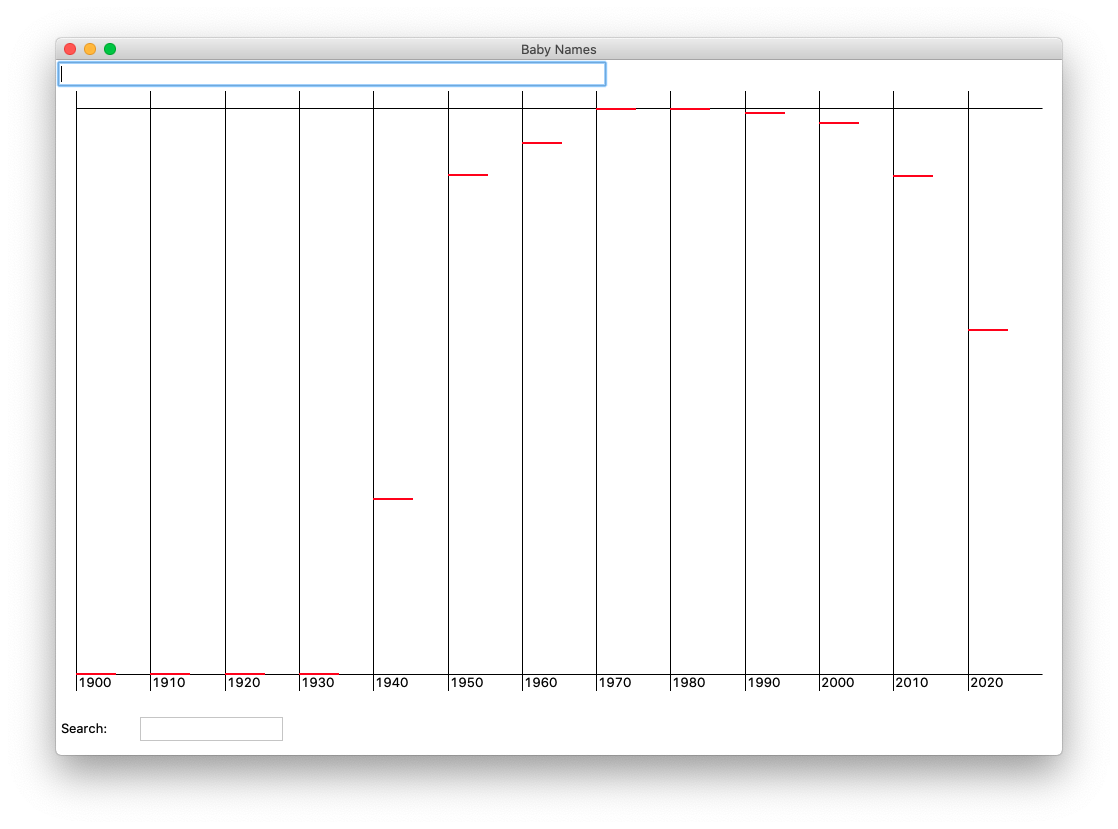
As a nice milestone, figure out the x,y for each year for the given name, and as a temporary measure, draw a horizontal line starting at that x,y and extending rightwards 40 pixels. This is a way to work out the code to compute the x,y for that name across all the years. As mentioned above "Jennifer" is a nice example here, as the name hits both the min and the max ranks, something of an achievement for a single name.
The default TK create_line() draws a 1-pixel-wide line. For draw_name(), it looks better to draw the lines with a little more thickness. Use the constant LINE_WIDTH and the color parameter as shown below to draw a thick, colored line. The parameters to create_line() don't have great names in this context: "width" is the thickness of the line, and "fill" is its color.
canvas.create_line(x1, y1, x2, y2, width=LINE_WIDTH, fill=color)
Here's a picture of the Jennifer data with the 40-pixel lines. Hitting the return key with the cursor in the input field should call draw_name() this way. Jennifer has no data in 1900, and is #1 in 1970. You can scroll down to the later stages to see the full Jennifer data curve.
You can type a different name in the input field, and draw_name() will be called with that name, so you can try different names to see if your x,y code at work.
Milestone c: for a name, your code can loop over all the years, figuring out the right x,y, for every year.
With the x,y working, you can complete the full functionality of draw_name().
Draw the name/rank as a string, e.g. 'Jennifer 690', TEXT_DX pixels to the right and above each year/rank point. The call to canvas.create_text(..) is the same as before, except using the constant tkinter.SW to position the text above and to the right of the x,y.
Drawing all the lines is a bit of an algorithmic puzzle. For N years of data, there are N-1 lines to draw, connecting the x,y for one year to the x,y of the next year. There are several approaches that can work here. One approach is using the "previous" pattern to remember the values from the previous iteration of the loop.
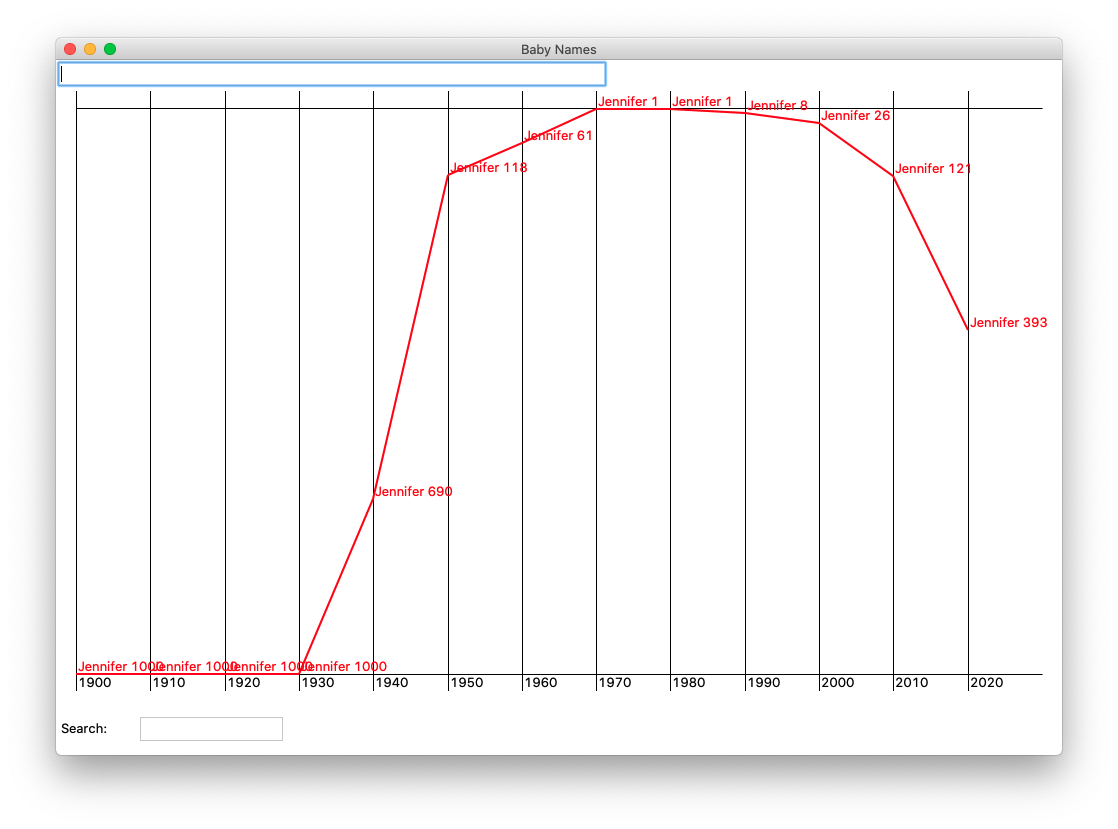
Milestone d: for one name, the code loops over all the years, drawing in all the lines and text labels.
The last step is fixing draw_names() to get out of its "Jennifer" dev mode. Delete the Jennifer dev-mode code from draw_names().
The "lookups" parameter is a list of the name strings to draw, initialized with the names typed in the input field with the first char in uppercase. At the your-code-here mark, write code to draw all of the name strings in the lookups list, calling your draw_name() function once for each name.
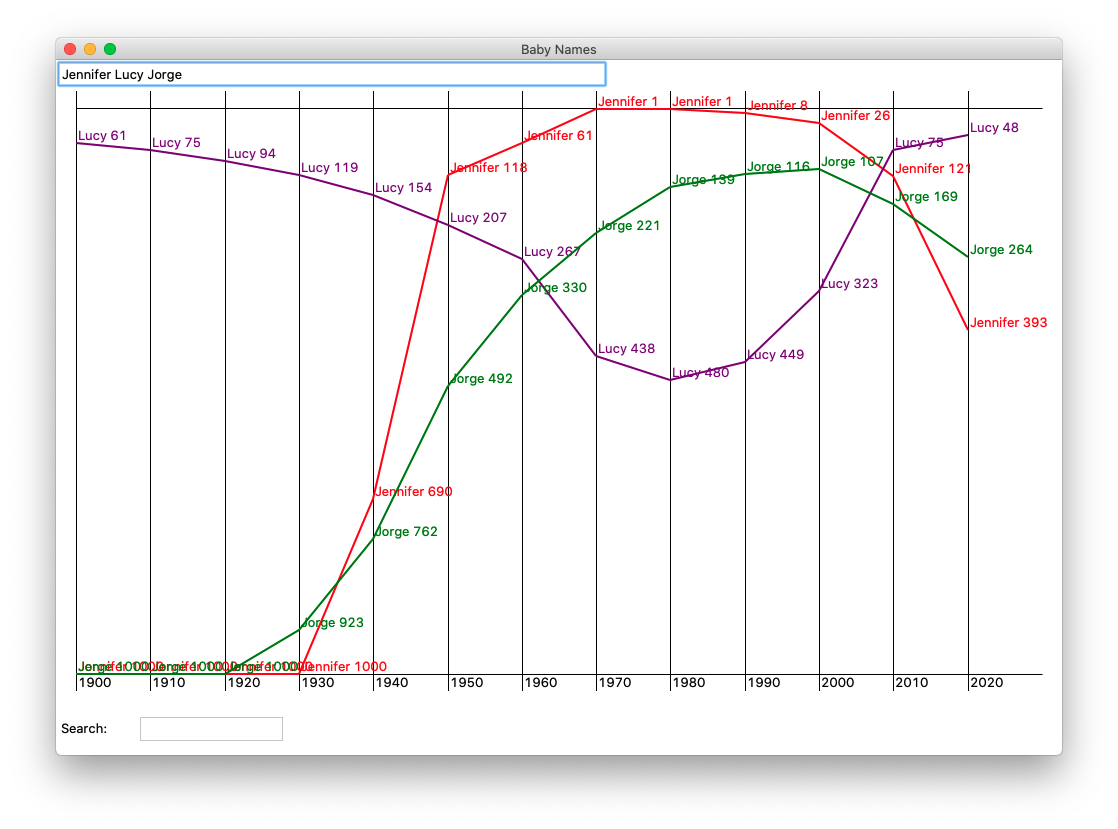
The provided constant COLORS is a list of 4 color names. Draw the name at index 0 with the color at index 0. Draw name 1 with color 1, and so on. When the number of names is greater than the number of colors, wrap around to use the first color again (see the % "mod" operator).
Get your code working for multiple lookup names, looping to draw them all. That is the last challenge, and now this thing is really working.
"Jennifer" is a good test of course, but now we can layer on the data for Lucy and Jorge.
Isn't "Chad" like some internet insult for something? Well check out Chad's graph. Compare it to Hazel. I don't think Madge is coming back either. You've got your search feature too. What names can you think of that have "haz" in them? Try it in the search field to see. Search for "marg" to see the many variations on Margaret. Try the names of your parents and grandparents and their friends. Many will be out of fashion, but some, like Emily, have come back.
Once it's drawing everything nicely - congratulations - you've built a complete end-to-end program: parsing the raw data, organizing it in a dict, and presenting it in an interactive GUI. With your code cleaned up, please turn in the two files babynames.py and babygraphics.py on Paperless.
Nick Parlante created the Baby Names assignment around 2004 for the new Java version of CS106A. The data has been organized in a few different ways over the years, but it's always combined the algorithmic challenge of the layers of data and lines, working with a large and fun data set from the real world. The assignment was subsequently selected for the Nifty Assignments archive and has been adopted by many schools.