Now does the Internet work? I pulled these slides together I had laying around from another class. Neat to see how something you use every day works.
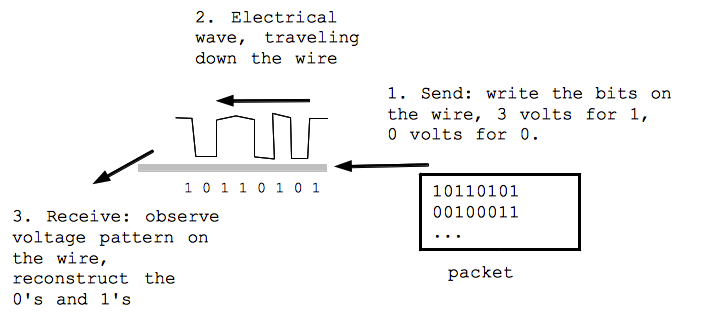
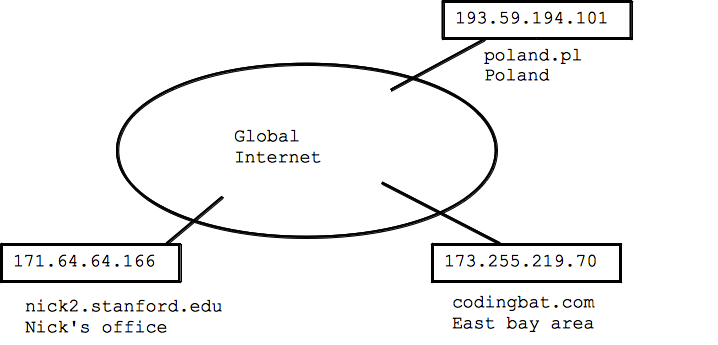
Every computer on the internet has an "IP address" that identifies it (like a phone number). The IP address is 4 bytes, written between dots, like "171.64.2.3". The left part of the address encodes in part where that IP address is in the whole internet -- for example any 171.64.(anything) is part of Stanford (like the area code of a phone number). More specifically, in my part of the Gates building, all the IP addresses begin 171.64.64.XX varying only in that last byte.
TCP/IP blooper in this video of "The Net"...
Blooper: in the video the IP address is shown as 75.748.86.91 - not a valid IP address! Each number should be 1 byte, 0..255
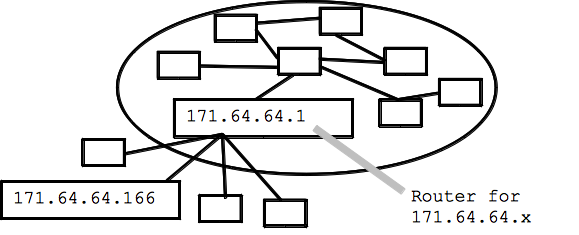
The most common way for a computer to be "on the internet" is to establish a connection with a "router" which is already on the internet. The computer establishes a connection via, say, ethernet to communicate packets with the router. The router is "upstream" of the computer, connecting the computer to the whole internet. For example, the computer in my Stanford office has IP address 171.64.64.166, and it has a one-hop ethernet connection to its router upstream at 171.64.64.1, and this router handles packets for my computer. Often the router's IP address will end in .1, such as my router's 171.64.64.1. Typically the IP address of the computer and its router will look at the same on the left side, since they are in the same "neighborhood" of the internet.
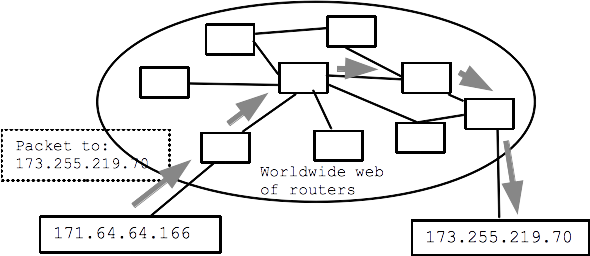
How does a packet get around the internet? Answer: Hop Hop Hop Hop Hop Hop Hop Hop Hop. Strange but true.
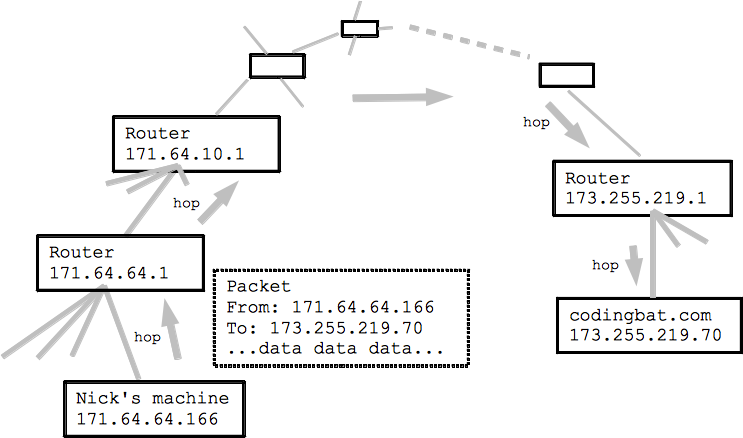
Suppose my computer at 171.64.64.166 wants to send a packet to a computer at 173.255.219.70 somewhere out on the internet (actually that's the codingbat.com server I administer). The Internet is essentially made of a big web of routers talking to each other.
1. My computer prepares an IP packet which includes in particular From:/To: information as IP addresses, like this: (IP Packet From:171.64.64.166 To:173.255.219.70 data data data data).
2. My computer sends that IP packet to my upstream router, one hop, over ethernet. This is the "first hop" of the packet on its journey.
3. The 171.64.64.1 router looks at the To:/From: of the packet and forwards it to the next router, one hop closer to its ultimate destination. Essentially, the router has its own upstream router which is bigger and knows more about the layout of the internet. The packet is forwarded, one hop at a time, until it reaches its ultimate destination. Each router does not need to know the whole route to the destination; each router just needs to know which way to send the packet to get it one-hop closer to its destination. The routers look at the left part of the IP address to get the packet to the right neighborhood -- 173.255.x.x -- with the right part of the address -- x.x.219.70 -- coming into play only when the packet is near its ultimate destination.
The routing of a packet from your computer is like a capillary/artery system .. your computer is down at the capillary level, your packet gets forwarded up to larger and larger arteries, makes its way over to the right area, and then down to smaller and smaller capillaries again, finally arriving at its destination. The ultimate destination puts all the packets back together in the right order to recover the original image file or whatever. The routers at the ends have a trivial upstream/downstream configuration, so the next hop for a packet is pretty simple. More central "core" routers tend to have several possible outgoing connections, so they have a more complicated choice about which link to use for the next hop.
The routers, collectively, measure what networks are reachable over what links, and dynamically adjust what links to use for each packet. One simple metric would be to route packets the way that takes the fewest number of hops. In reality, the metrics used are more complex than this. The routing system resilient to router hardware failures, overloading of certain links due to normal traffic, and links going down. The path taken by an IP packet can change from minute to minute. The routers are another example of a distributed, collaborative system. The old joke is that the backhoe is the IP packet's natural predator in the wild, as construction will sometimes slice through an important data cable, suddenly breaking a link in use. The routers "route around" such damage automatically.
Note that my computer does not need to know the layout of the internet. My computer just needs to have a connection to its upstream router, and the router, and its upstream router etc., will handle the routing from there.
Very broadly speaking, most data you get or send on the Internet goes in packets which take more than 10 but less than 20 hops from origin to destination.
So what does it mean for a computer to be on the internet? Typically it means the computer has established a connection with a router. The commonly used DHCP standard (Dynamic Host Configuration Protocol), facilitates connecting to a router; establishing a temporary connection, and the router gives your computer an IP address to use temporarily. Typically DHCP is used when you connect to a Wi-Fi access point.
Bring up the networking control panel of your computer. It should show what IP address you are currently using and the IP address of your router. You will probably see some text mentioning that DHCP is being used.
"Ping" is an old and very simple internet utility. Your computer sends a "ping" packet to any computer on the internet, and the computer responds with a "ping" reply (not all computers respond to ping). In this way, you can check if the other computer is functioning and if the network path between you and it works. As a verb, "ping" is also used in regular English this way .. not sure if that's from the internet or the other way around.
Experiment: Most computers have a ping utility, or you can try "ping" on the command line (works on the Mac, Windows, and Linux). Try pinging www.google.com or pippy.stanford.edu. Not all computers respond to ping. Type ctrl-c to terminate ping.
Milliseconds fraction of a second used for the packet to go and come back. 1 ms = 1/1000 of a second. Different from bandwidth, this "round trip delay".
Here I run the "ping" program for a few addresses, see what it reports
$ ping www.google.com  # I type in a command here
PING www.l.google.com (74.125.224.144): 56 data bytes
64 bytes from 74.125.224.144: icmp_seq=0 ttl=53 time=8.219 ms
64 bytes from 74.125.224.144: icmp_seq=1 ttl=53 time=5.657 ms
64 bytes from 74.125.224.144: icmp_seq=2 ttl=53 time=5.825 ms
^C                            # Type ctrl-C to exit
--- www.l.google.com ping statistics ---
3 packets transmitted, 3 packets received, 0.0% packet loss
round-trip min/avg/max/stddev = 5.657/6.567/8.219/1.170 ms
$ ping pippy.stanford.edu
PING pippy.stanford.edu (171.64.64.28): 56 data bytes
64 bytes from 171.64.64.28: icmp_seq=0 ttl=64 time=0.686 ms
64 bytes from 171.64.64.28: icmp_seq=1 ttl=64 time=0.640 ms
64 bytes from 171.64.64.28: icmp_seq=2 ttl=64 time=0.445 ms
64 bytes from 171.64.64.28: icmp_seq=3 ttl=64 time=0.498 ms
^C
--- pippy.stanford.edu ping statistics ---
4 packets transmitted, 4 packets received, 0.0% packet loss
round-trip min/avg/max/stddev = 0.445/0.567/0.686/0.099 ms
Traceroute is a program that will attempt to identify all the routers in between you and some other computer out on the internet - demonstrating the hop-hop-hop quality of the internet. Most computers have some sort of "traceroute" utility available if you want to try it yourself (not required). On Windows it's called "tracert" in Windows Power Shell, and it does not suppor the "-q 1" option below, but otherwise works fine.
Some routers are visible to traceroute and some not, so it does not provide completely reliable output. However, it is a neat reflection of the hop-hop-hop quality of the internet.
codingbat.com is housed in the east bay - 13 hops we see here. The milliseconds listed is the round-trip delay.
$ traceroute -q 1 codingbat.com
traceroute to codingbat.com (173.255.219.70), 64 hops max, 52 byte packets
 1  rt-ac68u-b3f0 (192.168.1.1)  7.152 ms
 2  96.120.89.177 (96.120.89.177)  9.316 ms
 3  24.124.159.189 (24.124.159.189)  9.638 ms
 4  be-232-rar01.santaclara.ca.sfba.comcast.net (162.151.78.253)  9.775 ms
 5  be-39931-cs03.sunnyvale.ca.ibone.comcast.net (96.110.41.121)  31.753 ms
 6  be-3202-pe02.529bryant.ca.ibone.comcast.net (96.110.41.214)  10.273 ms
 7  ix-xe-0-1-1-0.tcore1.pdi-paloalto.as6453.net (66.198.127.33)  10.570 ms
 8  if-ae-2-2.tcore2.pdi-paloalto.as6453.net (66.198.127.2)  11.344 ms
 9  if-ae-5-2.tcore2.sqn-sanjose.as6453.net (64.86.21.1)  13.555 ms
10  if-ae-1-2.tcore1.sqn-sanjose.as6453.net (63.243.205.1)  11.583 ms
11  216.6.33.114 (216.6.33.114)  11.938 ms
12  if-2-4.csw6-fnc1.linode.com (173.230.159.87)  14.833 ms
13  li229-70.members.linode.com (173.255.219.70)  11.549 ms
A random Serbian address - 31 hops. See the extra delay where the packets go across the Atlantic - I'm guessing hop 16. The names there may refer to Amsterdam and France. Note that the packets are going at a fraction of the speed of light here - a fundamental limit of how quickly you can get a packet across the earth.
$ traceroute -q 1 yujor.fon.bg.ac.rs
traceroute to hostweb.fon.bg.ac.rs (147.91.128.13), 64 hops max, 52 byte packets
 1  rt-ac68u-b3f0 (192.168.1.1)  9.136 ms
 2  96.120.89.177 (96.120.89.177)  9.608 ms
 3  24.124.159.189 (24.124.159.189)  20.184 ms
 4  be-232-rar01.santaclara.ca.sfba.comcast.net (162.151.78.253)  15.058 ms
 5  be-39911-cs01.sunnyvale.ca.ibone.comcast.net (96.110.41.113)  11.050 ms
 6  be-3411-pe11.529bryant.ca.ibone.comcast.net (96.110.33.94)  11.294 ms
 7  be3111.ccr31.sjc04.atlas.cogentco.com (154.54.11.5)  10.420 ms
 8  be2379.ccr21.sfo01.atlas.cogentco.com (154.54.42.157)  20.021 ms
 9  be3110.ccr32.slc01.atlas.cogentco.com (154.54.44.142)  37.200 ms
10  be3037.ccr21.den01.atlas.cogentco.com (154.54.41.146)  36.318 ms
11  be3035.ccr21.mci01.atlas.cogentco.com (154.54.5.90)  49.991 ms
12  be2831.ccr41.ord01.atlas.cogentco.com (154.54.42.166)  66.591 ms
13  be2718.ccr22.cle04.atlas.cogentco.com (154.54.7.130)  67.178 ms
14  be2993.ccr31.yyz02.atlas.cogentco.com (154.54.31.226)  77.369 ms
15  be3260.ccr22.ymq01.atlas.cogentco.com (154.54.42.90)  86.026 ms
16  be3042.ccr21.lpl01.atlas.cogentco.com (154.54.44.161)  152.559 ms
17  be2183.ccr42.ams03.atlas.cogentco.com (154.54.58.70)  161.324 ms
18  be2813.ccr41.fra03.atlas.cogentco.com (130.117.0.122)  164.945 ms
19  be2960.ccr22.muc03.atlas.cogentco.com (154.54.36.254)  172.507 ms
20  be2974.ccr51.vie01.atlas.cogentco.com (154.54.58.6)  197.670 ms
21  be3463.ccr22.bts01.atlas.cogentco.com (154.54.59.186)  181.075 ms
22  be3261.ccr31.bud01.atlas.cogentco.com (130.117.3.138)  184.336 ms
23  be2246.rcr51.b020664-1.bud01.atlas.cogentco.com (130.117.1.14)  189.231 ms
24  149.6.182.114 (149.6.182.114)  182.364 ms
25  amres-ias-amres-gw.bud.hu.geant.net (83.97.88.6)  191.607 ms
26  amres-mpls-core----amres-ip-core-amres-ip.amres.ac.rs (147.91.5.144)  187.181 ms
27  *
28  stanica-134-241.fon.bg.ac.rs (147.91.134.241)  204.945 ms
29  stanica-134-250.fon.bg.ac.rs (147.91.134.250)  192.673 ms
30  stanica-134-250.fon.bg.ac.rs (147.91.134.250)  193.978 ms
31  stanica-134-250.fon.bg.ac.rs (147.91.134.250)  193.032 ms !Z