Today: Debugging 1-2-3, debug printing, string upper/lower, string case-sensitive, reversed, movie example, grid, grid testing, demo HW3
Is this course going to get harder and harder each week? Mercifully, no! We're actually going to settle down a little from here on out.
We're going to weave together two things below - show some string algorithms, but also show some debugging techniques.
To write code is to see a lot of bugs. We'll mention the 3 debug techniques here, and bring them up in examples down below.
For more details, see the Python Guide Debugging chapter
Read the exception message and line number. Read the exception text (which can be quite cryptic looking), from the bottom up. Look for the first line of code that is your code and read the error message which can be quite helpful. Go look at the line of your code. Many bugs can be fixed right there, just knowing which line caused the error.
Don't ask "why is this not working?". Ask "why is the code producing this output?". Look at the output. Look at the code that produced it, tracing through through the code in your mind. Sometimes "trace through it with your mind" is too hard! In that case try print() below.
(We'll talk about this one down below for the reverse example.)
Instead of tracking the code in your head, add print() to see the state of the variables. It's nice to just have the computer show the state of the variables in the loop or whatever. This works on the experimental server and in PyCharm - demo below.
Note that return is the formal way for a function to produce a result. The print() function does not change that. Print() is a sort of side-channel of text, alongside the formal result. We'll study this in more detail when we do files.
The experimental server shows the function result first, then the print output below. This can also work in a Doctest. Be sure to remove the print() lines when done - they are temporary scaffolding while building.
'a' vs. 'A'We've used == already. See that 'a' and 'A' are different characters.
>>> 'a' == 'A'
False
>>> s = 'red'
>>> s == 'red'   # two equal signs
True
>>> s == 'Red'   # must match exactly
False
>>> 'Kitten123'.upper()  # return with all chars in upper form
'KITTEN123'
>>> 'Kitten123'.lower()
'kitten123'
>>>
>>> 'a'.islower()
True
>>> 'A'.islower()
False
>>> 'A'.isupper()
True
>>> '@'.islower()
False
>>> 'a'.upper()
'A'
>>> 'A'.upper()
'A'
>>> '@'.upper()
'@'
>>> s = 'Hello'
>>> s.upper()    # Returns uppercase form of s
'HELLO'
>>>
>>> s            # Original s unchanged
'Hello'
>>>
>>> s = s.upper()  # x = change(x) to save the change
>>> s
'HELLO'
only_ab(): Given string s. Return a string made of the 'a' and 'b' chars in s. The char comparisons should not be case sensitive, so 'a' and 'A' and 'b' and 'B' all count. Use the string .lower() function.
Solve only_ab() with bug where we append the lowercase instead of original char to result. This is a good "look at the output carefully" example for debugging. Compare the output produced with the expected, think about the line of code that produces each char. Not always, but sometimes this technique works great.
The Python built-in reversed() function: reverses a sequence such as from range().
Here is how reversed() alters the output of range():
range(5) -> 0, 1, 2, 3, 4
reversed(range(5)) -> 4, 3, 2, 1, 0
This fits into the regular for/i/range idiom to go through the same numbers in reverse order:
for i in reversed(range(10)):
    # i in here: 9 8 7 .. 0
For more detail, see the guide Python range()
The reversed() function appears in part of homework-3.
Say we want to compute the reversed form of a string:
'Hello' -> 'olleH'
There are many ways to do this, and we'll make a study of it later. For now, see if you can write the reverse2() version of the problem, using the reversed() function.
Plan: e.g. with 'Hello'. Go through the index numbers in reverse order: 4, 3, ... So in the loop, s[i] will be in reverse order: 'o', then the 'l' and so on. Use these to build the solution.
Now we'll show Debug-3 technique: add print() inside the code temporarily to get visibility into what it's doing. This works on the experimental server and in Doctests. The printing will make the Doctests fail, so it should only be in there temporarily.
Here's the reverse2() code with print() added
def reverse2(s):
    result = ''
    for i in reversed(range(len(s))):
        result += s[i]
        print(i, s[i], result)
    return result
Heres's what the output looks like in the experimental server - it shows the formal result first, and the print() output below that. This is kind of beautiful, revealing what's going on inside the loop:
'olleH'

4 o o
3 l ol
2 l oll
1 e olle
0 H olleH
Today we will use this "movie" example and exercise: movie.zip
The movie-starter.py file is the code with bugs, and movie.py is a copy of that to work on, and movie-solution.py has the correct code.
Implement set_edges(), then write Doctests for it. We're not doing this in lecture, but it's an example.
def set_edges(grid):
    """
    Set all the squares along the left edge (x=0) to 'a'.
    Do the same for the right edge.
    Return the changed grid.
    """
    pass
Solution code:
def set_edges(grid):
    """
    Set all the squares along the left edge (x=0) to 'a'.
    Do the same for the right edge.
    Return the changed grid.
    """
    for y in range(grid.height):
        grid.set(0, y, 'a')
        grid.set(grid.width - 1, y, 'a')
    return grid
Q: How can we tell if that code works? With our image examples, at least you could look at the output, although that was not a perfect solution either. Really we want to be able to write test for a small case with visible data.
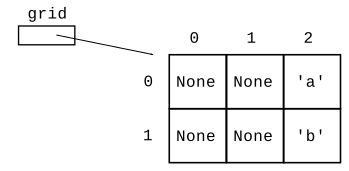
There's a syntax to write a grid out in Python code. It's a little funny looking, but it's fine for small grids. Suppose we have this 3 by 2 grid
Here is the nested-list "literal" representation of that grid:
[[None, None, 'a'], [None, None, 'b']]
The grid is shown as a series of rows, row-0, row-1, .... Each row within square brackets. The special value None is in the empty squares. So the first thing you see is the top row, Then the next row and so on.
The Grid code understands how to build a grid from a literal. This lets us create a grid in a particular state in one line. This will be handy for testing!
grid = Grid.build([[None, None, 'a'], [None, None, 'b']])
Here's a visualization - before and after - of grid and how set_edges() modifies it.
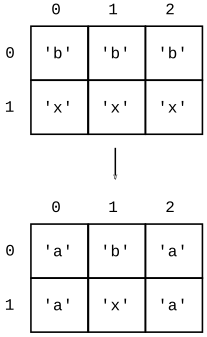
Here are the key 3 lines added to set_edges() that make the Doctest: (1) build a "before" grid, (2) call fn with it, (3) write out the expected result of the function call
    ...
    >>> grid = Grid.build([['b', 'b', 'b'],
                           ['x', 'x', 'x']])
    >>> set_edges(grid)
    [['a', 'b', 'a'], ['a', 'x', 'a']]
    ...
"Anyone who attempts to generate random numbers by deterministic means is, of course, living in a state of sin." John von Neumann
A computer program is "deterministic" - each time you run the lines with the same input, they do exactly the same thing. Creating random numbers is a challenge, so we settle for pseudo-random* numbers which are statistically random looking, but in fact are generated by an algorithm that selects the series of numbers.
Try the "Python Console" tab at the lower-left of your PyCharm window to get an interpreter. It may have a prompt like "In[2]:", but it's basically the same as the old >>> interpreter.
>>> import random   # starter code has this already
>>>
>>> random.randrange(10)
1
>>> random.randrange(10)
3
>>> random.randrange(10)
9
>>> random.randrange(10)
1
>>> random.randrange(10)
8
>>> random.choice('doofus')
'o'
>>> random.choice('doofus')
'u'
>>> random.choice('doofus')
'o'
>>> random.choice('doofus')
'o'
>>> random.choice('doofus')
's'
>>> random.choice('doofus')
's'
>>> random.choice('doofus')
'o'
>>> random.choice('doofus')
's'
The code for this one is provided to fill in letters at the right edge. Demonstrates some grid code for the movie problem. We're not testing this one - testing random behavior is a pain, although it is possible.
def random_right(grid):
    """
    Set the right edge of the grid to some
    random letters from 'doofus'.
    (provided)
    """
    for y in range(grid.height):
        if random.randrange(10) == 0:
            char = random.choice('doofus')
            grid.set(grid.width - 1, y, char)
    return grid
Think about scroll_left()
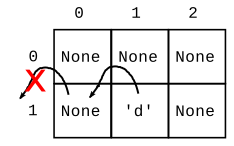
Before:
NNN
NdN
After:
NNN
dNN
def scroll_left(grid):
    """
    Implement scroll_left as in lecture notes.
    """
    # v1 - has bugs
    for y in range(grid.height):
        for x in range(grid.width):
            # Move letter at x,y leftwards
            val = grid.get(x, y)
            if val != None and grid.in_bounds(x - 1, y):
                grid.set(x - 1, y, val)
    return grid
We'll use this as the "before" case:
[['a', 'b', 'c'], ['d', None, None]]
What should the after/result look like for that case? If you are writing the code for something, a good first step is writing out an example before/after case for it. Thinking through before/after pair clearly is a good first step, getting your coding ideas organized.
After:
[['b', 'c', None], [None, None, None]]
If you need to write an algorithm and are stuck staring at a blank screen. Write out a couple before/after cases to get your thoughts started. It's easier to write tests than the code.
Use this to iterate on the code, get it perfect. The Doctest here is just the one spelled out above.
def scroll_left(grid):
    """
    Implement scroll_left as in lecture notes.
    >>> grid = Grid.build([['a', 'b', 'c'], ['d', None, None]])
    >>> scroll_left(grid)
    [['b', 'c', None], [None, None, None]]
    """
How do you debug a function? Run its small, frozen Doctests, look at the "got" output.
Here is the code with bugs fixed and the Doctest now passes.
def scroll_left(grid):
    """
    Implement scroll_left as in lecture notes.
    >>> grid = Grid.build([['a', 'b', 'c'], ['d', None, None]])
    >>> scroll_left(grid)
    [['b', 'c', None], [None, None, None]]
    """
    for y in range(grid.height):
        for x in range(grid.width):
            # Move letter at x,y leftwards
            val = grid.get(x, y)
            if val != None and grid.in_bounds(x - 1, y):
                grid.set(x - 1, y, val)
            grid.set(x, y, None)
    return grid
$ python3 movie.py
$
$ python3 movie.py 80 40  # bigger window