Today: Bit, code, functions, and the while-loop
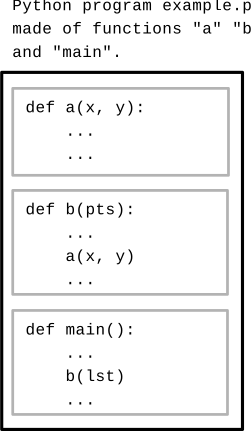
A computer program (or "app") is a collection of code for the computer to run. The code in a program is divided into smaller, logical units of code called functions, much as all the words that make up an essay are divided into logical paragraphs.
Python programs are written as text in files named like "example.py". The program text will be divided into many functions, each marked by the word def:
We have this "Bit" robot, lives in a rectangular world divided into squares, like a chessboard. Bit is my research project - open it up to the world soon. We'll use bit at the start of CS106A to introduce and play with key parts of Python. The code driving Bit around is 100% Python code. The nice thing about Bit code is that the actions have immediate, visual results, so you can see what the code is doing.
Here is bit in two sentences: bit moves from square to square, can paint the square it is on red, green, or blue. Black squares and the sides of the world are blocked - bit cannot move there.
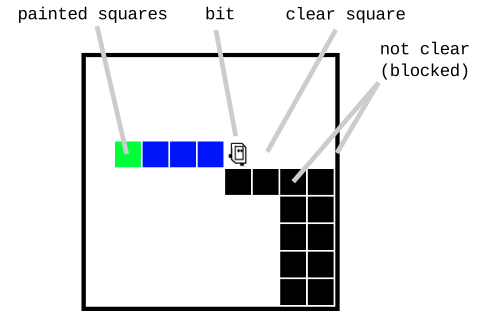
For reference, here is a more detailed guide to Bit's features: Bit Reference
Bit can do 5 actions in the world: move, left, right, paint, erase
For now we'll just jump in with an example.
Below is a code in a Python function named "do_bit1" that creates bit in a little world and commands bit to do a few things. There is syntax here - not pretty. Don't worry about all the syntax in there just yet. First let's see what it does.
def do_bit1(filename):
    bit = Bit(filename)  # Creates "before" picture
    bit.move()
    bit.paint('blue')
    bit.right()
    bit.move()
    bit.paint('green')
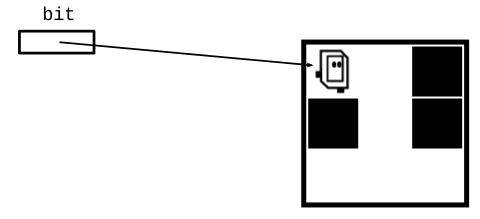
1. The function starts bit off facing the right side of the world with a couple empty squares in front (before-run picture):
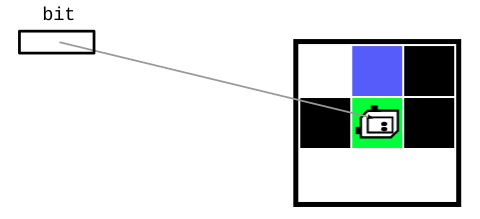
2. The code in the function moves bit over a couple squares, painting some of them. So running the function does those actions, and afterwards the world looks like this (after-run picture):
Here is the bit1 problem on the experimental server (you can run it too, or just watch):
We'll use Nick's experimental server for code practice. See the "Bit1" section at the very top; the "bit1" problem is there. Often the code in a lecture example like this will be incomplete, and we'll work it out in lecture. There is a Show Solution button on each problem, so you can always play with it again later and check your answer.
Click the Run button and see what it does. See how bit takes actions in the world first, and then we'll fill in what's going on with the lines of code. You can use the "steps" slider to run the code forwards and backwards, seeing the details of the run.
Now let's look at all of that syntax to see how this works.
def do_bit1(filename):
    bit = Bit(filename)
    bit.move()
    bit.paint('blue')
    bit.right()
    bit.move()
    bit.paint('green')
Click the Run button a few times to run this function, then we'll discuss what each line of code does.
The Run button in the web page runs this do_bit1 function, running its lines of code from top to bottom. Running a function is also known as "calling" that function. In this case, each line in the function commands bit to do this or that, so we see bit move around as the function runs from top to bottom.
bit = Bit(filename) - Set Up WorldThis line creates the world with bit in it, and sets the variable bit to point to the robot. We needs this line once at the top to set things up, then the later lines use the robot. We'll explain this with less hand-waving later. This drawing shows the setup - the bit robot is created along with its world, and the variable bit is set to point to the robot.
bit.move() = Call the "move" Functionbit.paint('blue') = Call the "paint" functionbit.left() and bit.right()def = Define a FunctionNow we'll go back and talk about the first line. This defines a function named do_bit1 that holds the lines of code we are running.
def do_bit1(filename):
    bit = Bit(filename)
    bit.move()
    bit.paint('blue')
    ...
"Syntax" is not a word that regular people use very often, but it is central in computer code. The syntax of code takes some getting used to, but is not actually difficult.
Here is an exercise like bit1 with the code left for you to do. We probably won't have time for this today, but you can do it on your own.
Bit begins at the upper left square facing right. Paint the square below the start square green, and the square below that green as well, ending like this:
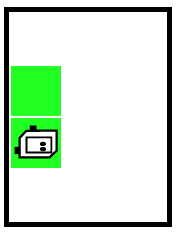
The word pass is a placeholder for your code, remove it. Conceptually this does not look hard, but expect to make some mistakes as you get the little syntax and naming details right as required by the (lame, needy) computer
Bit starts at the upper left square as usual. Move bit forward until reaching a wall, painting every moved-to square green. The resulting world looks like:
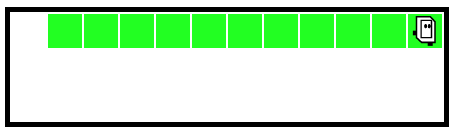
First we'll run the code. This code is complete. Watch it run a few times to see what the loop does, and we'll look at the details below.
> go-green
The loop is a big increase in power, running lines many times. There are a few different types of loop. Here we will look at the while loop.
The while loop has two parts - the test expression which controls the looping, and the body contains the lines which are run again and again.
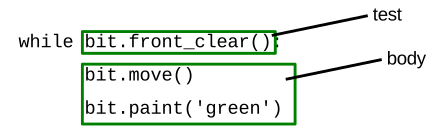
The first thing the while does is run the test code to see if the loop should run or not. In this case, the test is the code bit.front_clear() so we need to look at what that function does.
bit.front_clear()bit.front_clear() ExpressionThe phrase bit.front_clear() here is an expression. An expression is a bit of code which runs as usual, and returns a value to that spot in the code. A common way to visualize an expression in action is drawing a diagonal arrow over the expression, showing the returned value sort coming out of the expression. Here is a drawing showing the boolean value coming out of the bit.front_clear() with bit not blocked and then blocked:
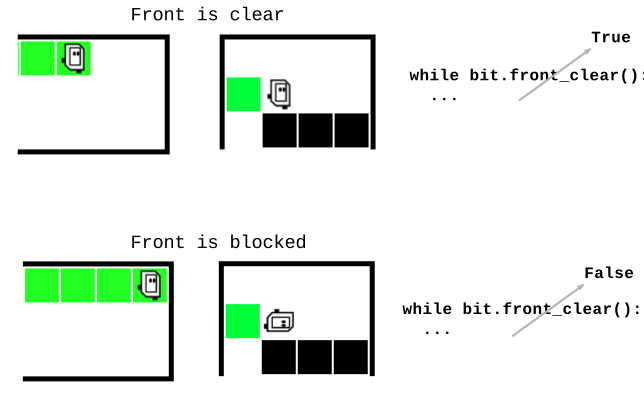
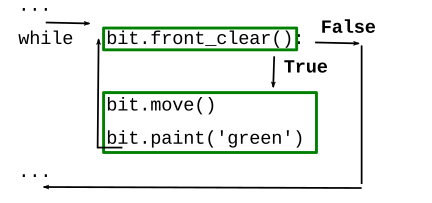
Looking at the go_green() code and watching it run is a way to see the order that the while-loop runs the lines. Each time the test is True, the loop body moves bit forward one square and paints it green. Then the loop always comes back to the top, and evaluates the test again. Eventually bit will move to the rightmost square, paint it green, and then loop back to check the test again. Sitting on that rightmost square, the test will return False and the loop is done.
def go_green(filename):
    bit = Bit(filename)
    while bit.front_clear():
        bit.move()
        bit.paint('green')
> go-green
Run the go-green code. Move the steps slider back so there are 2 un-painted squares and line 5 is hilighted.
Question: What line runs after line 5?
Look at the code and think about it. Then click the step button to advance the run to see what comes after line 5. It's the same every time, even the last time the loop runs.
Moving forward until blocked is a common pattern in bit problems, we'll use this code pattern to do something to each moved-to square. Often a problem statement will say to do something to each "moved to" square.
    ...
    while bit.front_clear():
        bit.move()
        # Do something to moved-to-square
    ...
> All-Blue
Bit starts in the upper left square facing the right side of the world. Move bit forward until blocked. Paint every square bit occupies blue, including the first. When finished, turn bit to face downwards. (Demo - this code is complete. Shows the basic while-loop with front_clear() to move until blocked, and also taking an action before and after the loop.)
def all_blue(filename):
    bit = Bit(filename)
    bit.paint('blue')  # 1 paint before the loop
    while bit.front_clear():
        bit.move()
        bit.paint('blue')
    bit.right()  # Turn after the loop
When a problem says "until blocked", you typically use front_clear() a the test. In the loop, the code moves forward one square, paints it blue. The loop works on each "moved-to" square.
Since the loop does move-then-paint, it can't do the first square. We add a separate paint to do the first square. The while loop is not set up to do the first square, so we accept for many problems that we will need to add extra code before the loop if any action is needed for the first square.
Lines in the loop run many times. Lines before or after the loop run just once. In this case, to turn downwards after the loop: the line bit.right() is after the loop, and not indented within the loop.
> Go-RGB
Problem statement: Bit starts in the upper left square facing the right side of the world. Paint the first square red. Move bit forward until blocked. Paint each moved-to square green, except the very last (rightmost) square, paint blue. If the first square and last square are the same, paint it blue. It's ok if the code paints a square one color, and then paints it again with its correct, final color. This problem depends on lines of code before and after the loop code.