Today: function call parameter recap, Canvas drawing, draw functions, drawing a grid
Now we're going to do some code and output that just looks different - drawing lines and rectangles and whatnot on screen from some 2d coordinate math. This is a realistic thing many programs need to do. It's also a neat way to experiment with math in your code with visual results.
How much math do you need for CS? Today we'll have some really nice applied math. Mostly just addition and multiplication, but using variables like i and width in the code, and you need to form a mental model of how those numbers and formulas map to what you see on screen.
It will be tricky at times, but you will be able to see how variables and formulas in python map to real results on screen.
We are going to lean on parameters very hard for today's example, here is a quick recap.
defSay we have a foo a def with left and top parameters. Each parameter is a value coming in. Just use left and top in the code, knowing the right value is in there.
def foo(left, top):

    # use "left" and "top" in here
Where does the parameter value come from? From the call - some line called this function for it to run, and the parameter values to use are written within the parenthesis, matching up by position.
    ...
    foo(100, 50)
    ...
Here left will be 100 and top will be 50.
s[x] - float ok there?e.g. with something like x = 3.5. Not ok, crashes.
image.get_pixel(x, y) - Float ok?No, this crashes too.
range(x) - Float ok?No, also crashes.
With, say, a string, we use ints to index in to the individual chars. So we have been using ints all the time. However, today that changes.
We're about to see functions to draw things like lines rectangles on a computer canvas. Float values work fine with these functions. The drawing system can cope with a coordinate like x = 50.8. Internally it just drops the fractional part - e.g.50.8 just truncates to 50 to draw on screen, and you cannot see the difference.
canvas.draw_line(50.8, 20, 100.3, 150.9)
We can just use float values and in particular / division, and the drawing functions will work with the resulting float values perfectly.
This is a big example program that draws on screen for today. Expand the .zip to get a "draw1" folder with .py files in it. Run PyCharm. Use Open... menu to open the *folder*
We'll demonstrate the drawing functions one by one below. For more details there is also a Draw Reference page.
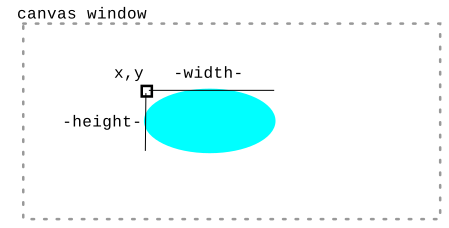
Here is the fill_oval() function specification - a representative example. The parameters x, y are the coordinate of the upper-left corner of a theoretical rectangle enclosing the oval. The oval is drawn to be width, height pixels in size. The optional color parameter can specify a color other than black.
    def fill_oval(x, y, width, height):
        """
        Draws a solid black oval with its upper left
        bounding rect at x,y
        and covering width, height pixels.
        Takes optional color='red' parameter.
        """
Here is a very simple example we'll run. It creates a 500 by 300 white canvas. Then draws a filled blue oval on it. The blue oval's top left is at 100,50. It is 200 pixels wide and 50 height. Here is the code:
canvas = DrawCanvas(500, 300)
canvas.fill_oval(100, 50, 200, 50, color='blue')

# Create 500 by 300 canvas
# Draw filled blue oval on it at 100,50
The result looks like this:
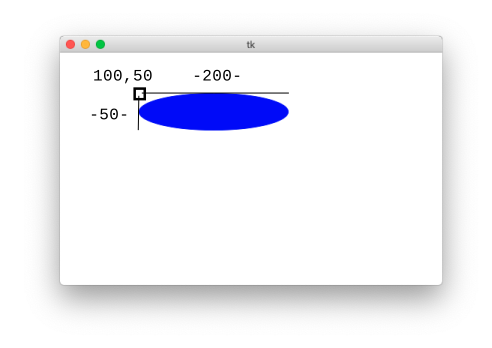
The color='blue' syntax is an optional, named parameter passed in to the function call. Sometimes, functions take optional, extra parameters like this. In this case, the default drawing is in black, or color=xxx can specify another color.
If you want to run this case, the command line is shown below. Close the window to exit the program.
$ python3 draw1.py -first
Here is a list of all the canvas draw functions, which have similar parameters to fill_oval().
Functions for: lines, rectangles, ovals, strings. Basically...
draw_rect() - draws 4-sided frame at outside edge of rectangle
fill_rect() - fills the whole rectangle
    def draw_line(x1, y1, x2, y2):
        """
        Draws a black line between points x1,y1 and x2,y2
        Optional color='red' parameter can specify a color.
        """

    def draw_rect(x, y, width, height):
        """
        Draws a 1 pixel rectangle frame with its upper left at x,y
        and covering width, height pixels.
        Takes optional color='red' parameter.
        """

    def fill_rect(x, y, width, height):
        """
        Draws a solid black rectangle with its upper left at x,y
        and covering width, height pixels.
        Takes optional color='red' parameter.
        """

    def draw_oval(x, y, width, height):
        """
        Draws a 1 pixel oval frame with its upper left bounding rect at x,y
        and covering width, height pixels.
        Takes optional color='red' parameter.
        """

    def fill_oval(x, y, width, height):
        """
        Draws a solid black oval with its upper left bounding rect at x,y
        and covering width, height pixels.
        Takes optional color='red' parameter.
        """

    def draw_string(x, y, text):
        """
        Draws a black text string with its upper left at x,y
        Takes optional color='red' parameter.
        """
For our examples, we'll have a "patch" which is a little drawing that can be made on screen. We'll have a function that draws that patch, taking in the location and size for the patch as parameters.. Then if we call that function 3 times, we'll get 3 copies of the patch on the screen.
e.g. We'll look at the "redx" patch below and the draw_redx() function which draws it.
draw_redx()Example 1 is the "redx" patch drawn by the draw_redx() function, and we'll look at its code below.
The redx patch has a black rectangle at its outer boundary. Then a yellow oval inset by 20 pixels on 4 sides. Then 2 red lines making a big red X from upper-left to lower-right, and upper-right to lower-left. We'll use this as a first example to practice coordinate code.
Running from the command line looks like this.
$ python3 draw1.py -redx 500 300
The main() functions calls the draw_redx() function twice to make two copies of the figure - one upper-left, one lower-right. Having two copies helps with testing. Here is the output of the program showing the two figures.

draw_redx(canvas, left, top, width, height):The draw_redx() function draws one copy of the figure on the canvas. The size and position of the figure is determined by the parameters passed into draw_redx() - the figure is positioned at the given left,top parameters, with its size given by width,height parameters.
draw_redx() - Position? Size?
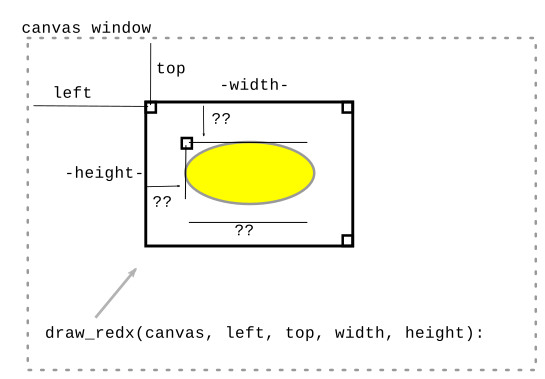
The parameters left, top are the upper left of the whole patch. The oval is inset by 20 pixels on all 4 sides from the rectangle.
Q1: What is the x,y of the upper left pixel of the imaginary rectangle around the inset oval?
Q2: What is the width,height size of the inset oval?
A1: left,top are the coords of the upper left corner of the figure itself and we position things inside the figure relative to that corner. Relativity - like Einstein. The coords of the inset oval are
left + 20, top + 20
A2: The width of the inset oval is (width - 40), since the oval loses 20 pixels on its left side, and also 20 pixels on its right side. Likewise its height is(height - 40)
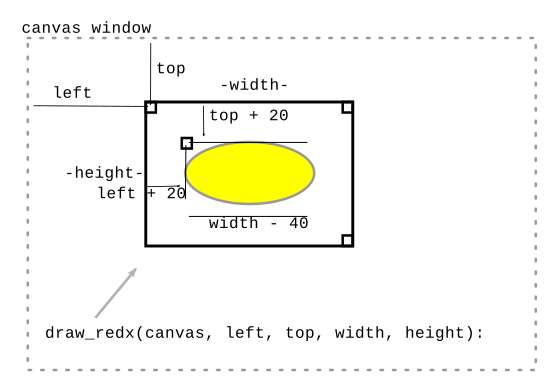
Here is the line of python code to draw that oval by calling the fill_oval() function, doing the math to specify the location and size of the inset oval.
def draw_redx(canvas, left, top, width, height):
    ...
    canvas.fill_oval(left + 20, top + 20,     # x, y
                     width - 40, height - 40, # w, h
                     color='yellow')
What is that code saying? The parameter left holds the x value for the overall figure. The code can pass the expression left + 20 as the x value for the inset oval.
This is classic parameter-using code - we do not know exactly what number we are running with. But writing the code, we just use the parameters such as left, trusting that the right value is in there.
Note: also this shows a PEP8 style approved way to call a function with a lot of parameters, the second and later lines are indented to match the first. Just writing it all on one line is fine too.
What is the coordinate of the upper-left corner pixel of the patch? It's not (0,0), that's the coordinate of the upper left corner of the whole screen. The coordinate of the upper left of the figure is: left, top
We'll use some real numbers to think about this math, say left,top is 100,50. Say width, height is also 100,50. Try the following questions.
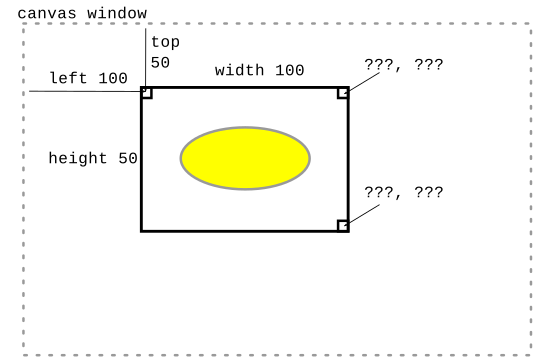
This is a little tricky.
Q1: What are the coordinates of the upper-right corner pixel of the figure?
Q2: What are the coordinates of the lower-right corner pixel of the figure?
Above is too tricky: Strategy put in real numbers and a tiny width, say width is 5. Then we can count the pixels over to the corner to see the math. Here is the drawing for that. What are coordinates with width=5. Then try to figure out the general formula. This is a funny juxtaposition - look at with a dinky number like 5, then work out the general formula that works for infinite cases.
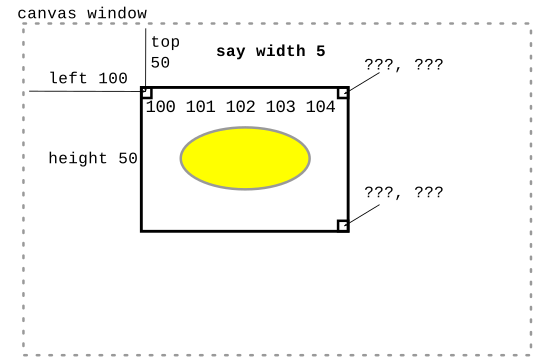
With width 5, the rightmost pixel is at 104. In general, the pattern is left + width - 1. It's the same pattern in the vertical direction, bottom pixel is top + height - 1
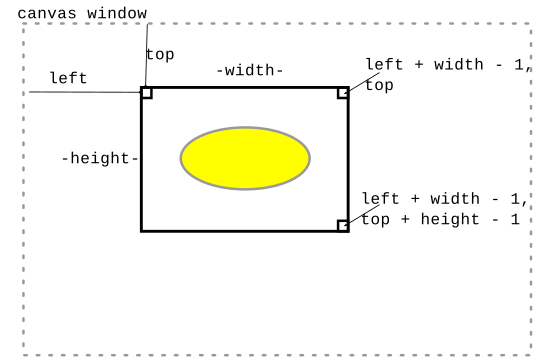
Here are the lines which draw the 2 red lines. This is an exercise in knowing the coordinates of the four corners.
def draw_redx(canvas, left, top, width, height):
    ...
    # Draw red lines
    # upper-left to lower-right
    canvas.draw_line(left,              # x u.l.
                     top,               # y u.l.
                     left + width - 1,  # x l.r.
                     top + height - 1,  # y l.r.
                     color='red')

    # lower-left to upper-right
    canvas.draw_line(left, top + height - 1, left + width - 1, top, color='red')
Note: the first draw_line() shows one PEP8 style approved way to call a function with a lot of parameters, the second and later parameter lines are indented to match the first. Just writing it all on one line is fine too, as shown with the second call.
-redx 500 300The main() in this case with args like -redx 500 300 calls draw_redx() twice, once upper left and once lower right. This tests that the left,top are handled correctly. Open the "terminal" at the lower left of PyCharm. The "$" below is the prompt, the rest you type (on Windows its "python" or "py" instead of "python3".) Close the drawing window when done, this exits the draw program. Try different sizes.
$ python3 draw1.py -redx 300 200
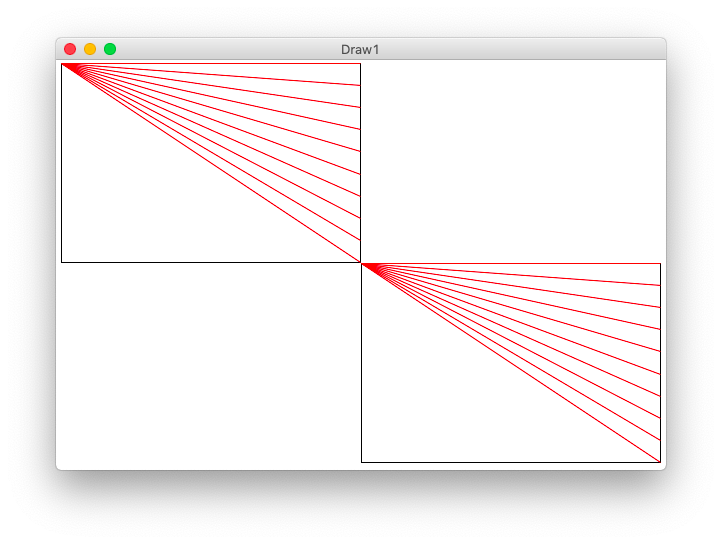
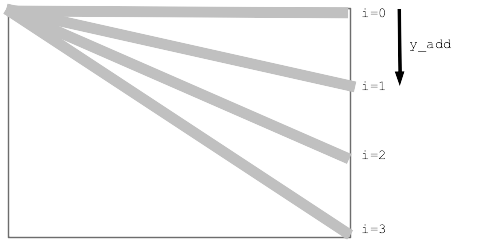
            i: 0    1     2     3
want fraction: 0.0  0.33  0.66  1.0
for i in range(n):
    y_add = (i / (n - 1)) * (height - 1)
    # call draw_line() using y_add
Working out a formula like this - check the i=0 and i=n-1 cases. If the two endopints are correct, the whole thing is very likely correct.
Here is the y_add pattern at work to draw n red lines from the upper left corner, all to a series of points running down the right side.
def draw_lines1(canvas, left, top, width, height, n):
    """
    Draw the lines1 figure within left,top .. width,height
    (this code is complete)
    """
    canvas.draw_rect(left, top, width, height)

    # Figure y_add for each i in the loop
    for i in range(n):
        # formula: fraction * max
        y_add = (i / (n - 1)) * (height - 1)
        canvas.draw_line(left, top,
                         left + width - 1, top + y_add,
                         color='red')
This command line will call the draw_lines1() function. The last number is n - try different values.
$ python3 draw1.py -lines1 300 200 12
What if we wanted to draw the lines alternating red, green, red, green...
A common way to do this is use modulus - look at the value of i % 2 in the loop. It will be either 0 or 1 alternating. (Modulus result is always 0..n-1). If it's 0 draw red, otherwise draw green.
draw_lines1() with alternating color:
    for i in range(n):
        y_add = (i / (n - 1)) * (height - 1)  # formula: fraction * max
        if i % 2 == 0:
            canvas.draw_line(left, top, left + width - 1, top + y_add, color='red')
        else:
            canvas.draw_line(left, top, left + width - 1, top + y_add, color='green')
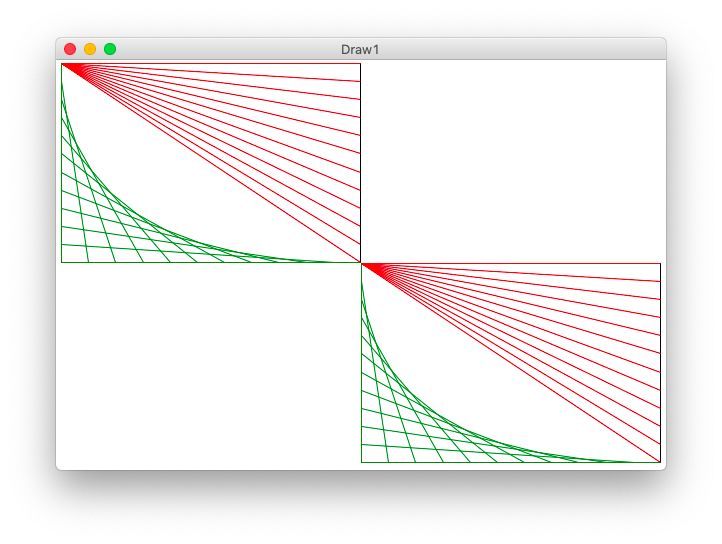
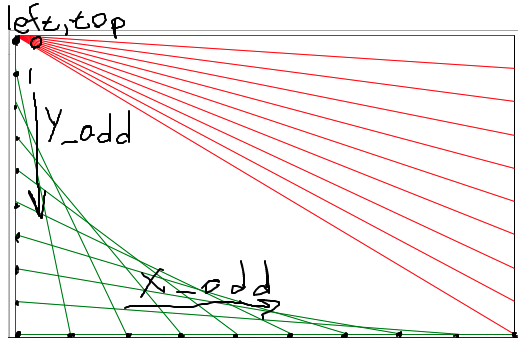
The code below has y_add done. Work out the formula for x_add, then draw the green lines. Look at the drawing to work out the x1,y1 x2,y2 for the green line. Demo-note: try to have the drawing visible while students work out the code for this.
    # loop to draw green "lines2" lines
    for i in range(n):
        y_add = (i / (n - 1)) * (height - 1)
        pass
        # work out x_add, draw each green line
Run from the command line:
$ python3 draw1.py -lines2 300 200 12
       ...
       y_add = (i / (n - 1)) * (height - 1)
       x_add = (i / (n - 1)) * (width - 1)
       canvas.draw_line(left, top + y_add,
                        left + x_add, top + height - 1,
                        color='green')
That code is tricky for sure. The variable names are helping - x_add and y_add are short but meaningful labels about each value's role in the computation. Someday, you may work with some bad style code where the variables are just named a b c d .. and you will appreciate that good variable names help work out these lines.
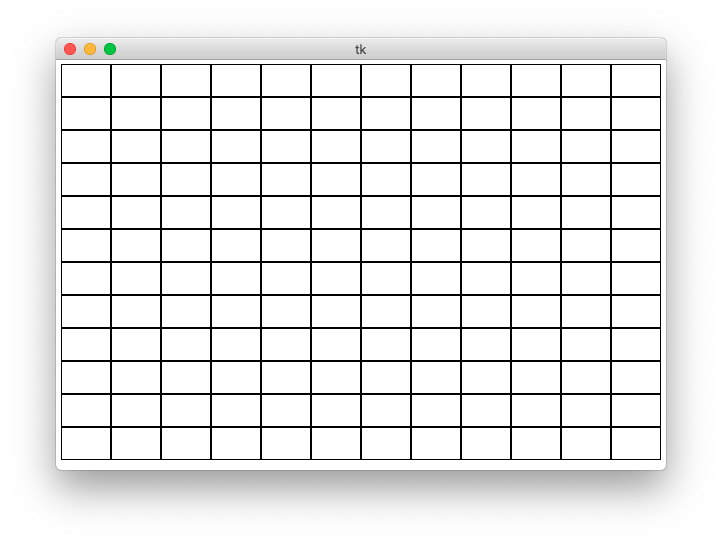
>>> 500 / 11
45.45454545454545    # float division with fraction
>>> 500 // 11        # int division - what we want here
45
Say "w" is the sub_width of one little rect. What is the x value of the left side of a column?
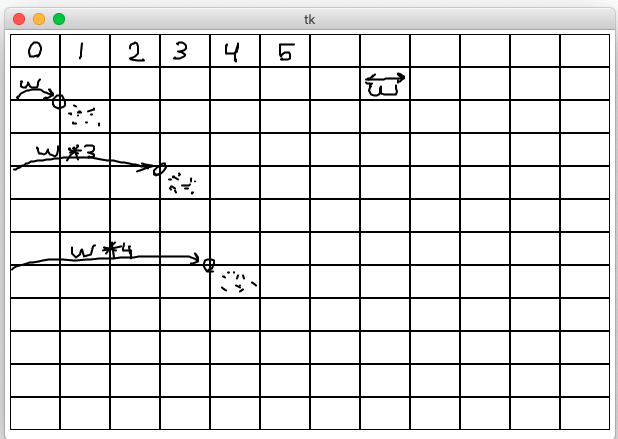
def draw_grid1(width, height, n):
    """
    Creates a canvas.
    Draws a grid1 of n-by-n black rectangles
    (this code is complete)
    """
    canvas = DrawCanvas(width, height, title='Draw1')

    # Figure sizes for all sub rects
    sub_width = width // n
    sub_height = height // n

    # Loop over row/col
    for row in range(n):
        for col in range(n):
            # Figure upper left of this sub rect
            left = col * sub_width
            top = row * sub_height
            canvas.draw_rect(left, top,
                             sub_width, sub_height)
Run from command line:
$ python3 draw1.py -grid1 600 400 12
Change the code to draw a filled oval of some color for each sub-rect. Whatever function call we put inside the loop, we get n * n copies of whatever that function draws.
            ...
            left = col * sub_width
            top = row * sub_height
            canvas.fill_oval(left, top,
                             sub_width, sub_height, color='yellow')
Now we'll make a big jump.
Here is the draw_lines2() def first line:
def draw_lines2(canvas, left, top, width, height, n):
    """
    Draw lines2 figure within left,top .. width,height
    The code for lines1 is already here
    """
def draw_grid2(width, height, n):
    """
    Creates a canvas.
    Add code to draw the lines2 figure in each grid sub rect.
    """
    canvas = DrawCanvas(width, height, title='Draw1')

    sub_width = width // n
    sub_height = height // n

    for row in range(n):
        for col in range(n):
            # Your code here - draw a lines2 figure in each grid rect
            pass
            left = col * sub_width
            top = row * sub_height
            # Key line: call function to do it,
            # passing in left,top,width,height,n we want
            draw_lines2(canvas, left, top, sub_width, sub_height, 10)
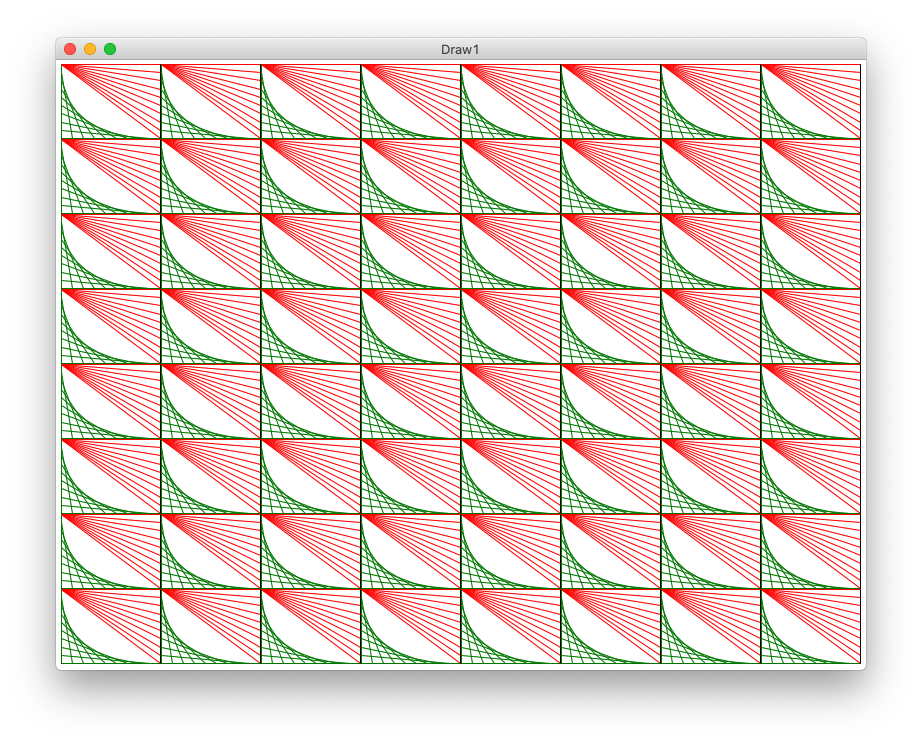
Looks neat - loops + function-call = power!