Today: insights about loops, if statement, ==, make-a-drawing, left_clear(), bit puzzles
We'll work a bunch of little problems today, you may want to review them later. Or you could start the homework, and then if you get stuck, go back and review the related problems on lecture.
> go-green
We had this example at the end lecture-1, but without a full explanation. Now we'll look at the details
bit.move()That line of code calls the function "move". The computer runs the code in the move function, moving bit forward one square.
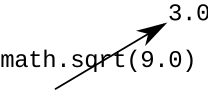
math.sqrt(9.0)CS term: "expression". An expression is a piece of code that runs, like a function call, and also returns a value to that spot in the code.
The computer "evaluates" the expression to get its value.
The above bit of code calls the function math.sqrt, aka the square root function, and it returns the result 3.0. Visualize this like an arrow coming out of the square root function, showing the result value coming out, like this:
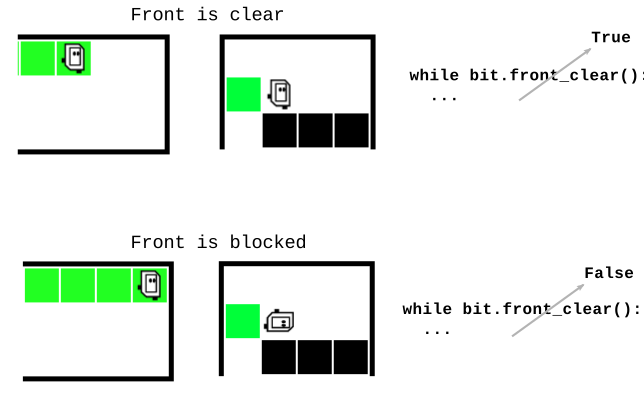
bit.front_clear()In Bit's world, the way forward is clear if the square in front of Bit is not blocked by the edge of the world or a solid black square.
Bit has a function front_clear() that checks if the square in front of bit is clear for a move or not. The front_clear() function when called, checks the front square and returns the boolean value True if the way is clear, and False otherwise.
(touched on this very briefly in lecture-1)
The while loop syntax is made of four parts: the word while, a test expression, a colon (:), and on the next line indented body lines to run.
while test-expression:
    body lines
This diagram shows the sequence between the while loop test and the body:
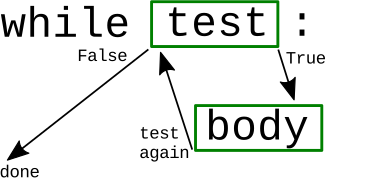
There is not much to say about the body; it is just a series of lines to run. The test expression is more interesting, controlling the run of the loop.
> go-green
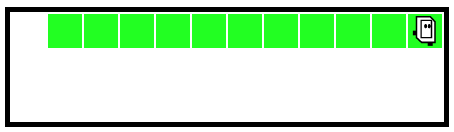
Now we can look at the go-green example to see how its sequence works in detail. Run it a couple times. Step through the code painting the last two squares to see the while test being True and then False when bit reaches the edge.
When we need to move bit forward until blocked, we use the loop from from go-green as an idiomatic phrase of code:
while bit.front_clear():
    bit.move()
When the while test is True, bit keeps going. We think of this as "Test True = Go". Later when we're writing code to advance bit through some other situation, we'll use "Test True = Go" to think about the test.
move() then paint() in loop:
paint() then move() in loop:
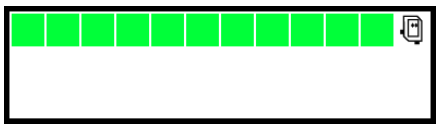
Next example - use this to play with more features of loops. This code is complete.
> All-Blue
Often we have an English language description of what we want, and then we're thinking about the code to get that effect.
Description: Bit starts in the upper left square facing the right side of the world. Move bit forward until blocked. Paint every square bit occupies blue, including the first. When finished, turn bit to face downwards. (Demo - this code is complete. Shows the basic while-loop with front_clear() to move until blocked, and also taking an action before and after the loop.)
def all_blue(filename):
    bit = Bit(filename)
    bit.paint('blue')  # 1 paint before the loop
    while bit.front_clear():
        bit.move()
        bit.paint('blue')
    bit.right()  # Turn after the loop
Look at Case-3 and then Case-4. Turn off the Auto-Play option, so when you click Run, the world stays at the start, waiting for you to click Step. See how the while test behaves on Case-3 and then Case-4. For Case-4, the while-test is False the very first time! The result is, the loop body lines run zero times. This is fine actually. There were zero squares to move to, so looping zero times is perfect. This is an example of an "edge" case, the smallest possible input. It's nice that the while loop handles this edge case without any extra code.
The system tries to terminate the infinite loop code. Sometimes that does not work, and you have this infinite loop code running in your browser. In that case, you may need to close the experimental server tabs, or possibly restart your browser to kill off the wayward run.
For a loop to work, each run of the body needs to get closer to being done. With these bugs, bit is not making progress and so it never ends.
Here is a buggy All Blue - instead of move() have bit do right() and the left() - a sort of "waggle dance" like bees do in the hive. Notice that bit waggles but never moves forward. Bit can do this for eternity, and never leave that first square! Everyone has days like that.
    while bit.front_clear():
        bit.right()    # waggle dance!
        bit.left()
        bit.paint('blue')
Run the code - you will see a message about a timeout, suggesting that this code does not seem to reach an end.
move vs. move()Python syntax requires the parenthesis () to make a function call. Unfortunately, if you omit them, easy enough to do, it is syntactically valid, but it does not call the function. So the code below looks right, but actually it's an infinite loop. Bit never moves. Try it yourself and see, then fix it.
    while bit.front_clear():
        bit.move
        bit.paint('blue')
For extra practice, here are some more problems along the lines of All-Blue:
> red2
> go-back
> Bit Loop Section - problems using 1 or more loops
The while-loop is power. If-statement is control, controlling if lines are run or not
We'll run this simple bit of code first, so you can see what it does. Then we'll look at the bits of code that go into it.
Problem statement: Move bit forward until blocked. For each moved-to square, if the square is blue, change it to green. (Demo: this code is complete.).
For reference here is the code:
def change_blue(filename):
    bit = Bit(filename)
    while bit.front_clear():
        bit.move()
        if bit.get_color() == 'blue':
            bit.paint('green')
The if statement syntax has four parts — the word "if", boolean test-expression, colon, indented body lines
if test-expression:
    body lines
Or structurally we can think of it like this:
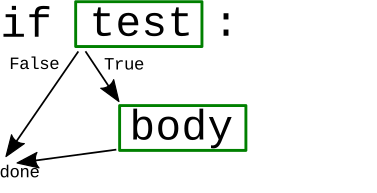
Here are the key lines of change-blue. We'll look at the individual parts to understand how it works.
    ....
    if bit.get_color() == 'blue':
        bit.paint('green')
    ....
bit.get_color()Suppose bit is on a squared painted 'green', as shown below. Here is diagram - visualizing that bit.get_color() is called and it's like there's an arrow coming out of it with the returned 'green' to be used by the calling code.
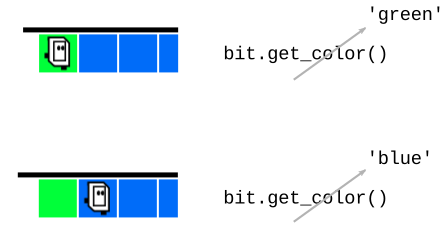
== Compares Two Values - BooleanPutting this all together, we can read the change-blue code word by word to see what it does.
while bit.front_clear():
    bit.move()
    if bit.get_color() == 'blue':
        bit.paint('green')
Q: What is the translation of the code in the loop into English?
A: For each moved-to square. If the square is blue, paint it green.
!= Not Equal Form== !=
if bit.get_color() == 'red':
    # run this if color is 'red'

if bit.get_color() == None:
    # run this if square is not painted

if bit.get_color() != 'red':
    # run this if square is anything
    # other than 'red'
    # e.g. 'green' or 'blue' or None
> change2
What if we want to change 2 colors?
'red' -> 'green'
None  -> 'blue'
Solution: Can have 2 or more if-statements in the loop body, it runs them all from top to bottom.
bit.right_clear()
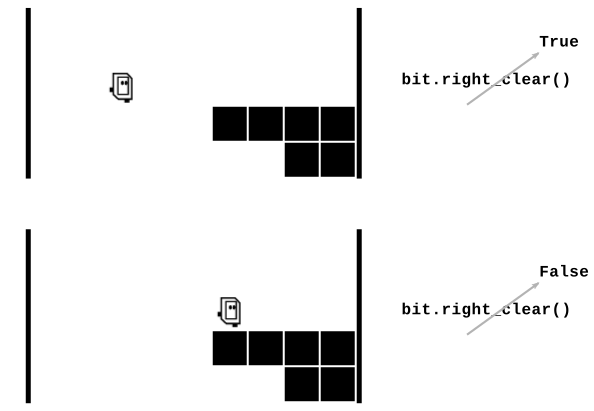
not
if bit.right_clear():
    # run here if right is clear

if not bit.right_clear():
    # run here if right is not clear,
    # aka blocked
On the experimental server, the Bit Puzzles section has many problems where bit is in some situation and needs to move around using Python code. We'll look at the Coyote problems, and there are many more problems for practice.
These problems have a lot of detail in them. Don't try to work it in your head, or just keep hitting the run button in the hopes it will work.
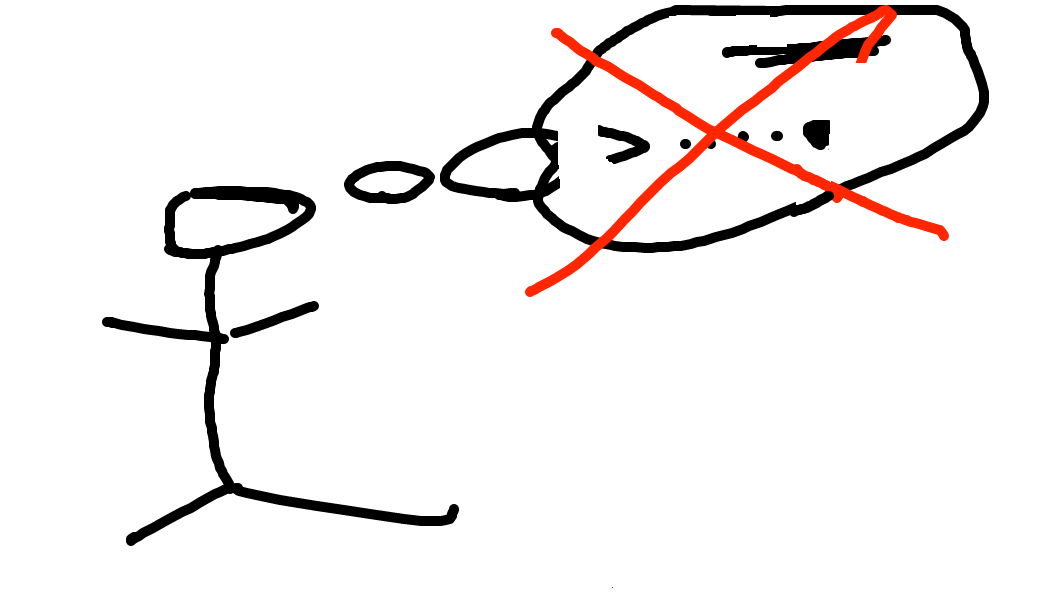
Don't do it just in your head - too much detail. Need to be able to work gradually and carefully.
Draw a typical "before" state - like what do we have to start. Then use the drawing to work out the code for each step. The drawings do not need to be fancy, but it's easier to work out the details on a sketch than in your head.
We will demonstrate this drawings-process for the problems below.
> reverse-coyote (while + right_clear)
Based on the RoadRunner cartoons, which have a real lightness to them. In the cartoons, the coyote is always running off the side of the cliff and hanging in space for a moment. For this problem, the coyote tries to run back onto the cliff before falling.
Before:
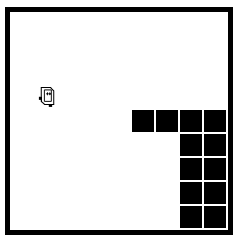
After:
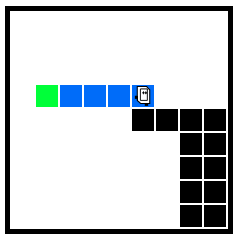
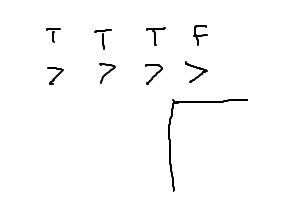
Q: What is the while test for this? Remember for the while loop, Test True = Go. What is the test that is True when we want to move, and False when do not want to move?
A: bit.right_clear()
notThese are all in the "puzzle" section. Reminder: all lecture examples have a Show Solution button if you get stuck.
> climb
> encave (a little harder, like a homework prob)
> blue-dip
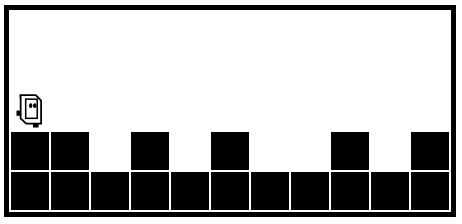
This is a more complicated problem. We'll work it out with drawings at every step to keep the details straight. In part we're showing the solution code, but more importantly we're showing the process for working through something this complicated.
Before:
After:
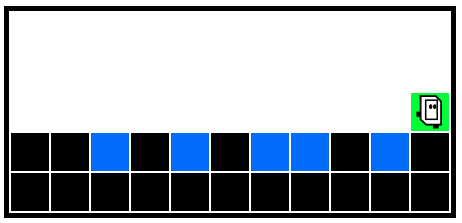
Say we have the code to go the right side. The difficulty is detecting each dip - we want an if-statement with a test that is true when we are over the dip.
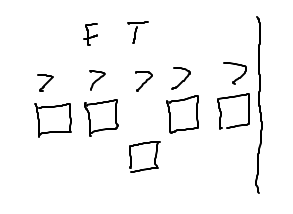
A: Test is bit.right_clear()
if bit.right_clear():
    # handle dip in here
Need to go into the dip square and paint it blue.
Aside: Can't just tell the computer what you want! You have this dumb robot. You need to spell out the steps to get the effect.
Make a drawing to work out the steps.
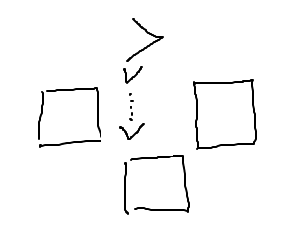
Steps to move into dip: turn right, move, then paint blue. aka:
bit.right()
bit.move()
bit.paint('blue')
There's a bunch of detail here - bit's location, blocks all around. We are using the drawing to keep those details clear, and work out the code steps with the drawing. This is the way to solve these problems. If you come to office hours with some broken bit situation, we will typically as you to make a drawing just as a first step - it's how we get these things working.
We need to go back up to the previous square so the while-loop can continue. Make a drawing to work out the code to go up one square.
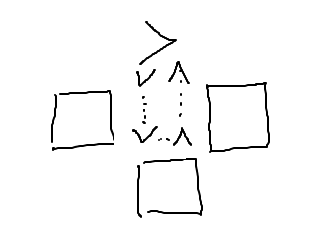
We are in the dip, facing down. Steps to get back up: turn left twice, then move (or could turn right twice and move, either way, we are doing a 180)
bit.left()
bit.left()
bit.move()
def blue_dip(filename):
    bit = Bit(filename)
    while bit.front_clear():
        bit.move()
        # Clear square below
        if bit.right_clear():
            bit.right()  # Down and paint
            bit.move()
            bit.paint('blue')
            bit.left()   # Move back up
            bit.left()
            bit.move()
The above is pretty close but it has one problem which you may have spotted earlier, and in any case it does not work right when run. Look at how we move bit back up again:
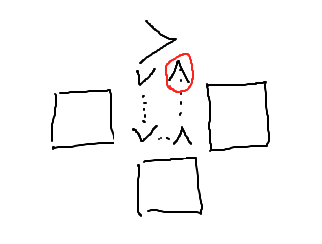
Bug: The while loop assumes bit is facing the right side of the world and just moves bit forward. Our left/left/move moves bit to the correct square, but leaves bit is facing up which is the wrong way. Bit should be facing the right side of the world. Think of it this way - before we went down into the dip, bit was facing the right side of the world. Coming out of the dip, we need to set bit back the way it was, and then the while loop will continue as it did before.
bit.right()We need a final bit.right() to face the right side of the world. There's also a final paint after the loop to paint the last square green.
def blue_dip(filename):
    bit = Bit(filename)
    while bit.front_clear():
        bit.move()
        # Clear square below
        if bit.right_clear():
            bit.right()  # Down and paint
            bit.move()
            bit.paint('blue')
            # Move back up, face right
            bit.left()
            bit.left()
            bit.move()
            bit.right()
    # Paint last square green
    bit.paint('green')
The point is not to write your code perfectly before it runs. The point is that you can't just keep clicking the Run button when things don't work. A drawing helps provide a path through the details, building and debugging the code step by step. Even very experienced programmers make little drawings like this to work out their ideas.