| Communication 200/Technical Notes/Uploading using Fetch |
|
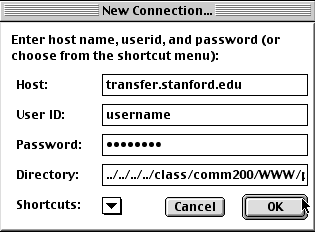
Host: transfer.stanford.edu
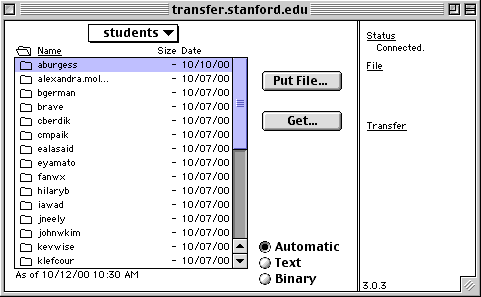
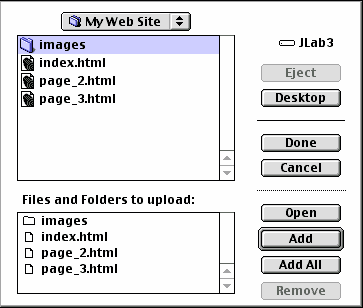
4. Once you have opened up your folder, under the "Remote" pull down menu, select "Put Files and Folders." Select those files and folders that are used for your website and click "Add." When all of the files and folders you want to include are present in the "Files and Folders to upload" box, click "Done." Make sure you have included all the image files used in your web site (JPEGs and GIFs). Also, make sure that your site files and folders have the same relative hierarchy that they had when you designed them. Otherwise, the locations of your files and images relative to one another will have changed, and your links will no longer be correct. Lastly, only upload files (images and pages) and folders that are used in the website. Do not upload preliminary files as these will take up valuable server space.
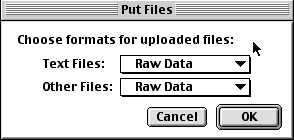
5. A dialog box will appear, asking you to choose formats for uploaded files. Make sure that both pull-down menus read "Raw Data." Click OK.
6. Once all your files have been uploaded, make sure that your index.html file is at the top level of your personal folder, and you are done! To check how your newly uploaded files look on the web, look up http://www.stanford.edu/class/comm200/projects/students/yourusername in a web browser. Your home page will eventually be linked to the "Projects" page on this site. |