- Real name: your own as you want it to appear in messages you send
- Email address: your sunetid@stanford.edu
- Mail Server (Incoming): your sunetid.pobox.stanford.edu
- User Name: your sunetid
- SMTP Server (Outgoing): smtp.stanford.edu
- Allow authentication: checked

- Mail Server: your sunetid.pobox.stanford.edu
- User Name: your sunetid
- Check for mail every XX minutes: If you want Eudora to automatically check to see if you have mail after a certain period of time, check this box and enter how often you want Eudora to check your mail. ITSS recommends that you set this to 15 minutes or longer.
- Send on check: checked
- Save password: unchecked
- Secure Sockets when Receiving: Required, Alternate Port

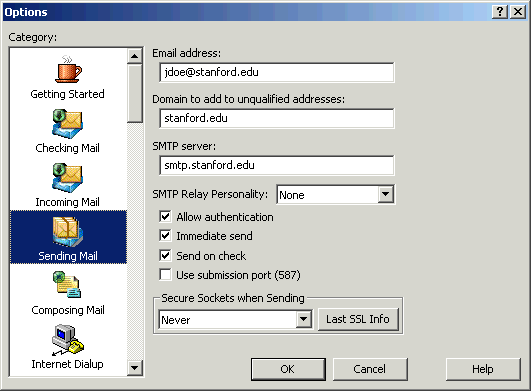
- Email address: your sunetid@stanford.edu
- Domain to add to unqualified addresses: stanford.edu
- SMTP Server: smtp.stanford.edu
- Allow authentication: unchecked (differs from screenshot below)
- Immediate send: checked
- Send on check: checked if desired
- Use submission port (587): unchecked
- Secure Sockets when Sending: Never
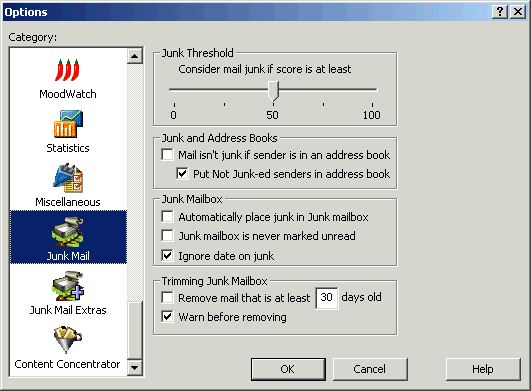
- Automatically place junk in Junk mailbox: unchecked
- Remove mail that is at least _ days old: unchecked
Note: These settings disable Eudora's automatic filtering of junk mail. IT Services recommends disabling this "SpamWatch" feature because it requires you to "train" the filter to properly recognize what is and is not spam. Unless that is done, a significant percentage of legitimate email will be marked as spam. IT Services instead recommends using its spam tagging system, which will be far more accurate without any training.
If you wish to use Eudora's SpamWatch feature to filter junk mail, see Qualcomm's SpamWatch tutorial for instructions.
- For more information about the rest of the settings, consult the Eudora online Help.