Today: insights about loops, if statement, ==, make-a-drawing,
left_clear(), puzzles
Slide 2
Lego Bricks!
- We're looking at a series of little code techniques
- Each is like a little Lego brick, maybe not that useful on its own
- Once we have enough brick types, we can write bigger and better programs!
- We can re-combine them to do anything
- Today we're adding a few more bricks + some coding techniques
Slide 3
Aside: Bit Controls
- Cmd-Return (Mac) or Ctrl-Return with cursor in code - just Run
Very handy when working hard on your code - Diff marks - the system knows what the correct answer is supposed to look like, and the red marks on the world show areas that differ from desired final output
- Speed
- Auto Play - uncheck, Run button shows bit at start state, can play from there
- End State - instead of animating, just show the end state and check if it matches
Here is the while-example we did last time, with some details added
Slide 4
Run go-green code
First we'll run the code. This code is complete. Watch it run a few times to see what the loop does, and we'll look at the details below.
> go-green
Slide 5
How Does a Loop Work?
The loop is a big increase in power, running lines many times. There are a few different types of loop. Here we will look at the while loop.
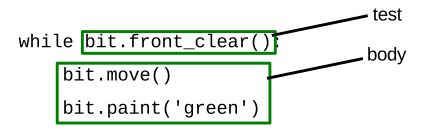
The while loop has two parts - the test expression which controls the looping, and the body contains the lines which are run again and again.
Slide 6
bit.front_clear() Expression
The phrase bit.front_clear() here is an expression. An expression
is a bit of code which runs as usual, and in addition returns a value to
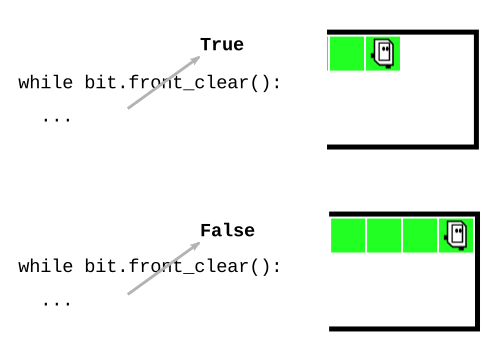
that spot in the code. A common way to visualize how an expression works
is drawing a diagonal arrow over the expression, showing the returned
value sort coming out of the expression. Here is a drawing showing the
boolean value coming out of the bit.front_clear() with bit not blocked
and then blocked:
Slide 7
How the While Loop Works
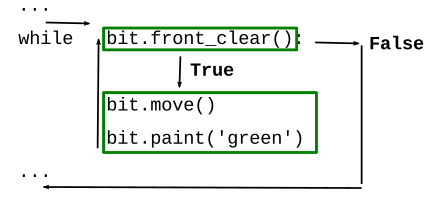
- First the loop evaluates the test-expression at the top -
TrueorFalse? - If
True, the loop runs all the lines of the body, top to bottom
Then loop back to top, check test again
After every run of the body .. go back and check the test - When the test is False, the loop is done, running continue after the loop body
- If the test is False initially, the body runs zero times. This is fine. (see Case-4)
Slide 8
go_green() Code
Looking at the go_green() code: while-test checks if front is clear. If
the test is True, the loop body moves forward one square and paints it
green. Then the loop automatically comes back to the top, and evaluates
the test again. Eventually bit will move to the rightmost square, paint
it green, and then loop back to check the test again. Sitting on that
rightmost square, the test will return False and the loop will exit.
def go_green(filename):
    bit = Bit(filename)
    while bit.front_clear():
        bit.move()
        bit.paint('green')
Slide 9
Idiomatic Move-Forward Loop
Moving forward until blocked is a common pattern in bit problems, we'll use this code pattern to do something to each moved-to square.
    ...
    while bit.front_clear():
        bit.move()
        # Do something to moved-to-square
    ...
Slide 10
Bit Loop Problems
There are a bunch of while-loop problems in here to play with - see the Bit Loop section on the server.
> Bit Loop
Slide 11
All Blue Example - Compare and Contrast with Go Green
Bit starts in the upper left square facing the right side of the world. Move bit forward until blocked. Paint every square bit occupies blue, including the first. When finished, turn bit to face downwards. (Demo - this code is complete. Shows the basic while-loop with front_clear() to move until blocked, and also taking an action before and after the loop.)
Slide 12
all-blue() Code
def all_blue(filename):
    bit = Bit(filename)
    bit.paint('blue')  # 1 paint before the loop
    while bit.front_clear():
        bit.move()
        bit.paint('blue')
    bit.right()  # Turn after the loop
Slide 13
First Square is Different
Since the loop does move-then-paint, it can't do the first square. We add a separate paint to do the first square. The while loop is not set up to do the first square, so we accept for many problems that we will need to add extra code before the loop if any action is needed for the first square.
The idea that sometimes you have to do one special case outside of a loop is often called an "off-by-one" problem, or an "edge case", or a "fence-post" problem: think of each square as part of a fence, where you have to paint each post. You start at one post, and then move to each additional post, but there will be one extra post to paint, either at the beginning or the end. In other words, if there are n posts, you only move n-1 times, meaning that one of the cases you just paint and don't move.
Slide 14
Do Something After The Loop
Lines in the loop run many times. Lines before or after the loop run
just once. In this case, to turn downwards after the loop: the line
bit.right() is after the loop, and not indented within the loop.
Slide 15
Infinite Loops
- Oddball bug case: infinite loop
- The body lines run forever
- The lines fail to make the while-test
False - May get error message: timed out - possible infinite loop
The Bit system notices code running for a long time, terminates it - Click the Bit "stop" buttonor click on the code to stop the line hilighting
Infinite Loop 1 - Waggle Dance
Here is a buggy All Blue - instead of move() have bit do right() and
the left() - a sort of "waggle dance" like bees do in the hive.
Notice that bit never moves forward. Bit can do this for eternity,
and never leave that first square! Everyone has days like that.
    while bit.front_clear():
        bit.right()    # waggle dance!
        bit.left()
        bit.paint('blue')
Run the code - you will see a message about a timeout, suggesting that this code does not seem to reach an end.
Infinite Loop 2 - move vs. move()
Python syntax requires the parenthesis () to make a function call.
Unfortunately, if you omit them, easy enough to do, it does not make a
function call. So the code below looks right, but actually it's an
infinite loop. Bit never moves. Try it yourself and see, then fix it.
    while bit.front_clear():
        bit.move
        bit.paint('blue')
Slide 16
Practice!
Let's try some of the other problems in the "bit loop" section.
Slide 17
If Statement - Logic
While loop is power. If-statement is control, controlling if lines are run or not
Slide 18
If-Demo
We'll run this simple bit of code first, so you can see what it does. Then we'll look at the bits of code that go into it.
Problem statement: Move bit forward until blocked. For each moved-to square, if the square is blue, change it to green. (Demo: this code is complete.).
For reference here is the code:
def change_blue(filename):
    bit = Bit(filename)
    while bit.front_clear():
        bit.move()
        if bit.get_color() == 'blue':
            bit.paint('green')
Slide 19
If Statement Syntax
Syntax 4 parts (similar to "while"): if, boolean test-expression, colon, indented body lines
if test-expression:
    body lines
Slide 20
If Statement Operation
- If statement evaluates the test expression, looking for
TrueorFalse - If test is True, runs the body top to bottom
- Otherwise skips the body, run continues after the body
- Basically an On/Off switch - runs the body lines or runs nothing
Slide 21
Look At Test Expression
Here are the key lines of code:
    ....
    if bit.get_color() == 'blue':
        bit.paint('green')
    ....
Slide 22
1. bit.get_color() Expression
- Recall: code that runs and returns a value to use
Called an "expression"
e.g.bit.front_clear()expression - returnsTrueorFalse
e.g.bit.get_color()expression - today's example bit.get_color()expression- returns the color value of the current square, one of:
'red' 'green' 'blue'
orNoneif the square is not painted Noneis the special Python value meaning "nothing"
It's handy in computer code to a formal "nothing" value for situations like this
Slide 23
Expression Visualization
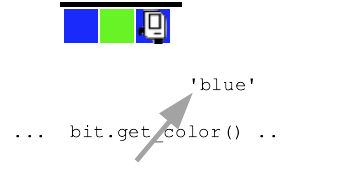
Suppose bit is on a squared painted 'blue', as shown below. Here is
diagram - visualizing that bit.get_color() is called and it's like
there's an arrow coming out of it with the returned 'blue' to be used
by the calling code.
Slide 24
2. == Compares Two Values - Boolean
- The operator
==compares two values
(two equal signs next to each other) - Returns
Trueif two values are equal,Falseotherwise - Very often used in an if-test or a while-test
if x == 6:
if-test isTrueif the variable x is 6- Important "not-equal" form written with exclamation mark:
!= if x != 6:
if-test isTrueif x is not 6- To express the "not-equal" idea, use the
!=form
Slide 25
Now Look at Change-Blue Again
Look at the if-statement. What is the translation of that into English?
For each moved-to square. If the square is blue, paint it green.
while bit.front_clear():
    bit.move()
    if bit.get_color() == 'blue':
        bit.paint('green')
Slide 26
Other Examples == and !=
if bit.get_color() == 'red':
    # run this if color is 'red'

if bit.get_color() == None:
    # run this if square is not painted

if bit.get_color() != 'red':
    # run this if square is anything but 'red'
    # e.g. 'green' 'blue' or None
Slide 27
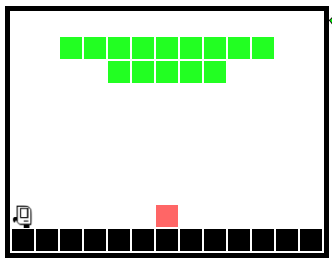
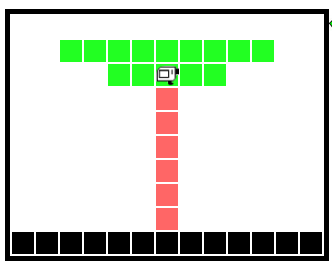
The Fix Tree Problem
This is a challenging problem for where we are at this point. Just watch (and you can do it in parallel) as I work through the problem to see the thinking and coding process in action.
Note: it is very common to move bit with an until-blocked loop. This problem is a little unusual, moving bit until hitting a particular color.
> Fix Tree
Before:
After:
Slide 28
Important Ideas - Thinking Drawing and Coding
We have art for these. No expense has been spared!
Slide 29
1. Don't do it in your head
Don't do it just in your head - too much detail. Need to be able to work gradually and carefully.
Slide 30
2. Make a Drawing
Draw a typical "before" state.
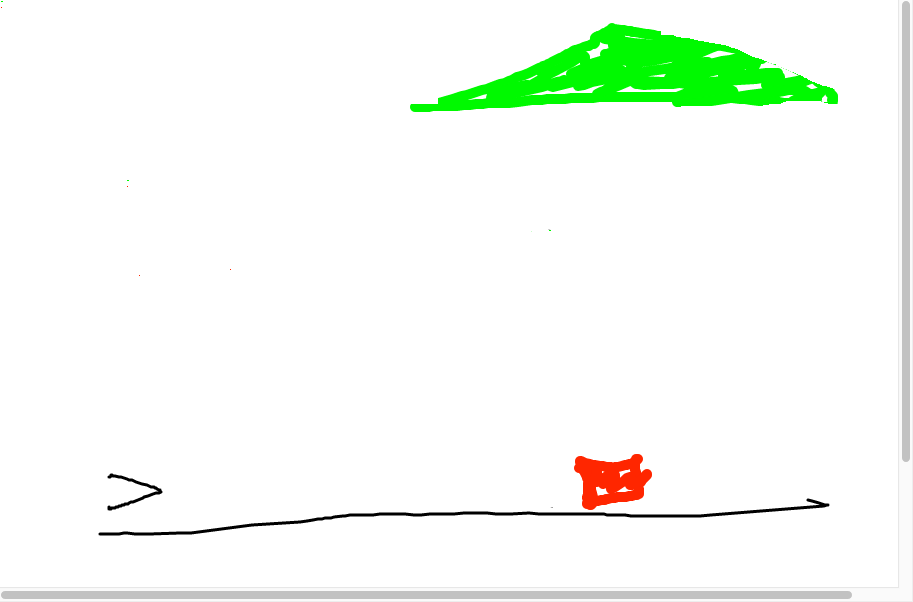
Slide 31
3. What is a next-step goal - what would that look like?
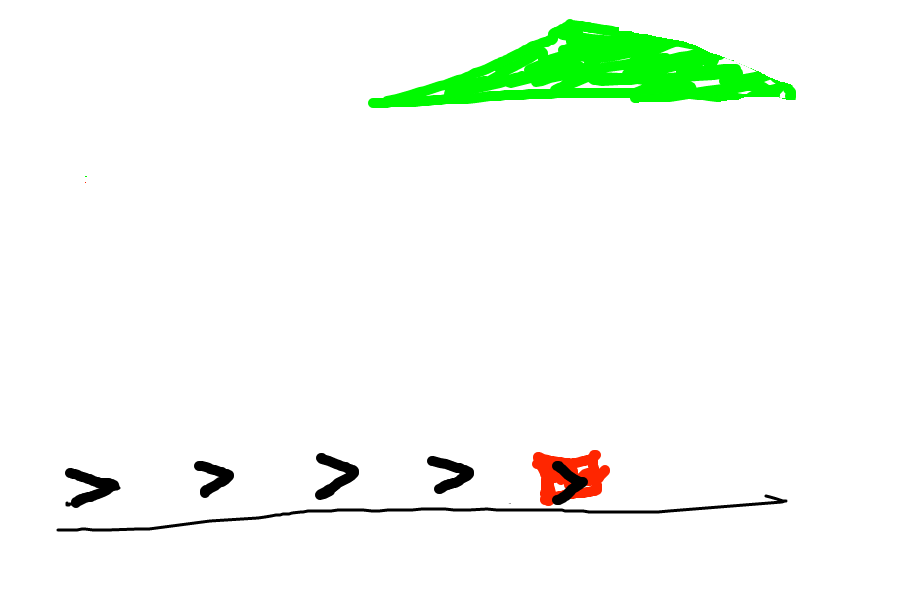
Look at the before state - what code can advance this?
Slide 32
4. Question: what code?
You have the current state. What code could advance things to the next goal?
Q: Look at those bit positions. When do you want bit to move, and when not to move?
A: Want bit to move when the square is not red. What is the code for that?
Aside: if you were talking to a human, you would just say "make it look like this" and point to the goal. But not with a computer! You need to spell out the concrete steps to make the goal for the computer.
In this, case we're thinking while-loop. Draw in the various spots bit
will be in. What is a square where we do not want bit to move? When
bit is on the red square. Otherwise bit should move. What does that look
like in code?
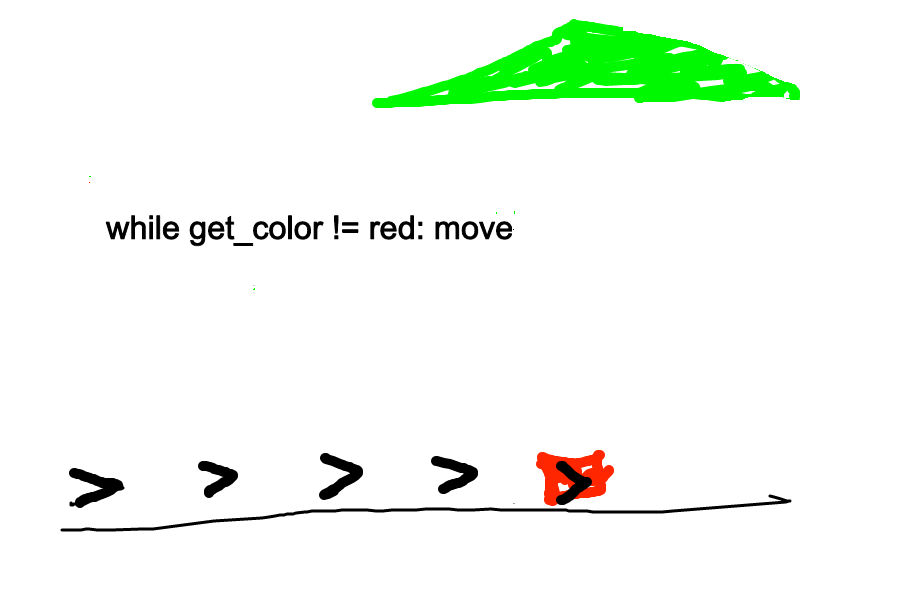
Code looks like...
while bit.get_color() != 'red':
    bit.move()
Slide 33
5. Try The Code, See What It Does
Ok, run it and see. Sometimes it will not do what we thought.
Slide 34
6. Ok what is the next goal.
Ok what is the next goal? What would be code to advance to that?

I think a reasonable guess here is similar to the first loop, but painting red, like this
while bit.get_color() != 'green':
    bit.move()
    bit.paint('red')
Slide 35
7. OOPS Not What Expected!
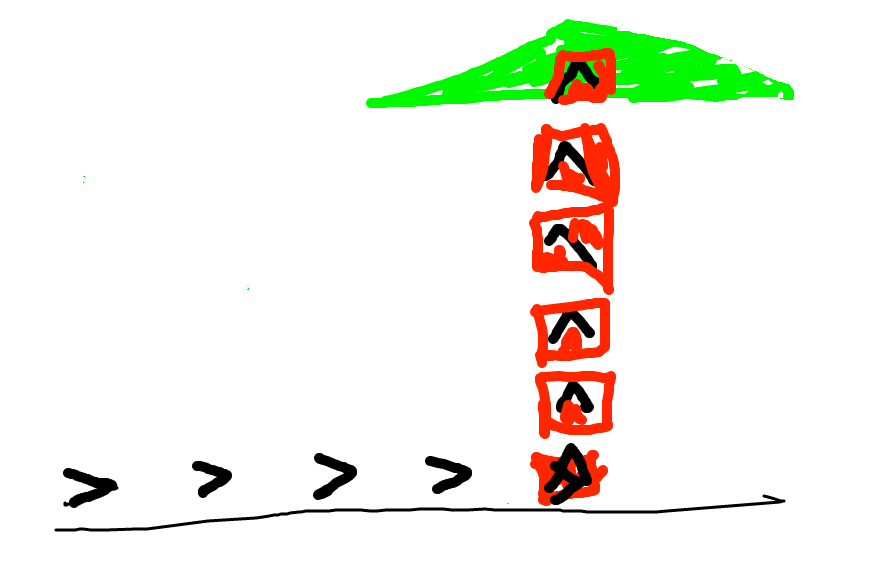
OOPS, that code looks reasonable, but does not do what we wanted. The question is: what sequence of actions did the code take to get this output? That's a better question than "why doesn't this work".
Go back to our drawing. Think about the paint/red and the while loop,
how they interact.
Slide 36
8. Solution
The problem is that we paint the square red, and then go back to the loop test that is looking for green, which we just obliterated with red. One solution: add an if-statement, only paint blank squares red, otherwise leave the square alone.
That gives us this solution, which works perfectly..
def fix_tree(filename):
    bit = Bit(filename)
    while bit.get_color() != 'red':
        bit.move()
    bit.left()
    while bit.get_color() != 'green':
        bit.move()
        if bit.get_color() == None:
            bit.paint('red')
Slide 37
9. Thinking - Drawing - Coding
Use a drawing to think through the details of what the code is doing. It's tempting to just stare at the code and hit the Run button a lot! That doesn't work! Why is the code doing that?
Or put another way, in office hours, a very common question from the TA would be: can you make a little drawing of the input here, and then look at your line 6, and think about what it's going to do. All the TA does is prompt you to make a drawing and then use that to think about your code.
Slide 38
More Bit Tests: bit.left_clear() + not
bit.left_clear()- another Bit function- Returns
Trueif the square to bit's left is clear,Falseotherwise - Also have
bit.right_clear() - Putting
notto the left of a True/False value inverts it, example below - Use these functions as an if-test or a while-test
if bit.left_clear():
    # run here if left is clear

if not bit.left_clear():
    # run here if left is blocked, aka not-clear
Slide 39
Server: Bit Puzzles
On the experimental server, the Bit Puzzles section has many problems where bit is in some situation and needs to move around using Python code. We'll look at the Coyote problems, and there are many more problems for practice.
Slide 40
Reverse Coyote, remember Test = Go
> reverse-coyote (while + right_clear)
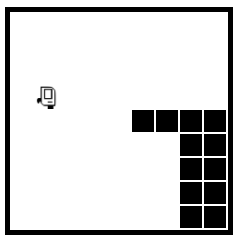
Based on the RoadRunner cartoons, which have a real lightness to them. In the cartoons, the coyote is always running off the side of the cliff and hanging in space for a moment. For this problem, the coyote tries to run back onto the cliff before falling.
Before:
After:
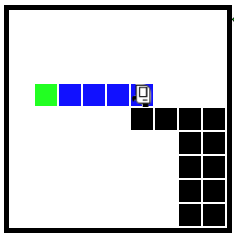
Q: What is the while test for this? Remember that Test = Go. What is the test that is True when we want to move, and False when do not want to move?
A: bit.right_clear()
Then students can try the standard_coyote(), or climb() which is a little more difficult.