Slide 1
Today: parameters, start PyCharm, command line, bluescreen algorithm
These are all on HW2, Bluescreen, due Monday.
Slide 2
Function in Two Worlds: def and call
Each function has two forms, equally important. The def specifies the code of the function, usually with many lines of code. There is one def for a function.
A call of a function is one line, calling the function by name to run it. The call specifies the values for the parameters within the parenthesis. There can be many calls to a function.
Slide 3
Look in the Run Menu
Look at the Run Menu for darker_nested() carefully. For each case, you can see the syntax of the function call - the name of the function and a pair of parenthesis. Look inside the parenthesis, and you will see the parameters passed in for each run. Click the Run button with different menu selections (different image names passed) to see it in action.
Slide 4
foo(a, b) Example
What do you see here?
def foo(a, b):
   ...
   ...
It's a function named "foo" (traditional made-up name in CS). It has two parameters, named "a" and "b".
Each parameter is for extra information the caller "passes in" to the function when calling it. What does that look like? Which value goes with "a" and which with "b"?
A call of the foo() looks like this:
   ....
   foo(13, 100)
   ...
Parameter values match up by position within the parenthesis. The first value goes to "a", the second to "b". It is not required that the value has the same name a the parameter.
Slide 5
Little Foo Interpreter Exercise
Claim: the parameter values from from the function call line, within the parenthesis.
Let's do a little live exercise along these lines.
The hack mode "interpreter", has a ">>>" prompt. You type a line of python code here, hit return. What you typed is sent to python to run, the results are printed after the ">>>".
We'll use this more later, but for now we can do a little function/parameter exercise.
Here we'll enter a little two-line def of foo(a, b) in the interpreter, then try calling it with various values. It's very unusual to define a function within the interpreter like this, but here's one time we'll do it. Normally we define functions inside a .py file.
The most important thing is that at the function call line, the parameter values are pulled from within the parenthesis.
The parameters match by position. So the first value goes to "a", the second value goes to "b". The number of parameters must be exactly 2 or there's an error, since foo() takes 2 parameters. The word "argument" is another word for a parameter, which appears in the Python error messages.
Each parameter value can be an expression - Python computes the value if needed, then sends that value as the parameter.
>>> # Define foo
>>> def foo(a, b):
      print('a:', a, 'b:', b)
>>>
>>> # Call it with 2 param values
>>> foo(1, 2)
a: 1 b: 2
>>> foo(13, 42)
a: 13 b: 42
>>>
>>> # Call with expressions - passes computed value, e.g. 60
>>> foo(10 * 6, 33 + 2)
a: 60 b: 35
>>>
>>> # Show that number of parameters must be 2
>>> foo(12)
Error:foo() missing 1 required positional argument: 'b'
>>> foo(12, 13, 14)
Error:foo() takes 2 positional arguments but 3 were given
>>>
>>>
>>> # Parameters do not match by name
>>> # Parameters match by position - first to "a", second to "b"
>>> b = 10
>>> foo(b, b + 1)
a: 10 b: 11
Slide 6
The Command Line
The command line is how your computer works "under the hood", and we'll use it in CS106A. Not pretty, but very powerful. We'll use it with a free program called PyCharm - see the PyCharm instructions on the course page.
For details see Python Guide: Command Line
To practice using the command line, download the HW2 zip file. Homework 2
Unzip that folder. Open the folder in PyCharm (not the image-grid.py, the folder). In PyCharm, select "Terminal" at lower left - that's the command-line area. Then try running the hello.py program ("python3" on the Mac, "py" on Windows).
Mac:
% python3 image-grid.py
% py image-grid.py
Those are described in detail in the -grid homework handout, so you'll see explanations for those when you begin the homework.
Slide 7
Color If Logic
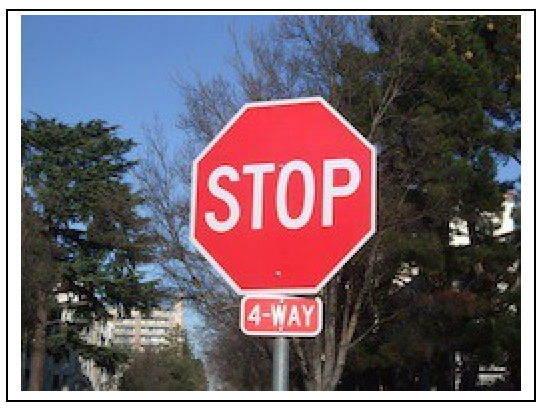
- Say we have this stop sign
- Detect areas of an image based on color, e.g. red
- Work out algorithm, Python code to detect a color area
- e.g. detect the red area of this stop sign
- Reminder for colors: rgb-explorer
Slide 8
Red Detect red >= 100
- Try on red_detect1 code example
- First try using red value with >
- Color detection - think about the "hurdle" in the if-test
- e.g.
if pixel.red >= 100: - Starts with hurdle value of 100
- Adjust value to get best results
- Q: To make this more selective, make 100 bigger or smaller?
- A: bigger. Look at < - think for a second to get the direction correct
- Does not work that great:
Bright areas and red areas both have big red numbers - redish pixel: 220, 50, 50
- white pixel: 220, 220, 220
- Best can do here is maybe hurdle of 160
Slide 9
Red Detect - Average
- Try on red_detect2 code example
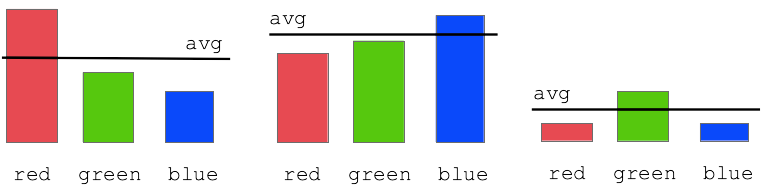
- Improvement: compare red value to average of red/green/blue values
- "redish pixel"
the red value is above the average of this pixel - "blueish pixel"
the blue value is above the average of this pixel red >= average * 1.0- Adjust the 1.0 "hurdle" factor by eye, try 1.0 1.1 1.2 .. find a good value
- The average technique works great to select the red stop sign pixels
- Experiment: for detected pixels, reduce only red and green, leaving
blue unchanged
result is blue stop sign - Experiment: for detected pixels, swap red and green values
Slide 10
Bluescreen Algorithm
- Demo Google search: blue screen movie image
- Also known as Chroma Key (wikipedia)
- Video is just a series of still images, 20-60 per second
- This is the "front" approach, replacing colored pixels in the front image
- Have image with special color
- Have back background image
- 1. Detect colored area in an image, e.g. the blue area
- 2. Replace colored pixels with pixels from back image
- 3. The final output is the front image with the replacements done
Slide 11
Bluescreen Algorithm Outline
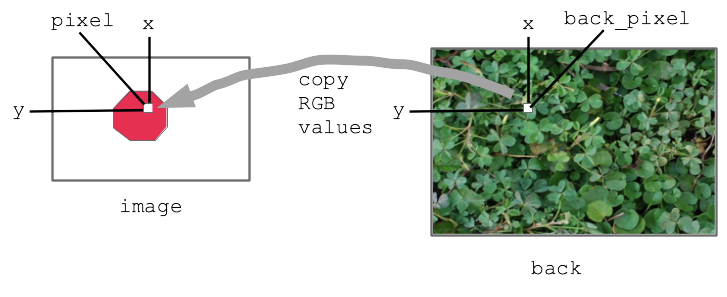
- Two images we'll call image and back
- Detect, say, red pixels in image
- For each red pixel (make a drawing)
Consider the pixel at the same x,y in back image
Copy that pixel from back to image
i.e. copy RGB numbers from back pixel to image pixel - Result: for red areas, copy over areas from back image
- Adjacent pixels in back are still adjacent in new image, so it looks right
Diagram:
Slide 12
Bluescreen Stop Sign Example
This code is complete, look at the code then run it to see.
Solution code
def stop_leaves(front_filename, back_filename):
    """Implement stop_leaves as above."""
    image = SimpleImage(front_filename)
    back = SimpleImage(back_filename)
    for y in range(image.height):
        for x in range(image.width):
            pixel = image.get_pixel(x, y)
            average = (pixel.red + pixel.green + pixel.blue) // 3
            if pixel.red >= average * 1.4:
                # the key line:
                back_pixel = back.get_pixel(x, y)
                pixel.red = back_pixel.red
                pixel.green = back_pixel.green
                pixel.blue = back_pixel.blue
    return image
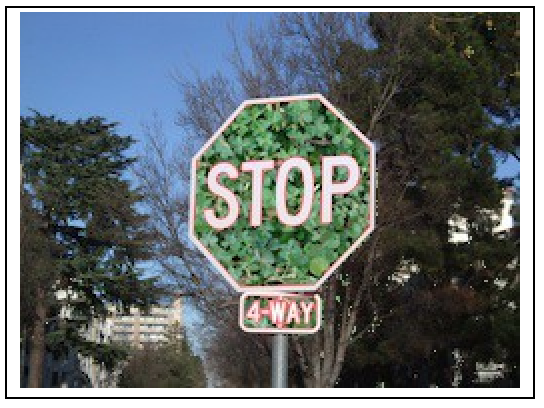
Before - the red stop sign before the bluescreen algorithm:
After:
Slide 13
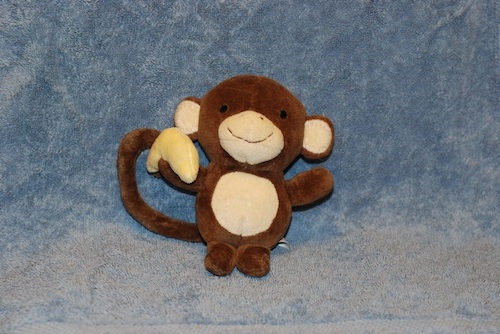
Bluescreen Monkey
A favorite old example of Nick's.
Have monkey.jpg with blue background
The famous Apollo 8 moon image. At one time the most famous image in the world. Taken as the capsule came around the moon, facing again the earth. Use this as the background.
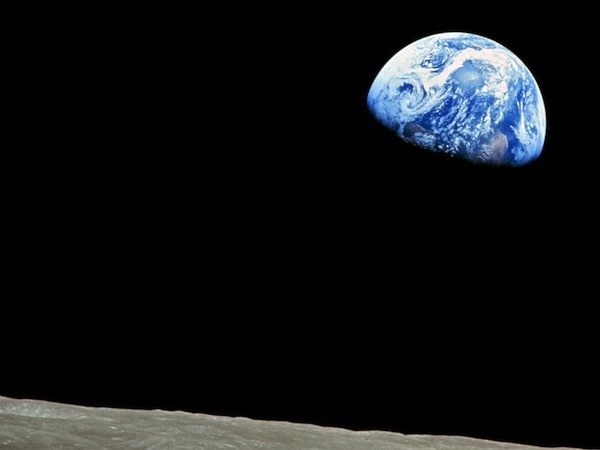
The bluescreen code is the same as before basically. Adjust the hurdle factor to look good. Observe: the bluescreen algorithm depends on the colors in the main image. BUT it does not depend on the colors of the back image - the back image can have any colors it in. Try the stanford.jpg etc. background-cases for the monkey.
The code is complete but has a 1.5 factor to start. Adjust it, so more blue gets replaced, figuring out the right hurdle value.