How to install PyCharm on Samsung Galaxy S computers
Please follow the instructions below exactly as best you can. If you have any trouble, Chris Gregg (cgregg@stanford.edu) is available to help.
Overview
The Samsung Galaxy computers are ARM-based computers that emulate 32-bit x86 code (if that doesn't make sense, don't worry!). But, it means that they need a specific software build, as described below.
Instructions
- Install PyCharm Community Edition 2019.3.5: PyCharm 2019.3.5 Community Edition
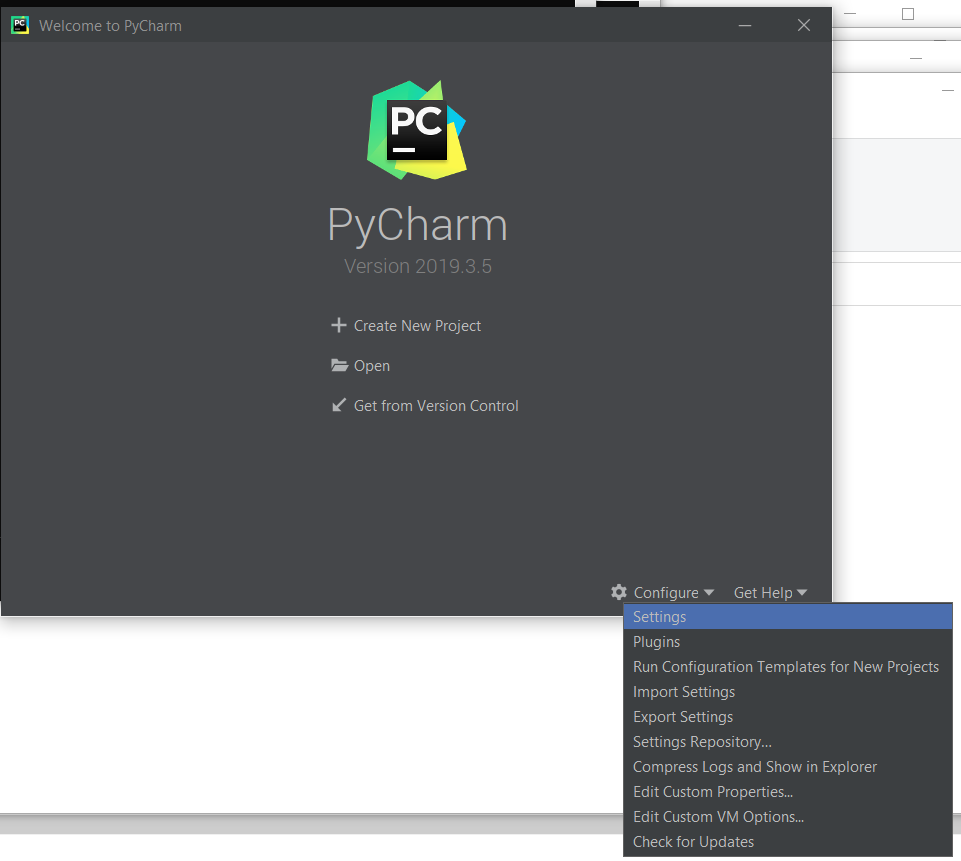
- Once installed, click on "Configure"->Settings in the bottom right side of the window:
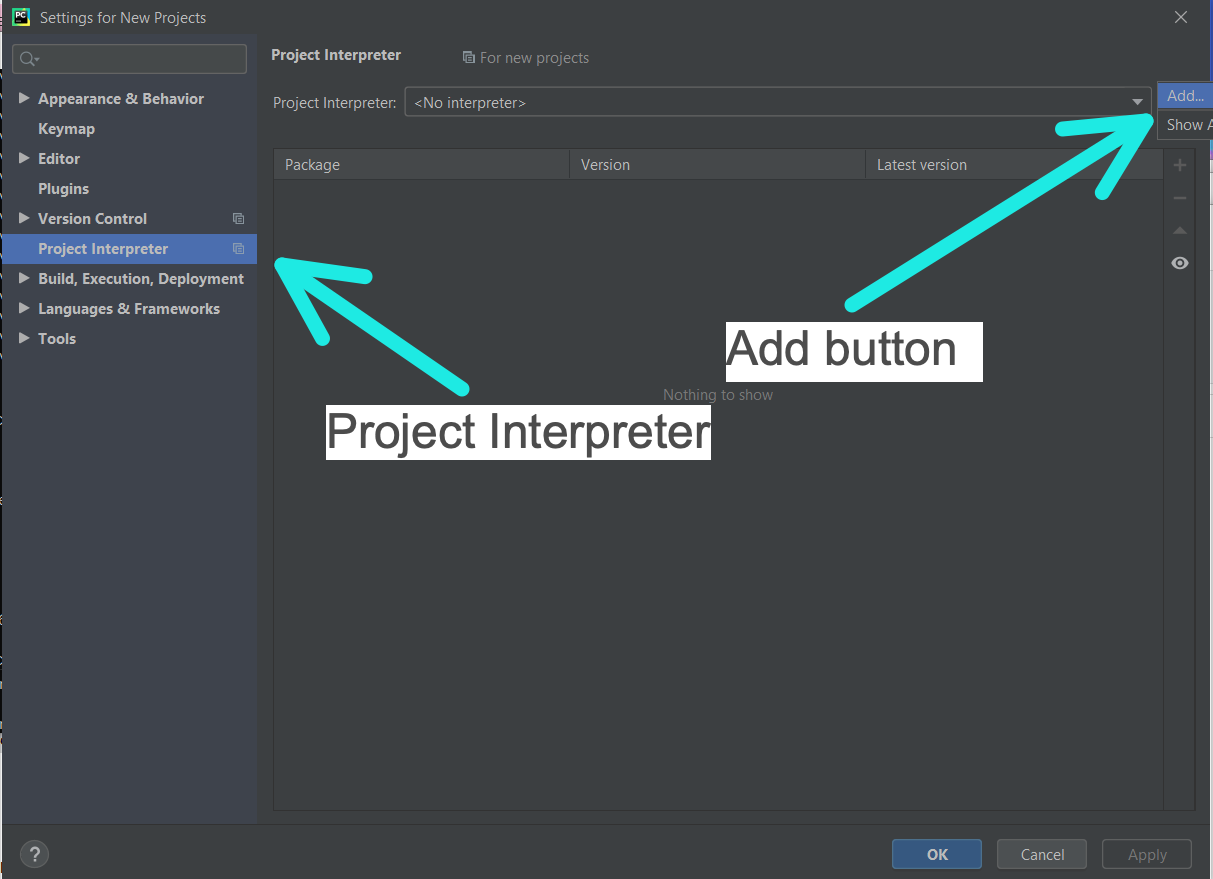
- Select "Project Interpreter" in the left hand side of the window. Click on the gear icon on the right side of the "Project Interpreter" text box, then select "Add".
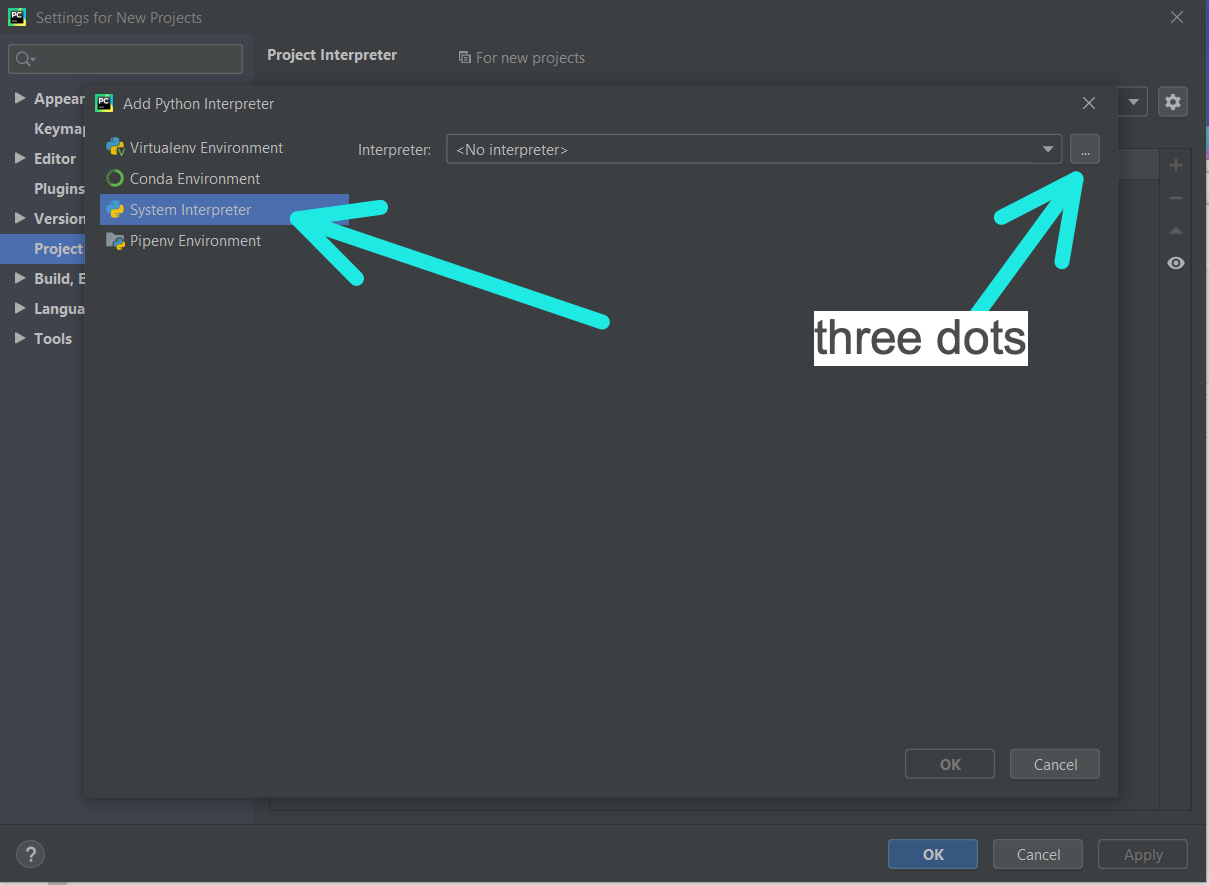
- On the left, select "System Interpreter":

- Click the three dots on the right side of the "Project Interpreter" line:
- You will have to find C:\Users\YourUserName\AppData\Local\Programs\Python\Python39\python.exe but the AppData directory will be hidden, so you will probably have to type it in after you get to your username!. See here:
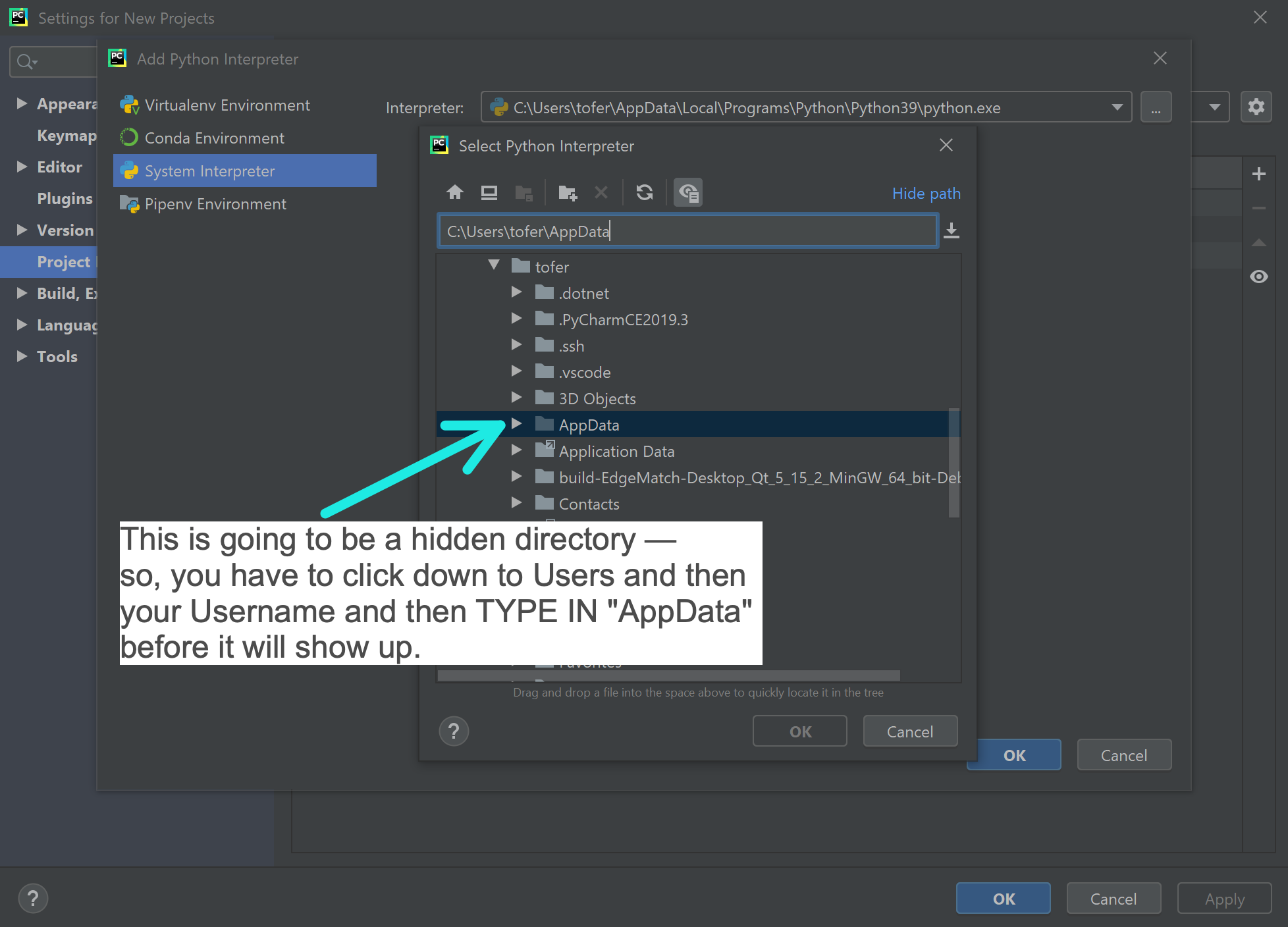
- In the end, you should be able to select this one:
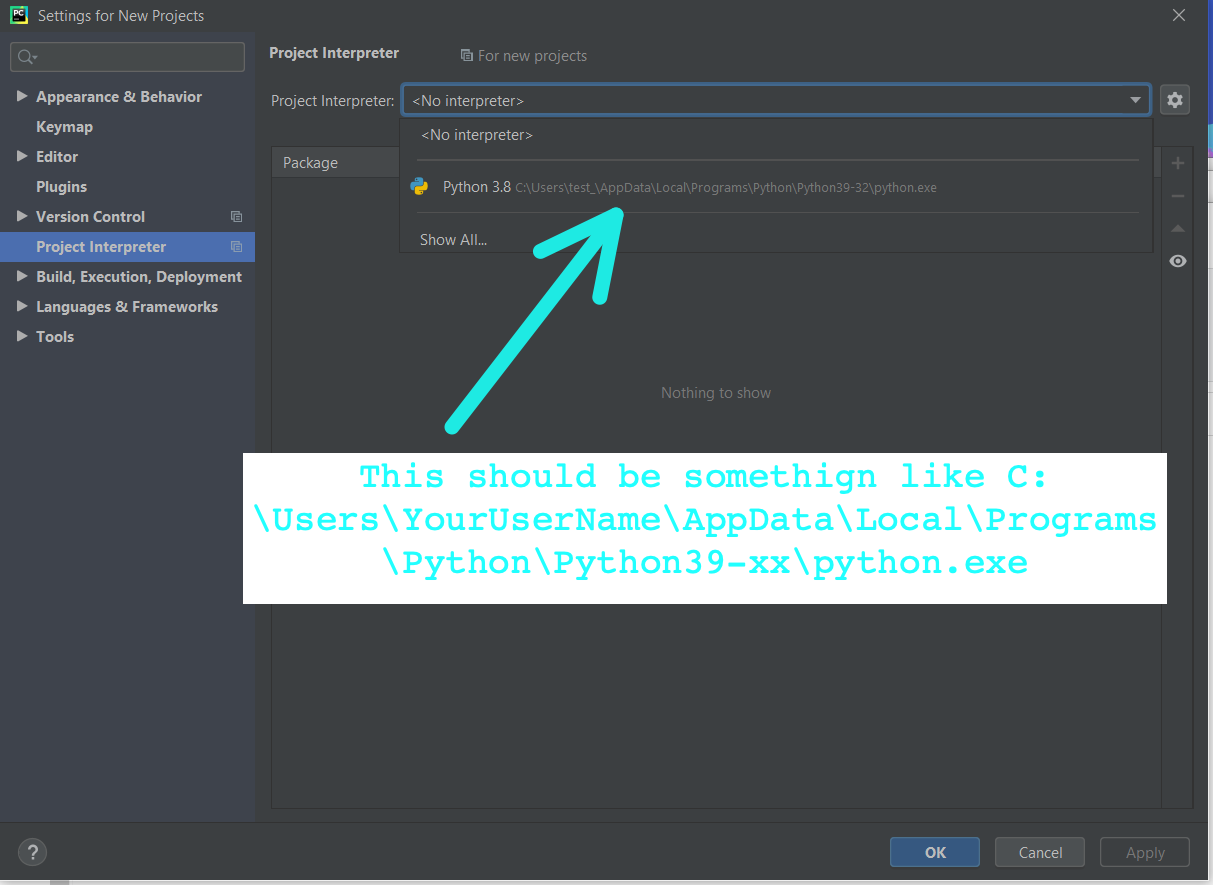
-
Click "Ok"
- Download an example project here: Example Program
- Double-click on the .zip file to extract it, and select "Extract All"
- Once you have extracted the .zip file, you should see a
pycharm_intro folder in your Downloads directory. You want to open the directory inside that directory (also called pycharm_intro) in PyCharm.
- Switch back to PyCharm and click "Open". Then find the
pycharm_intro directory and open the directory (i.e., do not open the outer directory directly):

- Once the directory opens in PyCharm, click on the "Terminal" button to open up a text terminal:
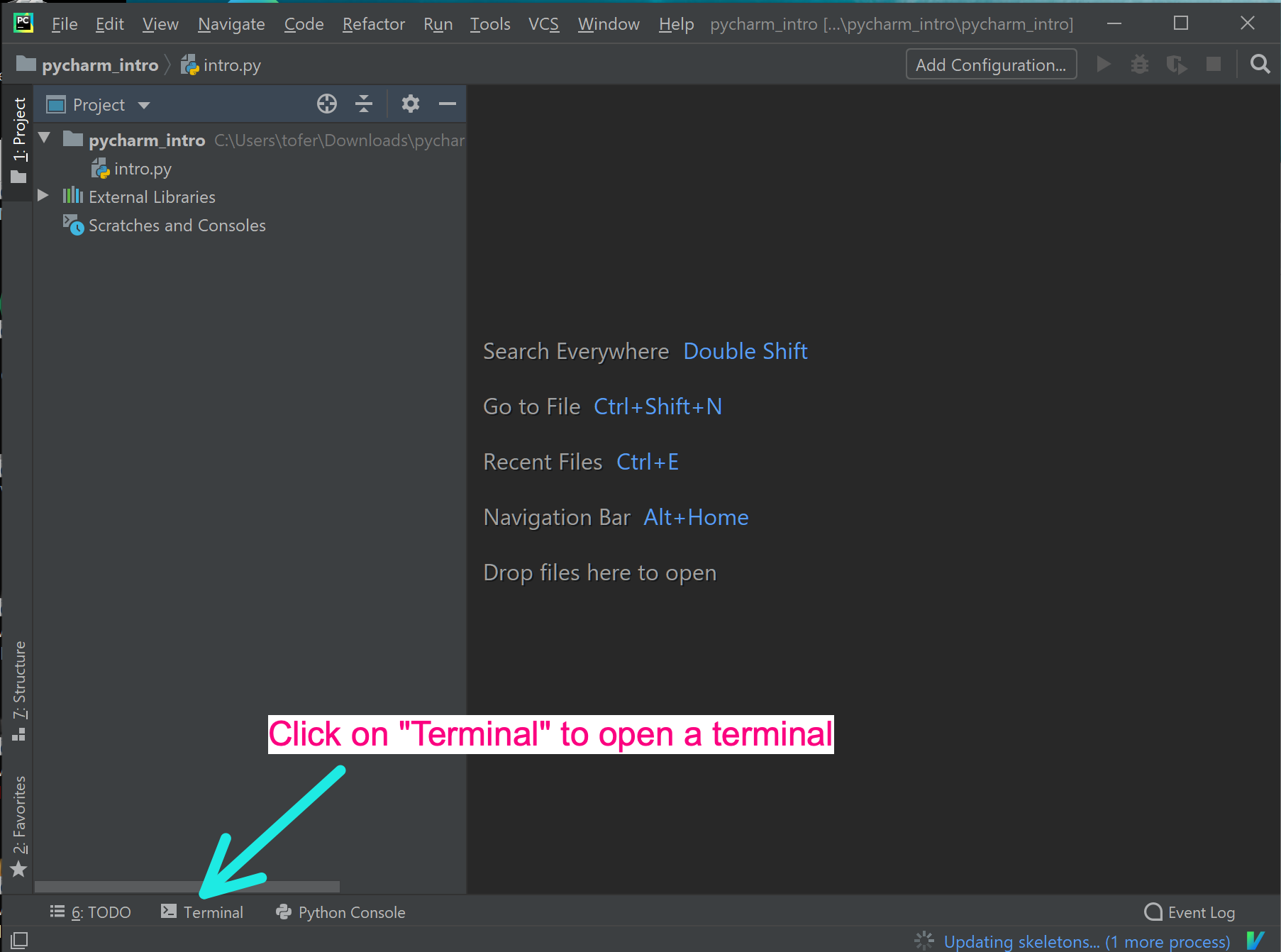
- Once that terminal is opened, type
py intro.py and then the <return> key:

- You should see the output:
Hello, CS106A! Now try running 'py intro.py <YOUR NAME HERE>' in the terminal!
- Follow those instructions, and you should see "
Hello YOUR NAME! You're done with the PyCharm setup process!"