How to install Qt Creator on Samsung Galaxy S computers
Please follow the instructions below exactly as best you can. If you have any trouble, Chris Gregg (cgregg@stanford.edu) is available to help.
Overview
The Samsung Galaxy computers are ARM-based computers that emulate 32-bit x86 code (if that doesn't make sense, don't worry!). But, it means that they need a specific software build, as described below.
Instructions
- Install Qt Creator 4.13.3 (Community Edition) from the following link: Qt Creator 4.13.3 Community Edition
- To install, double-click on the file you downloaded and follow these instructions:
- You will likely have to fill out the "Need a QT Account?" form -- fill this out and click "I accept the sercice terms".
- Click "Next"
- On the next screen, click "I have read and approve the obligations o fusing Open Source Qt"
- Click "Next"
- Click "Next"
- The default location for the Installation Folder is fine.
- Click "Next"
- Click "Next"
- Click that you have read and agree to the terms.
- Click "Next"
- Click "Next"
- Click "Install"
- Once installed, make sure the "Launch Qt Creator" box is checked (it will be by default) and then click "Finish"
- Download the Qt libraries from here: Qt libraries
- Double click to unzip, and click on "Extract All"
- When asked for the folder, CHANGE it to:
C:\mingw32
- Extract to that folder
- Go to the open Qt Creator window
- Click on Tools->Options and select "Kits" on the left side of the window:

- Click on the "Kits" tab at the top of the Kits window
- Click on any kits that are already set up (if any), and click "Remove".
- Click on the Qt Versions Tab in the Kits window:
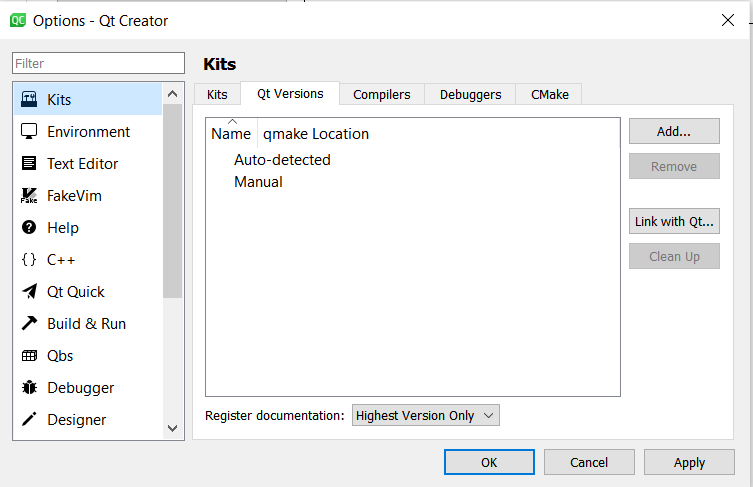
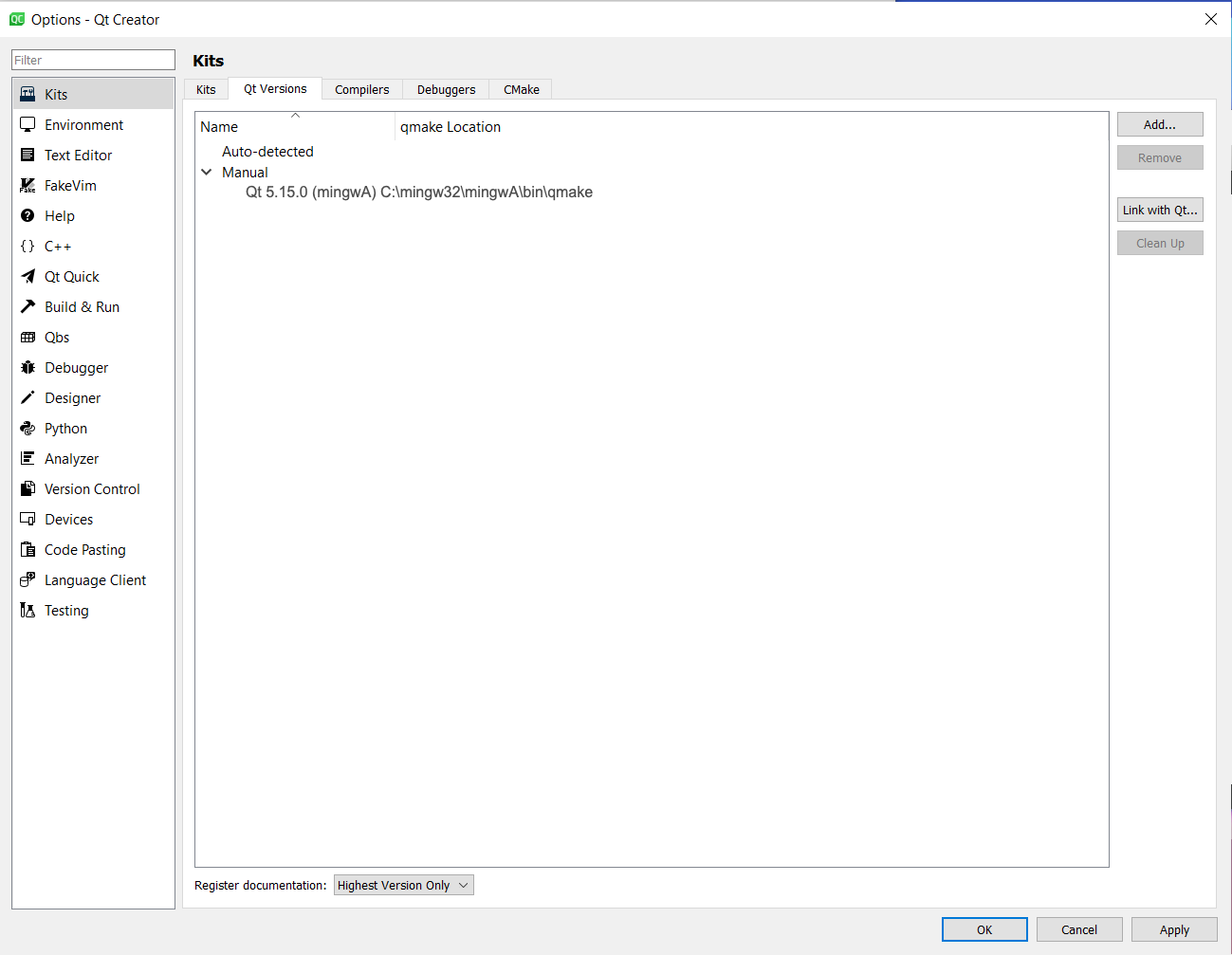
- Click "Add", and then find
This PC->Local Disk (C:)->mingw32->mingwA->bin->qmake:
- Click on the "Compilers" tab
- On the right, Choose "Add"->MinGW->C

- Under Compiler path, choose "Browse" and then find
This PC->Local Disk (C:)->mingwB->bin->gcc
- On the right, Choose "Add"->MinGW->C++
- Under Compiler path, choose "Browse" and then find
This PC->Local Disk (C:)->mingwB->bin->g++
- Click Apply
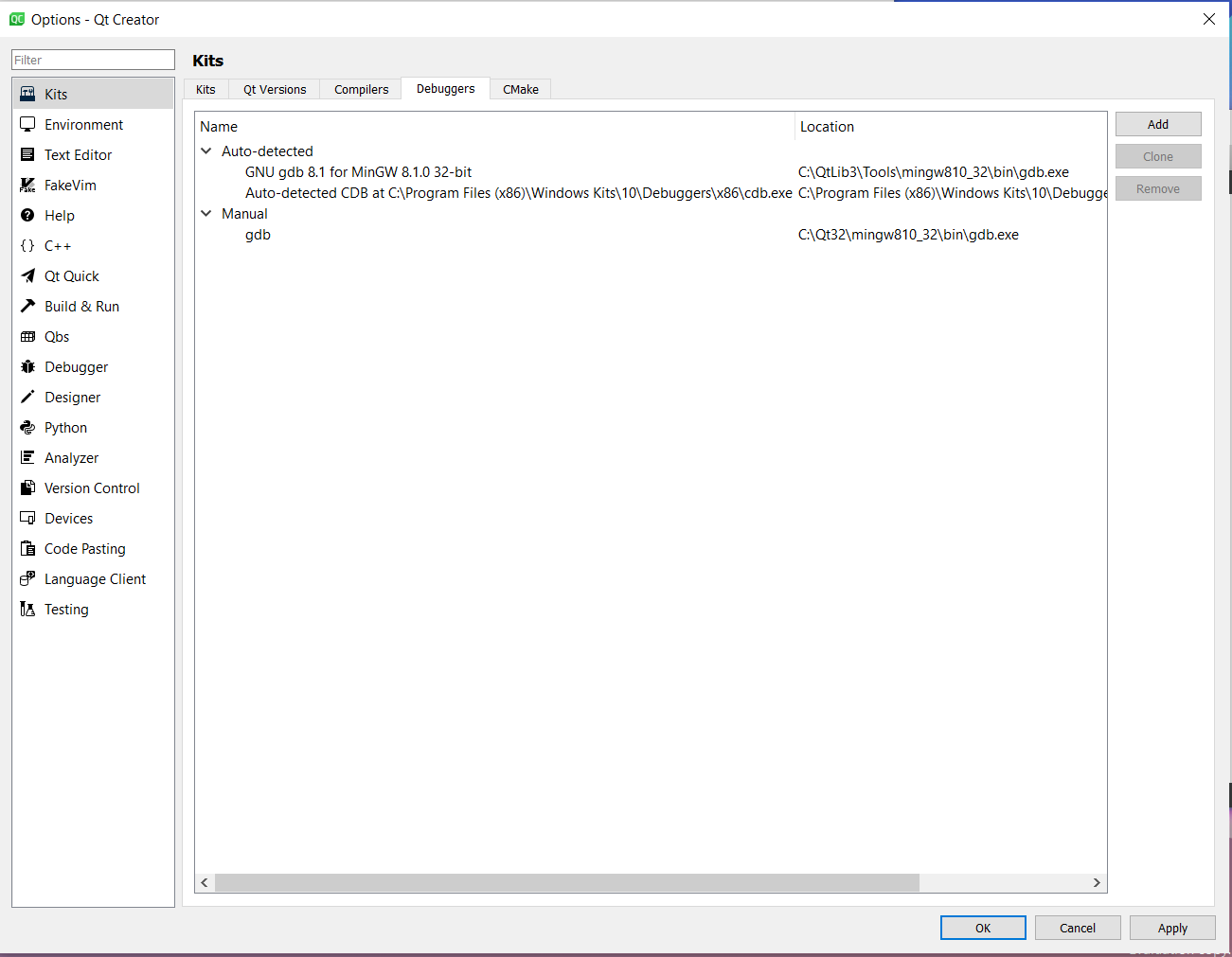
- Click on the "Debuggers" tab
- Click "Add"
- Under Path, choose "Browse" and then find
This PC->Local Disk (C:)->mingwB->bin->gdb
Name it "gdb"
- Click "Apply"
Click "Kits" on the top of Kits
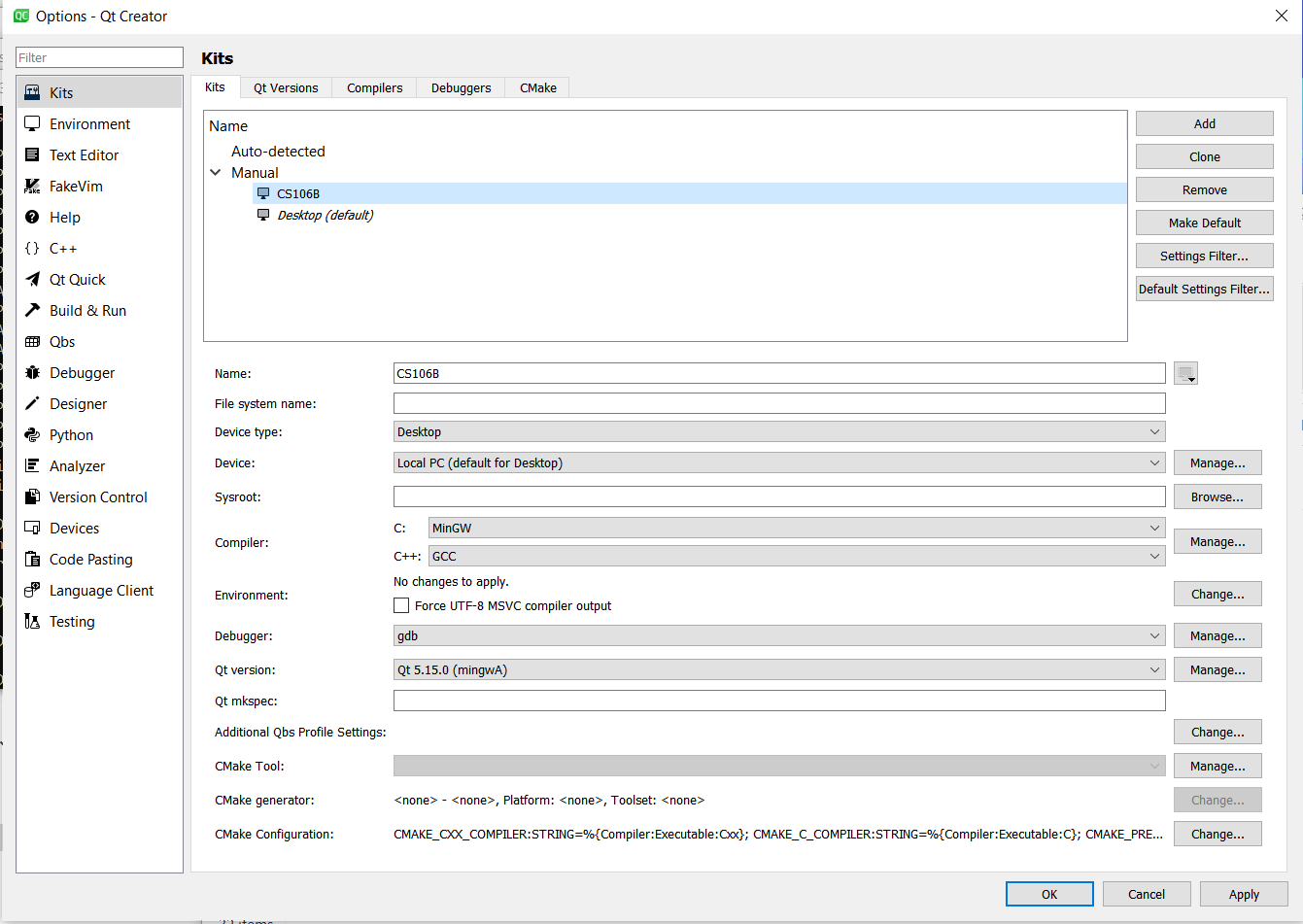
- On the right hand side, click "Add"
- Name the Kit 106B
- For Compiler, C, choose "MinGW"
- For Compiler, C++, choose "MinGW"
- For "Debugger", choose "gdb"
- For Qt version, choose "Qt 5.15.0 (mingwA)"
- Click "Ok"
Download the following zip file: CS106.zip
- Open the file you just downloaded, and Extract All (the default Downloads location is fine).
- Double-click on CS106 to open it in Qt Creator (it should have an icon that says "pro" in green).
- Qt Creator should open (or you might have to switch to it) and it should have your 106B Kit selected. Click "Configure Project".
- The project should start setting up, and eventually, you should be able to click the green triangle in the left side.
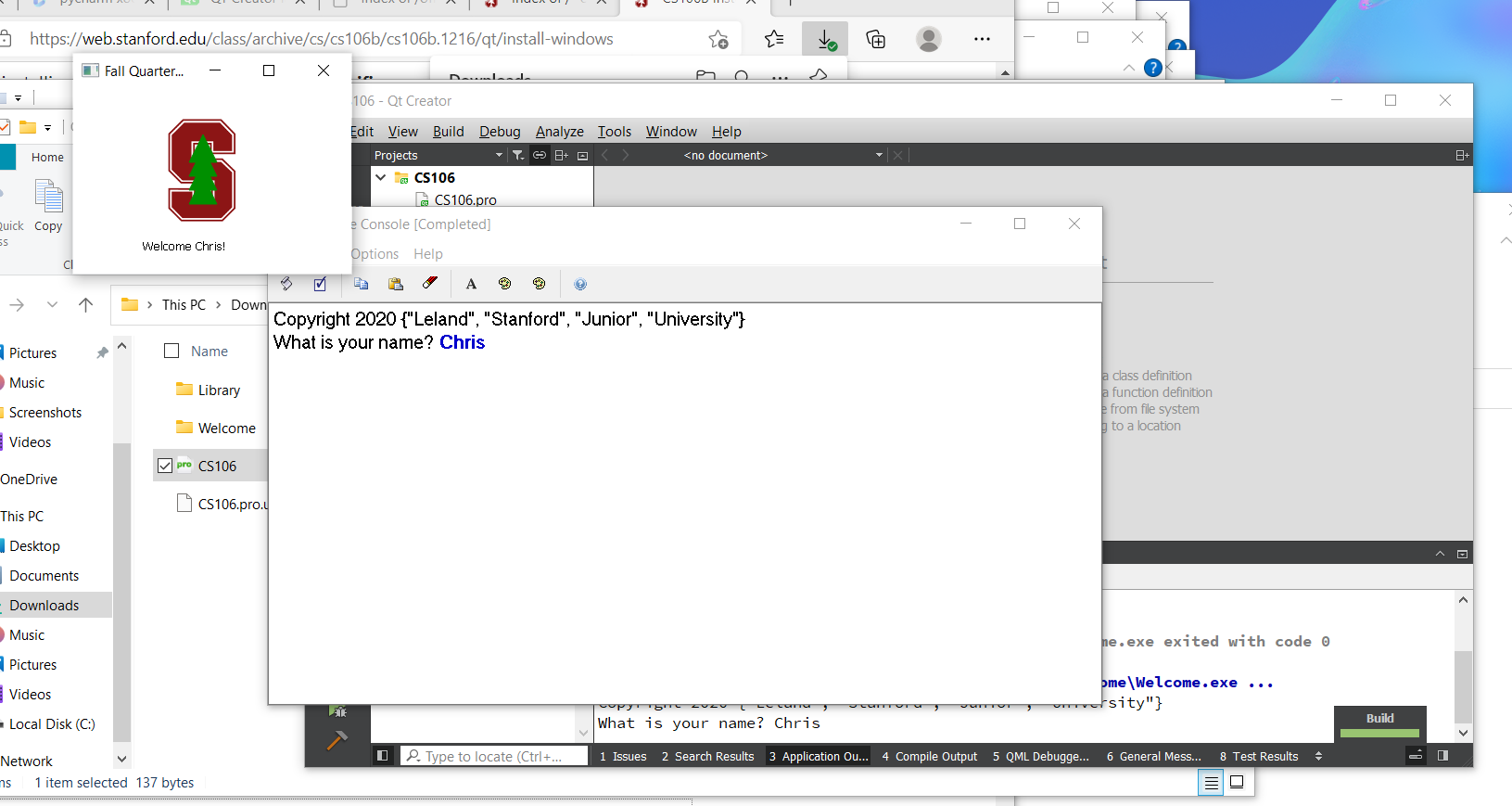
- You should be presented with a pop-up that asks for your name. Type in your name and then the key, and you should see a popup with the Stanford logo and a "Welcome, Your Name!":