
DISPLAYING, PRINTING, DOWNLOADING, EMAILING & FULL TEXT IN OVID
Displaying
- Nothing could be could be easier! Run your search, click on "Display" in the "Search History" window.

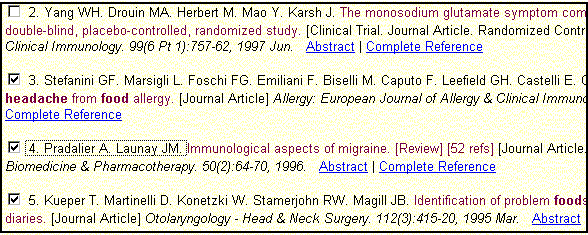
Printing, Downloading and Emailing: OVID provides several options for emailing, saving and printing your search results. First, select your citations by clicking in the check-boxes.
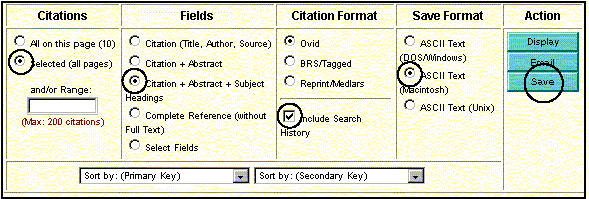
- Next, indicate which citations you'll be working with (e.g., those selected)
- Decide what you want to include with the citation (e.g., abstracts, subject headings, etc.)
- What citation format would you prefer (OVID is fine, unless you want to download to a bibliographic management program like EndNote)
- Search history? Definitely!
- Format of text -- choose PC or Mac
- Change sorting order if you want your citations listed by author, or date, etc.
- Lastly, choose "Save," "Email," or "Display."
- The following selections should be made when downloading your citations for the CIME MEDLINE Assignment (NOTE: if you're using a PC, switch to "ASCII Text (DOS/Windows))."
Full Text Through OVID
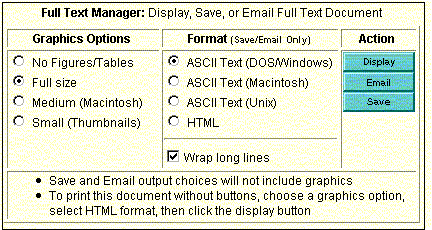
- OVID MEDLINE contains links to ninety-two full text journals. Citations which link to the full text of an article will contain the phrase "Full Text" at the end of the citation. Although clicking on "Full Text" will display the article, you may want to use the "Full Text Manager" to manipulate how the article is printed.
- It's important to remember that if you save or email your article, graphics will not be included. You've got to display, then print the article.

|
|
|
|
|
|
|
|
|
|
|