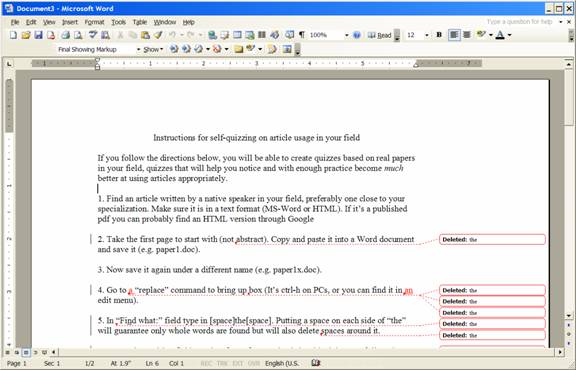
Instructions for self-quizzing on article usage in your field
If you follow the directions below, you will be able to create quizzes based on real papers in your field, quizzes that will help you notice and with enough practice become much better at using articles appropriately.
1. Find an article written by a native speaker in your field, preferably one close to your specialization. Make sure it is in a text format (MS-Word or HTML). If it’s a published pdf you can probably find an HTML version through Google
2. Take the first page to start with (not the abstract). Copy and paste it into a Word document and save it (e.g. paper1.doc).
3. Now save it again under a different name (e.g. paper1x.doc).
4. Go to the “replace” command to bring up the box (It’s ctrl-h on PCs, or you can find it in the edit menu).
5. In the “Find what:” field type in [space]the[space]. Putting a space on each side of “the” will guarantee only whole words are found but will also delete the spaces around it.
6. In the “Replace with:” field type in a [space]. Note that it is critical that you follow these directions exactly—one space on each side of “the” after “Find” and then only one space after “Replace”.
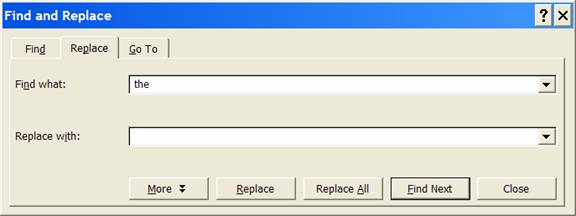
Now click on “Replace All”. If everything goes well, you will have a document with no examples of “the” in it, but because the leading and following space has been replaced with jut one space, you won’t be able to tell where “the” has been deleted.
7. Assuming that’s what you have, you can either now go about trying to replace them correctly OR you can do exactly the same thing with “a” and “an”.
8. Once you have finished putting back all the missing articles (and be sure to have done the best you possibly can), you’re ready to check your answers—this is the cool part.
9. Go to the “Tools” menu at the top and select “Compare and merge documents…”. This will bring up a file menu--find your original document (paper1.doc in the example above) and highlight it. Then click on the arrow to the right of the Merge button and select “Merge into new document”
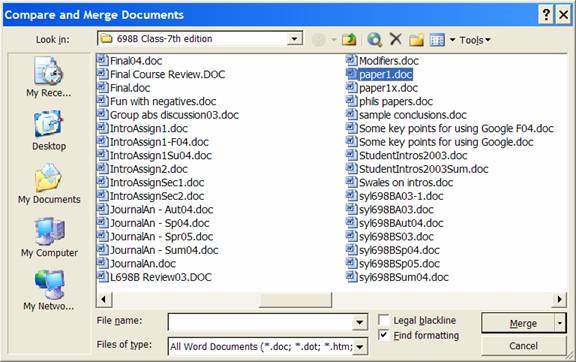
10. Again, if all goes well, you will see a new document open that has all the differences between the original and the final version noted.