EasyDIVER
What is EasyDIVER?
EasyDIVER is an extension to DIVER that allows users to make quick video annotations via a handheld wireless remote control while watching full-screen television from the comfort of an easy chair.
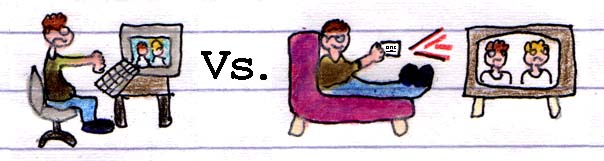
Illustration 1: A typical desktop DIVER user hunched over a computer, authoring workspaces in a tiny video window -- Versus-- the EasyDIVER user sitting comfortably watching full-screen TV and creating Dives with the handheld wireless remote control.
Why EasyDIVER?
Just as it is often easier to read text printed on paper than it is to read the same text on a computer screen it can be argued there is a similar advantage to looking at full-screen video from a relaxed seated position versus viewing the same video in a tiny window while huddled at a computer. EasyDIVER is not meant to replace DIVER. It is however meant to be used to quickly, easily, and comfortably create rough versions of workspace documents. These workspaces can later be imported into DIVER where the desktop application's features can be used for deeper analysis and more detailed text annotation.
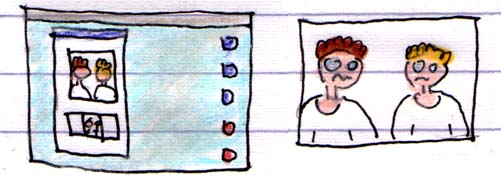
Ilustration 2: Desktop DIVER video in a tiny computer window versus EasyDIVER full-screen TV video.
The EasyDIVER Remote Control
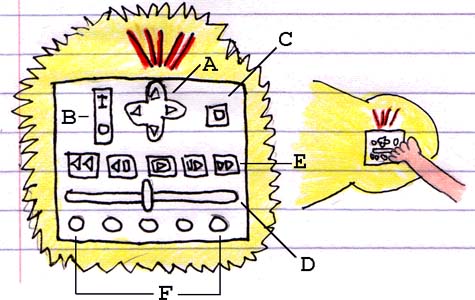
Illustration 3: The EasyDIVER handheld wireless remote control with a magnified control buttons legend.
The EasyDIVER remote control allows for simple handheld wireless access to the following workspace authoring features:
A) N S E W Video Navigation: The joystick-like control buttons allow users to accurately position a viewing rectangle transparently overlaid atop the full-screen video.
B) Zoom I/O: Pressing the zoom I/O buttons makes the viewing rectangle area bigger and smaller.
C) Full Screen View vs. Camera View: Pressing the full screen/camera button toggles the video display between full-screen and camera view (i.e. blowing up to full-screen whatever is currently underneath the viewing rectangle, as depicted in Illustration 4).

Illustration 4: Pressing the full screen/camera view button (C) toggles between a full frame video view and a magnified view of the video currently underneath the navigable viewing rectangle.
D) Time Slider: The Time Slider allows for quick random access to any section of video. Moving the slider right or left corresponds to the relative beginning and end time in the video.
E) Video Controls: Standard video controls allow for play/pause, fast forward, rewind, frame step forward, and frame step back.
F) Configurable Annotation Button Set: The heart and soul of authoring with EasyDIVER is the configurable annotation button set. This is what makes EasyDIVER so easy to use.
How? Users pre-configure each button to correspond to any pre-defined text label (see Illustration 5 below). For example, a user wants to scan the video for instances of a particular kind of interaction and associate a specific text label with that interaction. Every time the user presses a pre-programmed remote control button the video time-space coordinates are automatically saved to the Dive worksheet along with the pre-defined annotation text label. EasyDIVER worksheets can later be imported into desktop DIVER where the application's rich features can be used to perform more detailed text editing, analysis and review.
Miscellaneous EasyDIVER Interface Features
Associating Text labels with the Configurable Annotation Button Set:
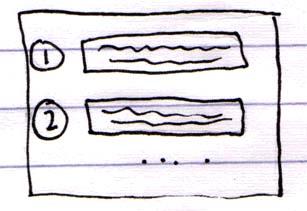
Illustration 5: EasyDIVER's on-screen configurable annotation button set can be associated with any user defined text passage. Users define the text labels before analyzing the video. They can then sit back and rapidly watch, mark and annotate video without being distracted by the task of typing text.
On-Screen User Feedback:
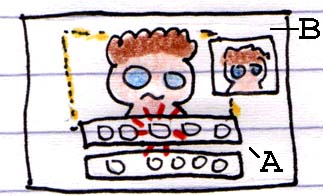
Illustration 6: A) When the user presses any button on the EasyDIVER remote control a corresponding interface image briefly appears (with action highlights) overlaid atop the TV screen, providing feedback for the particular user action.
B) When the user presses an annotation button whatever was under the viewing rectangle briefly appears as a thumbnail in the upper right corner of the TV screen.
(Note: The viewing rectangle disappears from the screen when there are x# of seconds of navigation control inactivity. Also, while in "camera view" mode N S E W navigation is disabled.)
Technical Q&A, how does EasyDIVER work?
Questions:
-- What is the EasyDIVER "set top box" engine? Is it just a personal computer?
-- How does the user load and select video?
-- How does the user load pre-existing, create/name new, and export DIVER worksheets?
-- How does the user enter text labels on the annotation button configuration screens?
Answers:
EasyDIVER is a self contained mode from within DIVER, it leverages the same computing platform as the desktop application. The EasyDIVER user accesses, saves, etc. worksheets from within desktop DIVER. At any time the user can go into EasyDIVER mode via a simple pull-down menu choice. Once in EasyDIVER the video display becomes full-screen. Users abandon their keyboard and mouse interface and instead pick up the wireless handheld remote to navigate the video and author a Dive.
Users associate text labels with the configurable annotation button set via dialog box screens and the DIVER keyboard and mouse interface (see Illustration 5 above).
And finally, when finished quick-authoring with EasyDIVER users can go back into computer mode where they again utilize the keyboard and mouse to access the full features (file saving, text editing, etc.) of the desktop DIVER application.