guidance_colab
This is a quick guide for people who have never used Google Colab before and want to replicate Henry's demo. This is definitely not a comprehensive guide; for more information, please see Google's official guide.
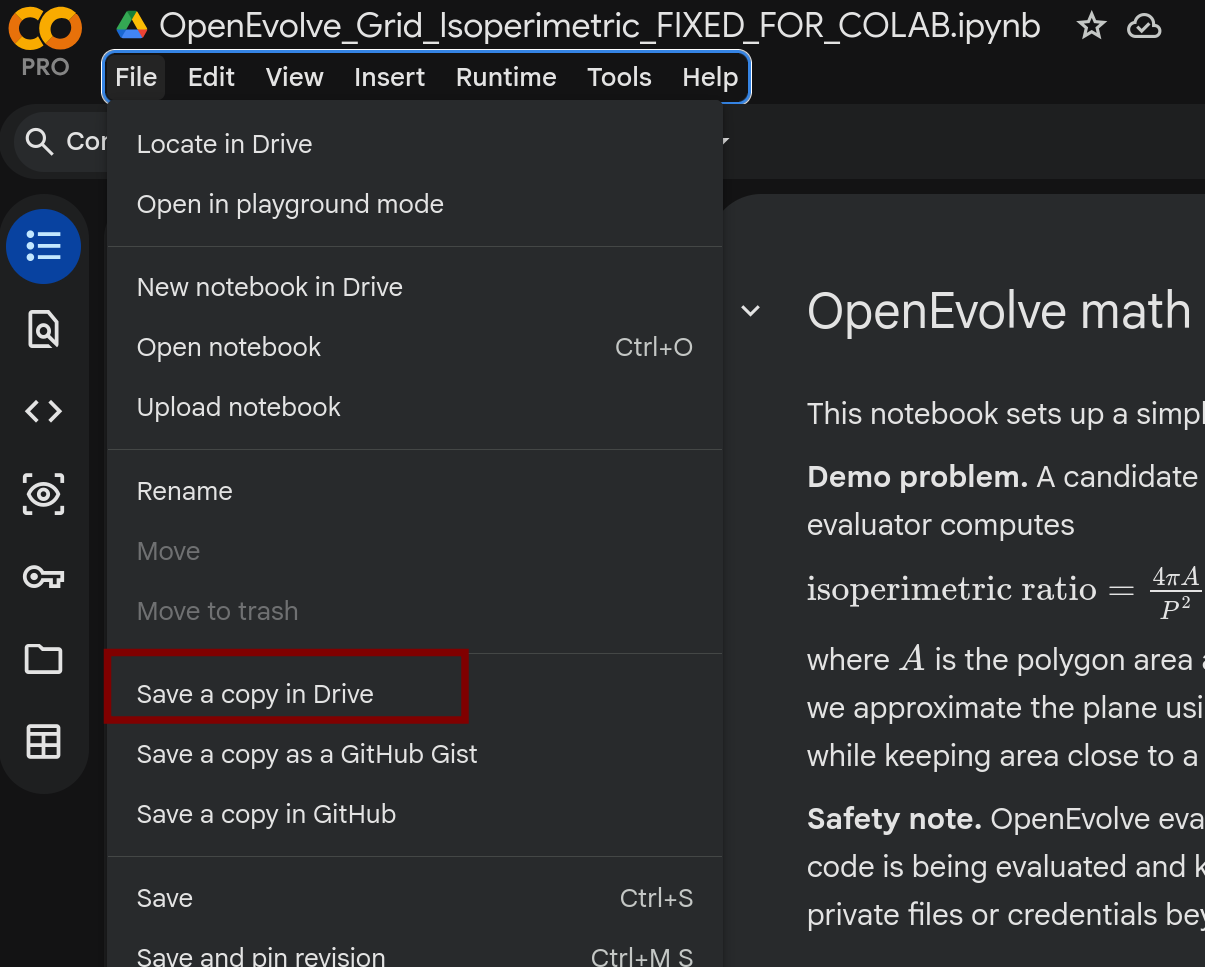
First step: save a copy in your own google drive
In Files, click on save a copy in drive so that you can make your own changes at your wish.
You probably need to use your personal email instead of your Stanford email.
Second step: API key for LLM
There are two ways to do this:
Using google secrete (easier if you use Gemini):
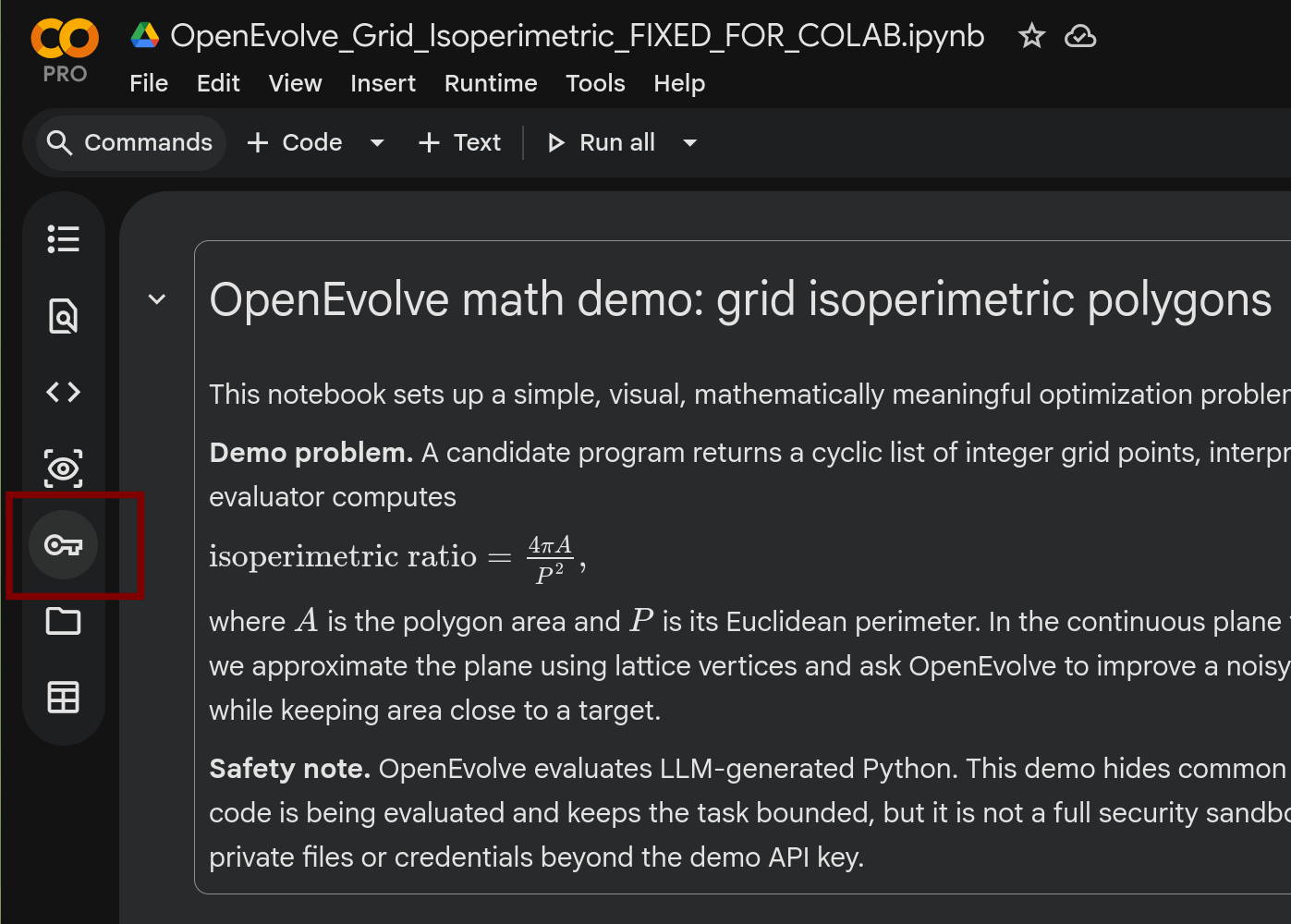
- Click on the key icon called "secrets" on the left menu bar
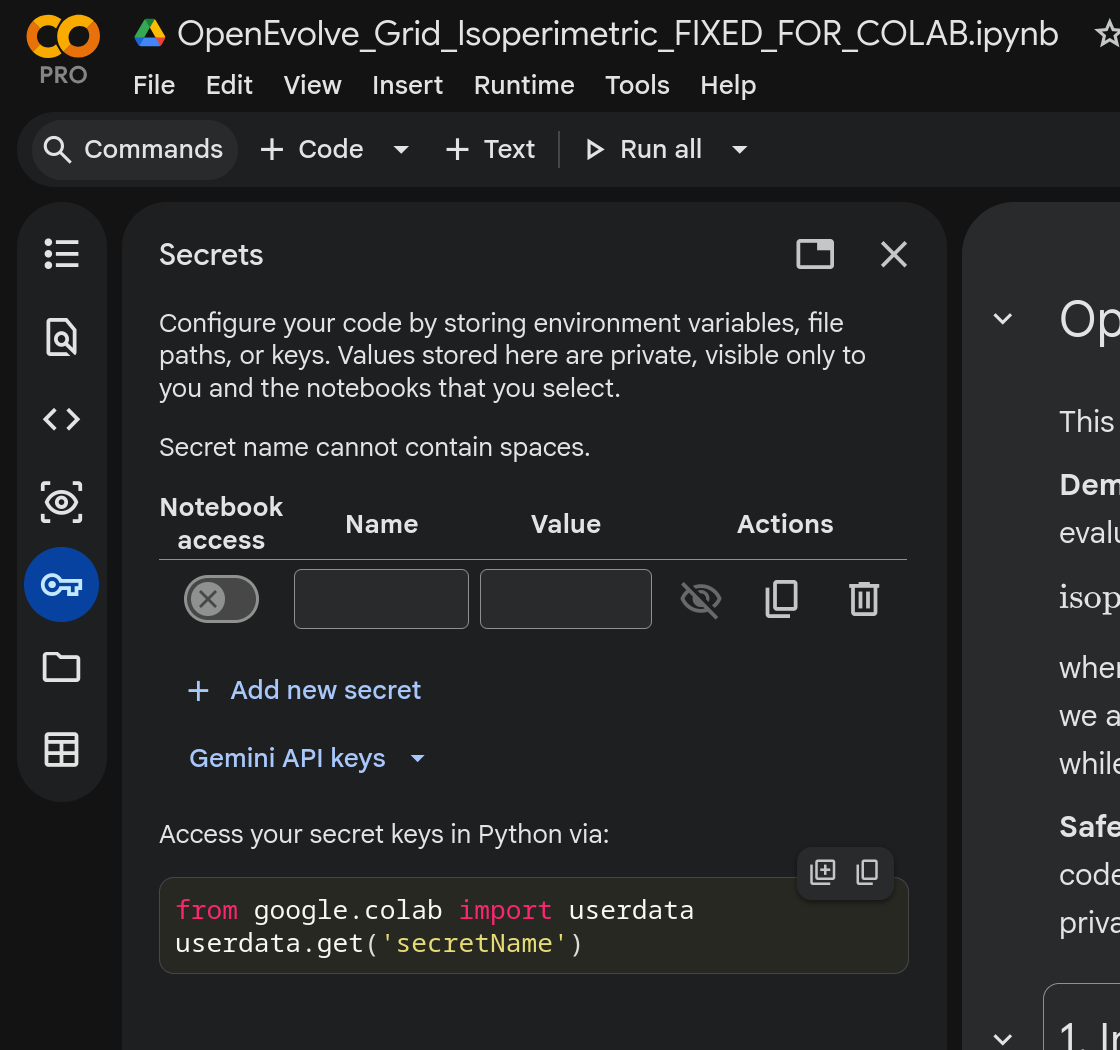
Then add your API key here or import your key from Google AI Studio.
- If you do not have an existing API key to select, you are likely navigated to Google AI studio. Then you should click on Create API key.

You may need to create a project and monitor the billing. Follow Google's guidance.
Use the cell Demo controls in Demo settings and API key
When you are ready to run this cell Demo controls, you can see on the right hand side a panel to allow you choose models.
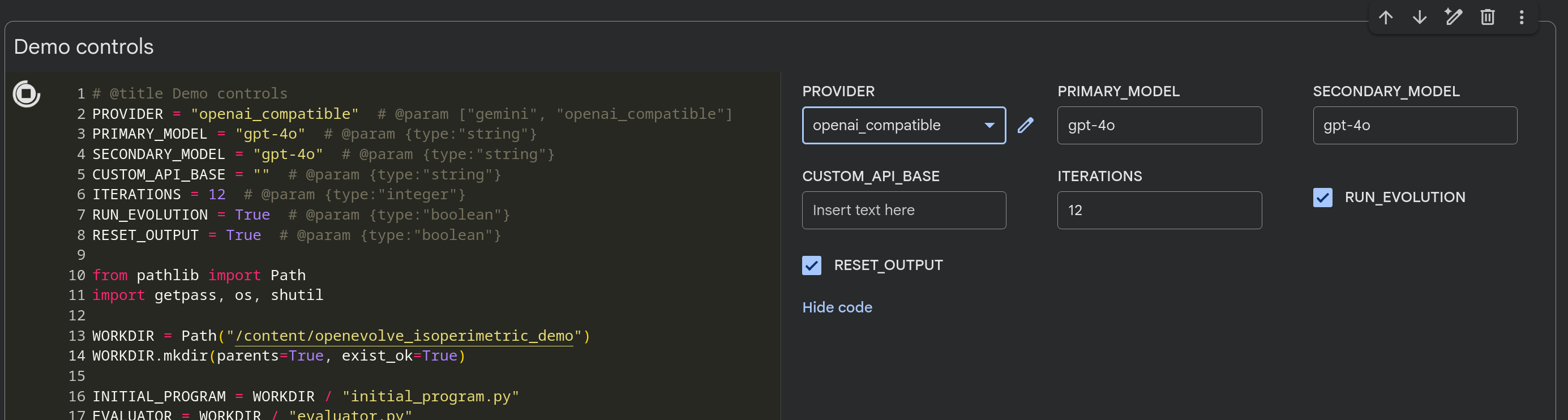
Run this cell, and then in the output, you can see a box for you to enter your API key.
Make sure your API key matches the provider (and again I want to remind you that you should monitor your bills or API cost if you run many experiments).
Ready to go
Now you can run the cells one by one (click on the button on the left corner of the cell, or press <ctrl>+ <Enter>). For Henry's demo, you can run on CPU and no GPU is needed.
Change parameters and try it out yourself!
Remeber that any output (images, tables, etc.) is only saved in the current runtime so do not remember to save it to your laptop or drive if you want to keep it.