Services and Applications
Stanford University Microsoft Office Patcher
On this page:
Background
Supported Versions
Requirements
Instructions
Future Updates and Additional Features
Other Resources
Background
In August and September 2003 Stanford University experienced a number of computer
attacks (for more information, see Windows
RPC Vulnerabilities & Exploits). These attacks affected thousands
of computers on campus; and although they exploited a vulnerability in the
Microsoft Windows operating system itself, the potential exists for future
attacks to target application software like Microsoft Office.
When security vulnerabilities are found, Microsoft distributes security
patches on its Windows Update and Office Update sites to prevent exploits of those
vulnerabilities.
The problem with the Office Update site is that security patches to
Microsoft Office require that the user who is applying the patches have the
original CDs available that were used to install Microsoft Office.
Unfortunately, many campus Microsoft Office users do not have access to the
original CDs for a number of reasons. For example, if the computer was
purchased through the
Stanford Dell Bundles program, the computer can be purchased without
media.
Supported Versions of Microsoft Office
Since keeping systems patched and secure has become so critical, ITSS has
developed a tool, the Office Patcher, to patch the most common versions of
Microsoft Office without requiring the original CDs. Only the following
versions of Office are supported by the ITSS patching tool:
It is possible to have a supported version of MS Office installed but still be unable to use the Office Patcher tool. The Office Patcher is unable to support every variation of every supported MS Office version (see the FAQ for technical details).
If the version of office that you have installed is not supported by the
Office Patcher, the program will notify you before attempting to apply
patches.
Office Patcher Requirements
To run the Stanford University Microsoft Office Patcher you must:
-
Be logged into Windows as a user with administrator rights
-
Be running Windows 2000 or Windows XP
-
Have the most recent versions of PC-Leland and PC-AFS installed
-
Be logged into PC-Leland with a valid
SUNet ID
-
Have installed one of the supported Microsoft Office products
The Office Patcher will inform you if any of these conditions has not been
met.
Instructions
-
Click Here to download the Office Patcher
-
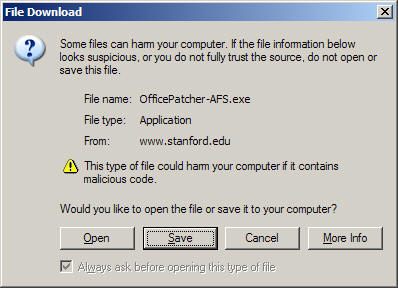
After clicking on the download link, the File Download window will be displayed. Click the Open button.
-
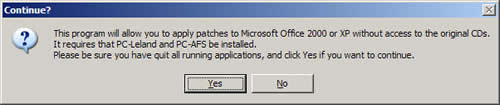
Save any open documents, close all running applications, and click Yes
when you are ready to continue.
-
The program will then perform the actions needed to apply the Microsoft
security patches (see the FAQ for technical details).
Note: If you have installed an unsupported version of Microsoft Office, the
program will notify you that your version is not supported and it will
quit.
-
When you are taken to the Office Update web page, click the Check for Updates link and apply all available updates.
Note: Some
updates may require that you restart the computer. If an update restarts your
computer, run the Stanford University Microsoft Office Patcher again.
Continue this process until all required patches are applied.

-
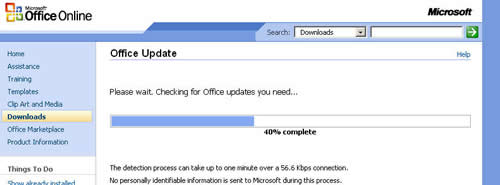
After clicking the Check for Updates link, the following web page will be
displayed while the Office Update site searches your computer for the
version of Office that is installed.
-
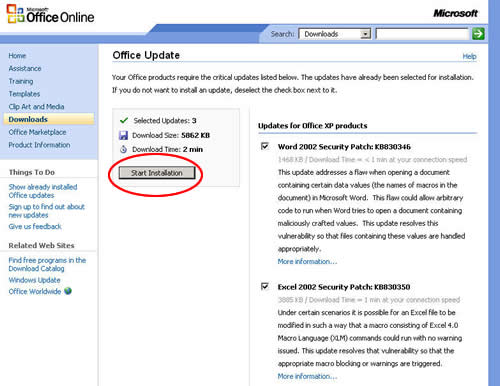
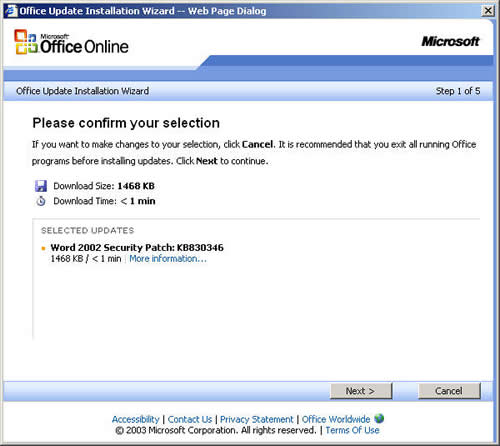
Once the version of Office is determined, the Office Update site determines
which updates are needed, and displays the following page. Review the
patches that will be applied, then click the Start Installation button.
-
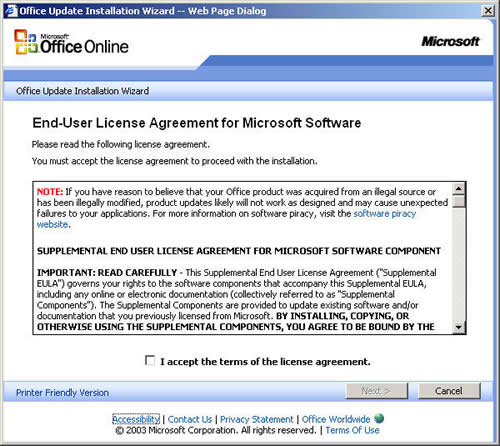
Next, the license
agreement will be displayed. Review the agreement terms, then check
the I accept the terms of the license agreement box and click the Next button if you agree
to the terms of the agreement.
-
Click the Next button to confirm your selection and continue.
-
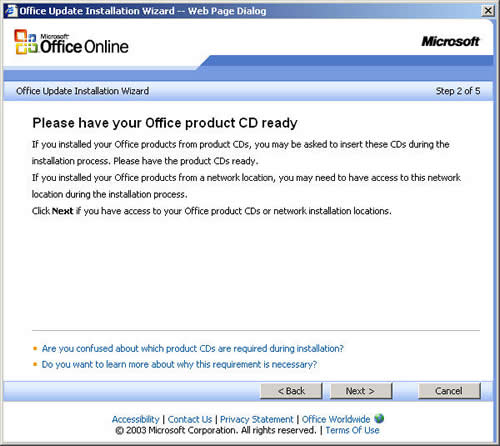
Next, the following message is displayed.
If you have run the Stanford Office Patcher program, and the program
launched Internet Explorer and took you to the
Office Update Start page, you can safely ignore the requirement to
"Please have your Office product CD ready."
Click Next to continue.
-
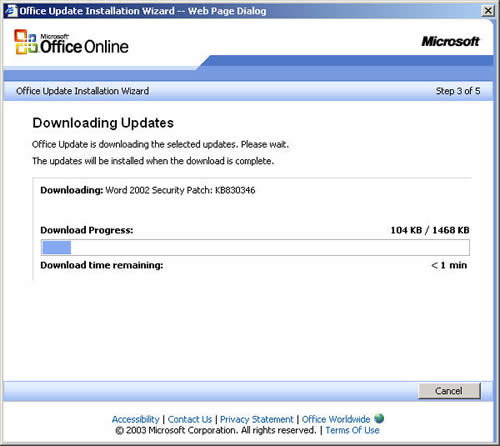
Next, the Office
Update page will download the update installers from the web.
-
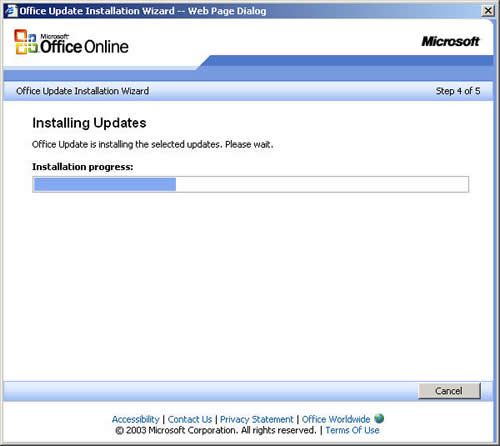
After the update installers are downloaded to your computer, the following
screen will be displayed when the updates are being installed.
-
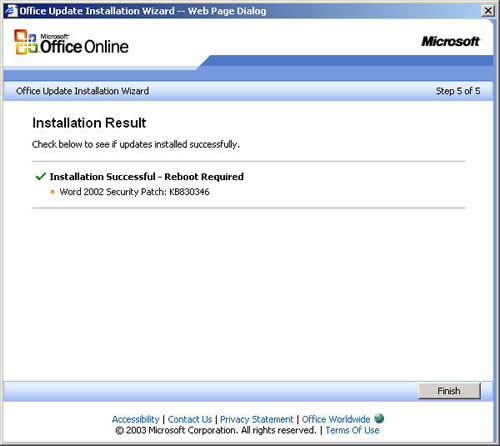
Once all of the patches are installed, you will receive this confirmation
page. Click the Finish button to complete the installation.
-
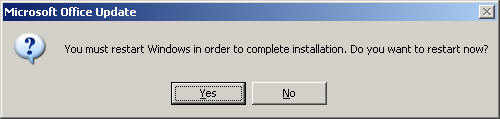
If any of the patches require that the computer be restarted, the following
dialog box will be displayed. Save any open documents that you may
have open, exit any other applications that may be running, then click Yes to restart the computer. Run the Stanford Office
Patcher program again after restarting to apply any remaining patches.
-
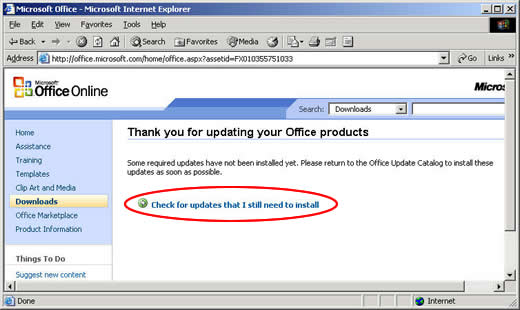
If your computer does not need to be restarted, you will see the following
screen. Click Check for updates that I still need to install
and install all updates. Continue this process until all updates have
been applied.
It is very important that you restart your computer after you have
finished applying all available patches to Microsoft Office.
Future Updates and Installation of Additional
Features
You will need to run the Office Patcher program again whenever new Microsoft
Office security updates are released, or whenever you add features to your
installation of Microsoft Office like new file converters, equation editor,
etc.
Other Resources
Stanford Microsoft
Office Patcher FAQ
Stanford Microsoft
Office Patcher Information Screens
Secure Computing
at Stanford
Essential
Stanford Software
Last modified
Tuesday, 01-Jun-2004 10:35:40 PDT
© 2003, Stanford University. All rights reserved.
Comments about this document? Use the HelpSU submission form.
Need computing help? Visit HelpSU or call 5-HELP (650-725-4357).
|
|


