MACLELAND
2.0
USER
GUIDE
Local
Links
(in MacLeland Help folder)
... & Stanford Web Authentication
Network Links
|
MacLeland Commands
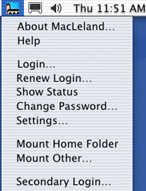
Help: The Help command opens this User Guide, as an HTML file, which is stored in the MacLeland folder. Login... This command initiates the login sequence. It verifies that you are a member of the Stanford community by requesting your SUNet ID and password (and possibly another Kerberos realm if you are set up for multiple choices). When you enter them and press the OK button, MacLeland passes information (encrypted) to a Kerberos authentication server, which sends back a Kerberos ticket if the ID and password combination is correct. Logout: userid: This command, which replaces Login on the menu when you are logged in, ends your MacLeland session, discarding all Kerberos tickets that were created for your userid during the MacLeland session. It does not unmount any mounted AFS volumes, nor does it affect any open MacSamson terminal sessions. Eudora too remains open, though it will ask you to logon to MacLeland again the next time it checks for new mail. If you have initiated any secondary logins, the currently selected userid (shown next to the Logout command in the menu) will be the userid that is logged out. You can select a different logged-in userid from the list that is created on the menu below theSecondary Login... command. Renew Login... To renew your Kerberos tickets before they expire and log you out from MacLeland, you can choose this command, which again prompts you for your SUNet ID password. Show Status: This command launches a program called Kerberos Status. It shows the status of the Kerberos authorization tickets in effect for your session, including the time remaining till they expire. Those marked (v4) refer to Kerberos version 4; (v5) means version 5. The tickets for any secondary users are shown as well. Note that this command puts the Kerberos Status program into your dock. To get rid of it, you can use the program's Quit command. Other options in the Status display and other commands in the menus of the Kerberos Status program are generally not needed for MacLeland use. Change Password: This command lets you change the password associated with your SUNet ID. This is the same as changing your password on the Stanford.You web page. Password requirements are fairly strict. Your password must conform to the following rules:
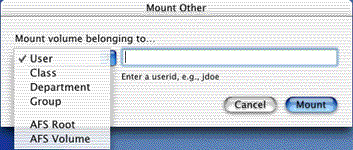
Choose a word or string of characters that is easy for you to remember but which is not based on personal information about you that is easy to guess, such as your own phone number or address. Some suggestions to inspire you: a combination of your father's initials and his birthday, or your grandmother's maiden name and her area code. Other suggestions are available on another ITSS web page. Settings: This command launches a program called Kerberos Status. It shows information about the Kerberos tickets in effect. More information about the program and what is being shown is available from MIT's Kerberos website. Mount Home Folder: This command mounts your "home folder", the top-level directory in your AFS file space, as a server on the desktop of your Macintosh, giving you access to your AFS files from your desktop. (If the command is dimmed out, then the AFS software (part of the MacLeland installation) may not be installed. You can reinstall MacLeland to get it.) You can, for instance, drag text or graphics documents from your Mac to the WWW folder in your home folder for inclusion on your World Wide Web home page; you can choose to work with a text-editor on your Mac rather than a UNIX host editor, saving the document in AFS; or you can copy important files from your Mac to your AFS space for a secure backup simply by dragging them from the Mac to the home folder. You can probably think of many ways to use this capability. To unmount the home folder, drag it to the trashcan/disconnect icon, just as you would unmount any server volume. See the section on MacLeland and the AFS File System for information about this facility. Mount Other... Use this command to mount other AFS volumes besides your own home directory.
Choose the type of volume from the drop-down menu, enter requested information, and click the Mount button.
If you don't know or are unsure of the name of the volume you want to mount (for example, if you want to mount Jay Doe's home folder but aren't sure what Jay's SUNet ID is), you can browse the user, group, department and class folders by choosing the AFS Root and then delving into the appropriate type of directory under ir.stanford.edu. This generally takes longer than going directly to the folder you want using the first four methods in the Mount Other submenu. Note too, for users, that if you do not know the first two characters of the SUNet ID, finding the folder is impractical. That's because user home folders are nested two levels deeper than classes or groups, based on the first two characters of the userid. For example, the AFS path for user jdoe's home folder is: /afs/ir/users/j/d/jdoe If you remembered the first two characters of the userid whose home folder you were looking for (jd, in this example), you could browse the "j/d/" folder by requesting the full path: /afs/ir/users/j/d But if you remembered only the first character, j, you would find 26 folders within the "j" folder where the folder you were seeking could be. Once the volume is mounted, you can navigate into its directories and subdirectories, just as if they were folders in a mounted hard disk of your computer. You can unmount the volume when you are finished with it by dragging the volume to the trashcan/disconnect icon on your desktop. See the section on MacLeland and the AFS File System for information about this facility. Secondary Login ... The Secondary Login command is useful in situations where you need to use multiple userids during one MacLeland session. You may, for example, have access to a second userid to which you need to login for a terminal session; or else a friend needs to login briefly, and you don't want to logout first. When you do a secondary login, the original login userid plus the new secondary login userid are added to the end of MacLeland's command menu, with a check next to one indicating which one is "selected". The selected userid is also shown on the Logout command line in the menu. Any subsequent request to use a MacLeland service will use the selected userid's Kerberos ticket. For example, the Mount Home Folder command will mount the home folder of the selected userid. Reminder: If you login with a secondary login on someone else's Mac, remember to log out from MacLeland as well as any services you use; otherwise, the primary user of the Mac may be able to use your Kerberos ticket to access your files, read your email, or use other services under your userid. |