Connect Errors
- I get a message indicating that the server connection was broken.
- In the Connect Message Center, I get this warning message: "Your session will expire in x minutes. If additional time is needed select more time is required."
- In the Connect Message Center, I get this message: "Your session with the server has expired. You have been logged off."
- I get the message, 'ICA file not found.'
- How should I answer the questions in the ICA Client File Security dialog box?
- I keep getting prompted for a place to save the 'launch.ica' file, but nothing happens. What should I do?
- I'm getting a message about my license for terminal services expiring in a few days. Do I need to do anything?
- In the Connect Message Center, I get the message, 'The supplied credentials are invalid.'
- In the Connect Message Center, I get the message, 'The supplied credentials could not be validated. Either they are incorrect, or there is a problem with the authentication system. Try again, or contact your help desk or system administrator for help.'
I get a message indicating that the server connection was broken.
Mac users with a Citrix client version older than 6.30.326 may receive the following error: "Sorry the connection to the server xxx.xxx.xxx.xxx:1494 was broken." To resolve this, download the latest client from Connect website.
Back to top.
In the Connect Message Center, I get this warning message: "Your session will expire in x minutes. If additional time is needed select more time is required."
For security reasons, your Connect session will time out if there is no activity for more than 20 minutes. This message indicates that your session is close to timing out. Just click on the underlined portion of the message to continue your session. [View the message]
Back to top.
In the Connect Message Center, I get this message: " "Your session with the server has expired. You have been logged off."
For security reasons, your Connect session will time out if there is no activity for more than 20 minutes. This message indicates that your session timed out. Re-enter your SUNetID and password to start a new session. [View the message]
Back to top.
I get the message, 'ICA file not found.'
Using the Local Client, you might receive this message, shown below, if the instruction to find the ICA file in your browser cache cannot be completed.
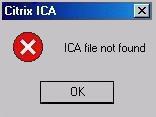
- First, try clearing your temporary internet files and cookies. Then, shut down all your browser windows; then try the Connect site again.
- If you still get this message, and you are using Internet Explorer, navigate to Tools, Internet Options. Select the Advanced tab. Under Security options, make sure to uncheck the option Do not save encrypted pages to disk.
Back to top.
How should I answer the questions in the ICA Client File Security dialog box?
When you use the Local Client, this dialog box allows you to control the level of access that Connect applications have to your local disk drives, and the frequency with which you are warned of attempted access to your local disk drives. The first time a Connect application attempts to access a local drive (such as saving to or retrieving from your desktop), the Connect Local Client will display the ICA Client File Security dialog box, shown below:
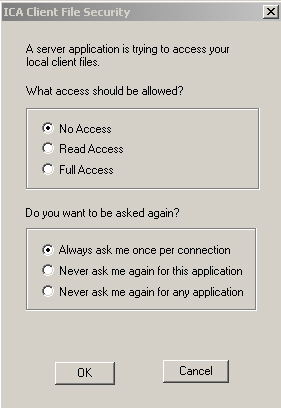
The following settings are recommended:
- Under "What access should be allowed?" select Full Access. This lets you have read and write access to the files on your local hard drive.
- Under "Do you want to be asked again?" select Never ask me again for any application.
- Press OK.
For Windows users, your answers are recorded in a file on your hard drive called webica.ini. If you do not answer the questions as described above, you will not be able to access files on your hard drive from Connect applications. To get the dialog box again, close all your browser windows, then find the file named webica.ini on your hard drive, and delete it. The next time you connect, you will see the dialog box again. Be sure to answer the questions as described above.
For Mac users, your answers are recorded in a file on your hard drive called Config. If you do not answer the questions as described above, you will not be able to access files on your hard drive from Connect applications. To get the dialog box again, close all your browser windows, then find the file named Config on your hard drive, and delete it. The next time you connect, you will see the dialolg box again. Be sure to answer the questions as described above.
Back to top.
I keep getting prompted for a place to save the 'launch.ica' file, but nothing happens. What should I do?
If you are using Internet Explorer, in 'Internet Settings' on the 'Advanced' tab under 'Tools' > 'Internet Options', make sure to clear the box next to "Do not save encrypted data to disk."
The Connect client needs to have "Do not save encrypted data to disk" cleared because of the dynamic files that are stored in the Temporary Internet folder. When you click on a Connect application, a file is downloaded to the Temporary Internet folder, then launched on the desktop using MIME. If access to the folder is not available, that process cannot occur.
Back to top.
I'm getting a message about my license for terminal services expiring in a few days. Do I need to do anything?
No, you do not need to do anything. This message means that your computer received a temporary client license from Connect. The temporary client license has a 90-day grace period; at the end of the grace period, you will automatically receive a new, permanent license from Connect. There should be no interruption to your ability to use applications on the Connect site.
Back to top.
In the Connect Message Center, I get the message, 'The supplied credentials are invalid.'
This message indicates that you have entered an incorrect SUNetID or SUNet password, or that your SUNetID credentials have not been properly replicated to the Windows Infrastructure.
If you are sure you have entered your SUNetID and SUNet password correctly, go to StanfordYou and click on the link to Change your SUNet password. You can re-enter your current SUNet password, as long as your current password meets the SUNetID password-strength requirements. Simply re-entering your password will usually force your SUNetID credentials to replicate over to the Windows Infrastructure, so that you can use your SUNetID and SUNet password on the Connect site.
If you are still having a problem signing on the Connect site, please file a HelpSU ticket.
Back to top.
In the Connect Message Center, I get the message, 'The supplied credentials could not be validated. Either they are incorrect, or there is a problem with the authentication system. Try again, or contact your help desk or system administrator for help.'
This message indicates that you have entered an incorrect SUNetID or SUNet password, or that your SUNet ID has not been given access to any Connect applications (like ReportMart1).
If you are sure you have entered your SUNetID and SUNet password correctly, and if resetting your SUNet ID password through StanfordYou did not solve the problem, your access to a Connect application may not be set up by the application owner.
If you believe that you should have access to a Connect application, please file a HelpSU ticket to that application's support team.
Back to top.
|