Connect FAQs
- Where can I get the Citrix client?
- How do I change the Citrix application window size?
- Can I use Citrix at home?
- Can I print from Citrix?
- I'm having problems with printing. How can I troubleshoot this issue?
- How do I check or change the name of my computer?
- How do I uninstall the Mac Citrix ICA Client?
- How should I answer the questions in the ICA Client File Security dialog box?
- The Connect settings I specify keep disappearing!
- What kind of client should I use?
- What do I do with the 'boilerplate.asp' or 'launch.ica' files on my desktop (or downloads folder)?
- Why does it take so long to launch my applications from the Connect site?
Where can I get the Citrix client?
The Citrix client is available at the Connect website. To install the latest client, click on the link displayed in the Connect Message Center.
The supported Citrix ICA client for the Mac is 7.00.407. If you are using an earlier version, you may experience problems; uninstall the earlier version following these instructions, then install the latest version from the Connect site.
Back to top.
How do I change the Citrix application window size?
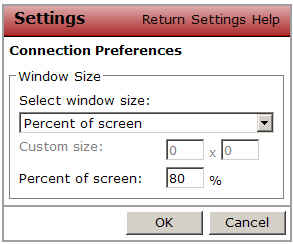
Once you have logged in to the Connect site, you can set the window size for the applications you want to use. Click on Settings in the Applications window, then select Connection Preferences. The recommended settings are shown below.
Back to top.
Can I use Citrix at home?
Yes, you can use Citrix on your computer at home, without using Stanford's home DSL or the Stanford VPN.
Back to top.
Can I print from Citrix?
Yes, most recent commercial printers are supported by the Connect site. Not all home printers can be supported. If you are having a problem printing, please file a HelpSU ticket.
Back to top.
I'm having problems with printing. How can I troubleshoot this issue?
AS monitors for failed printer mappings on the Connect site, and new printer drivers are added as needed.
Please note:
- Due to the number and variety, the Connect site does not support every make and model of home printer.
- Both the Citrix Active-X plug-in and the Citrix local client will map only the default printer from your desktop computer.
- A printer-mapping will fail if the printer-driver name on your desktop computer does not exactly match the printer-driver name on the Citrix server, or if the printer-driver needs to be installed on the Citrix server. To check the printer-driver names, or to request the installation of a new printer-driver on the Citrix servers, please file a HelpSU ticket.
- If you are still having a problem printing, please file a HelpSU ticket.
Back to top.
How do I check the name of my computer?
For all Stanford computers connecting to Citrix, your computer name must match your entry in NetDB. Work with your local support person if you are not sure whether your computer name matches your entry in NetDB. This ensures that each computer that connects to the AS Citrix servers has a unique name.
For Windows:
From the desktop, right-click on My Computer and choose Properties
Click on the Network Identification tab.
Your computer name is displayed under "Full computer name"
For Mac OS X:
From System Preferences, select "Sharing"
Your computer name is displayed under "Computer Name"
Back to top.
How do I uninstall the Mac Citrix ICA Client?
The supported Citrix ICA client for the Mac is 7.00.407.
To uninstall the Citrix ICA Client from a Mac:
- Drag the "Citrix ICA Client" folder to the trash
- Drag the "System Folder:Preferences:Citrix ICA Client" folder to the trash
- Drag any "launch.ica" files on the desktop or downloads folder to the trash
- Empty the trash
Note, file locations and icons may vary depending on your OS version and the preferences you've specified.
Back to top.
How should I answer the questions in the ICA Client File Secuirty dialog box?
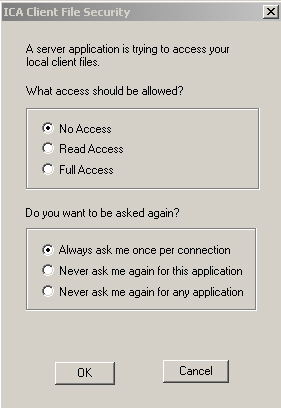
When you use the Local Client, this dialog box allows you to control the level of access that Connect applications have to your local disk drives, and the frequency with which you are warned of attempted access to your local disk drives. The first time a Connect application attempts to access a local drive (such as saving to or retrieving from your desktop), the Connect Local Client will display the ICA Client File Security dialog box, shown below:
The following settings are recommended:
- Under "What access should be allowed?" select Full Access. This lets you have read and write access to the files on your local hard drive.
- Under "Do you want to be asked again?" select Never ask me again for any application.
- Press OK.
For Windows users, your answers are recorded in a file on your hard drive called webica.ini. If you do not answer the questions as described above, you will not be able to access files on your hard drive from Connect applications. To get the dialog box again, close all your browser windows, then find the file named webica.ini on your hard drive, and delete it. The next time you connect, you will see the dialog box again. Be sure to answer the questions as described above.
For Mac users, your answers are recorded in a file on your hard drive called Config. If you do not answer the questions as described above, you will not be able to access files on your hard drive from Connect applications. To get the dialog box again, close all your browser windows, then find the file named Config on your hard drive, and delete it. The next time you connect, you will see the dialolg box again. Be sure to answer the questions as described above.
Back to top.
The Connect settings I specify keep disappearing!
When you specify Connect settings, like client type or window size, those settings are stored in a cookie on your computer. Your browser must be configured to accept cookies, in order to save your settings from one session to the next. To test whether or not you have cookies enabled, take the Axess browser test.
If you change browsers or workstations, or if you clear your temporary internet files or cookies, you will have to specify your settings again.
Back to top.
What kind of client should I use?
To select the client you want to use, click on Settings in the Applications window, then click on Client Preferences.
- Local Client - (Recommended for most users) If you already have a Citrix client installed on your computer, select Local Client from the Client Type list. The local client will automatically map your default printer and your computer's local drive to your Connect session. You must be an Administrator of your computer to install the local client.
- ActiveX Control (Embedded) - If you are running Internet Explorer on a Windows computer, you can use the ActiveX plug-in by selecting ActiveX Control (Embedded) from the Client Type list. You do not need to be an Administrator on your computer to use the ActiveX control.
- A beta version of the Citrix Installer is available for Mac users. Click here to download it (opens in a new, WebAuth'd window). Please note:
- If you are not an Administrator of your computer, the installation process will pause and prompt for an Administrator account and password.
- The first time you access a Connect application, it may not launch automatically. Find the "launch.ica" file on your desktop and double-click on it. You shouuld see a message asking whether you want to open the application "Citrix ICA Client" for the first time. Click "open" to launch your Connect applicaiton.
- The next time you access a Connect application, it will launch automatically.
- Java Client - The Java client is not available through the Connect site.
Press Return to go back to the Applications window.
Tip: If you select a client that is not suitable, you will be prompted to save a .ica file. If this occurs, cancel the prompt and select a different client.
Back to top.
What do I do with the 'boilerplate.asp' or 'launch.ica' files on my desktop (or downloads folder)?
You may safely delete any 'boilerplate.asp' or 'launch.ica' files that tend to accumlate on the desktop for Mac users (or in downloads folders).
Back to top.
Why does it take so long to launch my applications from the Connect site?
This is most often caused by cutsomizations made to your Windows log-in process by you or by your desktop-support staff -- for example, running a script or mapping a drive to setup your environment when you logon. For security reasons, these scripts and drive mappings are not permitted in the Citrix environment, but it takes several seconds for them to fail; once they fail, your Citrix session will launch.
Back to top.
|