Eclipse
Created by your loving CS106A staff (including Julia Daniel, Nick Troccoli, and Michael Chang).
In CS106A, we'll be using Stanford's customized version of Eclipse to build our programs. Eclipse is an enormously popular industrial-strength Java environment with many features. Fortunately, Eclipse is also open source -- anyone is free to change Eclipse to work the way they want. We have taken advantage of that freedom to install special Stanford features into Eclipse, tailoring it specifically for CS106A. This document gives instructions on how to get started using Stanford Eclipse. Please pay close attention to these instructions and do not skip steps!
Contents
Mac Installation | Windows Installation | Configuring Eclipse for CS106A | I need help!Installing Eclipse on a Mac
Stanford Eclipse will only work on Mac OS X version 10.6 or higher. If you don't have that version of the operating system, you'll need to either upgrade or do your class work in a public cluster.
- Download and install the Java SDK installer for Mac
- Download the Mac version of Eclipse
- Double-click on the file eclipse-mac.tar.gz to unarchive Eclipse (You can delete eclipse-mac.tar.gz afterwards).
- Drag the Eclipse app into the Applications folder on your Mac.
- Drag the Eclipse icon from your Applications folder to your Dock to create a shortcut.
- Click on the icon in the dock to open Eclipse. If you see an error that says Eclipse "can't be opened because it is from an unidentified developer," right-click on the Eclipse icon and select "open" instead. You will be able to open Eclipse without right-clicking from now on.
- Skip to the instructions below to configure Eclipse for CS106A.
Installing Eclipse in Windows
Our version of Eclipse will run on Windows 7 (2009) or higher. In the very unlikely event you have an older version of Windows on your computer, you will need to either upgrade or do your class work in one of the public computer clusters. You can check your version of Windows using these instructions.
- Uninstall previous versions of the
Java Runtime Environment (JRE). Before installing a new version of the JRE, we
recommend that you remove any older copies that may be
installed on your system.
-
If you have Windows 7 or 8, do the following: Click
on Start, then click on Control
Panel, then select Programs and
Features.
If you have Windows 10, do the following: Click on Start (the Windows icon in the lower left-hand corner), then click on Settings (the gear-shaped icon), then select Apps & Features.
- From the list of programs you see, uninstall any occurrences of Java/J2SE Runtime Environment, Java SDK, Java SE Development Kit or Java Update. Note that the exact program name may be slightly different or include a version number, but you generally want to remove anything that includes the text: Java/J2SE Runtime Environment, Java SDK, Java SE Development Kit or Java Update. To remove a program, click on the program name to highlight it and click the the Uninstall button.
-
If you have Windows 7 or 8, do the following: Click
on Start, then click on Control
Panel, then select Programs and
Features.
- Download and install the JRE for Windows.
After clicking this link a prompt will appear to ask you whether you want to run or save the file. Click Run to begin the download and installation process. If you did not get a prompt to run the file after the download completed, you should double-click the file you downloaded to run it manually. If a subsequent security warning dialog box appears, click Run (or Yes) to continue with the installation. The Java JRE installation program should begin. Do a Typical installation (just use the default setting in the installation process), and follow the rest of the instructions given in order to complete your installation. - Download Eclipse.
Save the downloaded file to somewhere on your hard drive. This may take a little while as the file is rather large. - Unzip/extract the contents of the file by right-clicking on the folder you just downloaded, selecting the Extract All... option and typing C:\Program Files as the location to extract the files to. Then continue following the steps in the extraction process.
- Create a shortcut to Eclipse on your Desktop for easy access — Open the C:\Program Files\eclipse directory, and right-click and drag the eclipse.exe file (the Eclipse application) to your desktop and then select the option Create shortcut here.
- Continue to the instructions below to configure Eclipse for CS106A.
Note: If you installed the 64 bit versions of the software, and find that you have issues running Eclipse, we recommend that you uninstall the 64 bit versions of the both the JRE and Eclipse and install the 32 bit versions of both: JRE 32 bit version for Windows, Eclipse 32 bit version for Windows.
Configuring Eclipse for CS106A (both Mac and Windows)
Once you have Eclipse installed on your computer, there are a few CS106A-specific changes you need to make so that you can access some special Stanford features, like submitting assignments. The following instructions apply to all operating systems, although the screenshots are from a Mac.
- Open Eclipse if you haven't already. When you run Eclipse for the first time, you may get a screen that looks like this:
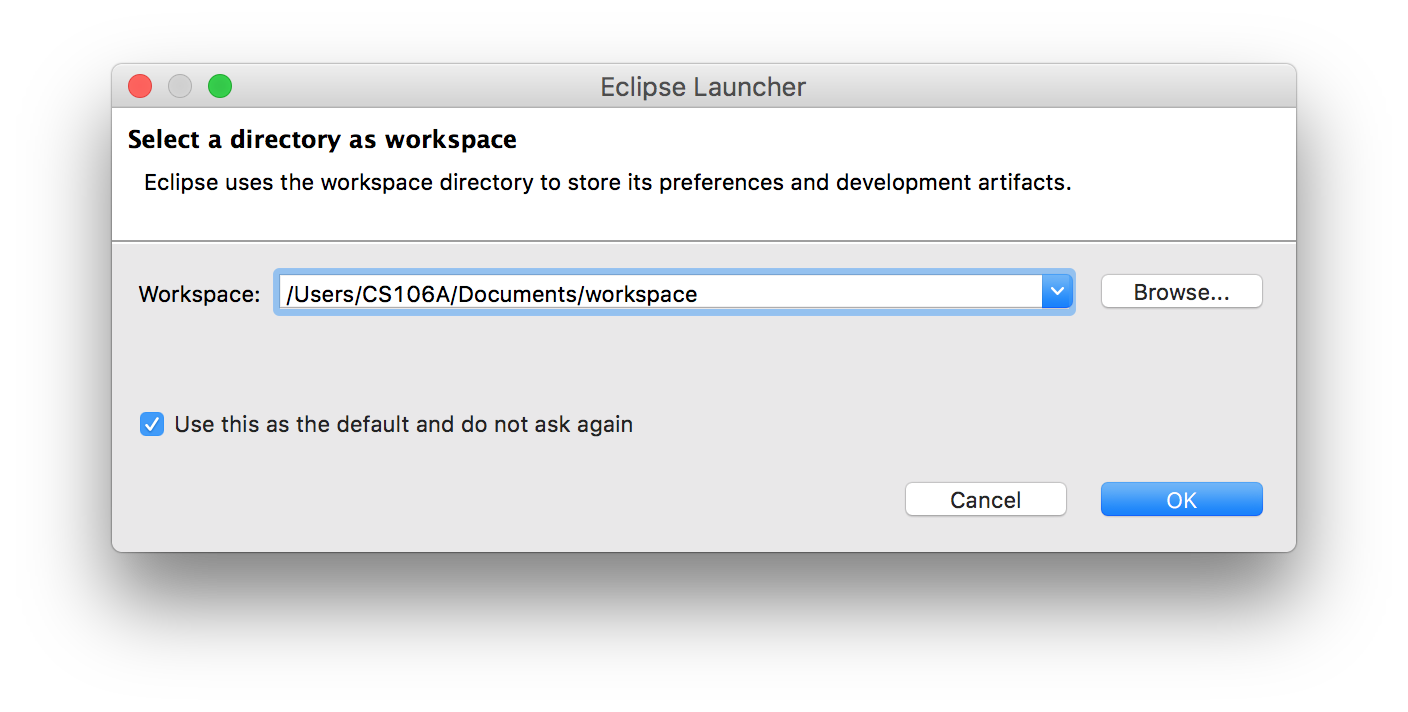
A workspace is just a directory that Eclipse will use to place new projects in. In 106A you won't have to make any new projects from scratch. We will always give you skeleton projects for your assignments, so you don't need to worry about where the workspace is. The suggested location is fine. Click the Use this as the default and do not ask again checkbox, and then click OK. - Once Eclipse has started, you can close the "Welcome" tab using the "X" in the top left.
- Click Help -> Install New Software.
- In the "Work with" text box, type https://web.stanford.edu/dept/cs_edu/eclipse/plugin and press Enter.
- Click "Select All," then click Next.
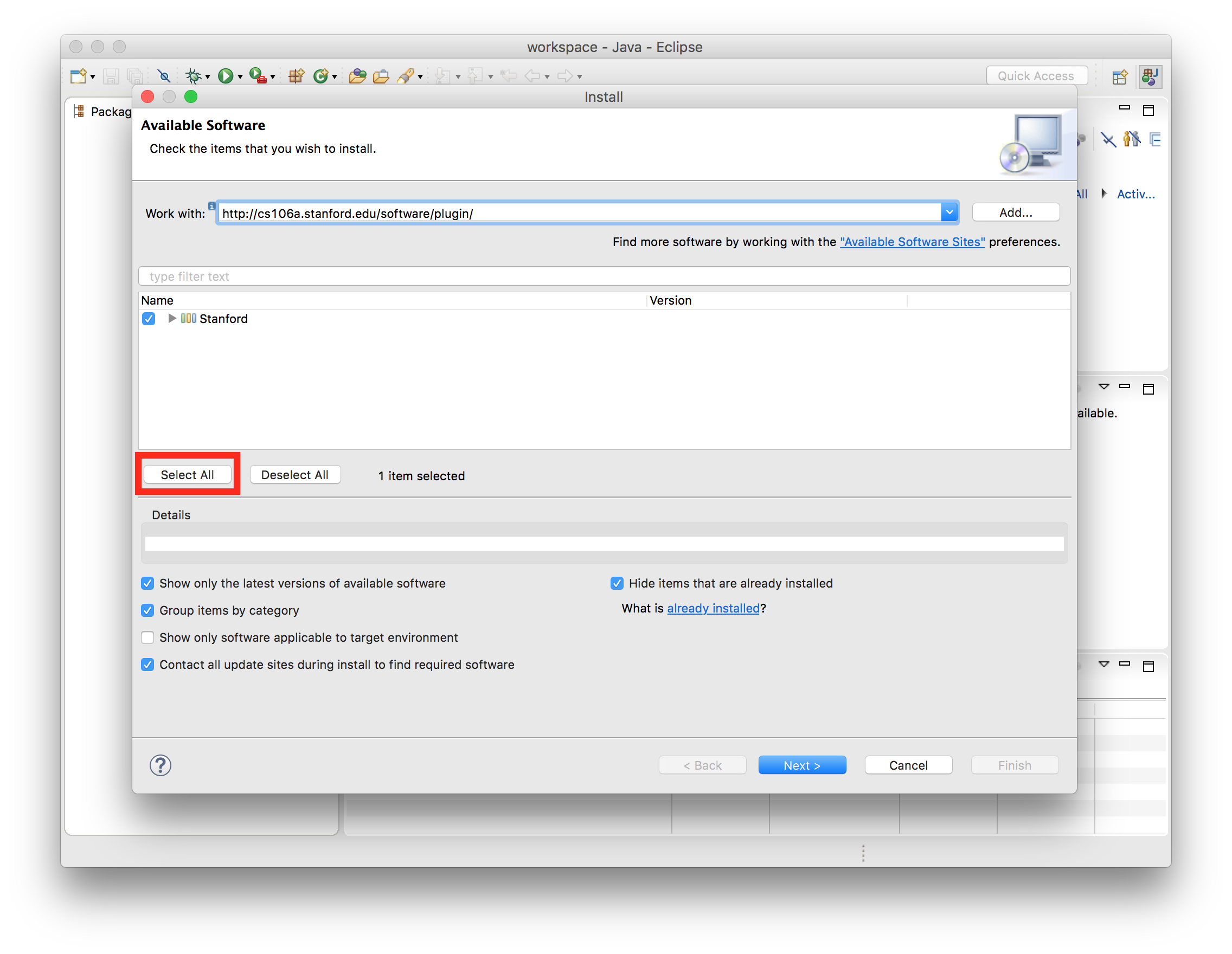
- Click Next again.
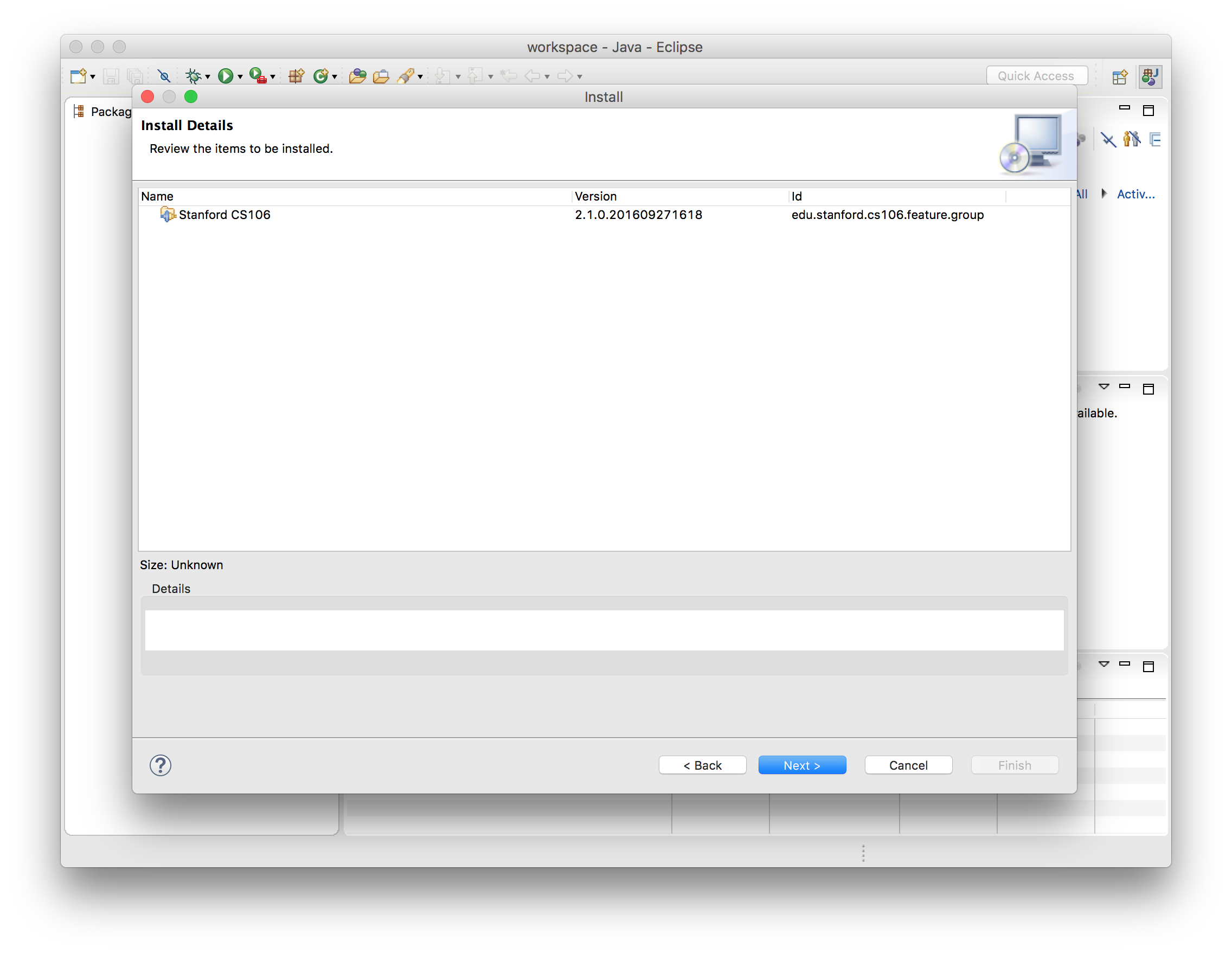
- Click "I accept the terms of the license agreement," then click Finish.
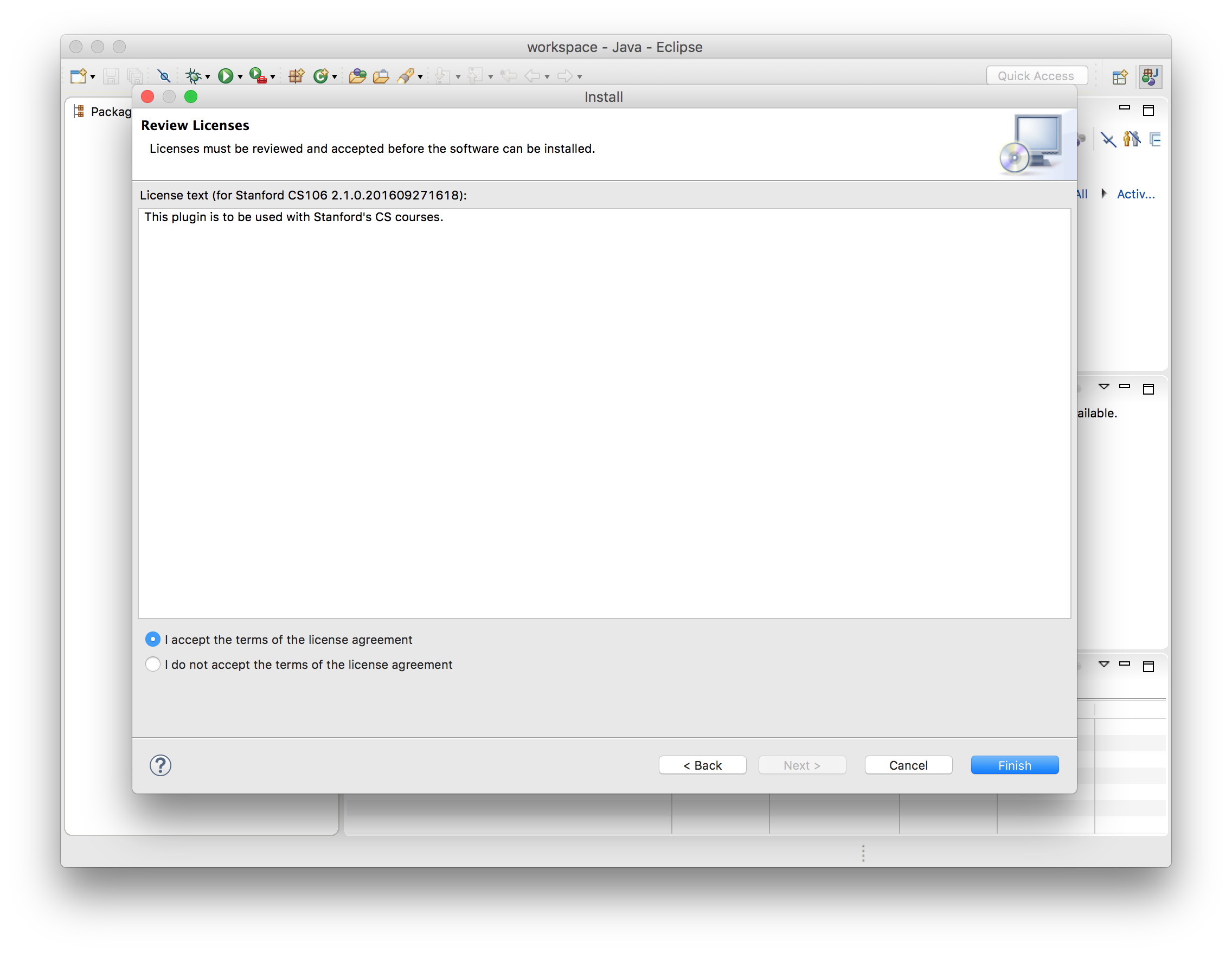
- Click OK when you see the warning about installing unsigned content.

- Click Yes when asked to restart Eclipse.
- After restarting, you should see a "Stanford Menu" in the top bar, as well as several new icons in your top toolbar area.

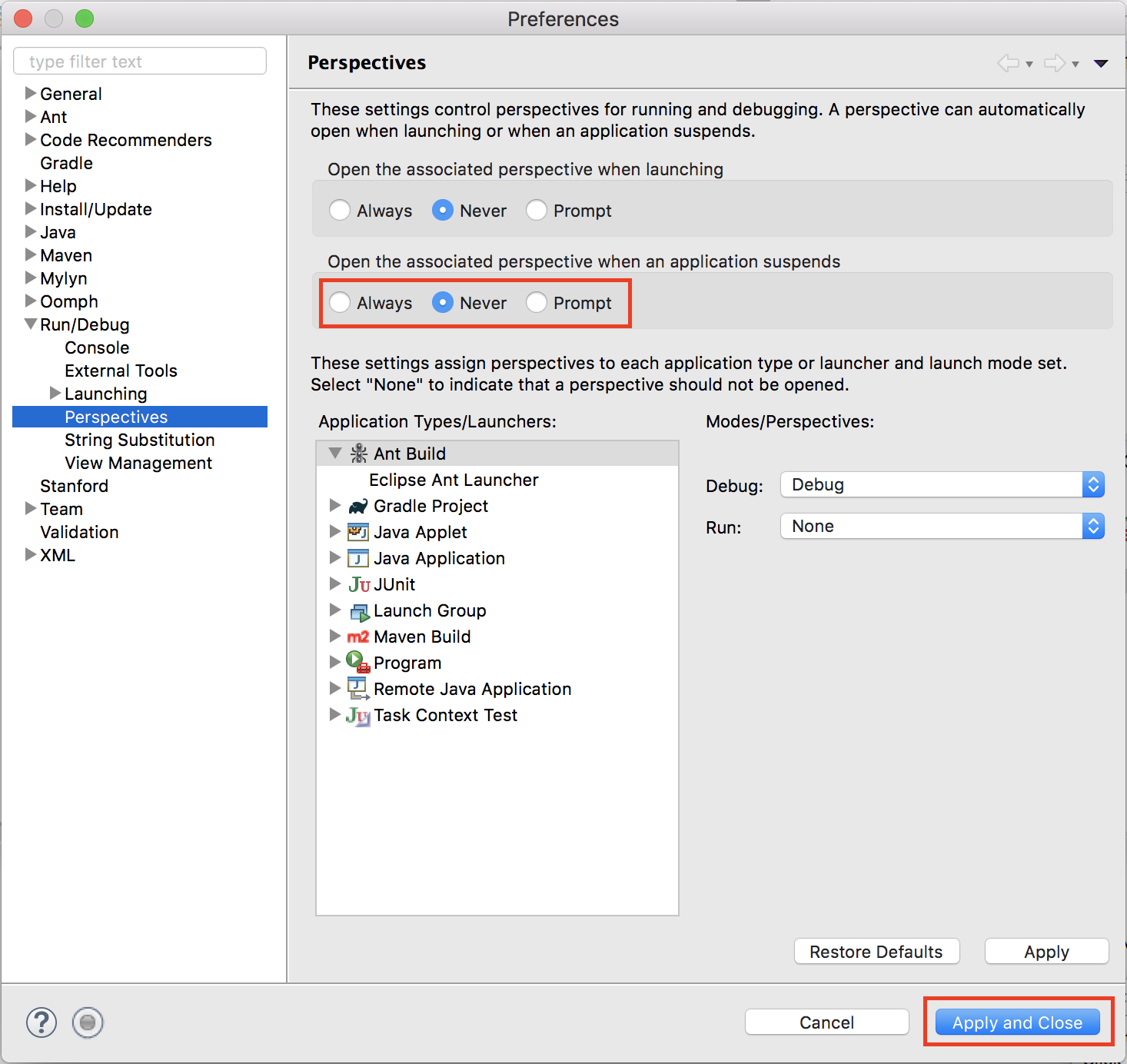
- Go to Eclipse -> Preferences to open the Preferences window. In the dropdowns on the left, expand Run/Debug, and click Perspectives. Set "Open the associated perspective when an application suspends" to Never, as shown below, and click Apply and Close.
- Now that you have Eclipse loaded and configured, your next step is to add a project to your workspace by importing a skeletal framework that we provide with each assignment called a starter project. Using starter projects makes your life much easier by allowing you to ignore the many details involved in creating a project from scratch. Every assignment will include a starter project for each problem, and your first task for each assignment will be to download the starter project from the class website and then import it into your workspace. The details for doing so are described in the handout "Using Karel with Eclipse".


Having trouble with your installation?
Check out this doc for common Eclipse errors and issues / Troubleshooting, email the Head TA or stop by their Office Hours, or stop by the LaIR. During the first week, you can also stop by the Eclipse Setup Session on Wednesday 4/4/18 7-9 PM in the LaIR (first floor of Tresidder).