✔️ Confirm Qt Creator installation
After installing Qt Creator, use this check step to confirm that your system is ready to build and run C++ programs that use the Stanford libraries.
Download zip and extract
- Download this archive file: 📦 sample-project.zip
- Un-zip the download contents (on a Windows computer, click "Extract all") to a location of your choice. You should have a folder named
sample-projectwith several files and folders inside.
Open and configure project
A Qt Creator project includes a file named with a .pro extension. Double-clicking the .pro file opens the project in Qt Creator.
- Find the
sample-project.profile and open it now.- If you are running on Windows and your File Explorer options are set to hide filename extensions, the file
sample-project.prowill display the namesample-project. You can change whether extensions are displayed in File Explorer by choosing menu item File->Options, select the "View" tab and under “Advanced settings”, uncheck "Hide extensions for known file types". Click "Apply" button.
- If you are running on Windows and your File Explorer options are set to hide filename extensions, the file
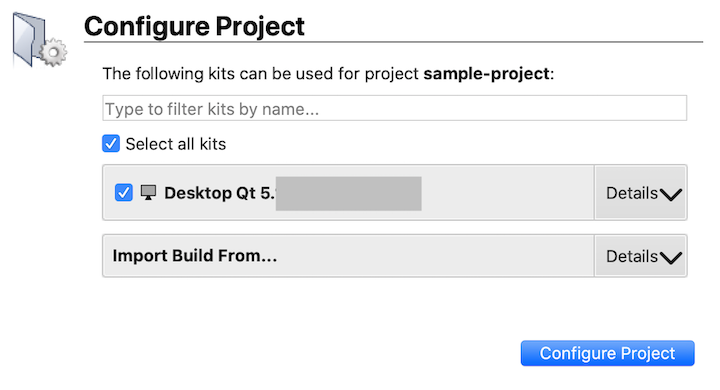
- When opening a project for the first time, Qt Creator brings up a "Configure Project" panel for you to select the appropriate build kit (see screenshot below). The default kit should already be selected; it will match the component you selected when installing Qt Creator. Accept the default by clicking the "Configure Project" button.
- If no kits are shown as available, review the installation instructions. You can repeat the steps to re-install if you missed selecting the required components.
Build the program
C++ code must be compiled or built before it is run; this means converting the source code into executable binary code.
- Click the Build icon
 in the lower-left of the Qt Creator window.
 - Watch the build progress meter
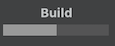 in the lower-right. The first time you build a project, it can take a minute or more to compile the library code. When the bar turns green, it indicates the program successfully built.
Run the program
Now that the program is built, you are ready to run it.
- Click the Play/Run icon
 in lower-left of window.
 -
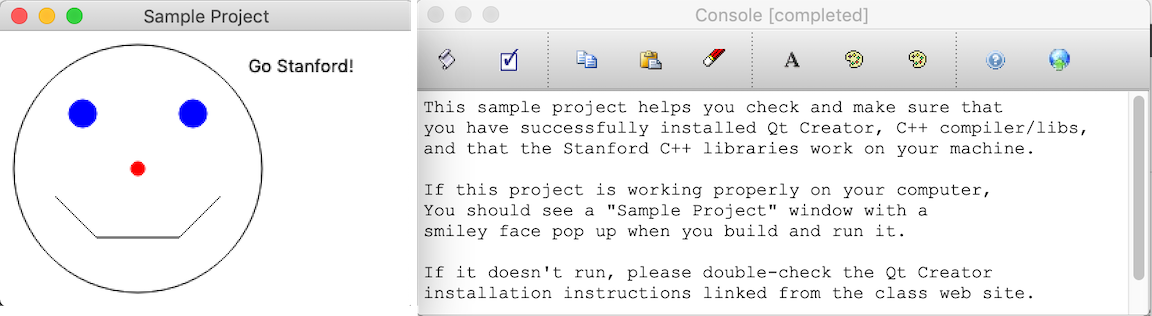
As shown in the screenshot below, the sample program prints a message to the console window and draws a smiley face to the graphics window.
✔️ Congratulations, your computer is good to go!