Troubleshooting Qt Creator project issues
This page contains information on how to resolve common problems with Qt Creator projects. Consider searching this page using Ctrl+F (Command+F on Mac) to jump quickly to the text matching the error message or issue you are having. You may also want to check the Guide to Common Build/Run/Debug problems if for issues compiling or running your program.
How to "re-initialize" a Qt Creator project
A large number of Qt Creator ills can be resolved by following these steps to re-initialize your project. (Please note that this requires deleting some files from your project. Be careful not to delete your assignment solution code. Make frequent backups of your files.)
- Quit Qt Creator.
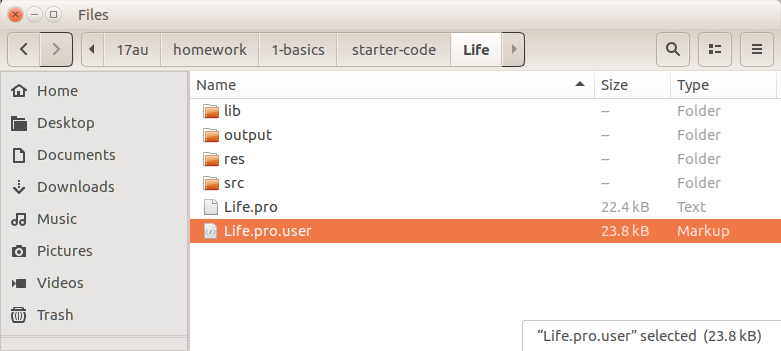
- Navigate to the folder where your project is stored. Delete the file with the extension
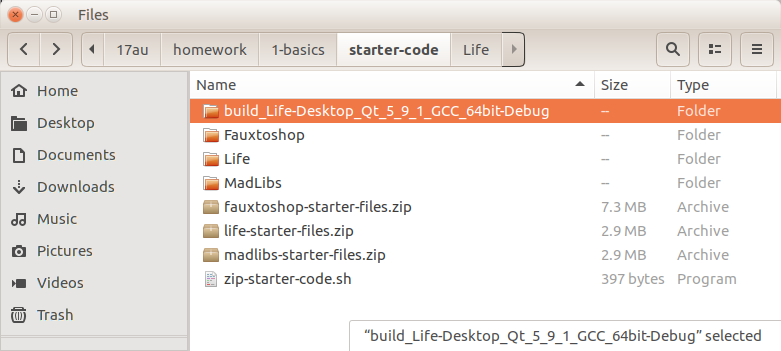
.pro.user, such asLife.pro.userTake care: Delete only the file with exactly thepro.userextension , not the other files such as theLife.pro(screenshot) - Also delete the "build" folder for your project. This is located in the parent directory of your project's directory, and has a long name like
build-Life-Desktop_Qt_5_x_x_kit_xxbit-Debug. Delete the entire build directory. (screenshot) - Re-start Qt Creator. Choose menu item "File" -> "Open File or Project…", navigate to your project folder and open its
.profile. Qt should ask you to "Configure Project", just as if you were opening for the first time. - Now try to build and run to see if things work any better.
Installation woes
- I installed Qt Creator previously. Must I reinstall or can I use my existing installation?
- You should install the latest. Our projects are written to work with the latest version and the most recent fixes. Look in the Qt Creator menu for "About Qt Creator" to confirm what version you are running. The latest version as of April 7 is
Qt Creator 4.11.2 Based on Qt 5.14.2. Be sure your version number is equal or greater; otherwise re-install Qt. - When I open a new project, the "Configure Project" options are empty. Error:
No kits available. - A "kit" is a C++ compiler. If no kits are available, your Qt installation may be missing essential components. When installing Qt, you must select the appropriate component (e.g. MinGW or macOS) for your platform, as specified in our installation instructions. If you fail/forget to select this component, the observed symptom is "no kits available". To fix this, you'll need to reinstall Qt Creator. Delete your existing Qt folder and repeat the steps in our install guide.
- When I open a new project, the "Configure Project" options are all grayed out. Error:
No suitable kits found. - On MacOS, be sure you have followed the XCode steps in our install instructions. After downloading XCode you must run it once in order for the necessary components to be installed.
- Double-click installer on macOS fails to open. Error:
Cannot verify the identity of the developer. - Instead of double-clicking the file, right-click and choose Open.
Opening a project
- Opening my project on the campus cluster computers crashes Qt Creator.
- Qt Creator does not play nice when the project files are stored on the network AFS server. In particular, your
Downloadsdirectory is a bad place to store a project. Instead try copy the files to yourU:drive or the localE:drive. - I double-click a
.cppfile to open it in Qt Creator and the "Build" and "Run" buttons are grayed out. - Double-clicking a
.cppfile opens only that single file. You instead want to open the entire project by double-clicking the.profile. - I can't tell which file is the
.profile because Windows File Explorer is not displaying filename extensions. - If your File Explorer is set to hide extensions, the file
sample-project.prowill display the namesample-project. You can configure for extensions to be displayed in File Explorer by choosing menu item File->Options, select the "View" tab and under “Advanced settings”, uncheck "Hide extensions for known file types". Click "Apply" button. - The names of my files are grayed out and I cannot build. Error:
Exiting. Project directory name contains invalid characters - The name of your project directory or one of its enclosing directories contains an invalid character. Qt Creator is confused by most punctuation and international characters. Look in the
General MessagesorCompiler Outputtab for the longer message which reports which character is problematic. Rename your folder.*** ERROR: The name of your project directory contains invalid characters. Project MESSAGE: *** /Users/karel/Assign #1 Project MESSAGE: *** Project MESSAGE: *** The invalid characters are: #
Permission problems
- Alerts on MacOS. Qt requesting "access to Desktop or Downloads folder". Should I allow it?
- Yes. Recent releases of MacOS have have tightened restrictions for programs to access to certain folders. If your project folder is stored in Desktop or Downloads folder, you must explicitly grant file privileges to the Qt Creator IDE and the debugger. Click agree when you get an alert such as this one:
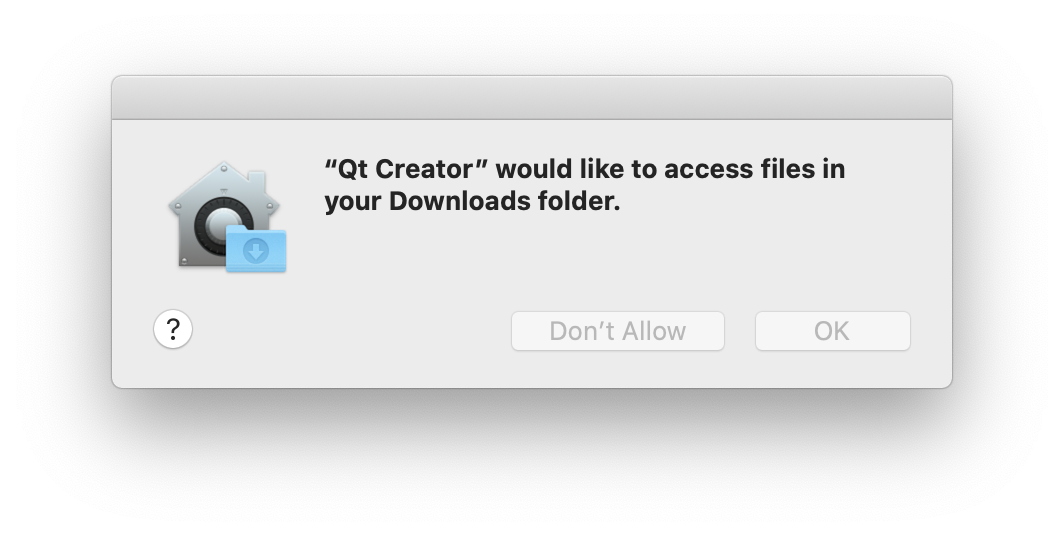 You can also go to "System Preferences" -> "Security & Privacy" -> "Privacy" tab -> "Files and Folders" to review and change what access has been granted to individual applications.
 - Build failed on Windows. Error:
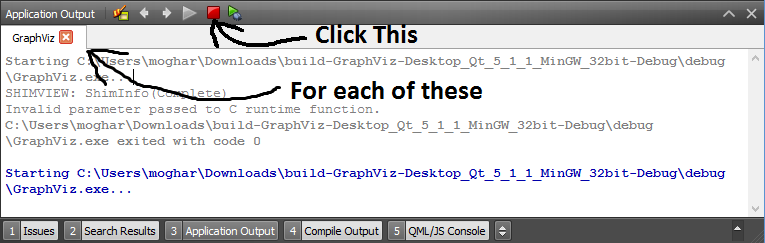
cannot open output file ...\MyProgram.exe: Permission denied. -
This error means that your executable is still running from the last time you ran/tested the program a moment ago. Shut down any running instances of your program. You might need to open your operating system's Task Manager to stop them all.
- Cannot delete, rename, or modify my program .exe file or build folder. Error:
You'll need to provide administrator permission to delete this folder. -
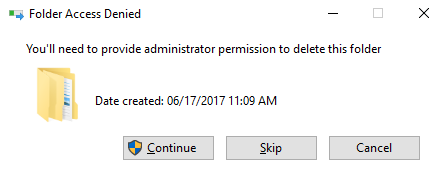 A Windows feature called "System Protection" can lock your .exe programs so that they cannot be modified. You can disable this feature in your system settings. Go to Control Panel, and choose System.
Now click the System Protection tab/link, which is either on the left or top side of the window.
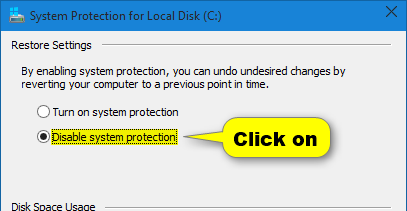
Depending on your version of Windows, either click the "Disable system protection" radio button,
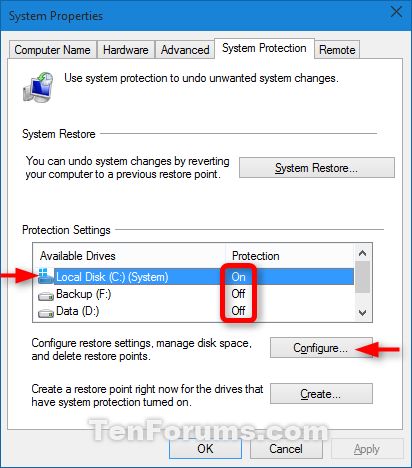
or if you instead see a list of disk drives, double-click on the drive where your project is stored (likely drive C:),
and change the setting to Off.
A Windows feature called "System Protection" can lock your .exe programs so that they cannot be modified. You can disable this feature in your system settings. Go to Control Panel, and choose System.
Now click the System Protection tab/link, which is either on the left or top side of the window.
Depending on your version of Windows, either click the "Disable system protection" radio button,
or if you instead see a list of disk drives, double-click on the drive where your project is stored (likely drive C:),
and change the setting to Off.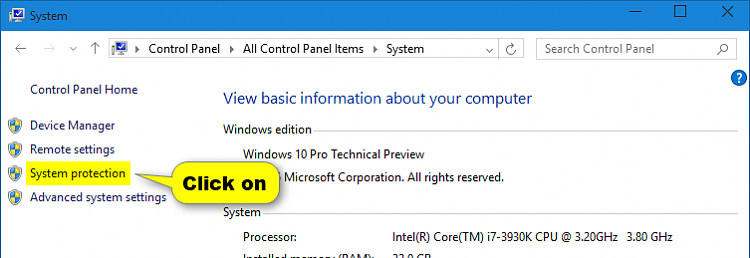
Another thing that can cause the "permission denied" problem is anti-virus software. In particular, McAfee Anti-Virus places strong locks on all
.exefiles that prevents you from modifying or deleting them. You may need to disable or uninstall McAfee to make this behavior go away.
What else?
- I have an error not listed in this FAQ. What else can I try?
- About 90% of random Qt Creator issues we've seen can be resolved by "re-initializing" your project. Follow the re-initialize steps.
Help! It still doesn't work!
If you had read through the list of known fixes and were not able to resolve your issue, we will try our best to help you figure it out. Drop into helper hours and show us the problem over Zoom. Or you can contact us via forum/email to get help. In your email/post, be sure to include the following information:
- Your operating system and version number (Windows 10, Mac OS X 10.15, Fedora Linux 17, etc.)
- The Qt version information from "About Qt Creator"
- Which step in the process has failed (be specific)
- Specific error message
- Please include the exact text via copy/paste and/or a screenshot.
- For a build error, be sure to grab the detailed information from the
Compile Outputtab.
Thanks, and good luck! You can do it!