
Sentaurus Workbench
3. Creating Projects
3.1 Setting Up the Tool Flow
3.2 Saving Projects
Objectives
- To assemble and save a new Sentaurus Workbench project.
3.1 Setting Up the Tool Flow
The first step to setting up a tool flow is to create a project.
To create a project:
- Project > New or click the corresponding toolbar button
(
 ).
).
This creates a temporary project with a name similar to g_lnx_2879_0.tmp in the tmp folder that can be viewed in the projects browser (see Figure 1).

Figure 1. Project directory showing project folder.
The tools that comprise this project are Sentaurus Process, Sentaurus Structure Editor, Sentaurus Device, and Inspect, in that order.
To set up a tool flow:
- Right-click the No Tools node under the Family Tree (see Figure 2).
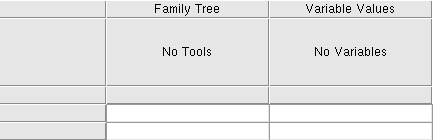
Figure 2. Detail of main window showing Family Tree.
The Add Tool/Tool Properties dialog box is displayed (see Figure 3).
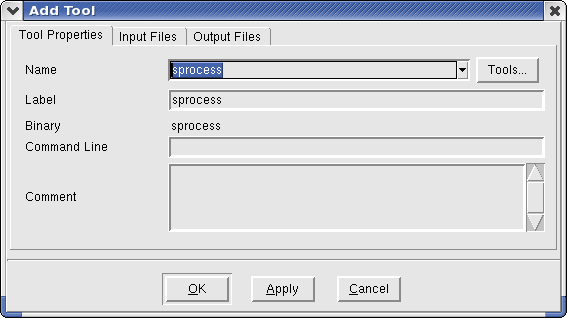
Figure 3. Add Tool dialog box.
Here, the Label refers to the name by which this instance of Sentaurus Process is referred. You can use any unique name you want. If you use multiple instances of the Sentaurus Process tool in a project, each instance must have a unique label, such as sprocess1, sprocess2, and so on. The Input Files and Output Files tabs list all files associated with the tool for reference.
If you want to return to the Tool Properties dialog box for a tool you have already created, simply double-click the tool.
Now, the command file for this tool must be created. Right-click the Sentaurus Process tool icon, and select Edit Input > Commands. The text editor opens for entering commands. The text editor to be used for editing input files can be customized using Edit > User Preferences (or press the F12 key) > Binaries > Editor > text.
Add the following lines to the Sentaurus Process command file with the text editor:
Grid2D
select silicon name=Boron z=1e15 store
implant phosphorus dose=5e14 energy=40
diffuse time=20 temperature=900
struct tdr=n@node@ !Gas !interfaces
Save the sprocess_fps.cmd command file and close the text editor.
3.2 Saving Projects
Before running the project, it must be saved. To save a project:
- Project > Save As.
- Navigate to the folder where you want to save it under $STDB.
- Save the project as test1 or another name.
You can now run the project as described in Section 2.4 Running Projects. Note that there is only one node to run for this project.
Section 3 of 6 | back to top | << previous section | next section >>
Copyright © 2011 Synopsys, Inc. All rights reserved.