
PC-Leland
User Guide
About
PC-Leland
PC-Leland Settings
PC-Leland Settings
PC-Leland’s Settings dialog box has six major sections: Profile, Security, Login, Email, Menu, Time, and Kerberos. Each of the six sections of the Settings dialog box is described below.
Profile
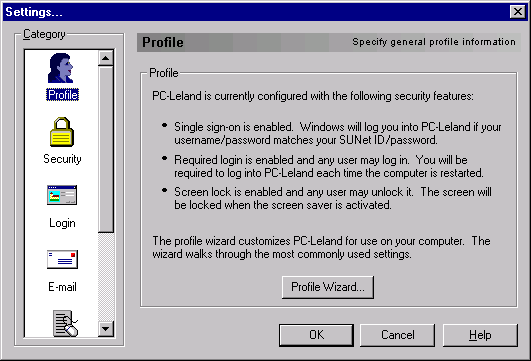
The Profile section displays your current PC-Leland configuration including whether the following security features are enabled or disabled: Single Sign-on, Required Login and Screen Lock. You may also run the profile wizard by clicking on the "Profile Wizard..." button. The profile wizard customizes PC-Leland for use on your computer by walking you through the most commonly used settings.
Security
The Security section is where you configure PC-Leland security options such as single sign-on, required login, and screen lock on screen saver.

- Not always connected:
Your computer is connected to the network using a dial-up modem (e.g.,
connecting via the modem pool or an Internet Service Provider), or DSL
line, or your laptop computer is only sometimes connected to the network
via an office connection. This option disables Single Sign-On, Required
Login, and Screen Locking via the screen saver.
- Logout
on screen saver: When this box is checked, you will automatically
be logged out of PC-Leland whenever your Windows screen saver is
activated. This setting is off by default.
- Logout
on screen saver: When this box is checked, you will automatically
be logged out of PC-Leland whenever your Windows screen saver is
activated. This setting is off by default.
- Always connected:
Your computer is connected to the Stanford network full-time via
an office connection. This option enables PC-Leland Single Sign-on and
Screen Locking on screen saver.
- Enable
Single Sign-On: This option combines your Windows login and
your PC-Leland login into one step by enabling PC-Leland to insert
itself into the Windows login cycle. When you enter your Windows
account and password (which must match your SUNet ID and password)
into the Windows login dialog box, these values are forwarded to
PC-Leland which will use them to authenticate you by logging you
into PC-Leland. Note: You must change your Windows account
and password to match your SUNet ID and password for Single sign-on
to work.
Windows NT 4.0/2000 Users: See your NT System Administrator about changing your Windows account and password. Ask the system administrator to give you temporary access to change your own account and password, DO NOT give your SUNet ID password to the system administrator (or anyone else).
Dial-up Users and Mobile Laptop Computer Users: To prevent difficulties due to intermittent connection to the network, DO NOT enable Single Sign-On.
Note: If you change your SUNet ID password at the SUNet ID web pages, you must also change your Windows password on your PC via the Windows Start menu -> Settings -> Control Panel -> Passwords. However, if you change your password on your PC using Change Password in the PC-Leland menu, your Windows password will be automatically changed as well.
- A PC-Leland login is required to use this computer: If this box is checked, access to the PC will be restricted. You may then choose "Any user may login," or "Only specific users may login:" (click the Edit Users... button to enter the users' SUNet IDs). You will be required to log into PC-Leland each time the computer is turned on, restarted, or the screen saver is activated.
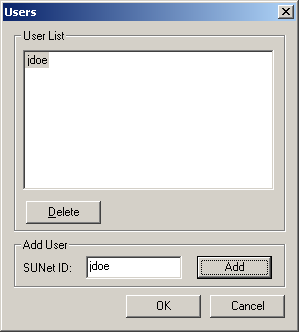
To specifiy specific users who may login, click the Edit Users... button. In the Users dialog box, enter the each user's SUNet ID in the Add User section and click the Add button. The user's SUNet ID will then appear in the User List above. When you are finished specifying users, click OK to save the changes.To delete a user, select the SUNet ID from the User List and click the Delete button. When you are finished, click OK to save the changes.
Dial-up Users and Mobile Laptop Computer Users: To prevent difficulties due to intermittent connection to the network, DO NOT enable Required Login.
Note: If Required Login is enabled, it will override the secure screen saver option “Logout when screen saver is activated.”
- Enable
Single Sign-On: This option combines your Windows login and
your PC-Leland login into one step by enabling PC-Leland to insert
itself into the Windows login cycle. When you enter your Windows
account and password (which must match your SUNet ID and password)
into the Windows login dialog box, these values are forwarded to
PC-Leland which will use them to authenticate you by logging you
into PC-Leland. Note: You must change your Windows account
and password to match your SUNet ID and password for Single sign-on
to work.
- Logout
on screen saver: When this box is checked, you will automatically
be logged out of PC-Leland whenever your Windows screen saver is activated.
If this option is unchecked (the default setting), you will not be
logged out of PC-Leland and PC-Leland will not lock the screen. Note:
If Required Login is enabled, it will override this screen saver option.
- PC-Leland
screen lock on screen saver: The Screen Lock feature works with
regular Windows screen savers to protect your PC desktop by automatically
logging you out of PC-Leland and (if you choose) locking your PC desktop
after your computer has been idle for a specified length of time.
After the computer
is idle for a specified length of time, the Windows screen saver will
appear and you will not be able to see the Windows desktop. To unlock
the screen, simply move the mouse or press a key and enter your SUNet
ID and password in the PC-Leland login box when it is presented and
click OK. You can restrict who can unlock the screen by selecting
one of the following three options:
- Any user may login (requires a SUNet ID)
- Only the current user may login
- Only specific users may login (click Edit Users... button to specify users)
To specifiy specific users who may login, click the Edit Users... button. In the Users dialog box, enter the each user's SUNet ID in the Add User section and click the Add button. The user's SUNet ID will then appear in the User List above. When you are finished specifying users, click OK to save the changes.
To delete a user, select the SUNet ID from the User List and click the Delete button. When you are finished, click OK to save the changes.
Windows 2000/NT4.0/XP Users: We recommend using the Windows screen lock instead of PC-Leland's screen lock because it is fully integrated with the operating system.
- To disable PC-Leland's screen lock, go to the Security section of PC-Leland Settings and uncheck the boxes next to "Logout on screen saver" and "PC-Leland screen lock on screen saver."
- To enable Windows screen lock, select Password Protect in Windows screen saver settings (Windows Start menu -> Settings -> Display -> Screen Saver). Windows will lock the screen when the screen saver is invoked and you must provide your Windows username and password to unlock the screen.
Dial-up Users and Mobile Laptop Computer Users: To prevent difficulties due to intermittent connection to the network, only the setting "Logout on screen saver" is available if you selected the "Laptop" or "Off-campus" option in the setup wizard.
By default, the maximum amount of idle time allowed before the Screen Lock screen saver is invoked is 60 minutes. However, the PC-Leland installer will not change the amount of idle time that has already been specified (by you or the Windows default) to invoke the screen saver unless it is longer than 60 minutes. You can change the idle time requirement via the Windows Start menu -> Settings -> Display -> Screen Saver. In the Screen Saver dialog box, change the number of minutes specified in the Wait ____ minutes section.
Login
- Maximum Ticket
Lifetime: This option determines how long you can stay logged in
to PC-Leland. When your primary Kerberos Ticket expires, your PC-Leland
session ends. That may or may not end the particular PC-Leland security
and file access services you are using, depending on which ones they
are. You must choose between single use tickets or setting the ticket
lifetime. “Lifetime of 600 minutes” is chosen by default during PC-Leland
installation.
- Destroy tickets
30 seconds after login (single use): The purpose of this option
is, practically speaking, to force you to enter your password with each
new request for a PC-Leland service. Since the primary ticket expires
after 30 seconds, it cannot be passed along to other services requested
more than 30 seconds later. This is useful in public cluster areas where
users might leave a PC without remembering to log off because the next
user to arrive would not be able to use the previous user's tickets
to gain access to that user's home folder or account on a Leland
computer.
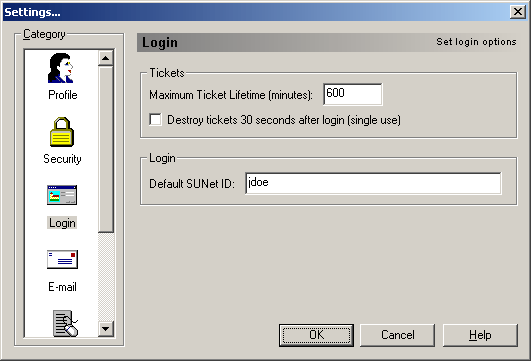
- Default SUNet ID: The SUNet ID entered in this box will be used as the default for PC-Leland logins. It will automatically be entered in the SUNet ID box whenever the PC-Leland login dialog box appears, however, it can be edited.
The Email section allows you to use PC-Leland’s kerberos authentication and password encryption features with POP and IMAP email services and email client applications such as Eudora and Microsoft Outlook. For more information about IMAP email services, see the IMAP web pages at http://imap.stanford.edu.
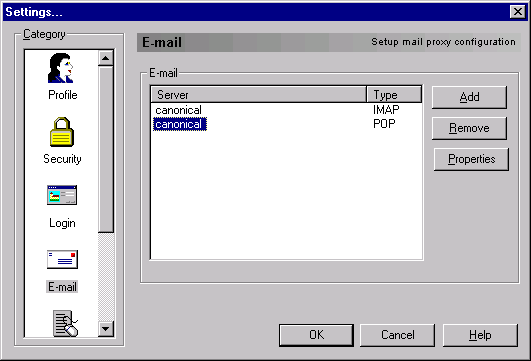
The default settings are for use with Leland POP and IMAP Email Services:
POP Settings:
- Proxy type: POP
- Use Stanford canonical POP server: On
- Listen on port: 110
- Server port: 1109
IMAP Settings:
- Proxy type: IMAP
- Use Canonical Server: On
- Listen on port: 143
- Server port: 143
- User Name: your SUNet ID
- Encrypt Session: If this option is ON (checked), the entire IMAP session will be encrypted, including all data sent between the client and server. With the option OFF (unchecked), the actual messages are sent in the clear. POP does not provide any encryption on its data.
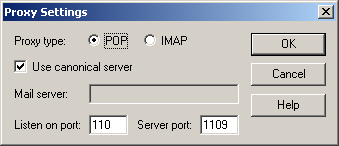

If you use a kerberized POP or IMAP server other than Leland Email Services, use the following settings:
POP Settings:
- Proxy type: POP
- Use Canonical Server: Off
- Mail server: server name (enter the name of the POP server where you receive your mail)
- Listen on port: 110
- Server port: 1109 (make sure this is the port number your POP server is actually listening on)
IMAP Settings:
- Proxy type: IMAP
- Use Canonical Server: Off
- Mail server: server name (enter the name of the IMAP server where you receive your mail)
- Listen on port: 143
- Server port: 143 (make sure this is the port number your POP server is actually listening on)
Menu
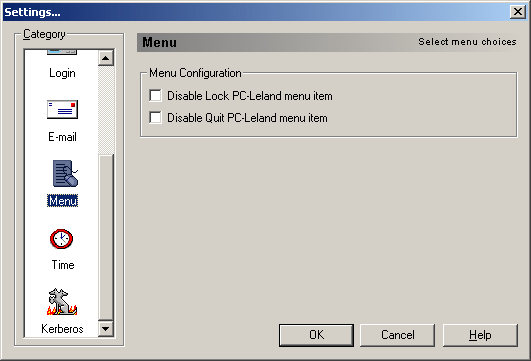
The Menu section allows you to disable certain PC-Leland menu items for security.
- Disable Lock PC Menu Item: If others are using a PC under your control, you may not want them to be able to use the “Lock PC” command. This option disables it in the PC-Leland menu.
- Disable Quit PC-Leland Menu Item: This option disables “Quit” in the PC-Leland menu
Time
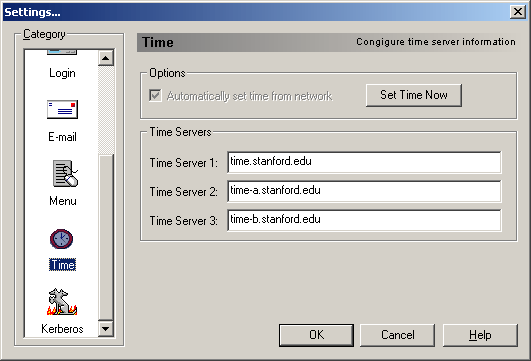
- Set Time from Network: Selecting this option helps ensure that your Kerberos tickets are synchronized properly with other hosts on the network. If this option is set, the PC asks a time server on SUNet for the correct time. The time server reports back the time in Greenwich Mean Time. The PC then takes into account the time difference based on the current time zone.
- Time Servers: In this section, you can enter the network time servers with which you want PC-Leland to be synchronized. The default time servers for SUNet (Stanford University Network) are time.stanford.edu, time-a.stanford.edu, and time-b.stanford.edu.
- Set Time Now: Clicking this button immediately synchronizes your PC with the time servers specified in the section labeled Time Servers.
Kerberos
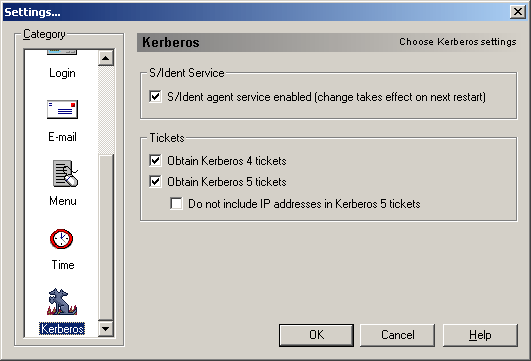
- S/Ident agent
service enabled: Enables user authentication to web pages protected
by Stanford Web Authentication. You must restart PC-Leland for the change
to take effect.
- Obtain Kerberos
4 tickets: Allows
user authentication to hosts running Kerberos 4.
- Obtain Kerberos
5 tickets: Allows
user authentication to hosts running Kerberos 5.
- Do not include IP addresses in Kerberos 5 tickets: This option is off by default. If this option is checked, IP addresses will be excluded from Kerberos 5 tickets. This may be useful for users whose systems are using Network Address Translation (NAT) to map intranet IP addresses to Internet IP addresses.
All rights reserved.