A Guide to Rethlas: How to Run Rethlas with AI (No CS Knowledge Assumed)
This note provides a step-by-step guide to using Rethlas, a powerful agentic AI system for autonomous mathematical research. It assumes no prior knowledge of AI or computer science. Although this may not be the canonical way to use Rethlas—a topic I may discuss in a future note—it may be the easiest way to get started.
A few notes about the intended audience and scope:
- No prior knowledge of AI or computer science is required. In particular, you do not need any experience using a terminal.
- This guide is written for macOS and Linux users. Windows users can copy and paste it into an AI assistant and ask the assistant to adapt the instructions for Windows. I use macOS and Arch Linux on my own laptops.
- This guide uses Codex CLI and Codex models as examples, but you can use other AI agents and base models.
- If time permits, I plan to write additional guides on other useful agentic workflows, the canonical way to use Rethlas, and how to use Danus.
What Is Rethlas?
In one sentence for mathematicians: Rethlas is a harness that makes AI substantially more capable at mathematical research. You state a conjecture precisely, and Rethlas works autonomously to prove or disprove it—without requiring further prompting.
For more details, see the Rethlas paper [1].
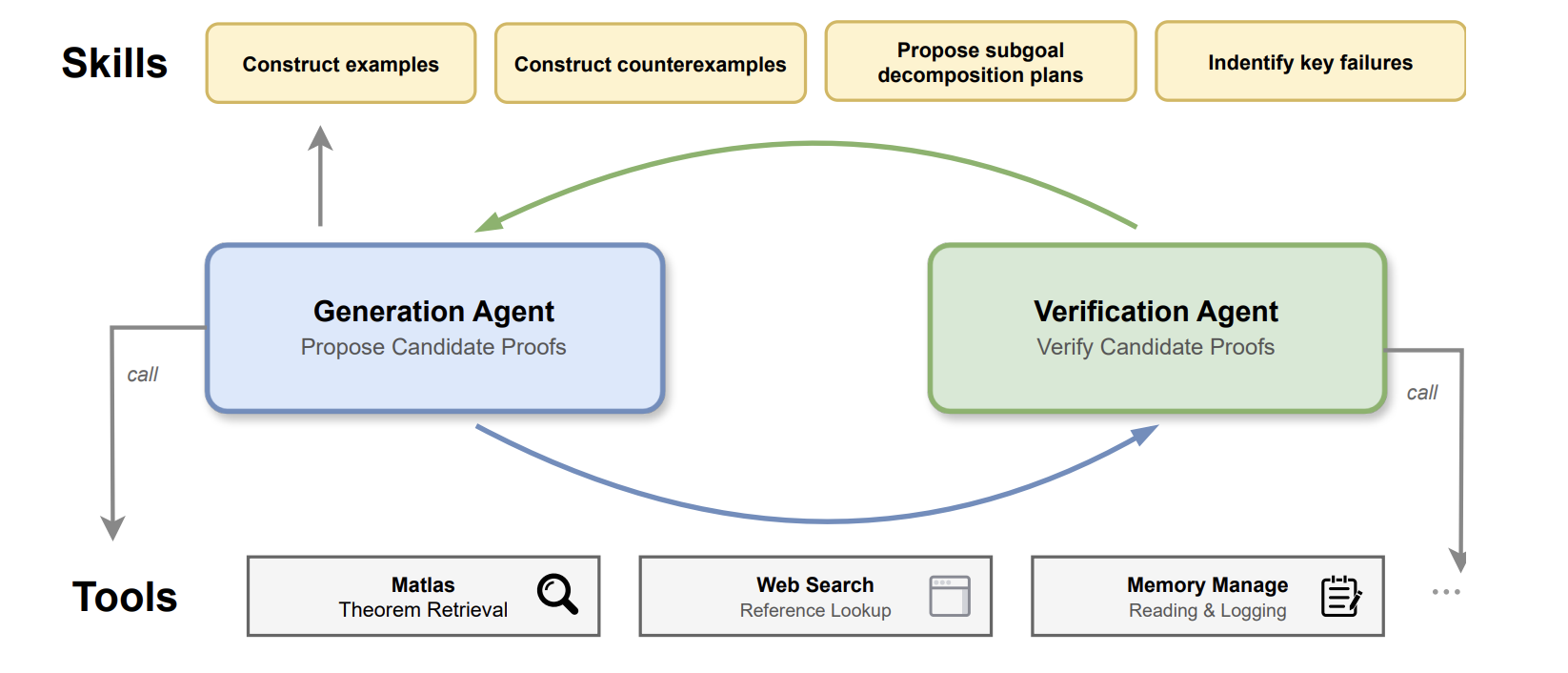
Based on my own observations, Rethlas is substantially more powerful than using AI through a web chat interface alone. For example:
Experiments produced the following comparisons:
- Algebraic-group problem:
Rethlas + GPT-5.5 xhigh > Rethlas + GPT-5.4 xhigh > GPT-5.5 Pro(see [1, Section 5.1.1]). - Matroid problem:
GPT-5.6 Sol max + Rethlas > GPT-5.6 Sol Ultra[2].
Rethlas has solved other problems as well; selected results are listed on this GitHub page.
Step-by-Step Guide (Lazy-User Version)
Step 1: Preparations
First, open your terminal.
On a Mac, press Command + Space to open Spotlight, type Terminal, and press Enter.
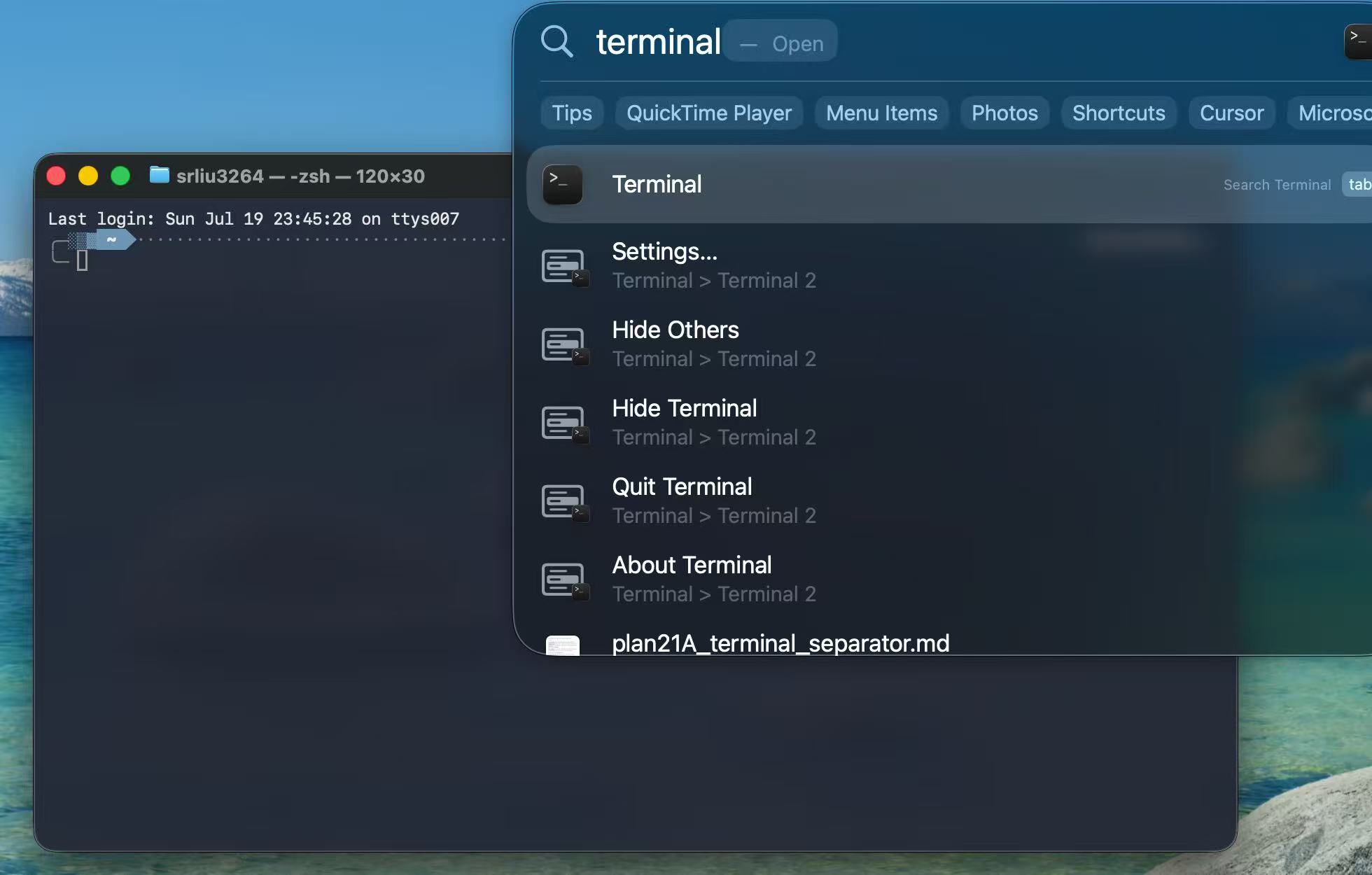
If you have not configured it before, the terminal may look ugly; don't feel scared by it.
Now for the most important step: install a command-line interface (CLI) for an AI agent.
For Codex, copy and paste the following command into your terminal, then press Enter:
curl -fsSL https://chatgpt.com/codex/install.sh | shSee OpenAI's Codex CLI instructions. For Claude Code, see Anthropic's installation instructions. Other AI-agent CLIs may also work, but this guide uses Codex throughout.
Next, create a folder named projects on your Desktop and move into it. On a Mac, copy and paste the following commands into your terminal:
cd ~/Desktop
mkdir -p projects
cd projects
Now start Codex CLI:
codexChoose 1. Sign in with ChatGPT. A ChatGPT Plus plan includes access to the GPT-5.6 model family, including Sol; Pro plans provide higher usage limits.
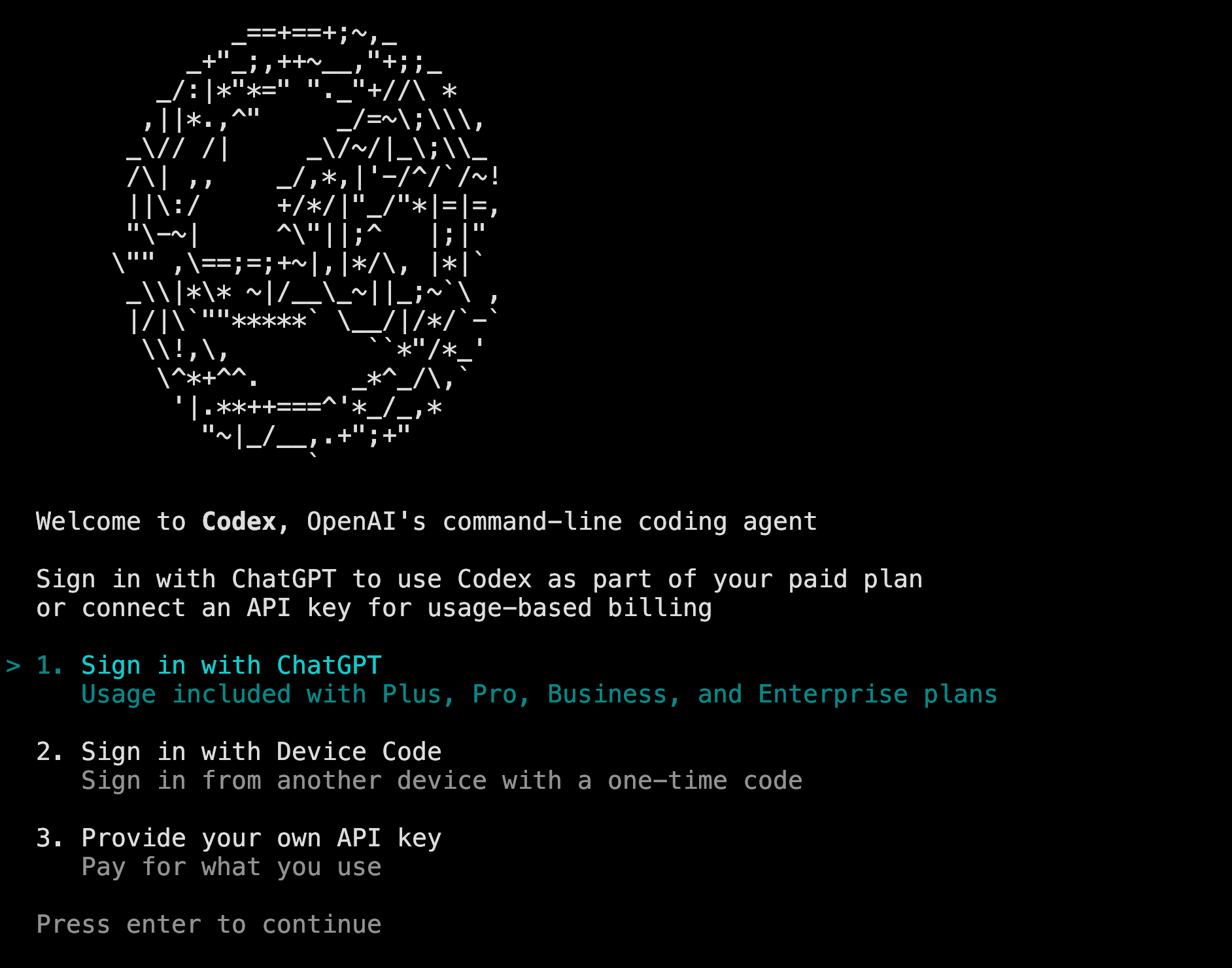
A browser window will open. Sign in to your ChatGPT account there, then return to the terminal.
After you log in and return to the terminal, you can press Ctrl+C at any time to quit Codex and return to the regular terminal prompt.
You are now ready to use Codex CLI. It works much like a web chat interface, but it can access files in your current folder and—with your permission—run terminal commands. These capabilities make it substantially more powerful.
You can ask Codex questions just as you would in a web chat, but carefully review the commands it proposes and take responsibility for anything you authorize it to run.
Finally, let's install the required packages:
For Mac users:
brew update
brew install python
brew install git
brew install uv
brew install zola
If you see an error such as command not found: brew, install Homebrew by running:
/bin/bash -c "$(curl -fsSL https://raw.githubusercontent.com/Homebrew/install/HEAD/install.sh)"Follow any instructions printed by the Homebrew installer, then rerun the package-installation commands above. If another error occurs, copy and paste its full message into Codex CLI and ask it to explain the problem and help you fix it.
On Linux, install these packages using your distribution's package manager. For example, Arch Linux users can use sudo pacman -S instead of brew install.
Step 2: Set Up Rethlas
First, clone the Rethlas repository to your laptop:
git clone https://github.com/frenzymath/Rethlas rethlasMove into the newly downloaded rethlas folder:
cd rethlas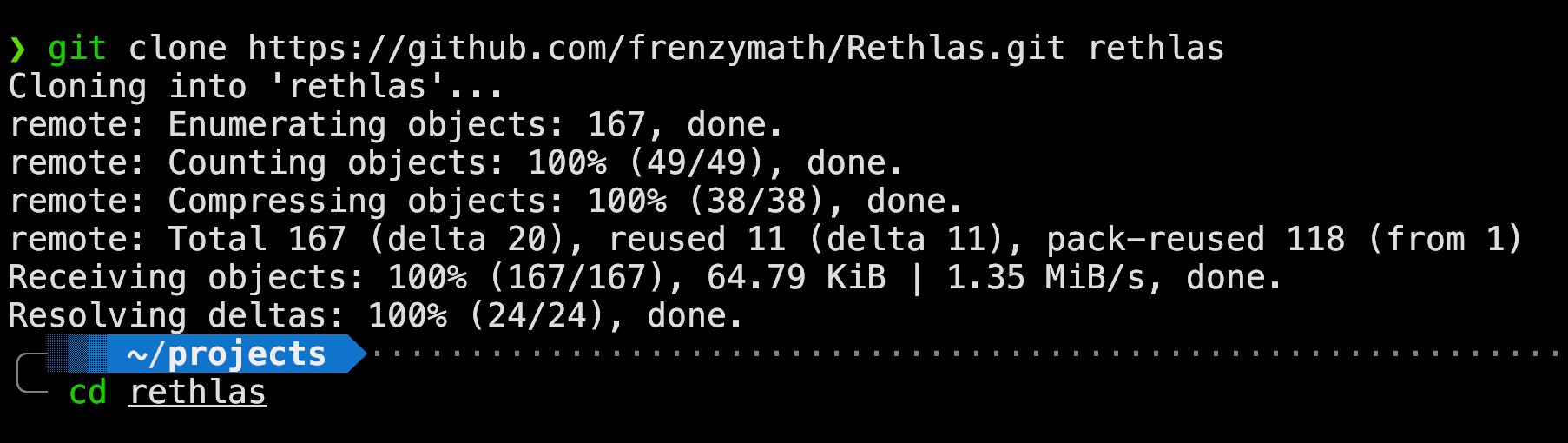
Now start Codex and ask it to help set up Rethlas. This is deliberately the easiest, most automated approach; I plan to explain the canonical manual setup and workflow in a separate guide.
Here is an example prompt:
This repository contains an agentic framework for autonomous mathematical research. Please inspect the codebase carefully, using subagents in parallel where helpful. Identify and fix any issues that would prevent Rethlas from working on my laptop. In particular: (1) set up and use the correct virtual environments in `agents/generation/` and `agents/verification/`; `uv` is already installed; (2) ensure that `agents/generation/site/serve.sh` works on this laptop, adapting any hard-coded paths so that I can view the results through a local Zola server; and (3) identify and report any other bugs or setup issues.You do not need to address every issue Codex flags; minor, benign issues can usually be left unchanged. You can use GPT-5.6 Sol with Extra High reasoning, or even GPT-5.5 with Extra High reasoning. Ultra is unnecessary for this straightforward setup task. For Claude Code, Claude Opus 4.8 should suffice; Claude Fable 5 is more powerful than this task requires.
Step 3: Let Rethlas Solve Your Problem
You can ask Codex CLI to launch and monitor a Rethlas experiment for you.
Here is an example prompt:
I want to use Rethlas to solve a research problem. Use GPT-5.6 Sol with Max reasoning as the base model for both the generation and verification agents. Ensure that the verification service is running and that both agents use the correct virtual environments. Then launch and monitor Rethlas as it attempts to solve the following problem: prove or disprove ...Now wait and see whether Rethlas solves the problem. You can occasionally ask Codex for a status update:
What is the current status?
Is the verification service healthy?
Has there been any recent progress?
You can also provide mathematical guidance based on Rethlas's progress. Claude Code users can use /loop to request recurring status checks while the session remains open.
Step 4: How to View the Output
If Rethlas produces a verified solution, you will find blueprint_verified.md under agents/generation/results/. If verification does not succeed, you will find blueprint.md instead; this draft has not been accepted as valid by the verification agent.
There are two ways to view the output:
Method 1: View the result in a browser
Ask Codex CLI to serve the result locally:
Please use `agents/generation/site/serve.sh` to render the output blueprint at `http://localhost:3264`. Ensure that the MathJax syntax is correct, the document renders properly, and the MATbook theme is up to date.Then open a browser and visit http://localhost:3264.
Fun/Stupid fact: in that webpage, press <shift>+f to enter full screen, then press i to enter the Matrix.
Method 2: Compile the result as a PDF using LaTeX
Ask Codex CLI to convert the Markdown file to LaTeX:
Convert the blueprint Markdown file into a compilable `amsart` LaTeX document. Do not alter the content. Ensure that all mathematical symbols render correctly and that all cross-references work.You can also ask Codex to turn the blueprint into a paper draft, but you should not assume that the result is publication-ready.
Using `blueprint_verified.md`, write a professional, compilable `amsart` LaTeX manuscript suitable in style for a leading mathematics journal such as the *Annals of Mathematics* or *JAMS*. Present the mathematical content rigorously, coherently, and faithfully. Add an appropriate introduction and necessary citations, and avoid self-coined or unprofessional terminology. Do not alter the mathematical content of `blueprint_verified.md`.Other Tips
-
Rethlas, like any AI tool, is not an oracle that can solve every problem. If Rethlas has not solved a problem after a long run—say, 8 or 24 hours—it is usually best to stop the experiment. You could then try the more powerful agentic system Danus [3]; for example, Danus solved the problem in [4], whereas Rethlas did not. Alternatively, you may need to break the problem into smaller subproblems or provide additional nontrivial ingredients. The problem may simply lie beyond the capabilities of current agentic systems—or even those of the underlying base models. Alternatively, try a stronger model, a higher reasoning effort, or both.
-
When supplying references to the system, LaTeX or Markdown is preferable to PDF. You can use an optical character recognition (OCR) tool to convert a PDF into one of these formats.
-
Carefully verify the output before announcing any result publicly. You may also try an autoformalization tool. I recommend Archon, an agentic system described in [1] that autonomously formalizes mathematics in Lean 4. However, watch for common pitfalls: the Lean files may contain
sorryplaceholders or additional axioms, or the formalized statements may not match the intended claims. -
If the process is interrupted, do not panic. Run
codex resumeto reopen the previous Codex session, then tell Codex,Continue the experiment. -
AI transparency: Even where no formal regulations apply, I believe researchers should be honest and transparent about their use of AI. My practice is to explain in the acknowledgments how I used generative AI and, when possible, provide further details in an appendix. For example, see [2]. If you use Rethlas, I would appreciate an acknowledgment. Here is a suggested template:
The initial .... was discovered by Rethlas [1], an AI agent for mathematical research, developed by the Rethlas team, namely Haocheng Ju, Jiedong Jiang, Shurui Liu, Guoxiong Gao, Yuefeng Wang, Zeming Sun, Leheng Chen, Bin Wu, led by Professor Liang Xiao and Professor Bin Dong.For a broader community perspective on AI and mathematics, see the Leiden Declaration on Artificial Intelligence and Mathematics [5].
Possible Follow-Up Guides
If time permits and these guides would benefit the mathematical community, I may write about the following topics:
- A more direct, canonical way to set up and run Rethlas without outsourcing the process to another AI, including how to adapt it to prove a lemma using the earlier parts of your paper;
- Other useful agentic workflows, such as using Codex to improve mathematical writing and correct grammar, learn unfamiliar fields more quickly, or organize notes, cheat sheets, and lecture notes;
- A guide to using Danus;
- A concise explanation of Rethlas's codebase and methodology.
References
[1] Haocheng Ju, Guoxiong Gao, Jiedong Jiang, Bin Wu, Zeming Sun, Shurui Liu, Liang Xiao, Ruochuan Liu, Bryan Dai, Bin Dong, et al. Automated Conjecture Resolution with Formal Verification. arXiv:2604.03789.
[2] Ronnie Cheng, Shurui Liu. Kazhdan-Lusztig polynomials of matroids need not be unimodal. arXiv:2607.24186.
[3] Jihao Liu, Guoxiong Gao, Zeming Sun, Bin Wu, Shurui Liu, Jiedong Jiang, Haocheng Ju, Leheng Chen, Ronnie Cheng, Xiping Zhang, Bin Dong. Danus: Orchestrating Mathematical Reasoning Agents with Fact-Graph Memory. arXiv:2607.06447.
[4] Ronnie Cheng, Shurui Liu, Guoxiong Gao. Tangent classes of matroids and wonderful compactifications. arXiv:2607.05835.
[5] Leiden Declaration on Artificial Intelligence and Mathematics. This declaration calls for action to address the challenges posed by the use of artificial intelligence within mathematics research. It is the result of a community initiative and is endorsed by the International Mathematical Union (IMU). Webpage.
Comments