A Guide to Basic Terminal Use and Agentic Workflows for Mathematicians
This note briefly introduces basic terminal commands and simple agentic workflows. These skills provide the foundation for more advanced, hands-on use of Rethlas. The previous guide outsourced nearly everything to an AI. Although convenient, that approach can obscure what is happening, waste tokens, and become unreliable when you run many experiments or when Codex or Claude Code compacts its context. It can also make Rethlas harder to customize for your own workflow.
Basic Terminal Commands
I am a terminal fan, so I will resist the temptation to overshare. You can easily learn more about the terminal from ChatGPT or other online resources, so I will cover only the commands needed later in this guide.
ls: Lists the visible files and folders in your current directory. Some files may be hidden;ls -alhincludes them and displays details such as size and owner.cd: Changes your current directory. This command is essentially "open a folder" in terminal. Usecd <subfolder>to enter a folder inside the current directory andcd ..to return to its parent directory.- On macOS,
open -e <filename.md>opens the file in TextEdit. On macOS or Linux, if Visual Studio Code is installed, you can usecode <filename.md>to open the file in VS Code. My personal favorite editor is Neovim, a modern fork of Vim, which is terminal-native. But that is another rabbit hole, so I will refrain from saying more about it here. If you are curious, check out kickstart.nvim. touch <filename.md>: Creates an empty Markdown file namedfilename.mdif it does not already exist.
tmux
tmux is a useful terminal multiplexer that lets you manage multiple terminal sessions within a single window. It has another major benefit: if you accidentally close the terminal window, your tmux sessions continue running in the background.
On macOS, install tmux by running brew install tmux. Then run tmux to create and enter a new session.
Here are a few useful tmux shortcuts. By default, each shortcut begins with the prefix ctrl+b.
- Create a new window: Press
ctrl+b, release both keys, and then pressc. - Switch windows: Press
ctrl+b, release both keys, and then pressnfor the next window orpfor the previous window. - Rename the current window: Press
ctrl+b, release both keys, press,, type the new name, and then pressenter. - Detach from the current session: Press
ctrl+b, release both keys, and then pressd. - Reattach to a session: After detaching or accidentally closing the terminal window, run
tmux attach.
You will see why tmux is useful later, when we run Rethlas manually.
Git
Another useful tool is Git, a version-control system. Git maintains a history of your edits through snapshots called commits, allowing you to recover earlier versions. This is similar to Overleaf’s history feature.
git clone <repository-url> <folder-name>copies a remote Git repository into a new folder named<folder-name>inside your current directory. Earlier, you usedgit clone https://github.com/frenzymath/Rethlas rethlas.git add .stages all changes in the current directory and its subdirectories, preparing them for the next commit.git commit -m "a short message recording what changed"records those staged changes in the repository’s history.git pushsends your local commits to the corresponding remote repository.git pullretrieves changes from the remote branch and integrates them into your current local branch.
Why am I sharing these Git basics with you? Because they let you use Overleaf locally and build a simple agentic workflow.
Some people write LaTeX only in Overleaf, but access may be interrupted when their internet connection fails. You also have less control over syntax highlighting, keybindings, and other editor customizations than you would locally. However, a purely local LaTeX workflow requires you to maintain backups in case files are lost or damaged. It may also be harder to collaborate with others or access the project from multiple devices.
Git provides an elegant solution to these tradeoffs. This approach is even more useful in the era of AI agents.
Overleaf via Git
In one sentence, you can treat an Overleaf project as a remote Git repository. After committing your local changes, run git push to send them to Overleaf. The changes are then backed up on Overleaf and become available to your collaborators and other devices. When changes are made in Overleaf, run git pull to update your local copy. You can compile and view the PDF locally with your favorite editor (VS Code, Neovim, etc.).
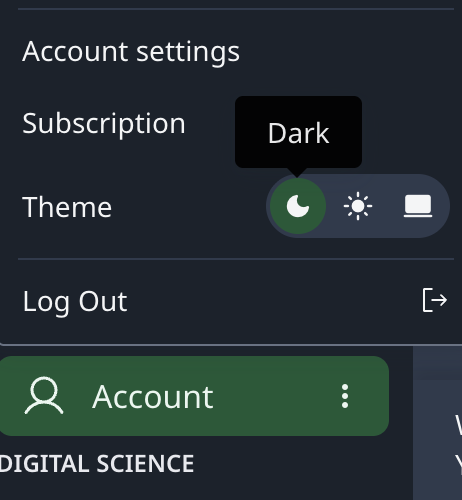
Log in to your Overleaf account and open Account Settings.
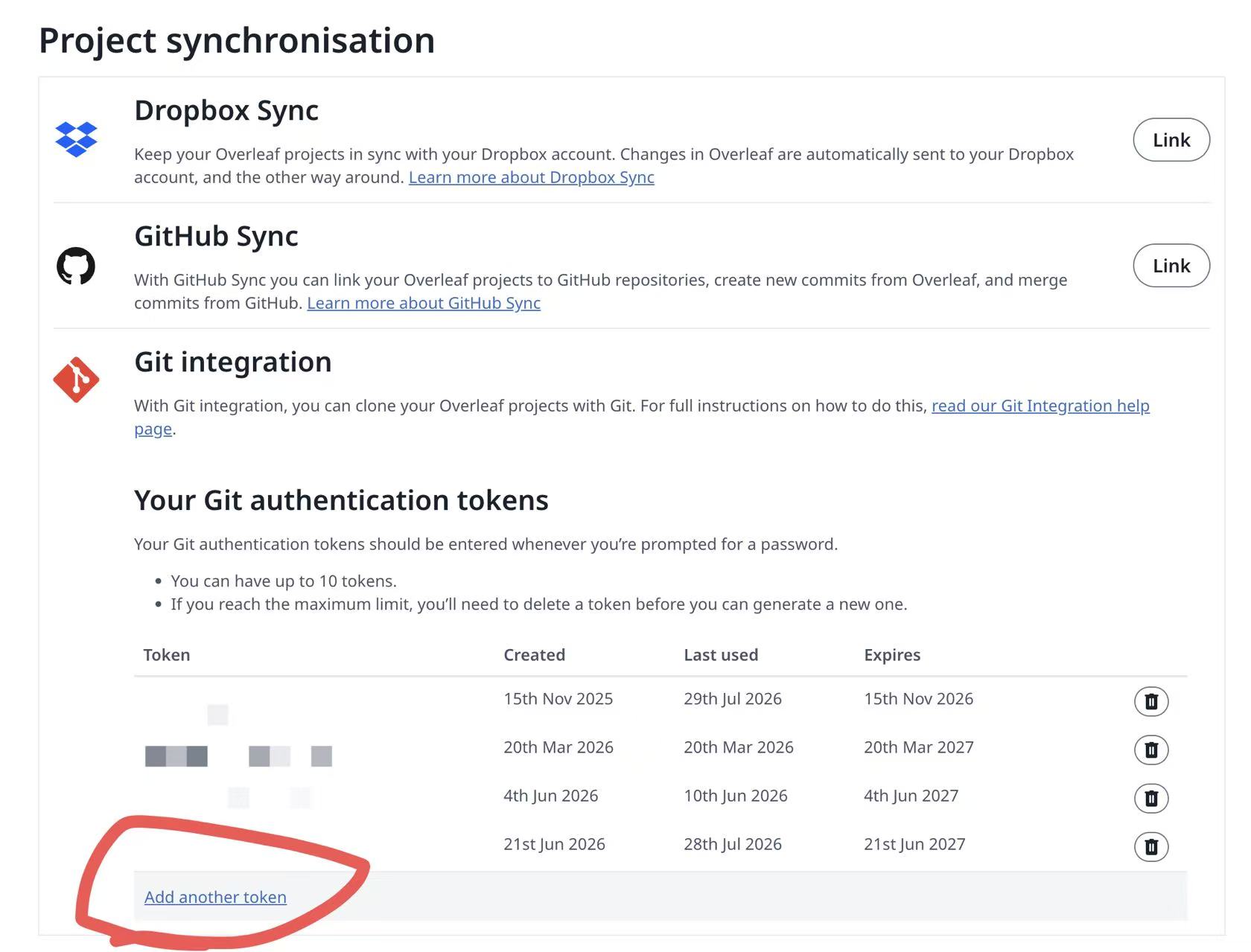
Find the Git Integration section, generate a new token, and store it securely. Treat this token like a password: it can authenticate Git access to every Overleaf project available to your account. Overleaf displays the full token only once. If you lose it, delete it and generate a new one.
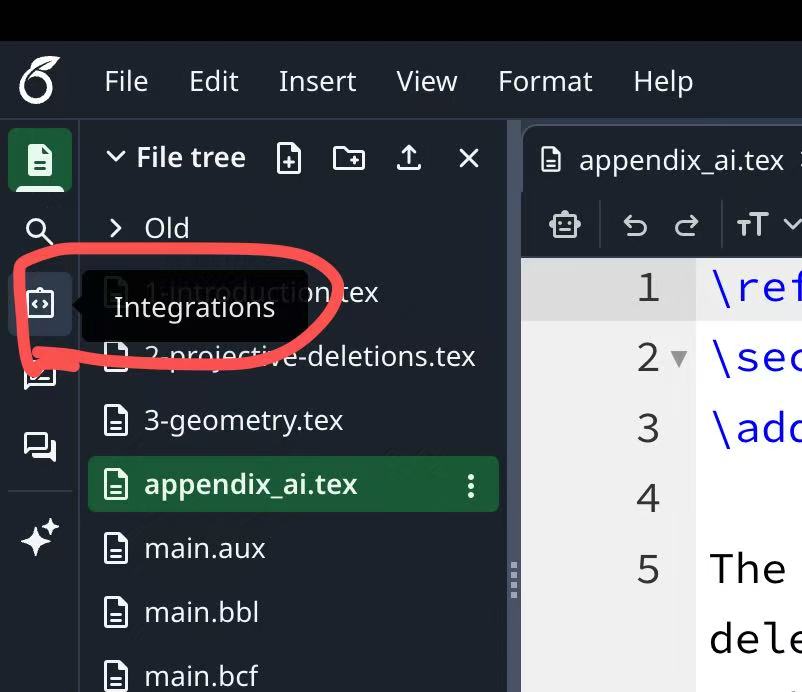
Open your Overleaf project and select Integrations.
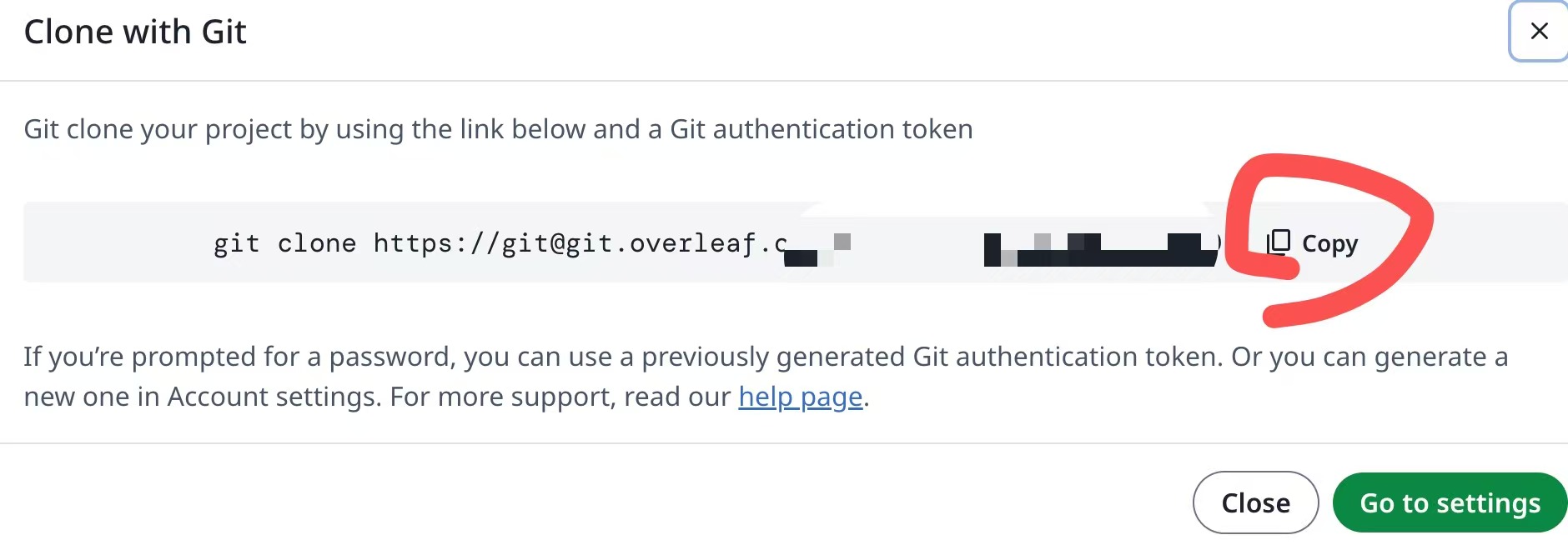
Select Git, then copy the displayed git clone command and URL.
Now return to the terminal, use cd to enter the directory where you want to store the project, and run:
git clone <url> <paper-folder-name>When prompted, enter git as the username and use your Overleaf authentication token as the password.
You can now edit your paper locally. To send your changes to Overleaf, run:
git add .
git commit -m "Describe your changes"
git push
To update your local folder with changes made in Overleaf, run git pull.
On macOS, you can use MacTeX to compile LaTeX locally. Install it by running brew install --cask mactex.
After installation, restart the terminal so that the MacTeX command-line tools become available.
Use AI to Edit Your LaTeX Files
You can now edit your Overleaf project locally and push updates back to Overleaf. Before 2026, this workflow already offered two major benefits:
- You can use a local compiler and your preferred editor customizations while keeping an easy backup on Overleaf and collaborating with others. This is especially useful for Neovim and VS Code users.
- You can continue working locally during Overleaf maintenance or an internet outage.
Now there is another major benefit: you can use Claude Code, Codex, and other AI agents to help edit your papers!
Use cd to enter the local clone of your Overleaf project.
Run codex. If prompted, confirm that you trust the current folder.
You can then ask Codex to:
- Fix formatting. For example: “Fix any text that overflows the margins in this LaTeX document,” “Add another author,” “Adapt
main.texto use the template injams.tex,” or “Adjust the formatting so the paper fits within 10 pages.” - Improve grammar and precision. For example: “Flag any English grammar errors or imprecise expressions and walk through them with me one at a time. Give me the context, suggest a correction, and ask me to confirm before applying each change.”
Beyond these routine tasks, a natural question arises: can you use an AI agent to do mathematics—for example, by asking, “Help me prove Lemma 3.14 in main.tex”? Unfortunately, Codex and Claude Code are not always strong enough at mathematical reasoning out of the box, although they are already quite capable. Please, please be honest: do not use the techniques in this guide to cheat on your homework.
But you already know about Rethlas, and you may want to use it to prove lemmas in your paper! We will discuss this in more detail in future blog posts.
If you often repeat workflows—such as formatting LaTeX, checking grammar, or grading homework—you may want to create skills with SKILL.md instructions so the agent can follow those workflows more reliably. This reflects one of the principles underlying Rethlas: distilling the primitives of mathematical-research workflows into reusable skills.
Comments