


Next: Configuring a parameter set.
Up: Front End
Previous: Overview.
Contents
Building a project.
First you need to construct an input file. This is described in
Section 3.
Now, click on File
 New Project. This opens up a wizard to
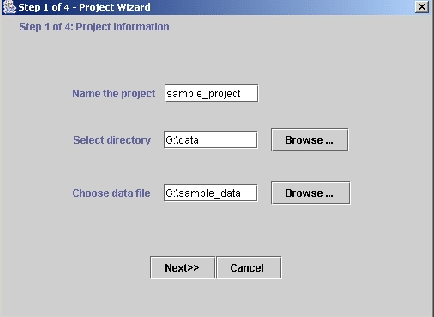
import the data (Figure 2). The data are copied from the
specified input file into the work directory chosen for the project.
New Project. This opens up a wizard to
import the data (Figure 2). The data are copied from the
specified input file into the work directory chosen for the project.
Figure 2:
Importing the data (step 1). The user specifies the directory
for the project (data, here), the name of the project directory
(sample_project; this is a directory within data), and
the data file to be read by the program sample_data.
 |
The wizard consists of four frames:
- Specify the project directory, project name, and input data file.
(Figure 2.)
- Specify the basic characteristics of the data file (number of
individuals, ploidy of the data (enter '2' for diploid organisms),
number of loci, and the value that is used to indicate missing data.
Click on ``Show data file format'' to get a summary of the lengths and
number of lines in the data file. (Figure 3.)
- (Rows) Specify which, if any, of the optional extra row data
are present: row of marker names; row of inter-marker distances; and
a row of phase data after each individual. Also tick the ``single line''
box if data for each individual are stored in a single row, instead of
in the standard format of two rows per individual.
- (Columns) Specify which of the optional column data are there:
Individual ID (LABEL); Population of origin (POPDATA); USEPOPINFO
flag- flag that says to use the POPDATA information for certain
individuals when using the prior population information model;
phenotype data (for use in association mapping
(Pritchard et al., 2000b)); other extra columns of data prior to the
genotype data that should be ignored by structure.
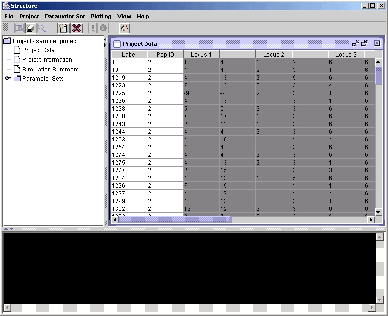
When you've finished these steps, you'll get a summary of the
data format; if this looks correct, click on 'proceed'. The
program will now attempt to load the data file and create the
new project (Figure 4).
Figure 3:
Importing the data (step 2)--Specifying the characteristics
of the data file. In this, and the next two frames of the wizard (not
shown), the user specifies the characteristics of the data file
(number of loci, number of individuals, type of data, etc).
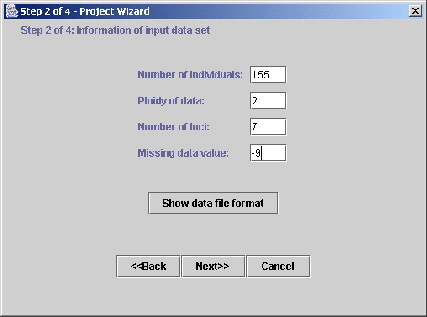 |
Figure 4:
Upon successfully importing the data, the front end loads the
data file and creates the new project.
 |
Next: Configuring a parameter set.
Up: Front End
Previous: Overview.
Contents
Jonathan Pritchard
2003-07-10