QT Creator Windows
1. Download and install Java Development Kit (JDK) version 8
Go to Oracle's Java JDK download page and click on the blue button link that says JDK download. On the next page that appears, click the button to Accept the license agreement, then download the appropriate installer for your operating system. It will be either Windows x86 or Windows x64. If you are not sure which one to get, use "Windows x64". Once you have downloaded the Java JDK installer .exe file, double-click it to run it, which will install JDK on your computer. You can choose all default options during the installation.
2. Download and install Qt Creator
Go to the Qt Creator official download site to download this software.
Choose the default Qt Online Installer for Windows and click the "Download" button at the bottom of the page.
Your download will begin.
Once you have downloaded the Qt Creator installer .exe file, double-click it to run it, which will install Qt Creator on your computer.
Important! In the window titled, "Select Components", Click on the "Qt" triangle, and then on the "Qt 5.10.1" triangle, and then select the checkbox for "MinGW 5.3.0 32 bit" (see the image below).

Leave the other selections alone, and continue the installation by clicking "Next", agreeing to the terms, and then clicking "Next" a couple more times before finally clicking "Install".
3. Try to compile/run a sample project
Let's make sure that all the parts are working together properly by building and running a sample Qt Creator project that uses the Stanford C++ libraries. The Stanford C++ libraries also interact with Java, so if this project runs properly for you, then you will be sure that your Qt Creator and Java JDK are both set up properly. Here's what to do:
-
Download the following project ZIP file to your computer.
-
 simple-project.zip (linked fixed 09/21 10:30pm; sorry!)
-
- Un-zip the file's contents to a directory of your choice. You should have a directory named SampleProject with several files and folders inside.
- Open the project. In Qt Creator, choose "File" → "Open File or Project..." or press Ctrl+O (or Command+O on Mac). Navigate to the SampleProject folder and open the file SampleProject.pro.
-
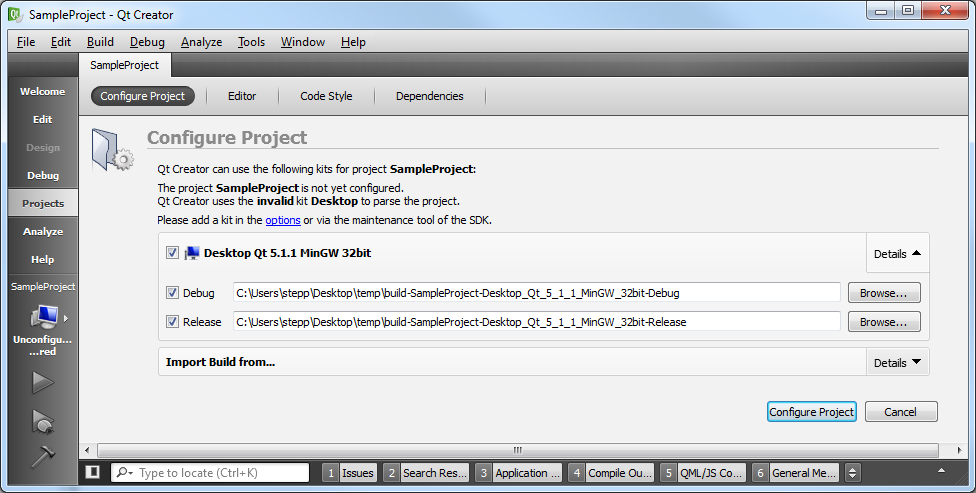
Qt Creator will ask you a few questions about how to set up the build process for this project.
You can just accept the defaults and click "Configure Project".
- Build it. Now you should be able to Build (Ctrl+B or Command+B) your project in Qt Creator. If it builds properly, your C++ compiler and the Stanford C++ libraries are at least compiling properly. You may get some warnings that "QMAKE_CXX...MACROS" are not defined, or "Cannot find ... .qmake.cache: No such file or directory." You can ignore most of those warnings. If you click on the "1 Issues" tab at the bottom of the screen and there no issues (or if there are only yellow warning sign issues), the program compiled correctly.
-
Run it.
Now that it's built, you should be able to Run (Ctrl+R or Command+R) your SampleProject.
This is the part where Java is needed, so if your Java isn't properly installed, this is probably where it will fail.
If it runs properly, you will see a window appear with a smiley face.
Congratulations, you're done!
Now your machine should work just fine for working on our homework assignments.

 simple-project.zip

If you encounter any problems during your attempt to compile and run the sample project, check out our Qt Creator troubleshooting page. Otherwise, congratulations; you're done!