CS 49 - Creating Websites Using WordPress

Mark Branom, Instructor
branom@alumni.stanford.edu
markbranom@gmail.com
Logging into the Dashboard and Setting Default settings
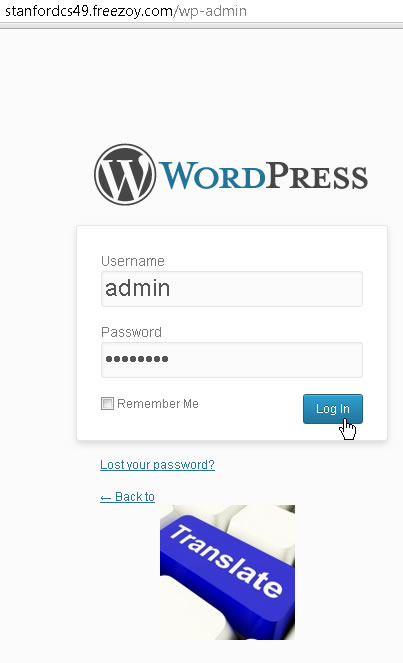
- Go to your WordPress instance's dashboard.
To access your WordPress instance's dashboard, add the path /wp-admin to the end of your wordpress site. For example, if your website is at http://yourname.freezoy.com/wordpress, your dashboard would be at http://yourname.freezoy.com/wordpress/wp-admin. - Enter your admin username (by default it is admin) and password, and then click Log in.
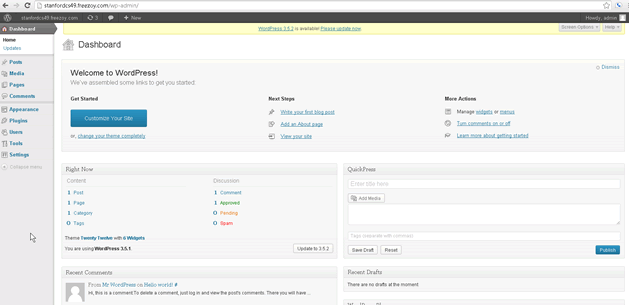
- The Dashboard should appear:
- Follow your instructor's instructions to add a new admin user:
- Click Users.
- Click Add New
- Enter a new username and set the role to Admin.
- Follow your instructor's instructions to set the General settings:
- Click Settings.
- Click General.
- In Site Title, enter a better title than the default.
- In Tagline, enter a better tagline than the default.
- Click Save Changes.
- Follow your instructor's instructions to change the Permalink settings:
- Click Settings.
- Click Permalinks.
- Click Post name.
- Click Save Changes.