Downloading PyCharm
In this class you will write all your programs using an application called PyCharm. PyCharm is what is known as an Integrated Development Environment (or IDE, for short), which means that it allows you to edit code, browse files, run programs and debug them, all in the same place. It's one of the most popular Python IDEs in the world, and used commonly in industry. As an added bonus, PyCharm is available for free on MacOS, Windows, and Linux computers. To download and install PyCharm on your own computer, follow the directions at Installing PyCharm.
If you don't have a laptop, you can obtain a loaner laptop through the Lathrop Technology Hub or talk with our course staff about options for loaner laptops. Chromebooks tend to run into issues with PyCharm, so you should also look for a loaner if you are using a Chromebook.
Downloading starter projects
Once you have downloaded a copy of PyCharm, your next task is to understand how to write and run Karel programs using PyCharm. For each assignment in this class, we'll provide a starter project that helps you get started more easily. That way, you can ignore the mechanical details of making new projects and can focus instead on the problem-solving aspects of the assignments.
The first step of working with any Karel assignment is to download the starter project for that assignment. If you go to the CS106A website and click on the Assignments dropdown at the top, you'll see the Karel assignment listed. Click on "Assn 1: Karel the Robot," and on the resulting page, there will be a link to download the starter code. Once you click on the starter code link, your browser will download the starter code, which comes in a file called Assignment1.zip. In some cases, the browser will also automatically unzip/extract the folder when you download it, but if not, unzip/extract this ZIP file so that you end up with unzipped contents of the ZIP file, which will be a folder named Assignment1 that contains the project. Note: If you are on a Windows computer, you may have a second Assignment1 folder nested inside the outer Assignment 1 folder. Make sure to use the innermost Assignment 1 folder.
Now, you may want to move that Assignment1 folder to some place on your computer where you can keep track of it when you want to load the project. It's also okay to leave it in your Downloads.
Importing projects into the workspace
You should have completed the "Installing PyCharm" handout, so this process will look pretty similar to the way you opened that pycharm_intro folder. Open PyCharm, which will bring up the window shown below. To select the project you want to work on, you can click on "Open" in this window. Or if you already have PyCharm open with a different project, from the "File" menu at the top of the screen, select "Open".
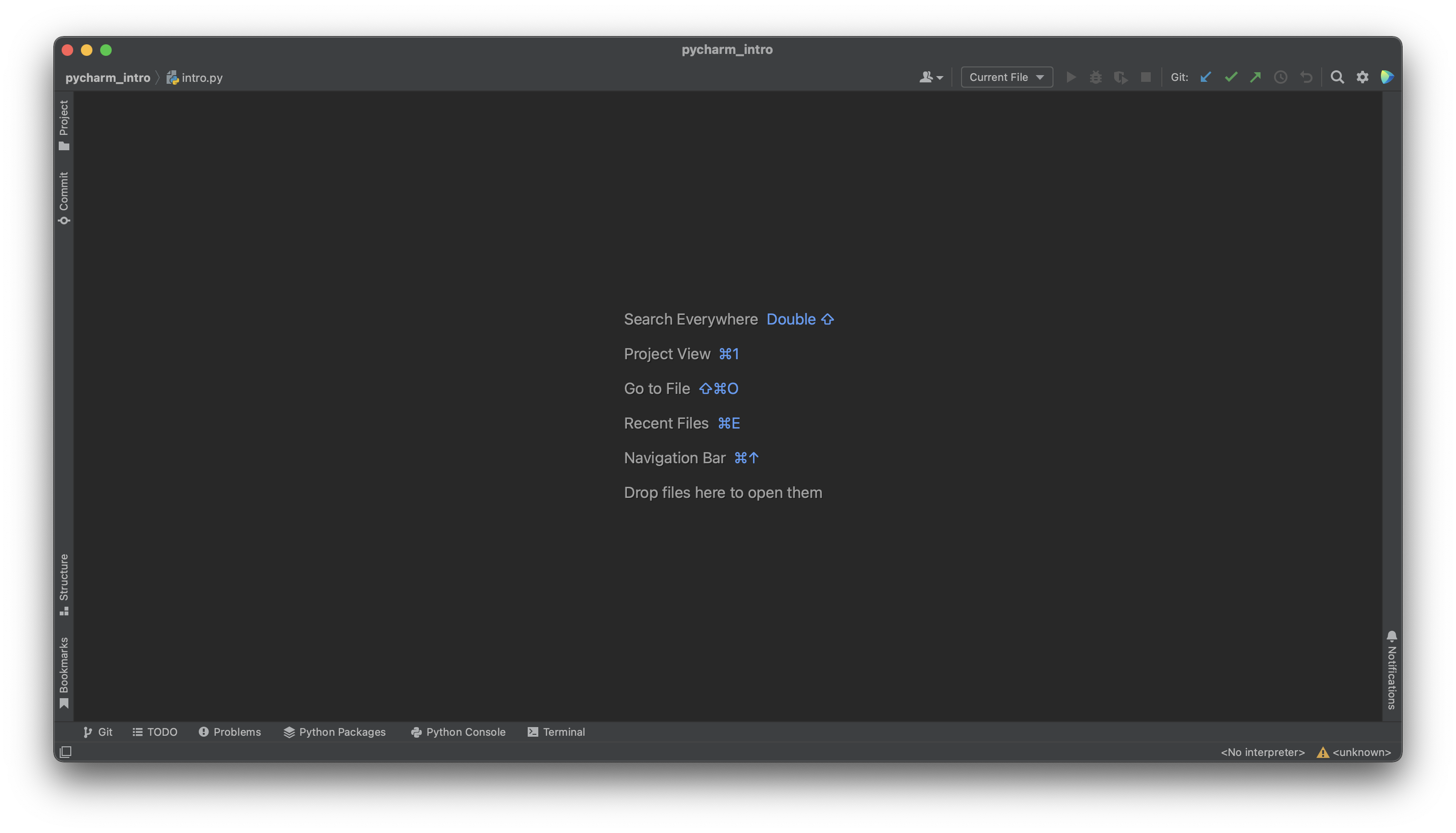
After you have selected "Open", navigate to the Assignment1 folder and open it. Open the folder, rather than a particular file you want to edit. If you already have another project open, PyCharm will prompt you to either open the project in your existing window or in a new window. You can select either. Once you have opened the project, you should see a view as shown below.
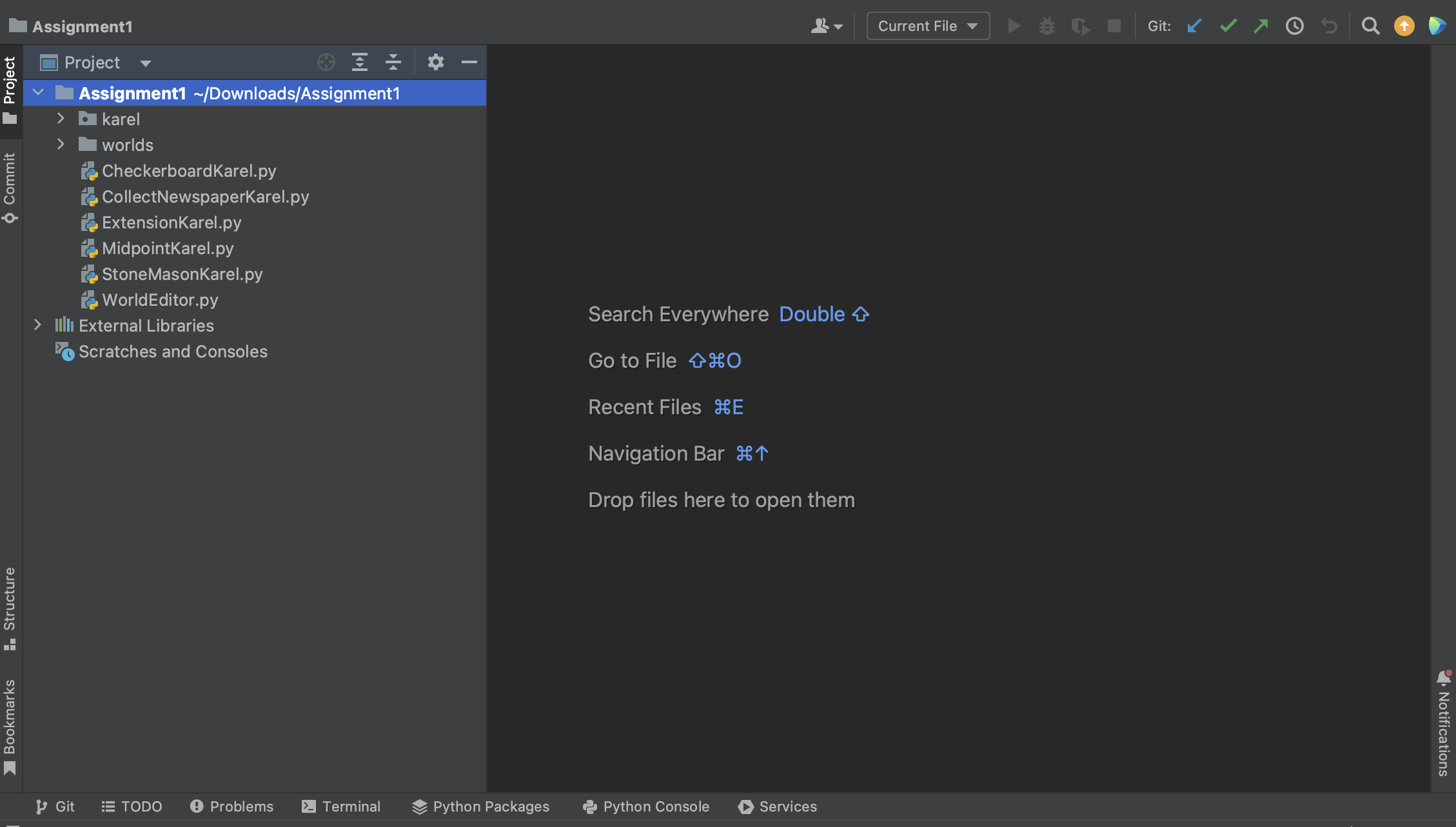
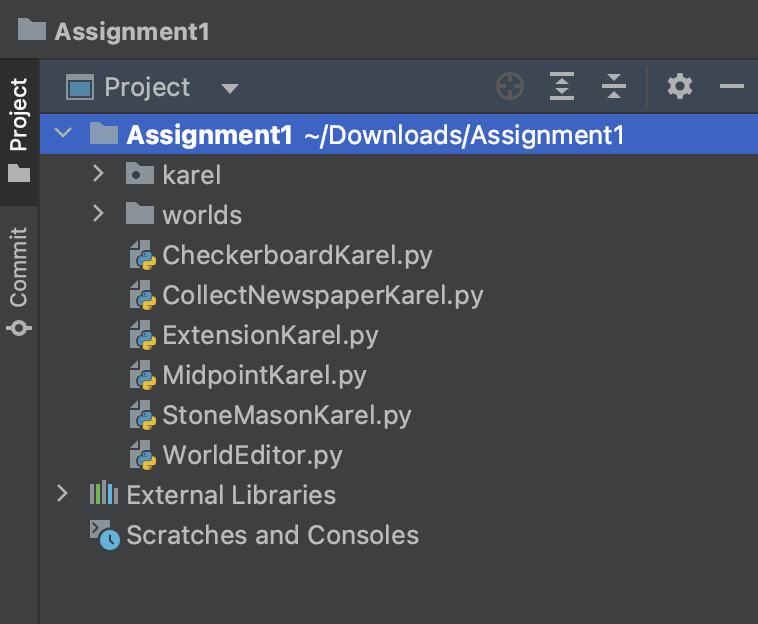
First, we will focus on the contents of the left toolbar, which is illustrated in the figure below. We can see the current project we are working on (Assignment1), as well as all of its contents, which include folders and Python files. The small triangle (which appears as a plus-sign in some versions of Windows) to the left of the folder name indicates that you can open it to reveal its contents. For the purposes of Assignment 1, you will not need to inspect or change any files in the folders karel or worlds.
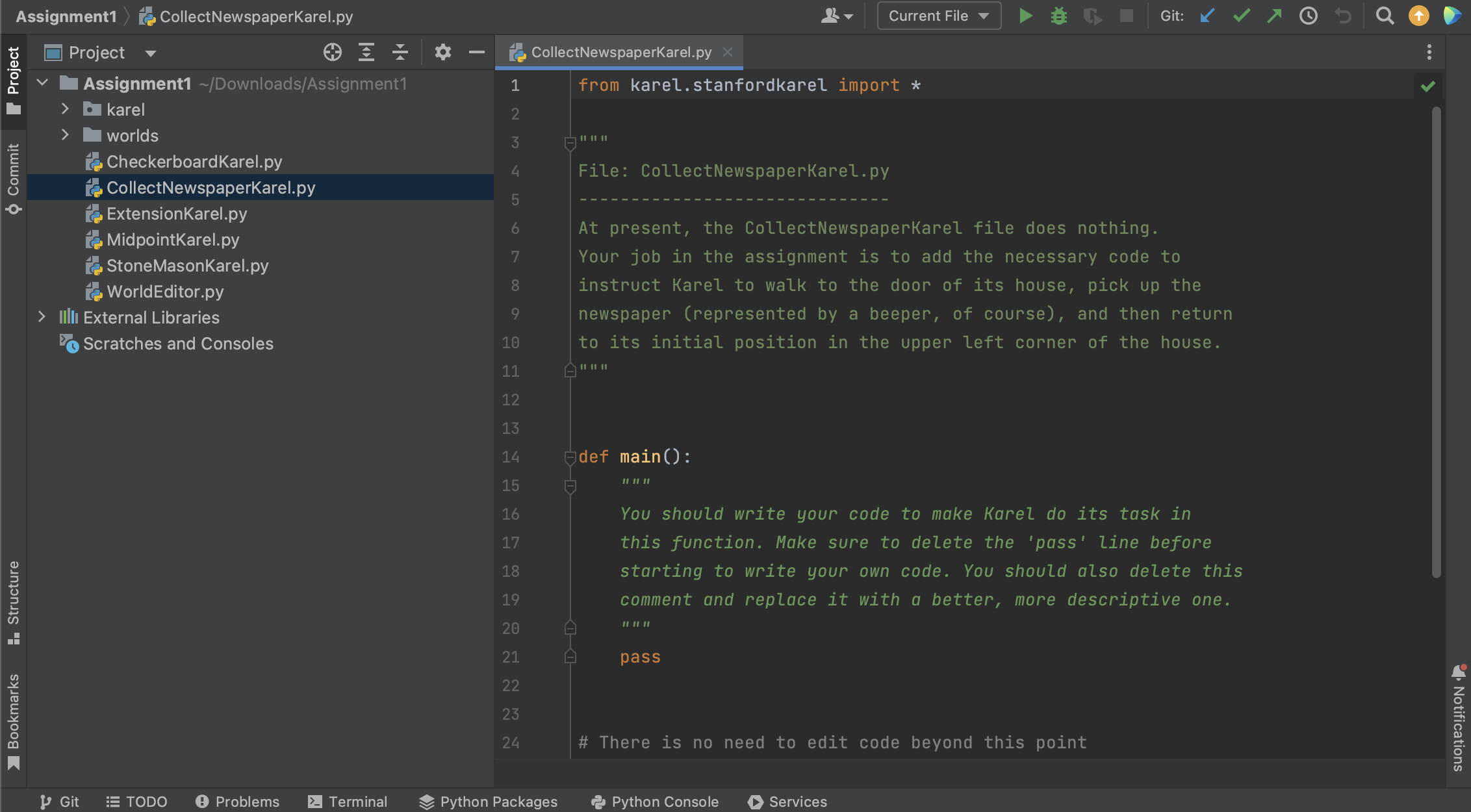
For Assignment 1, we will only focus on the files contained in the top-level of the project folder. You can open any of these files by double-clicking on its name. If you double-click on CollectNewspaperKarel.py, for example, the file will open in the editing area in the middle section of the PyCharm screen, as displayed below.
Writing code
The file we include in the starter code contains not the finished product but only the starter code for the project. The actual program must still be written. If you look at the Assignment 1 handout, you'll see that the goal of Newspaper Karel is to get Karel to collect the "newspaper" from outside the door of its "house".
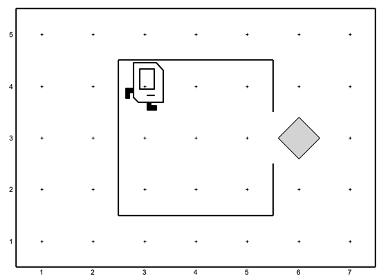
Suppose that you just start typing away and fill in the main function with some code. As it's written, this program isn't going to do exactly what you want, but it is still interesting to see what happens. PyCharm reads through your program file as you type commands and then tells you about any errors it finds. Errors will be underlined in red, and you can get more information about a given error by hovering over it.
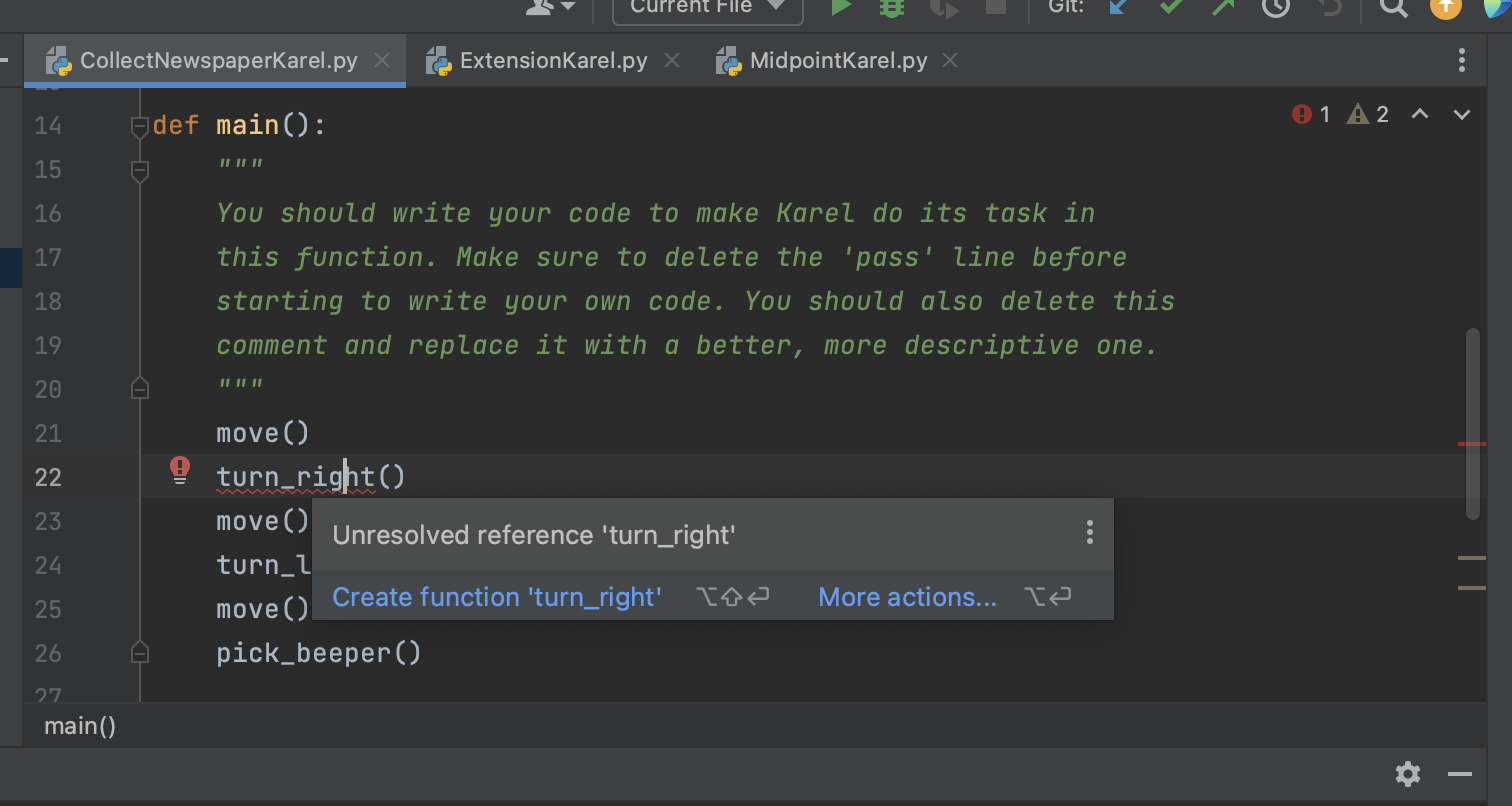
In this case, the error "Unresolved reference" tells us that we tried to give Karel the command turn_right() but never defined what that command means! To fix this error, we should add a function definition in the file that defines what it means to turn_right(). Once we fix this error, we see that PyCharm no longer underlines any of the lines in our program in red!
Running a program in PyCharm
While you can run Karel programs by clicking the green triangle button in the upper right (this is the run button), we're going to get into the habit of running our programs from the terminal. To run a program in PyCharm, click the "Terminal" option at the bottom of the screen, which should open up a panel in the bottom of your screen. The terminal prompt (the text before the cursor in the terminal) should have "Assignment1" in it, indicating that you're currently in the Assignment1 folder. If not, make sure to follow the instructions for opening the Assignment1 folder in the section "Importing projects into the workspace" above.
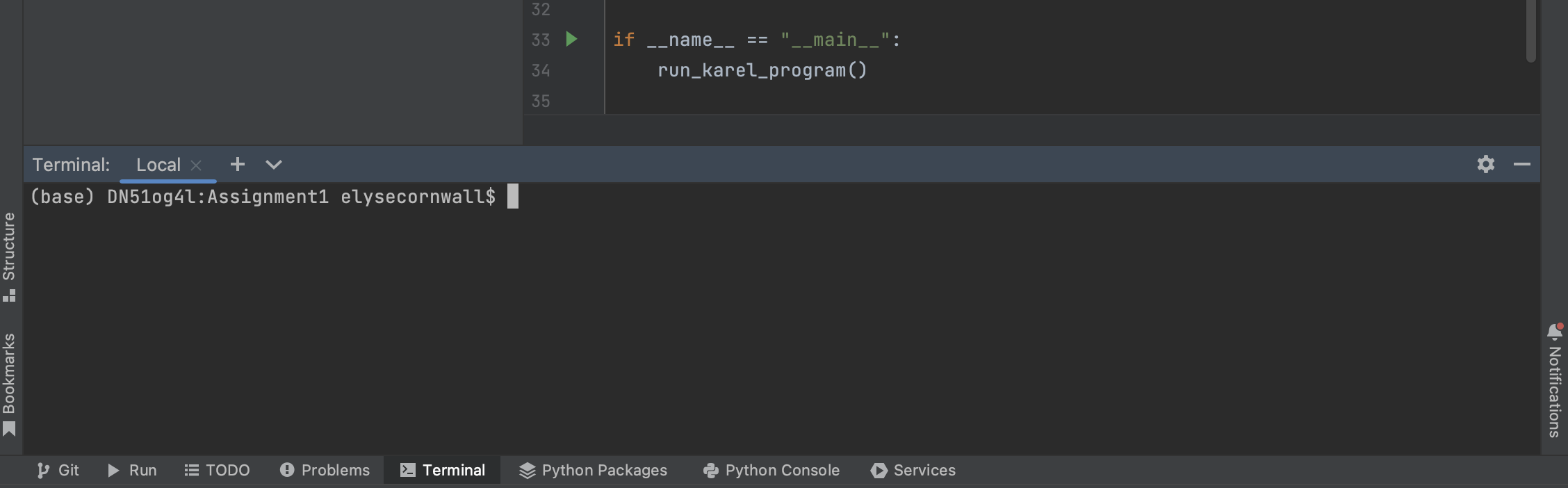
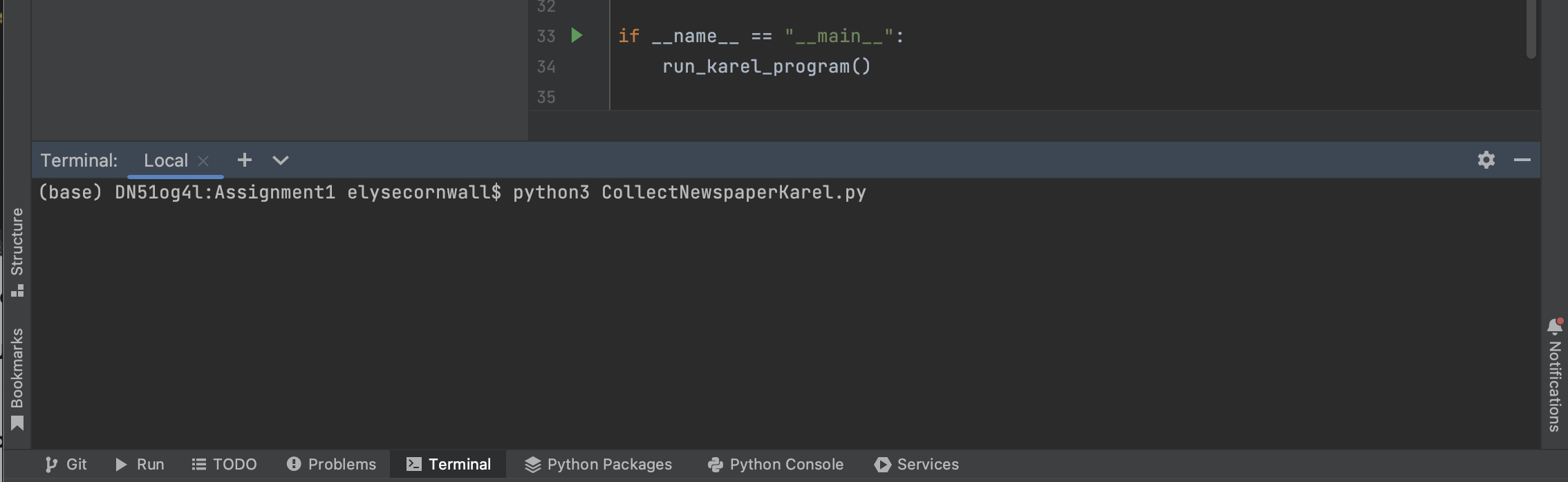
To run any Karel program, all you have to do is type the following command into the Terminal and hit the Enter or Return button on your keyboard: python3 InsertNameHereKarel.py (on Mac) or py InsertNameHereKarel.py (on Windows). To run the code in CollectNewspaperKarel.py on a Windows computer, for example, we would run python3 CollectNewspaperKarel.py and hit "Enter".
PyCharm will take a couple of seconds to load your program and then will display a window as seen in the figure below. If Karel and the beeper appear, but you don't see any of the walls around the world, this might be because your computer is in dark mode. To fix this, go into your computer settings, and in the "Appearance" section, change the appearance to light.
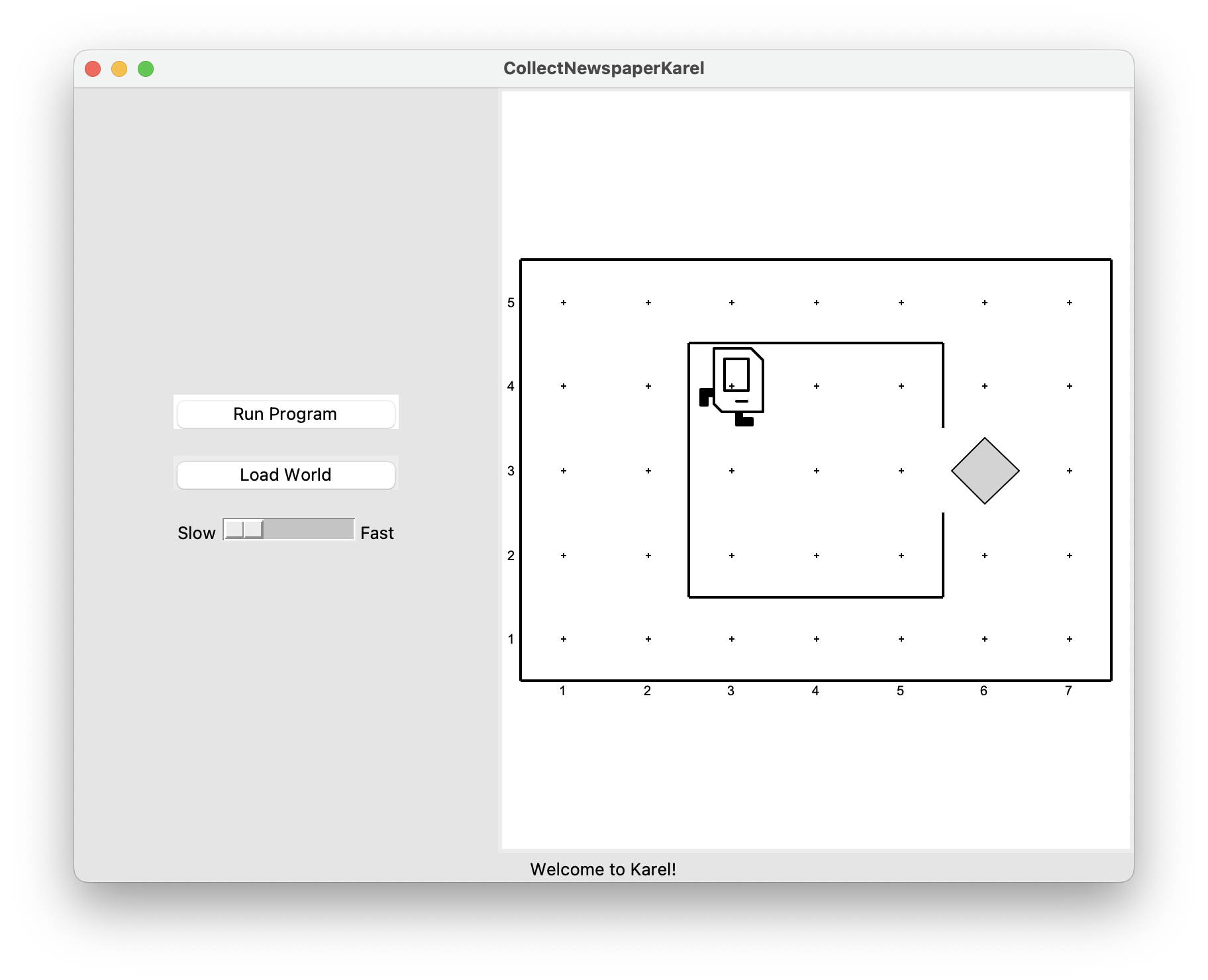
If you then press the Run Program button, Karel will go through the steps in the main() function that you wrote. To change the speed at which Karel runs through its commands, you can use the slider underneath the two buttons. Moving the slider to the right increases the speed at which Karel runs, while moving the slider to the left causes Karel to move slower. Setting the slider to the far-right will cause Karel to almost instantly finish its task, with all intermediate action happening too quickly for the human eye to distinguish.
In this case, however, all is not well, even after writing the turn_right() function. Karel begins to move as if trying to exit from the house, but ends up one step short of the beeper. When Karel then executes the pick_beeper() command at the end of the main() method, there is no beeper to collect. As a result, Karel stops, a popup window appears, red text is displayed at the bottom of the window, and an error is displayed in PyCharm's bottom panel, as shown in the figures below.
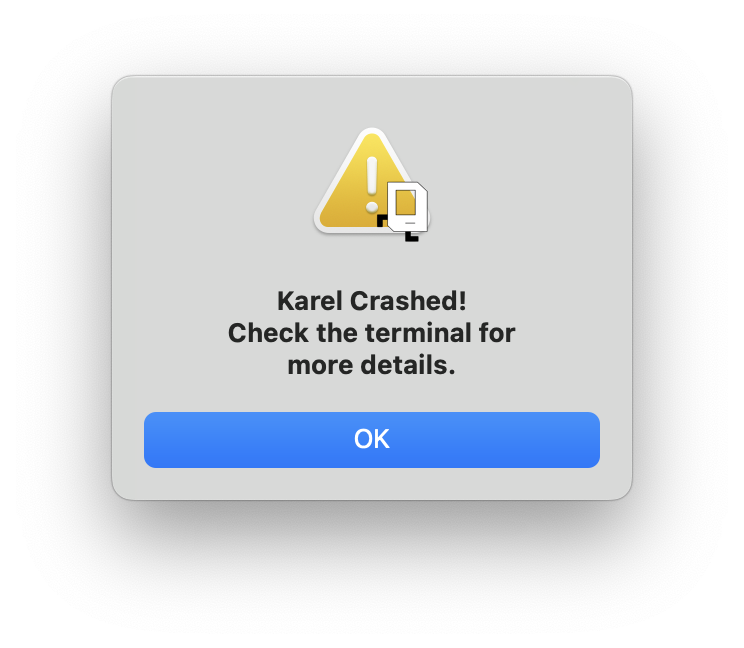

This is an example of a logic bug, in which you have correctly followed the syntactic rules of the language but nonetheless have written a program that does not correctly solve the problem. The error message doesn't tell you how to fix the issue, but if you look at what it says carefully, you'll see that it does tell you why Karel stopped (Karel tried to pick up a beeper at (5,3) when there were none at that corner) and what line of your program Karel was executing when the error occurred ("line 26 in main" in CollectNewspaperKarel.py).
Running into bugs like these is a very common thing for all programmers, and though the text looks scary, you are equipped with all the tools you need to think through the issue and to update your code accordingly. To make Karel run again, after you've made changes to your code, you can close the original window and run the same command as before to re-run the program.
Running Karel in different worlds
In order to successfully complete Assignment 1, the last piece of the puzzle that we haven't worked through yet is how to run your Karel program in different worlds. Say we are working on StoneMasonKarel.py and we think that we have gotten our code to work in the default world, which looks like this:
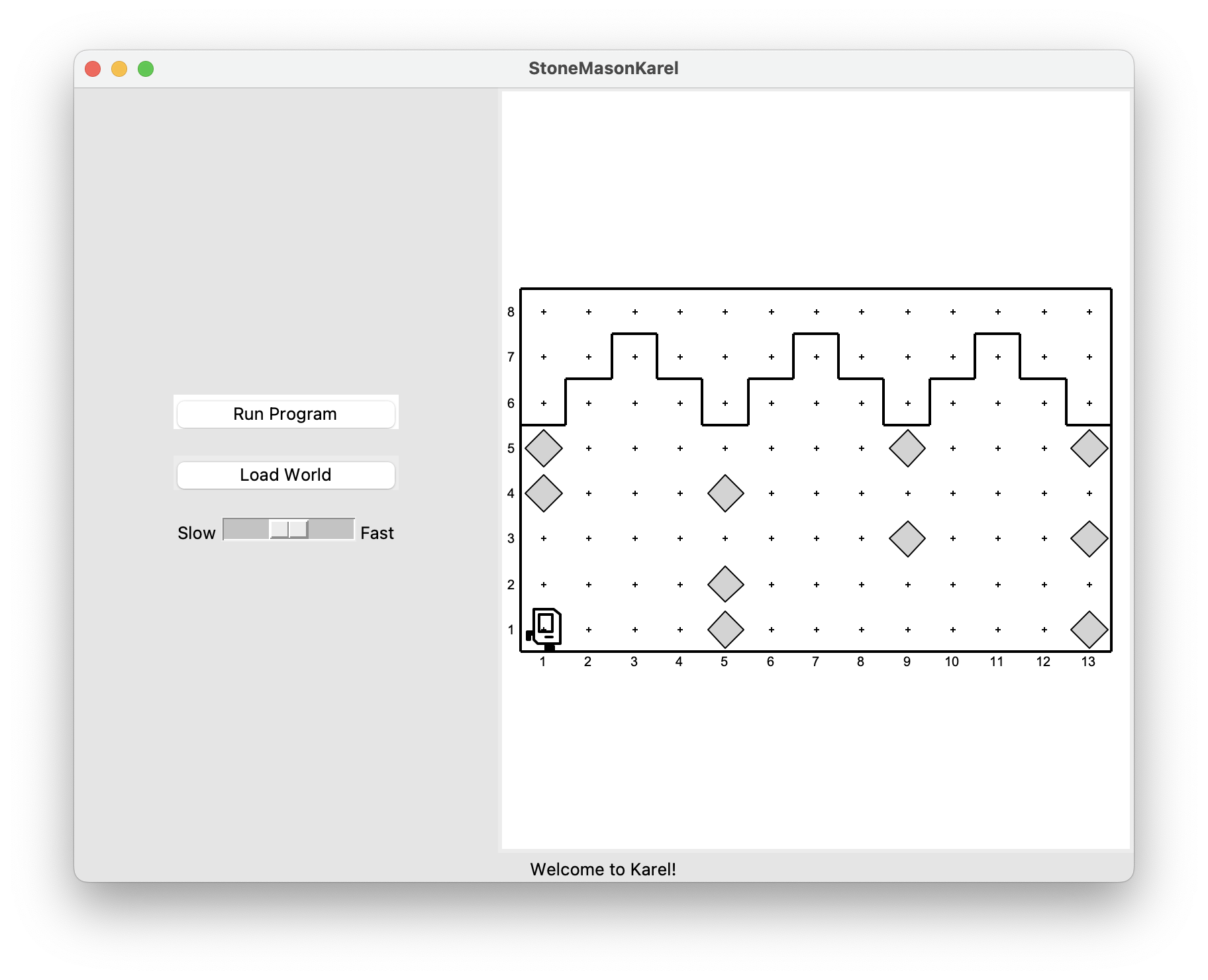
We want to make sure that Karel works in different worlds so that the code we wrote is bug-free and generalizes to new worlds. To do so, click on the Load World button, which brings up a file browser view that lists all of the provided worlds that come packaged with Assignment 1. If you don't see this, navigate to the Assignment 1 folder on your computer, and click on the worlds folder to get to this view.
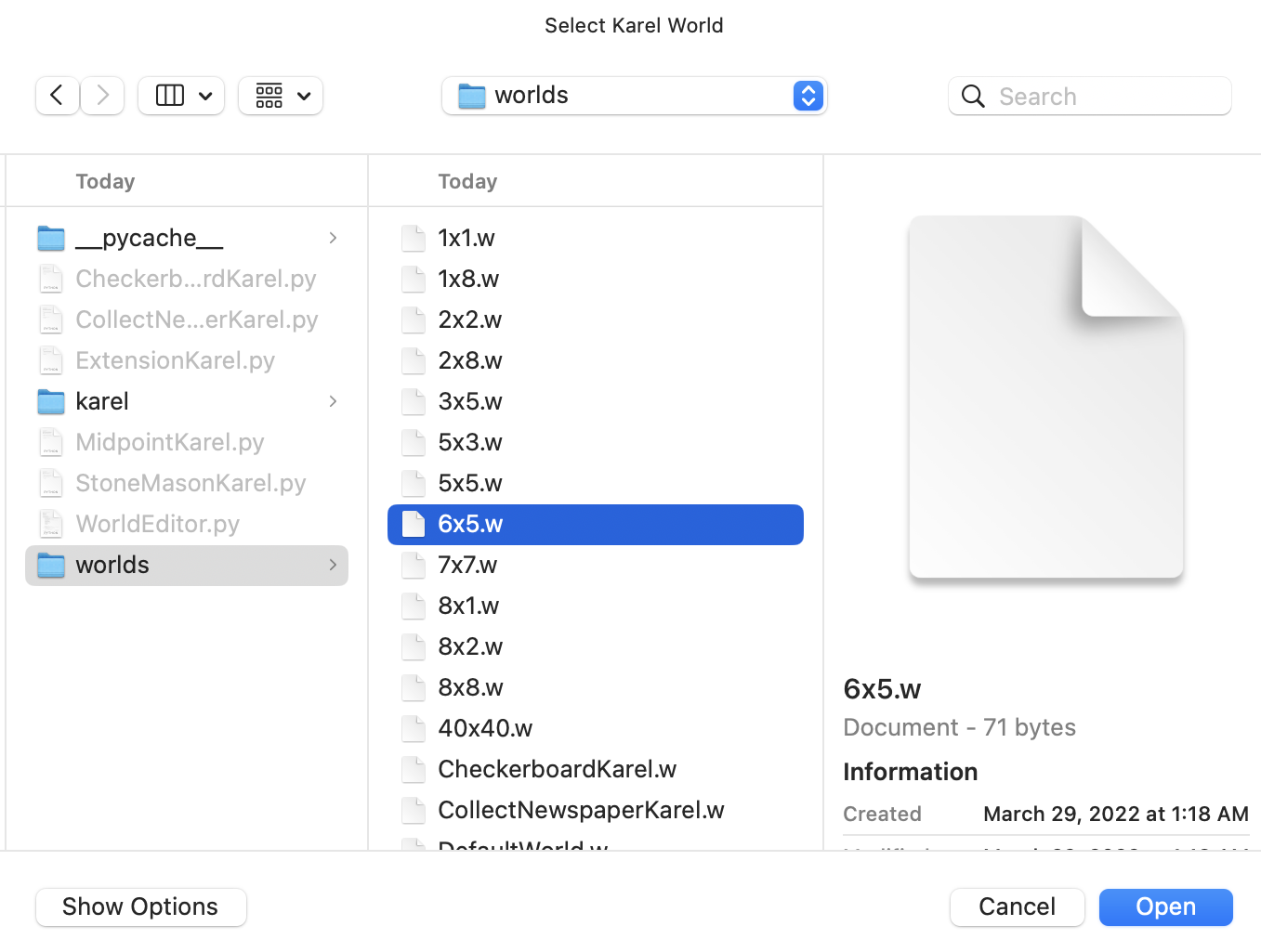
Select and open the world in which you want to run Karel. The new world will now appear on the right-hand side of the Karel window. You can then test Karel in this new world by clicking on the Run Program button.