In CS 106A, you will be writing your code on your computer using an application called PyCharm. PyCharm is what is known as an IDE, or Integrated Development Environment, which means that it allows us to edit our code, browse our files, run our programs and debug them, all in the same place. It's one of the most popular Python IDEs in the world, and used extremely commonly in industry. This handout is intended to take you through installing PyCharm on your own computer.
Installing Python
In order to be able to run Python programs on your computer, you need to install a Python Interpreter. An interpreter is a program that is capable of reading a .py file that you have written, and translating the Python code in that file to instructions that your computer can easily execute. Begin by downloading Python. Select the link corresponding to your operating system and download the latest version of Python 3.
Macs come with a version of Python installed, but this is an older version of Python. CS106A requires the use of the newest stable version of Python (currently 3.14.6), so make sure to follow these instructions even if you think you already have Python installed. To install Python, simply open the downloaded installer file and follow the default instructions.
Installing PyCharm
To get started, download the correct community version of PyCharm at this link:
Note: PyCharm 2026.1 is supported on macOS 15 or newer. If you have an older version of macOS, download PyCharm 2025.3 instead.
On the download page, select the tab for your operating system, then choose the download that matches your computer:
- Windows: Most Windows computers should use Windows (exe). If your computer has an ARM processor, use Windows ARM64 (exe) instead. Open the downloaded installer and follow its instructions.
- macOS: Macs with an Intel processor should use macOS (dmg). Macs with an Apple M-series processor (such as M1, M2, M3, or newer) should use macOS Apple Silicon (dmg). Open the downloaded
.dmgfile and drag PyCharm into your Applications folder.
At the end of the PyCharm installation process, open PyCharm, and you'll see a welcome screen:
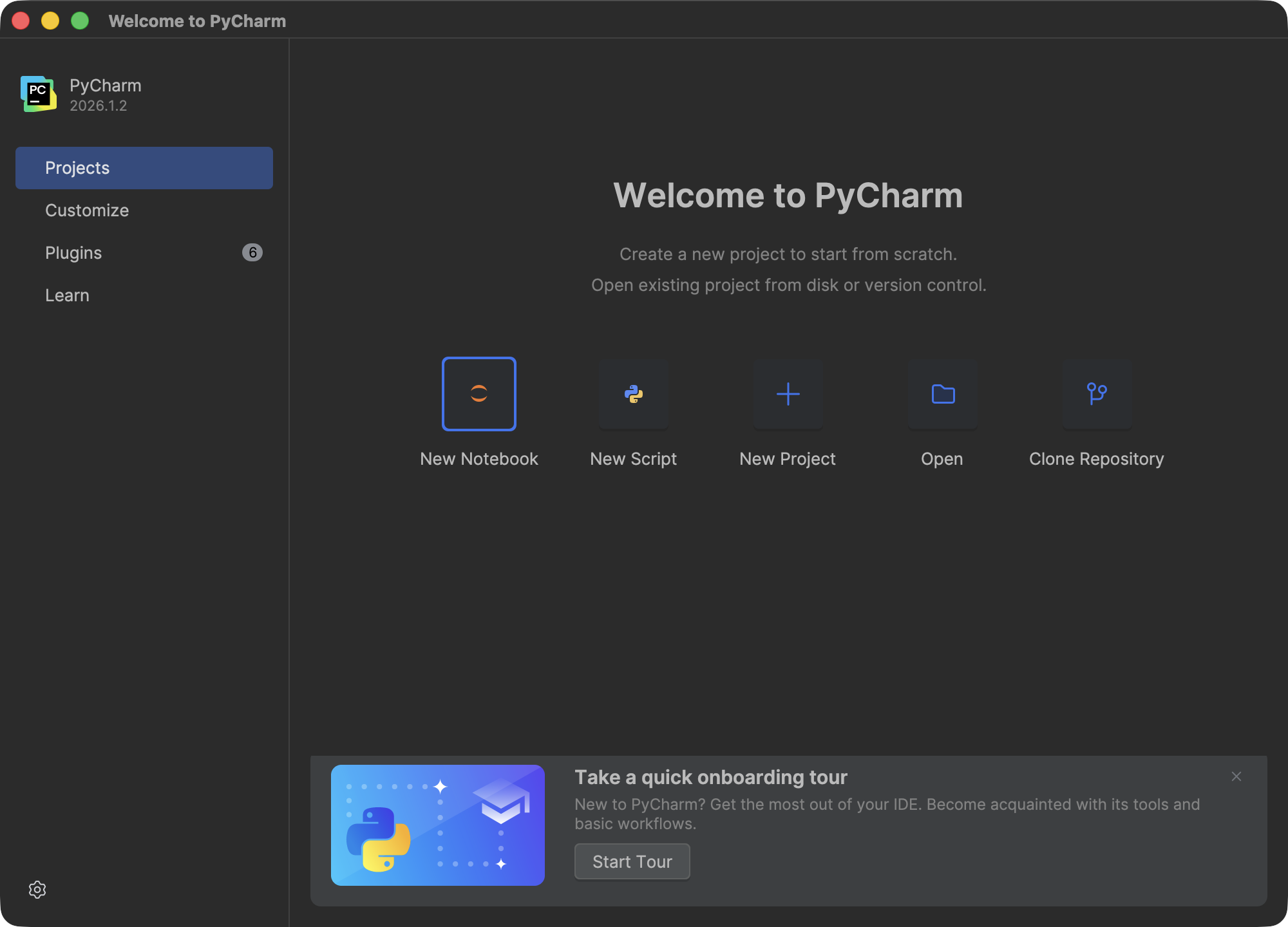
Click the 'Customize' tab on the left and then click 'All Settings…' at the bottom:
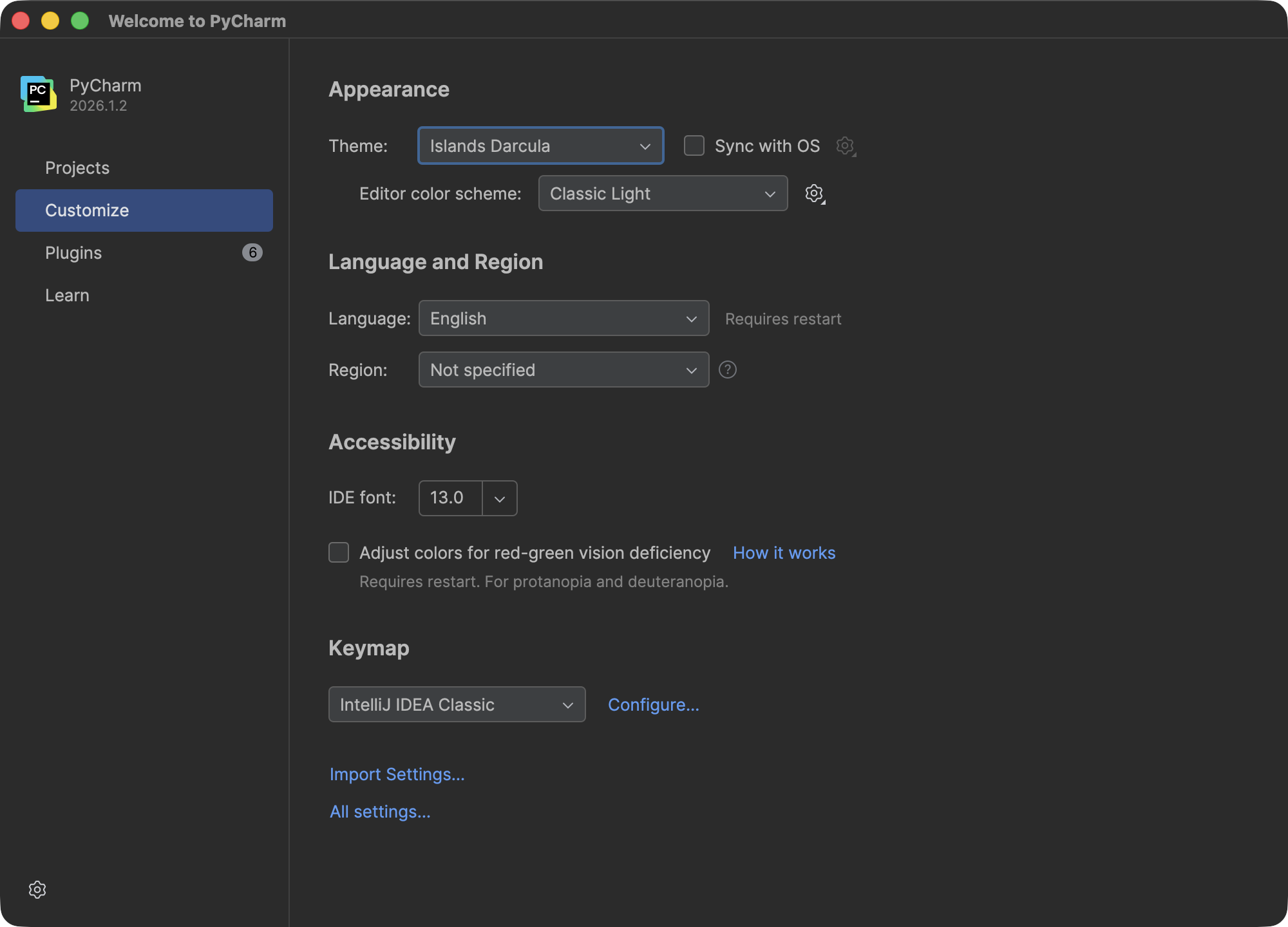
The Settings window should open to the Python Interpreter page, which looks like this:
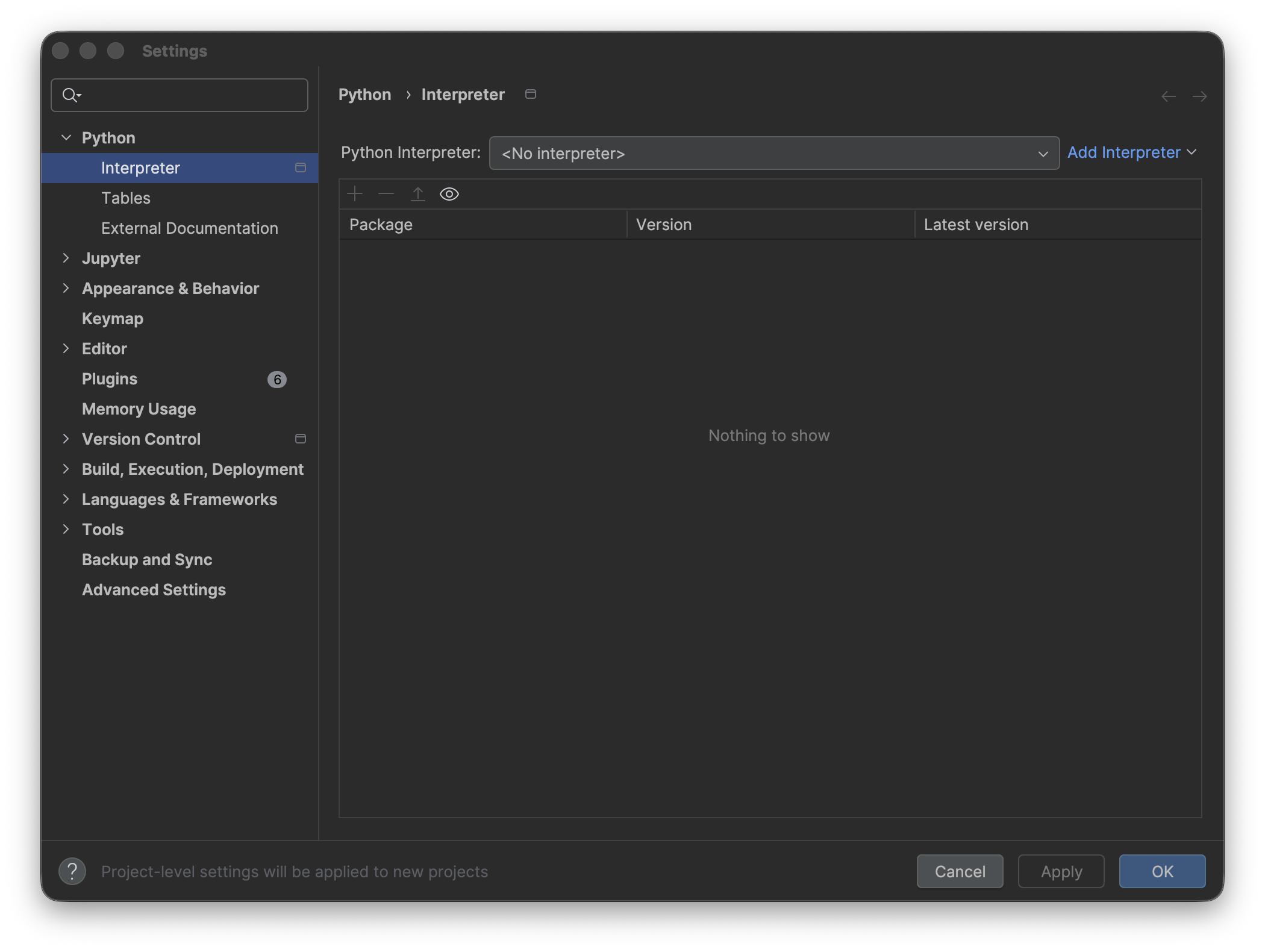
If you have no interpreter selected, or the interpreter is not the newest version of Python you just downloaded, click the drop-down and select 'Show All…'. You should then see a screen like this:
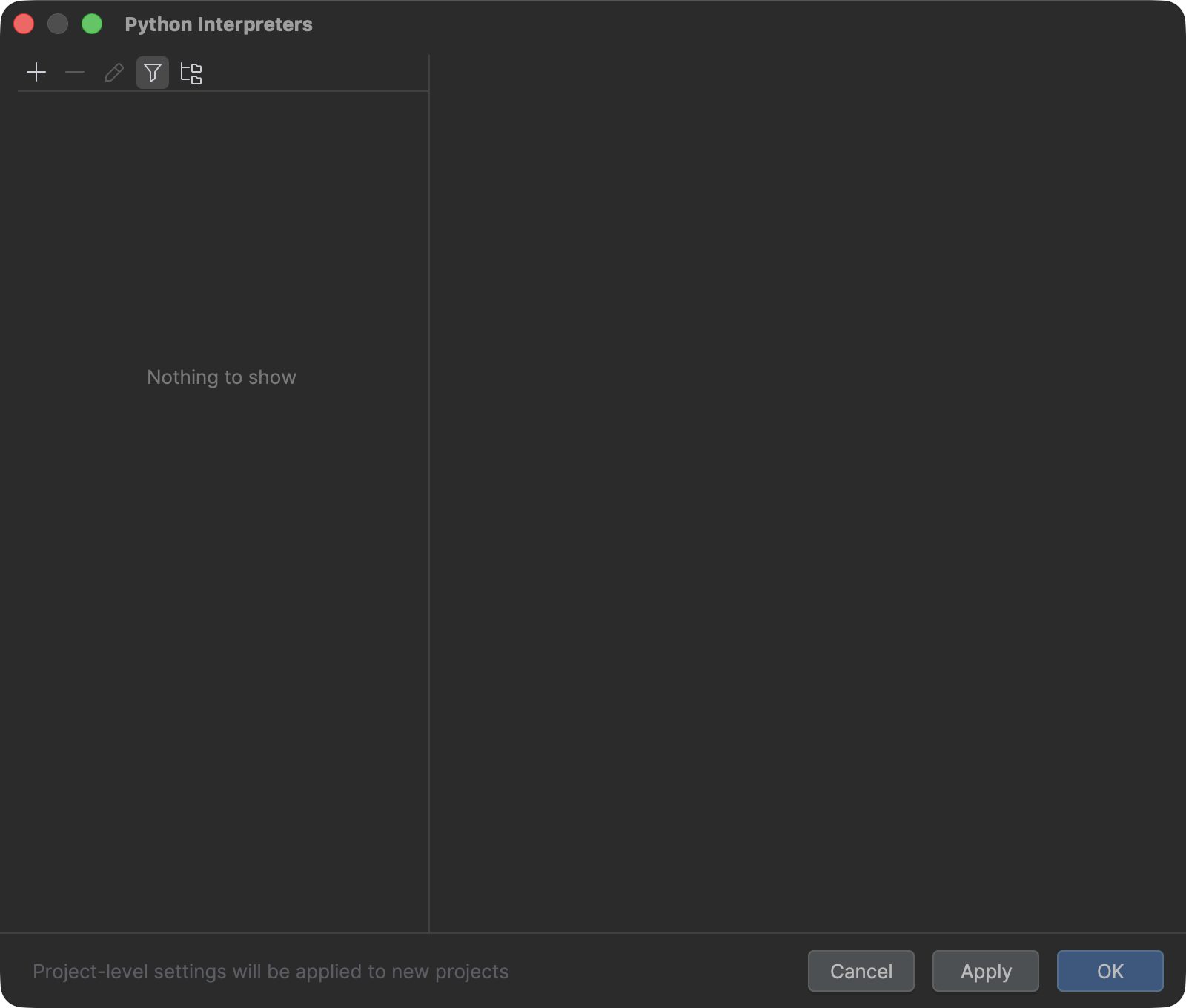
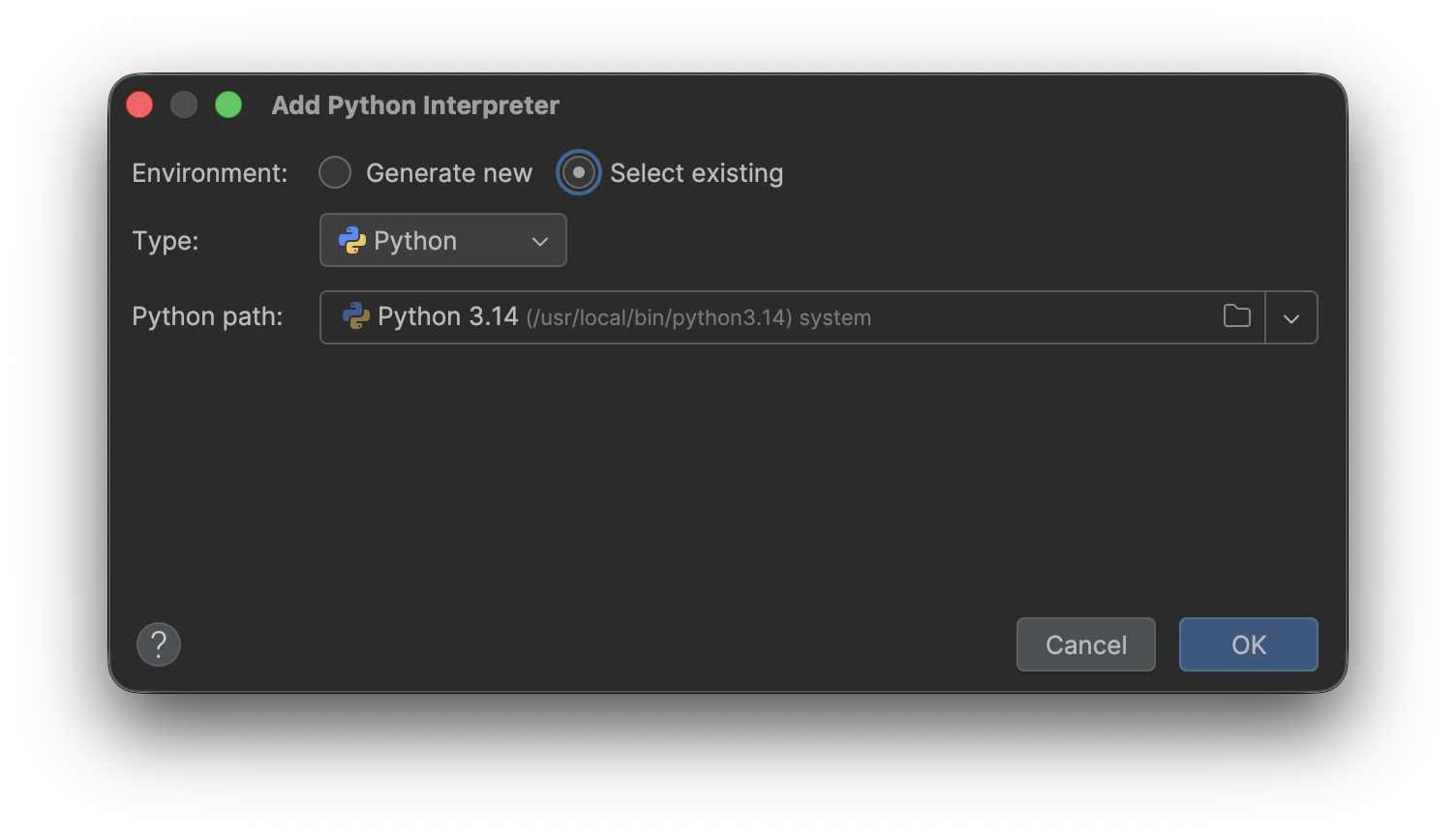
Click the + button on the upper left, then select these settings in the window that pops up. Make sure to select "Select existing" and not "Generate new". In the "Python path" dropdown menu, select Python 3.14, then click 'OK' and 'OK' again:
You should now be on a window that looks like this:
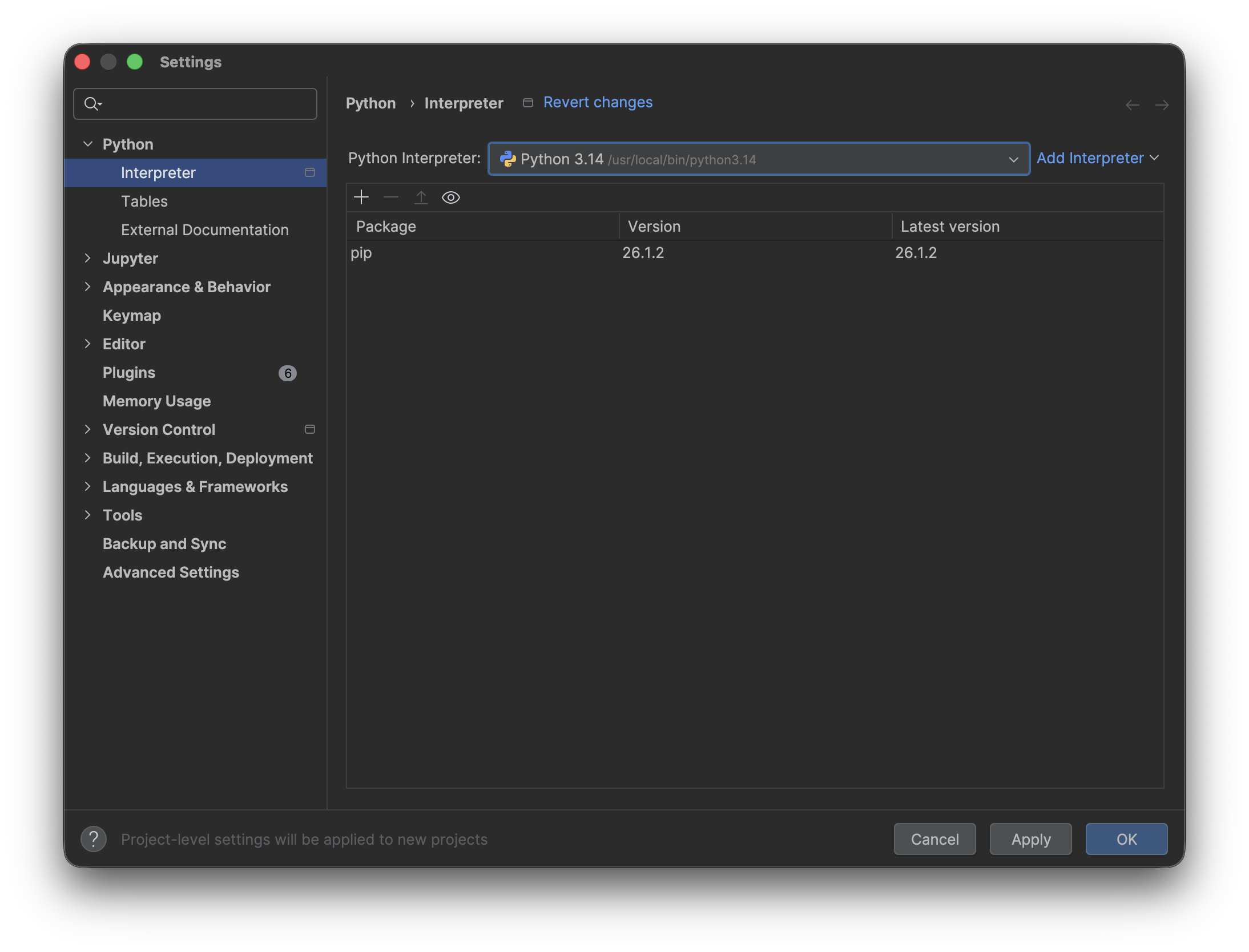
Click 'Apply' and then 'OK' again to be taken back to the welcome page. You're now ready to test PyCharm!
Testing PyCharm
PyCharm models a program as a 'project', which consists of one or more Python files, as well as any additional resources like images or text files. To get you familiar with working with and running progams in PyCharm, we've provided a sample project, which you can download here.
This downloads as a zip file which you will have to unzip. Whenever you open projects in PyCharm, open the entire folder you just unzipped. Upon opening the project, you should be greeted by a window that looks like this:
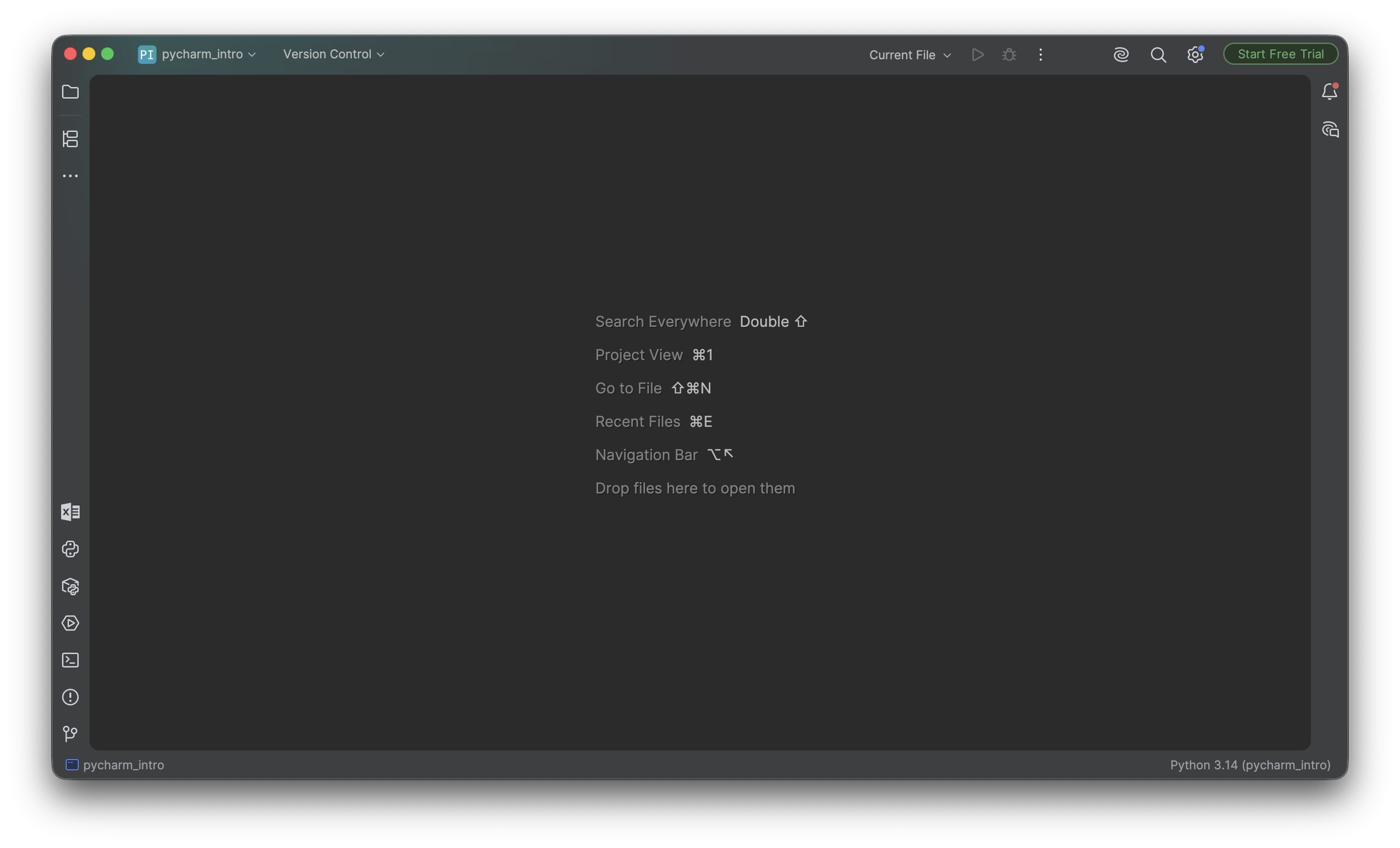
Click 'Project' in the top left or use the Command + 1 shortcut to open the file explorer, and double click intro.py on open intro.py to pull up the editor:
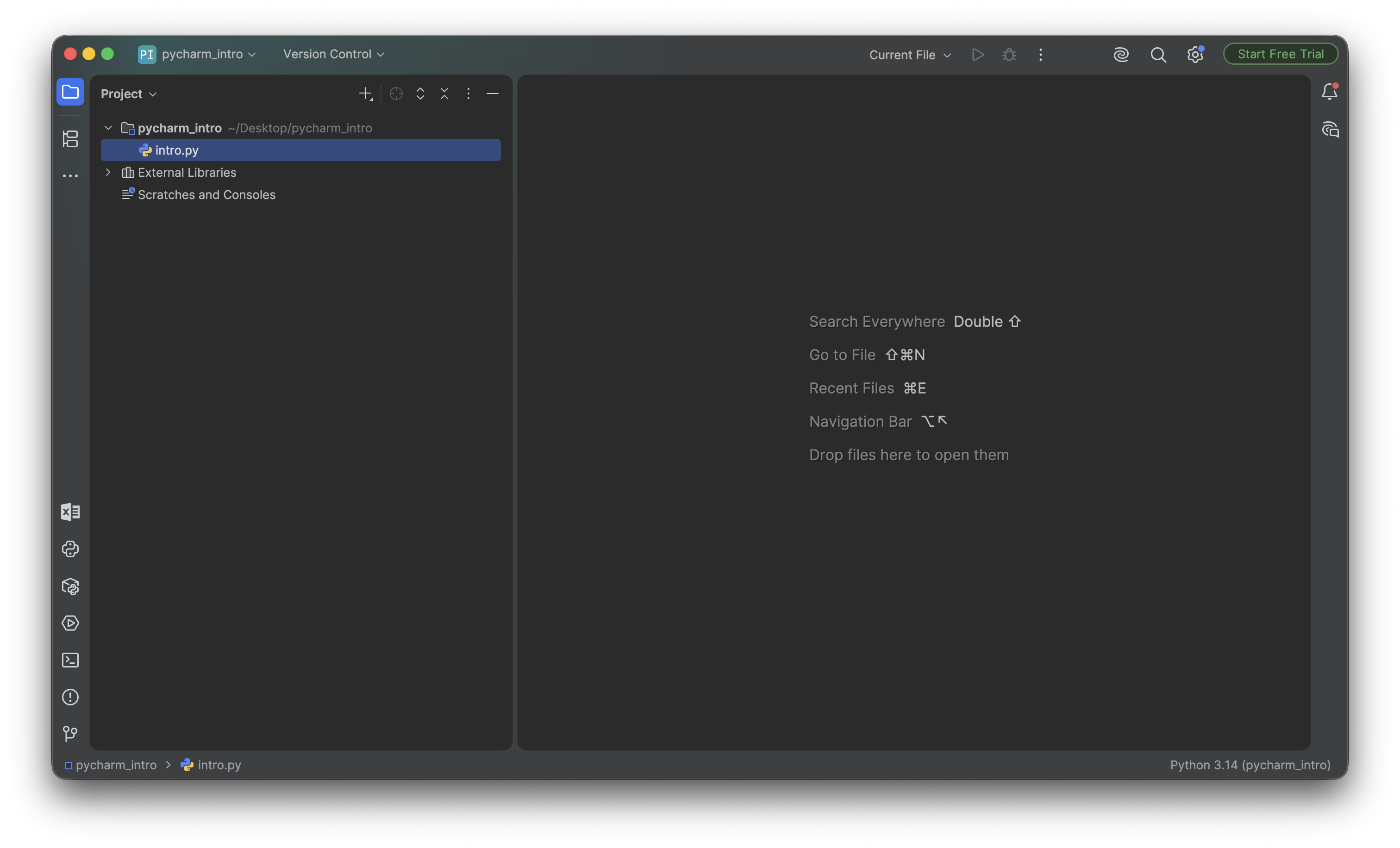
You aren't required to read or understand this code (although you will be able to by the end of the quarter!) but note that this editor is where you'll be writing all your code this quarter. Now, to run your program, click 'Terminal' in the bottom left corner, which will pull up a new terminal pane in your PyCharm window:
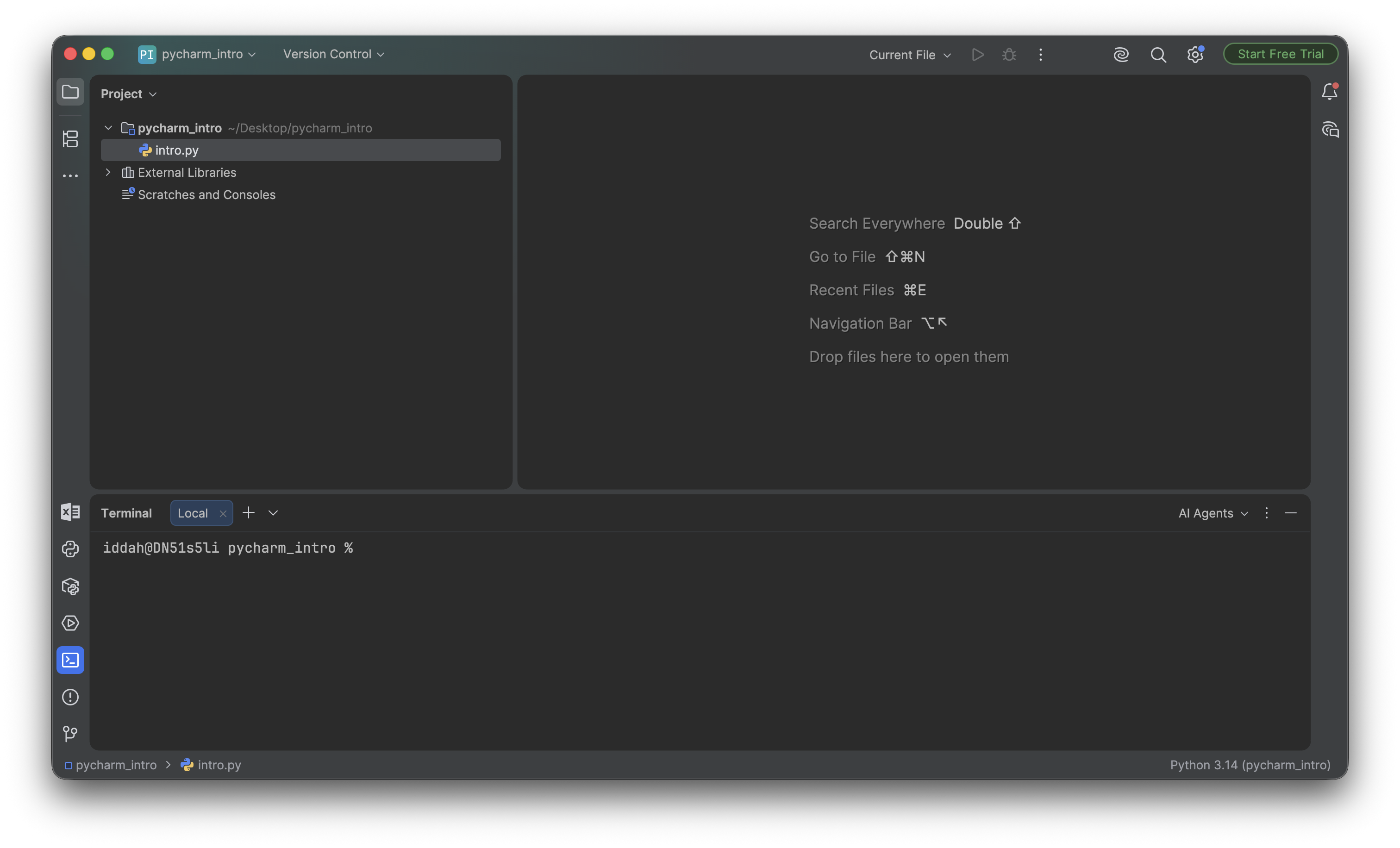
We'll talk more about the terminal later in the quarter, but for now, know that the terminal is how you'll be running your Python programs throughout the quarter. To run your first Python program, type this into the terminal and press enter:
python3 intro.py
You should see output that looks like this:
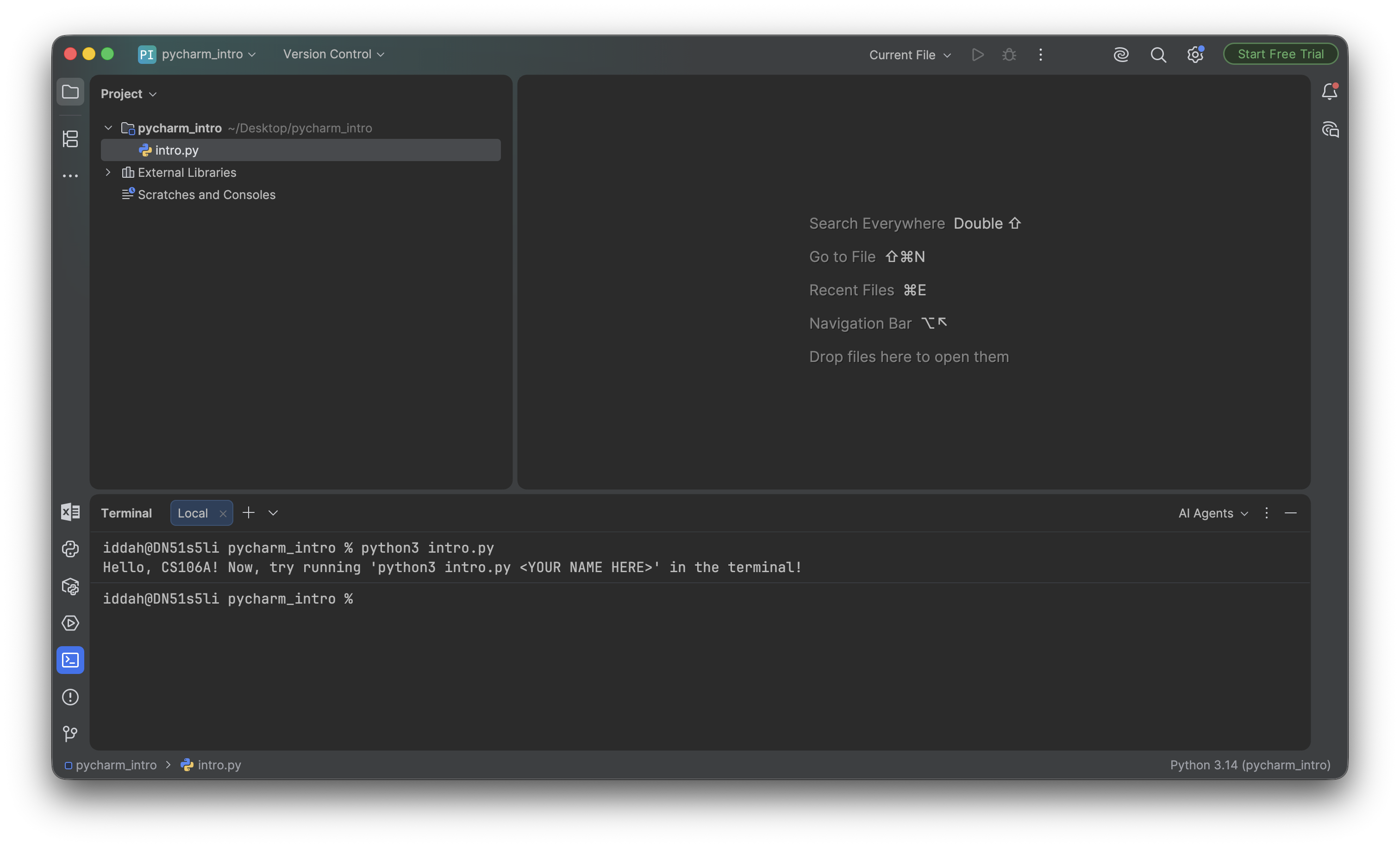
Now, type the following command into the terminal:
python3 intro.py < YOUR NAME HERE >
For example, if your name is Iddah, you'd type python3 intro.py Iddah. You can type your full name if you'd prefer. You should now see output like this:
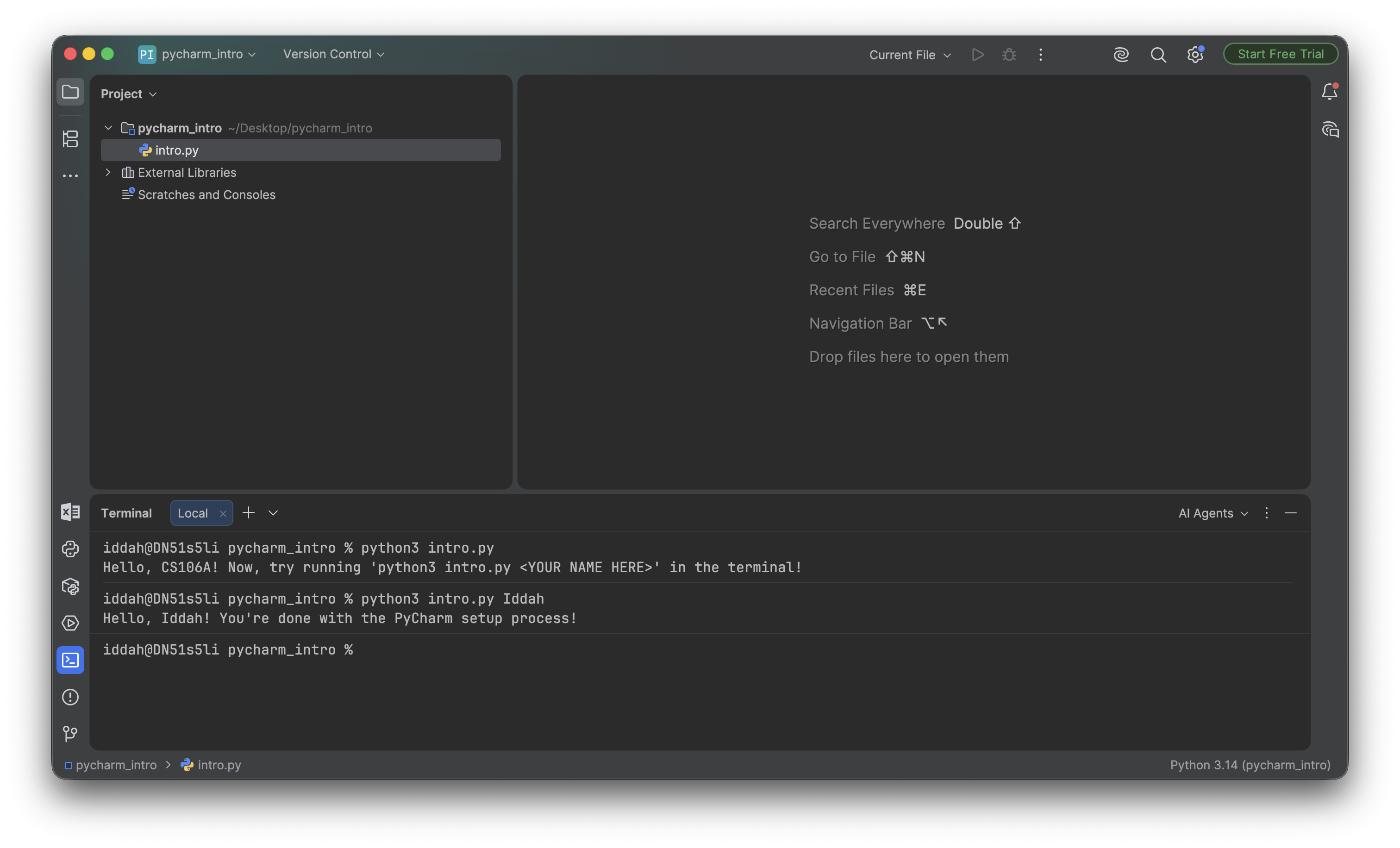
Congratulations! You're now done with the PyCharm setup process.
Configuring PyCharm
PyCharm comes pre-configured with several AI features that you should disable.
- In PyCharm settings:
- Editor -> General -> Code Completion -> Popup -> Disable show suggestions as you type
- Editor -> General -> Code Completion -> Inline -> Disable inline code completion using language models
- Click the 3 dots in the terminal portion of the application
- Unselect "show AI Agents"
- Again in settings: search for and turn off "Show intention bulb"
- Again in settings: search for and turn off all options under "Inlay Hints"
- Again in settings: search for and turn off "Insert documentation comment stub"
- Some folks have seen a "free trial" of PyCharm pro already activated in the top-right corner of the application page. To deactivate that, click the "free trial" button, scroll all the way to the bottom of the page and deactivate the subscription. Then you should see "start free trial" in the top-right corner.