
PC-Leland
User Guide
About
PC-Leland
Configuring
Email
Eudora
Email
Netscape Email
Outlook
Email
Eudora (for IMAP)
Netscape (for IMAP)
Outlook (for IMAP)
Using PC-Leland with Netscape Communicator
Please note: Netscape is no longer supported by the Stanford IT Help Desk.
You will need to configure Netscape Communicator to use “localhost” for its incoming POP mail server. You should also check to be sure PC-Leland is configured correctly.
Step 1: Check PC-Leland's POP email settings.
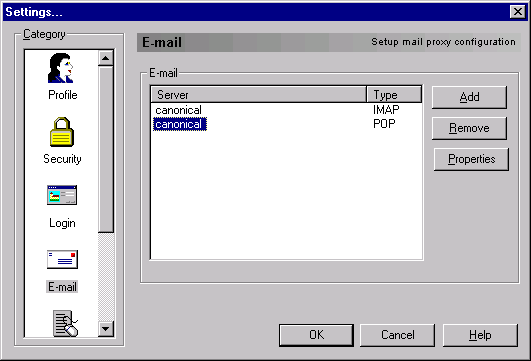
a) In the PC-Leland Settings dialog box (right-click the PC-Leland icon and select Settings...) select Email from the settings options in the left pane.
b) Select canonical POP from the Email list and click the Properties button.
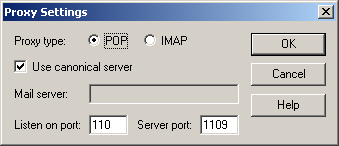
c) The correct settings for Leland POP Email Services are as follows:
- Proxy type: POP
- Use Canonical Server: On (checked)
- Listen on port: 110
- Server port: 1109
If you use a kerberized POP server other than Leland Email Services, the settings are as follows:
- Proxy type: POP
- Use Canonical Server: Off (unchecked)
- Mail server: server name (enter the name of the POP server where you receive your mail)
- Listen on port: 110
- Server port: 1109 (make sure this is the port number your POP server is actually listening on)
Step 2: Change the Incoming Mail Server in Netscape to localhost. Below are specific instructions for configuring Netscape Communicator 4.7.
How to configure Netscape Communicator 4.7 for use with PC-Leland
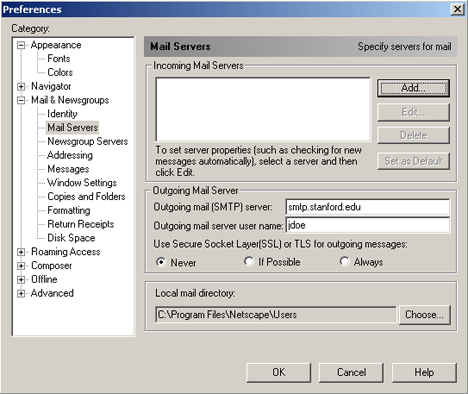
a) Select Preferences from the Edit menu. Then, under Category, select Mail Servers from Mail & Newsgroups.
b) Under the Outgoing Mail Server section, enter the following:
- Outgoing mail server: smtp.stanford.edu
- Use SSL or TLS for outgoing messages: Never
c) Under the Incoming Mail Servers section, click the Add button. Note: Be sure to remove your old email account if you already had one set up in Netscape.
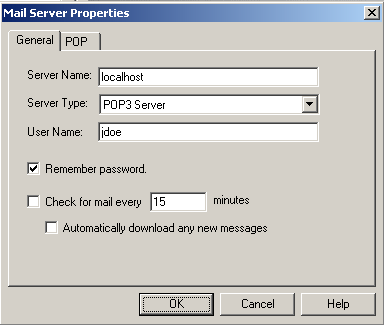
d) In the Mail Server Properties dialog box, select the General tab and enter the values shown below. Click OK when you are finished.
- Server Name: localhost
- Server Type: POP3 Server
- User Name: your SUNet ID
- Remember password: On (checked) (This will keep Netscape from popping up its own password dialog box each time you open the program).
e) Then, click OK in the Preferences dialog box. Be sure to remove your old email account if you already had one set up in Netscape.
f) For the changes to take effect, close down Netscape and re-open it.
Retrieving email in Netscape:
- select Messenger from the Communicator menu
- from the Inbox screen, click the Get Mail button
- type "Stanford" in Netscape's Password Entry dialog box that is presented. DO NOT type your real password in this box because it will be stored on your computer.
- if you are not already logged into PC-Leland, type your SUNet ID password in the PC-Leland login box when it is presented and click OK.
All rights reserved.